Learn how to effectively manage content with a CMS in 2026. This guide covers the best practices and platforms for beginners and marketers.
A Beginner’s Guide to Using a CMS
How to Use CMS for Beginners
A CMS simplifies the way you create, manage, and publish your content—if you treat it like a system, not just a page editor. The fastest wins usually come from two moves: (1) choosing a platform that fits your actual situation, and (2) setting up content types/collections the right way so you’re not duplicating work later.
Here’s a step-by-step approach, with the real-world stuff people skip the first time:
-
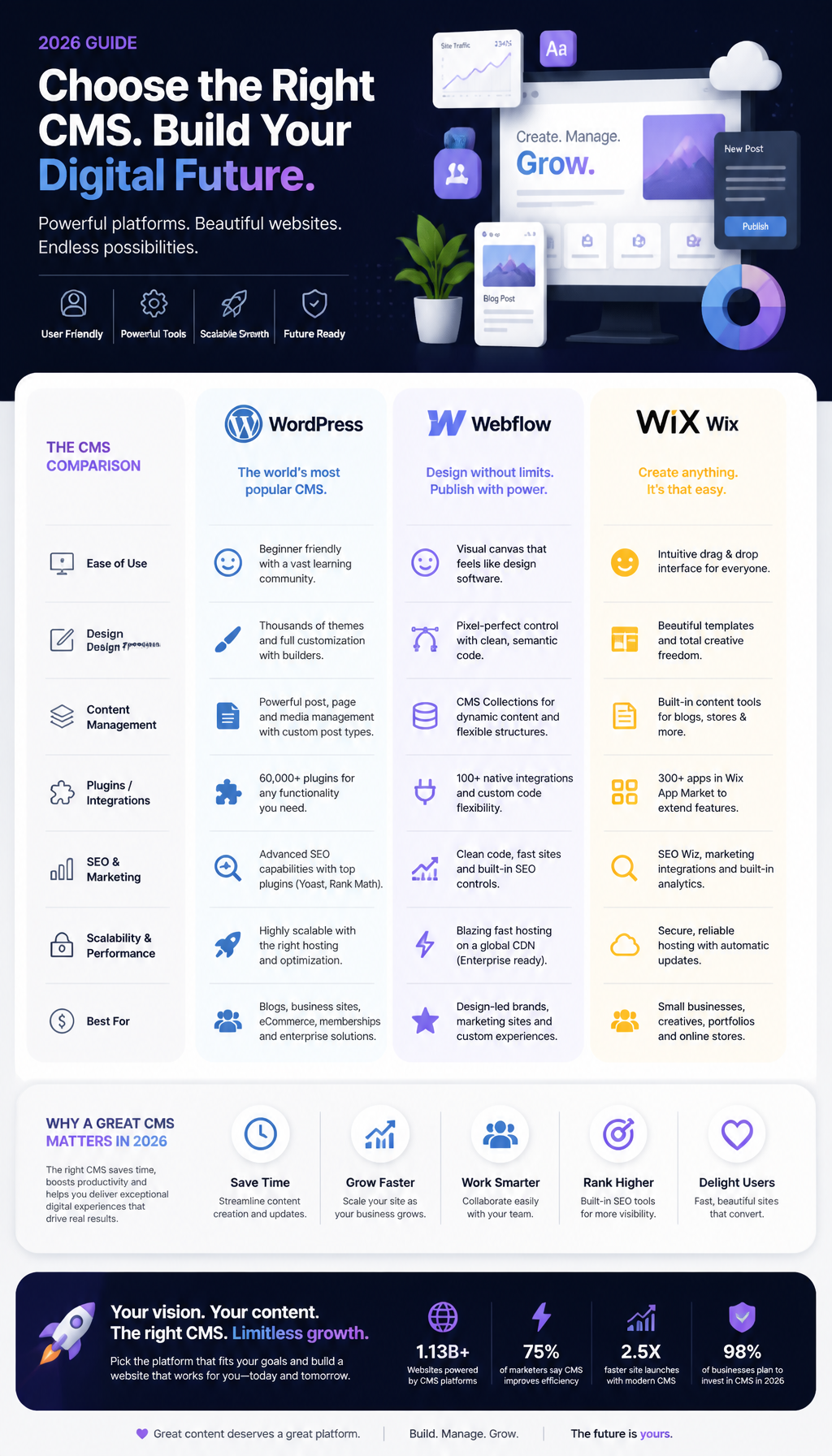
Choose the Right CMS: Picking the right CMS is crucial. Platforms like Webflow are known for their user-friendly interface and design capabilities, making them a favorite for beginners. But be honest about your constraints. If you need a quick marketing site that looks custom, Webflow can be great. If you’re mostly blogging and you want infinite flexibility later, WordPress can be the safer long-term bet. If you need “I can’t break this” simplicity, Wix usually keeps you inside the guardrails.
-
Set Up Your Account: Register on your chosen CMS platform. During setup, you’ll usually select your website template which will serve as the foundation of your site. Don’t treat this like a permanent decision, though. Templates are scaffolding. Pick one that matches your information layout (blog + categories, services + locations, products + filters), not the one with the fanciest animations.
-
Create Content Collections: Collections are where you store your content. For example, in Webflow, you can create a collection for blog posts or products. Before you click “create,” slow down and list the fields you actually need. A basic blog post might include: title, slug, publish date, author, hero image, summary, category, and body. If you skip summary because “I’ll just write it later,” you’ll end up with ugly archive pages or inconsistent cards.
-
Add Content: Start populating your collections with data, images, and text. Most CMSs allow bulk uploads, which can save you time. If you’re importing, clean your CSV first—remove weird quotes, double spaces, and inconsistent date formats. Otherwise, you’ll spend more time fixing the import than you would’ve spent copy/pasting manually.
-
Customize Your Site Design: Use the CMS design tools to adjust the look and feel of your site. This includes layout adjustments, colors, and typography, which can often be done through a drag-and-drop interface. Here’s the trick: design the “template” once, then let the collection populate it. Beginners often style each page as if it’s a one-off. That works until you publish your 18th blog post and realize none of them match.
-
Publish and Test: Once you’re satisfied with your content and design, hit publish! Always test your site on different devices to ensure it appears correctly. Check the stuff that breaks in the real world: long headlines, tall phone screens, slow connections, and dark mode (where relevant). Also, click every navigation item and every form. It’s boring, but it’s cheaper than publishing broken contact forms for a week.
A quick example I’ve seen more times than I can count: someone launches a blog with “just titles and body text,” then later wants email capture cards, author boxes, and a “related posts” grid. If you didn’t plan your fields, you’re either backfilling 60 posts by hand or rewriting the templates to support missing data. So, even as a beginner, model your content like Future You is going to ask for upgrades.
How to Use CMS in Wix
If you decide to use Wix, here are specific steps to manage your content effectively. Wix can be a lifesaver when you want speed and you don’t want to worry about servers, updates, or plugin drama. The tradeoff is you have to respect how Wix wants you to build.
-
Access the Wix Editor: Log in to your Wix account and choose the site you want to edit. If you’re working with a team, set up roles early. Otherwise, you’ll end up with everyone editing the same page and no one knowing what changed.
-
Navigate to the CMS: Click on the CMS tool on the left sidebar. This is where all your content collections are managed. Think of this as your database, not a folder of pages.
-
Create a Collection: Click on “Create New Collection.” You can set fields for the items you want to manage (like title, description, and images). Use consistent field names. “Short description” and “Summary” might sound interchangeable, but if you create both, people will fill both (differently), and your layouts will look random.
-
Add Items: Use the “Add Items” button to input your data. This can be done individually or in bulk for efficiency. When you add items, establish a rule for images—same aspect ratio, same style. In practice, I push teams toward a simple standard (like 1200×630 for social/hero, square for avatars) because mixed sizes are what make grid layouts look cheap.
-
Connect to Dynamic Pages: Link your collection to dynamic pages. This means that each entry will automatically populate the specified fields on your site’s pages. The common mistake: people connect fields, then they hard-code a headline or image “just for now” on one item. Later, they wonder why a specific page refuses to update. If it should be dynamic, keep it dynamic.
-
Preview and Publish: Always preview before publication to check for formatting issues. Preview your dynamic pages with multiple items: the shortest title, the longest title, the item with no image (if allowed), and the one with a long paragraph. That’s how you catch layout edge cases before your visitors do.
A mini story: I once helped a local services business that used Wix for location pages. They had 14 cities, and each page was manually edited, so every price list and testimonial section drifted over time. We moved the locations into a collection (city name, phone, map embed, service list, testimonials). After that, updates took minutes—edit the collection item once, republish, done. The site instantly felt more “maintained,” because it actually was.
Webflow CMS
Webflow stands out for its flexibility and design capabilities. It’s excellent when you care about design systems and you want CMS-driven pages to look as polished as your landing pages.
-
Create a New Site: Start by creating a new project in Webflow. If you’re starting from a template, audit it before you commit. Some templates look great but ship with messy class names and brittle interactions.
-
Add a CMS Collection: Go to the “CMS” tab and select “New Collection.” Define the fields you need, just like in Wix. This is where you win or lose later. If you’re building “Case Studies,” for example, include fields like industry, services used, results metrics, logo, and a featured flag. Don’t cram everything into a rich text field because it feels faster today.
-
Design Your Template Page: This will be the layout for each item in the collection. Drag elements like text and images from the left panel to create your page structure. Build the template to handle ugly content gracefully. Not every author writes tidy paragraphs. Someone will paste a giant sentence, or upload a too-dark hero image, so give the design some tolerance.
-
Fill Your Collection: Add content to your collection directly or import it from CSV. If you import from CSV, do a small test import first (like 3 items). It’s a pain, but it prevents the “I just imported 200 rows with broken slugs” headache.
-
Customize Items: Each item can have unique styles or settings, allowing for high customization. Use that power carefully. I’ve seen teams over-customize until the site becomes un-editable: each item has its own quirky layout rules, and suddenly nobody knows how to add a new post without breaking something.
-
Publish and Test: Once you’re happy, publish your site and do thorough testing on various browsers to ensure consistent performance across the board. Check Safari if you’re using any fancy scroll effects. Also, watch load time—heavy interactions and giant images can make a beautiful page feel sluggish.
One workflow that actually works: write your content in a doc, but structure it to match your fields (title, summary, bullets, etc.). Then paste into the CMS fields. When people paste a whole article into one rich text field and call it done, they usually regret it—because cards, archives, and SEO snippets all need structured pieces.
How to Use CMS on YouTube
YouTube is also a type of CMS, especially for video content. Treat it like a library with metadata. The content is the video, but the system runs on titles, thumbnails, descriptions, playlists, and consistency.
-
Set Up Your Channel: Create a branded channel to organize your videos. Nail the basics first: channel description, links, and a banner that doesn’t crop weirdly on mobile.
-
Use Playlists: Organize videos into playlists for better navigation. Playlists are also a sneaky way to improve session time because they encourage the next click.
-
Optimize Video Descriptions: Use the description box to add keywords, links, and additional information. Put the most important link in the first two lines because that’s what shows before the “Show more” fold.
-
Engage with Your Audience: Regularly respond to comments and encourage engagement to grow your audience base. If you can only do one thing, reply during the first hour after publishing. Early engagement tends to compound.
-
Analyze with YouTube Studio: Use analytics to track performance and see what content resonates with viewers. Watch for “audience retention” drop-offs. If everyone bails at 0:20, your intro is too long—or your title promised something you didn’t deliver.
Common mistake: creators treat YouTube like a dumping ground. Random titles, no playlists, and descriptions that say basically nothing. That’s like running a blog with no categories and no internal links. A little structure goes a long way.
Understanding CMS: Definitions and Common Questions
A lot of CMS confusion comes from the fact that “CMS” can mean both a website platform and an organizational concept. People ask, “Which CMS should I use?” but what they really mean is, “How do I stop content from turning into chaos?” So let’s make the definitions concrete, then connect them to how you’ll actually work.
What is CMS?
A CMS, or Content Management System, is software that enables users to create, manage, and modify content on a website without the need for specialized technical knowledge. Most popular CMS platforms include WordPress, Wix, and Webflow, each offering unique features tailored to different user needs.
Here’s the part most definitions skip: a CMS isn’t just “where you write.” It’s where content lives with rules. Those rules usually include:
- Structure: Fields like title, author, category, product price, location hours.
- Workflow: Draft → review → publish (sometimes with approvals).
- Permissions: Who can edit what, and who can publish.
- Reusability: One change updates everywhere that content is used.
A real example from a content manager persona: say you manage a university department site. You don’t just post articles. You have faculty bios, office hours, course pages, events, and announcements. Without a CMS, every update becomes “find all the places this appears and edit each page.” With a CMS, you update Professor Kim’s office hours once, and the faculty directory, the bio page, and the course page all reflect it.
Step-by-step, this is how I’d explain CMS value to a beginner who’s overwhelmed:
- List your repeatable things. Blog posts, products, team members, locations, events.
- Turn each repeatable thing into a content type/collection. One per “thing.”
- Define the fields you’ll always need. For an event: date, start time, end time, venue, ticket link, description.
- Design templates once. An event page template, an event card template, an event listing page.
- Publish by adding items, not by rebuilding layouts. That’s the whole game.
Common mistakes I keep seeing (and fixing later):
- Everything in one rich text blob. It feels flexible, but it kills reuse.
- No naming conventions. Fields called “Image1,” “Image2,” or “Text” become a mess when someone new joins.
- No governance. If everyone can publish anything, you’ll eventually ship typos, broken layouts, or outdated info.
What are Examples of CMS?
Some well-known examples of CMS include:
– WordPress: Ideal for blogs and content-heavy sites, renowned for its extensibility.
– Wix: User-friendly with a drag-and-drop builder, perfect for beginners.
– Webflow: Focuses on design flexibility and is favored by designers and agencies.
– Shopify: Tailored for e-commerce stores.
– Joomla: Offers more complexity and flexibility for developers.
The practical difference isn’t “which is best,” it’s what kind of pain you want.
- WordPress pain: too many plugins, update hygiene, and decision overload. That said, it’s still my go-to when you need content depth and you want to own your platform.
- Wix pain: you can hit platform limits if you want very custom behavior later. But for many small businesses, those limits are a feature because they prevent chaos.
- Webflow pain: content modeling and class systems have a learning curve. Also, designers can overbuild.
- Shopify pain: you’ll probably pay for apps, and some changes require theme work. Still, it’s hard to beat for commerce.
- Joomla pain: steeper learning curve for non-technical editors, but it can be solid in the right hands.
If you’re choosing, do a tiny “pilot” first: build one collection, one template, and one listing page. If that feels miserable, it won’t magically feel better when the site is bigger.
What is CMS in Healthcare?
In the healthcare sector, CMS refers to the Centers for Medicare & Medicaid Services. They provide guidelines and frameworks for managing healthcare data efficiently. Understanding how to use CMS tools in healthcare can significantly enhance patient care management and compliance with regulations. For more information about CMS’s role in healthcare, check out this guide by Circle Care.
This is where acronyms mess people up. I’ve had marketers tell me, “We need to update our CMS compliance,” when they meant the healthcare CMS (the agency), not a website platform. So, if you work in healthcare marketing or operations, clarify the context early in meetings.
A practical scenario: you run a clinic site and a patient education hub. You might use WordPress (or another website CMS) to publish articles, while your compliance team references CMS (Centers for Medicare & Medicaid Services) rules for billing, quality reporting, or operational policies. Those are related in the sense that you’re communicating regulated information, but they are not the same system.
Common mistake: posting policy-related content without a review workflow. Even if your web CMS makes publishing easy, you still need approvals—because the risk isn’t “a typo,” it’s misinformation. So, build a simple process: draft → clinical review → compliance review → publish. It’s slower, but it’s safer.
FAQs
What is CMS and how to use it?
A Content Management System (CMS) is a software application for creating and managing digital content. You can use it by setting up a website, adding content, and managing updates through the platform’s interface.
If you want a no-drama way to start, follow this order:
- Pick one content type first (usually blog posts, products, or services).
- Create 6–10 real items so you can see patterns and edge cases.
- Build your listing page (blog index, product grid) and test it with long/short content.
- Create your template page (the page each item generates).
- Only then start polishing design details.
People do this backward all the time—they perfect the homepage and then realize they have no structure for the other 90% of the site.
Is a CMS system easy to learn?
Yes, most CMS platforms are designed to be user-friendly with various resources available for beginners.
That said, “easy” depends on what you mean by learn. Learning how to click around an editor is quick. Learning how to model content and keep things consistent is the real skill.
A beginner-friendly way to think about it: if you can fill out a form, you can use a CMS. If you can design a spreadsheet with clean columns, you can design collections/fields. The part that takes time is developing judgment—like when to create a new field vs. when to keep content in a rich text block.
Is a CMS easy to use?
Yes, CMS platforms typically feature intuitive interfaces that simplify the processes of content creation and management.
They’re easy right up until you have multiple authors, multiple pages, and a deadline.
If you want it to stay easy, bake in a few habits:
- Use templates, not one-off pages.
- Name fields clearly (“Hero image,” “Summary,” “CTA button URL”).
- Set rules for images (sizes, cropping, style).
- Document your publishing checklist (mobile check, links check, SEO title, preview).
That little bit of process is what keeps “easy” from turning into “fragile.”
What is an CMS example?
Some popular CMS examples include WordPress, Wix, and Webflow.
If you want a quick shortcut for choosing among those three, here’s my blunt take:
- Choose Wix if you need a solid site fast and you don’t want to tinker.
- Choose Webflow if design quality matters and you’re willing to think in systems.
- Choose WordPress if you want maximum extensibility and you’re okay owning more maintenance.
Whatever you pick, don’t judge it on Day 1. Judge it after you’ve published 20 pieces of content and had someone else on your team edit them.