Category: How to Guide

  • How to start a podcast: A step-by-step beginner’s guide

    How to start a podcast: A step-by-step beginner’s guide

    Learn how to start a podcast with simple steps for choosing a topic, recording, hosting, promoting, and growing your show. Start today!

    A complete guide on how to start a podcast

    If you’re learning how to start a podcast, skip the “perfect setup” fantasy. You don’t need a studio, a team, or a radio voice—you need a listener promise you can deliver on, and a workflow you’ll still follow when you’re busy.

    A solid beginner benchmark is simply shipping. When your first episode answers one narrow question well, you’ve made something real—something you can improve instead of endlessly planning.

    Buzzsprout’s own guide says it has helped over 400,000 podcasters get started (Buzzsprout’s step-by-step guide). I read that as motivation, not a scoreboard. Your goal is to build a process you can repeat.

    Final outcome: you will have a clear plan to start and run your podcast. You will know what to record, which tools to use, and how to publish without overspending.

    Start with a small, realistic podcast plan

    This guide is for a beginner, so keep the planning tight. Give yourself 20–30 minutes to decide the essentials below, then book separate time for recording and editing—those take longer when you’re new.

    The mindset I’d push on day one: make one strong episode before you “upgrade.” It’s tempting to overbuild because buying gear feels productive, but a show about local history, beginner fitness, or freelance design succeeds (or fails) on clarity and consistency first.

    For how to start a podcast for beginners, I focus on three early measures: did you finish an episode, did listeners understand the value quickly, and can you repeat the workflow next week without dreading it?

    A practical trick: write a one-sentence promise you can actually keep. If your promise needs three commas and a bunch of exceptions, narrow it until it reads clean.

    Prepare before you record anything

    Before you hit record, lock in a working title, pick one audience, and draft three episode ideas you can realistically produce. Then decide your shape: solo, interview-based, or co-hosted.

    On the operations side, you need a quiet space, a recording device, headphones, and enough storage for audio files. A phone works for testing the concept, but a USB microphone usually makes placement easier and helps you control the sound.

    Don’t buy expensive podcast equipment yet. First prove your topic, schedule, and format fit your available time—because time is the thing beginners run out of.

    One small but high-impact prep step: outline your intro and your ending. If you know how you’ll start and how you’ll wrap, you’ll ramble less, and editing gets way faster.

    Choose podcast equipment that solves real problems

    Start simple: a USB microphone, closed-back headphones, a stable stand, and a quiet room. The room matters more than a long shopping list, since hard walls create echo that software can’t fully remove.

    Audacity is a sensible free starting point. A University of Utah guide describes using the free software to edit recorded podcast audio, improve listenability, remove noise, and export MP3 or WAV files (the University of Utah Audacity guide).

    Use a boring test that works: record thirty seconds, listen through headphones, and check for hum, echo, and clipped speech. If it’s clear, stop shopping. Your next improvement should come from better mic placement and a quieter room, not an expensive upgrade.

    A common beginner mistake is talking past the mic. Keep a consistent distance, and don’t swivel your head mid-sentence—otherwise the volume will jump around and you’ll chase it in editing.

    Tools worth knowing

    • Audacity: Free editing software for trimming mistakes and balancing a basic episode.
    • Buzzsprout: A beginner-friendly host for publishing, promotion, and tracking; its feature page says it provides tools to host, promote, and track a podcast (Buzzsprout’s hosting and tracking features).
    • Libsyn: A hosting option to compare when distribution needs matter. Its documentation explains that podcast distribution uses an RSS feed and targets major directories (Libsyn’s distribution explanation).

    Avoid the mistakes that stop beginners

    The first mistake is buying gear before you validate the idea. A costly microphone can’t rescue a vague topic, a soft episode plan, or a schedule you can’t maintain.

    The second is treating promotion like something you’ll “figure out later.” Have a short description, cover image, launch message, and direct listening links ready before you publish. Also, don’t blast the same salesy line everywhere—give people a reason to care about this episode.

    The last big one: editing like you’re polishing a movie. Remove long pauses, repeated sections, and distracting noise, then stop. Over-editing can make a beginner show sound stiff, while clear speech and a simple structure do most of the heavy lifting.

    Here’s a quick self-check: if you’re spending most of your editing time deleting tiny mouth sounds, you’re probably avoiding the real fix—tighter outlining and cleaner recording.

    Check your podcast before sharing it

    Listen to the exported episode from start to finish on headphones and a phone speaker. You’re hunting for uneven volume, background noise, abrupt cuts, missing music credits, and any private detail you meant to remove.

    Then test every promo link like a stranger would. Open your Spotify link, YouTube link, host page, and social profile from a device where you aren’t already logged in. Current podcast data reports that one in three people in the United States listens on YouTube, so it’s a platform worth taking seriously (current podcast platform statistics).

    If the show is audio-first, publish the audio feed first. If you plan video, decide whether your host supports that workflow or whether YouTube needs a separate upload. A clean path matters more than being everywhere on day one.

    One more thing I always do: re-check the episode title and description for plain language. If a new listener can’t tell what they’ll get, they won’t press play.

    Adapt the format to your podcast idea

    Pick a format that matches your time and your personality, because that’s what you’ll live with.

    A solo show gives you control and keeps scheduling simple. Interviews add variety, but guest research, recording coordination, and consent take real effort. A co-hosted show creates natural conversation, yet both hosts need a shared outline and a backup plan for missed weeks.

    For example, a beginner teaching spreadsheet skills might stick to short solo episodes with one task per episode. Meanwhile, a local business interview show can run on a repeatable structure: origin, problem, lesson, next step.

    Monetization should fit the audience and the stage you’re in. If you’re wondering how to start a podcast and make money, start with trust—useful recommendations, listener support, relevant sponsorships, or a product that genuinely solves the listener’s problem. A realistic approach: treat monetization like a phase-two project. If you can’t describe who the show is for and what problem it solves, ads and sponsors won’t fix that.

    Questions beginners ask about starting a podcast

    How much does it cost to start a podcast?

    Starting a podcast can cost anywhere from $0 to hundreds of dollars depending on equipment and hosting choices. You can begin with what you already own, then spend only when a real limitation shows up—like noisy recordings or not enough storage.

    Do podcasters make money?

    Yes, podcasters can earn income through sponsorships, listener donations, and merchandise. Revenue usually follows a clear audience need, so build useful episodes first, then pick a payment model that makes sense for your topic.

    Can a normal person start a podcast?

    Absolutely! Anyone with a passion for a topic and basic recording equipment can start a podcast. A narrow subject and a reliable publishing habit matter more than a polished studio.

    What not to do when starting a podcast?

    Avoid poor audio quality, inconsistent posting schedules, and ignoring audience engagement. Also, don’t buy too much gear before you know what your format actually demands.

    Next steps to successfully start your podcast

    Choose one audience and one clear topic. Then pick a format, outline three episodes, test your basic equipment, and record the first one.

    Edit for clarity, not perfection. Choose a host that gives you a usable RSS feed, confirm your Spotify and YouTube plan, and test every link before launch.

    Do the smallest high-leverage task next: write your show promise and three episode titles today. Once those exist, the rest of how to start a podcast becomes a chain of manageable decisions.
    its 2026 industry overview
    the podcast case study

  • How to Choose the Right Running Shoes in 2026

    How to Choose the Right Running Shoes in 2026

    Learn how to select the best running shoes for your individual needs in 2026 with this comprehensive guide.

    Best Online Running Shoe Options

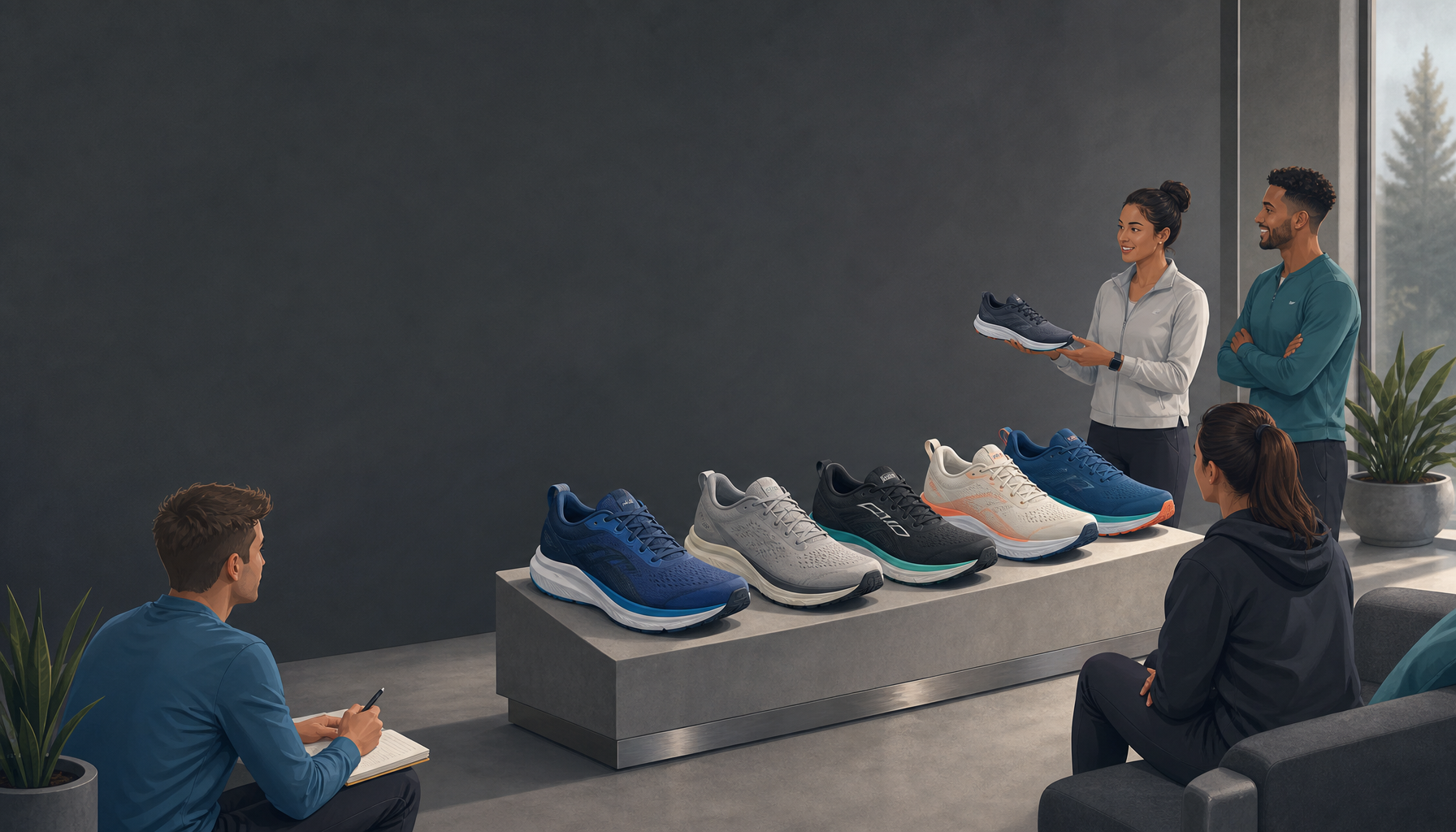
    Buying running shoes online in 2026 is totally workable—if you treat it like a fitting process, not a one-click gamble. The best stores make sizing and returns painless, and they give you enough detail (stack height, drop, use case) to avoid buying the wrong tool for the job.

    Fleet Feet Running Shoes

    Fleet Feet earns its reputation because they push you toward fit, not just whatever’s trending. That matters, especially if you’re between sizes or you’ve got a wide forefoot with a narrow heel (a combo that makes a lot of shoes feel “fine” in the store and awful on mile 3).

    Here’s how I’d use Fleet Feet if I were buying blind:
    1. Start with your current shoe model (even if you hate it) and note what’s wrong—heel slip, toe bang, arch pressure, calf tightness.
    2. Pick a category first (daily trainer vs stability vs max cushion), then filter models.
    3. Use their fitting guidance to sanity-check width and support.
    4. Order two sizes if you’re unsure, because a half-size can be the difference between “perfect” and black toenails.

    A real example: a buddy of mine kept buying neutral trainers because they “felt fast.” Meanwhile, his ankles collapsed inward late in runs, and he’d shred the inside heel lining in a month. Switching to a mild stability shoe fixed both issues—and his shoes stopped dying early. That’s not magic tech; that’s fit and support matching the runner.

    Running Warehouse

    Running Warehouse is my pick when you already know roughly what you want and you care about selection. They usually carry a deep run of sizes, widths, and older colorways, so you can replace a shoe you loved without playing the “new version roulette.”

    What makes them useful in practice:
    – Competitive pricing (often the best on last-season models).
    – Fast shipping so you’re not stuck tapering in worn-out shoes.
    – Free returns on a lot of orders, which is huge because you can’t truly judge shoes from standing in your kitchen.

    One tip that saves money: if you find a shoe that works, grab a second pair when it goes on sale. I’ve watched runners panic-buy a replacement a week before a race, then show up with blisters because the new model fits different.

    Top 5 Best Running Shoes in 2026

    This list is a solid starting point, but treat it like a menu—not a prescription. “Best” depends on whether you’re doing easy miles, tempo work, long runs, or you need stability.

    1. Nike Air Zoom Pegasus – A versatile shoe known for its comfort and responsiveness.
    2. Brooks Ghost 18 – Ideal for neutral runners looking for cushioning and support.
    3. Hoka Bondi 8 – Renowned for its maximum cushioning, perfect for long-distance runs.
    4. Saucony Endorphin Speed 3 – A great option for speed workouts and racing, offering a lightweight feel.
    5. Asics Gel-Kayano 29 – An excellent choice for stability and support, designed for overpronators.

    How I’d actually choose from these five:
    – Pegasus vs Ghost 18: pick based on fit and ride. If one gives you heel slip, it’s a no.
    – Bondi 8: great when you want cushion and a forgiving ride, but it can feel bulky for speed.
    – Endorphin Speed 3: fun for workouts, although some runners feel it’s a little unstable when tired.
    – Gel-Kayano 29: a safer bet if you know you overpronate or you always wear through the inside edge.

    You can find these options on any of the mentioned platforms, which offer detailed specifications to help you make the best choice.

    How to Shop for Running Shoes Online

    Online shoe shopping goes well when you control the variables. Fit, return logistics, and a quick at-home test routine beat guessing off influencer picks.

    Know Your Size

    Start with measurements, but don’t stop there, because running shoe sizing is messy across brands.

    Use this simple routine:
    1. Measure both feet in the evening (they swell during the day).
    2. Stand while measuring—weight-bearing changes length and width.
    3. Check the brand’s sizing chart on the retailer site.
    4. Plan for toe room: most runners want roughly a thumbnail’s width in front of the big toe.

    Common mistake: people size their running shoes like dress shoes. Then they wonder why their toes go numb on longer runs. If you run hills or long distances, being a touch generous on length can save your toenails.

    Research and Read Reviews

    Reviews are useful when you read them for patterns, not praise.

    What I scan for:
    – Fit notes (runs narrow, shallow toe box, heel collar rubs).
    – Ride feel (firm vs soft, stable vs wobbly).
    – Use case clarity (daily miles vs speed vs recovery).

    And yes, expert write-ups help narrow the field. Runner’s World does a lot of comparisons, which can point you toward a short list before you start ordering boxes (Runner’s World).

    One quick sanity-check: if reviewers say “great shoe, but unstable,” and you already know you get ankle fatigue late in runs, that’s a red flag. Don’t assume you’ll “adapt.” Sometimes you do, but often you just get injured.

    Utilize Return Policies

    Return policies are your safety net, so use them on purpose.

    Here’s the at-home test I recommend before you decide:
    1. Try the shoes on with your running socks (the thick ones you actually wear).
    2. Lace them like you’ll run—not loose “store laces.”
    3. Walk stairs and do a few calf raises to check heel slip.
    4. Do a short jog indoors (if the retailer requires unworn soles).

    What you’re looking for is immediate deal-breakers: pressure on the top of the foot, arch stabbing, heel movement, or toes brushing the front. Those rarely improve.

    Another common mistake: people keep shoes because they’re expensive. Price doesn’t heal blisters. If the return window is open, be ruthless.

    Check the Discounts

    Discount hunting is fine, but don’t let a deal talk you into a bad match.

    The smarter play:
    – Buy last season’s version of a shoe you know works.
    – Watch holiday sales and end-of-season clearances.
    – Don’t stockpile experimental models just because they’re 40% off.

    Fleet Feet and Running Warehouse both run promotions, so it’s worth checking before checkout. Still, the “best bargain” is the shoe you can run in comfortably for months.

    Final Thoughts

    Choosing the right running shoes is a personal process, but it shouldn’t be mysterious. Match the shoe to your foot and your training first, then worry about brand and colorways.

    If you only do one thing after reading this, do this: pick one reliable daily trainer, nail the sizing, and stop rotating through random pairs hoping one fixes everything. Once you’ve got that baseline, trying a faster shoe or a max-cushion option gets a lot easier.

    FAQ Section

    • Q: What is the best online store to buy running shoes?
      A: Fleet Feet and Running Warehouse are my two safest recommendations because they’re runner-focused and usually make returns straightforward. Zappos is also solid for general shoe buying, but it’s not always as detailed on run-specific specs.

    Quick way to decide: if you don’t know what you need, start with Fleet Feet’s fit guidance. If you already know the model and want sizes/widths plus good pricing, Running Warehouse is hard to beat.

    • Q: What are the top 5 best running shoes?
      A: The top 5 best running shoes in 2026 are expected to include models from Nike, Brooks, Hoka, Saucony, and Asics—specifically the Nike Air Zoom Pegasus, Brooks Ghost 18, Hoka Bondi 8, Saucony Endorphin Speed 3, and Asics Gel-Kayano 29.

    The catch: “top 5” lists don’t know your feet. I’ve seen runners buy a max-cushion shoe because TikTok said it’s the most comfortable thing on earth, then quit on it because the platform felt unstable on cambered roads.

    • Q: What is the most legit website to buy shoes?
      A: Zappos, Fleet Feet, and Running Warehouse are considered some of the most legit because they’ve been around, they handle returns like adults, and they don’t play sketchy marketplace games.

    If you want a simple safety check, look for: clear return terms, real customer service contact info, and consistent inventory (not one-off sellers).

    • Q: How do I determine my running shoe size?
      A: Measure your foot using a ruler or Brannock-style guide, then confirm with the sizing charts provided by online stores. Do it at night, measure both feet, and size to the larger one.

    Step-by-step that actually works:
    1) Put on your running socks.
    2) Stand on paper and trace your foot.
    3) Measure heel-to-toe and width at the widest point.
    4) Compare to the retailer chart, then choose the size that leaves some toe room.

    Biggest mistake I see: people lock into “I’m always a 10.” Shoe lasts vary, so be flexible.

    • Q: Are expensive running shoes worth it?
      A: Sometimes. Expensive running shoes often provide better cushioning, support, and durability, so they can be worth it if you run consistently or you’re injury-prone.

    That said, price doesn’t guarantee compatibility. A $200 superfoam shoe that aggravates your Achilles is a bad deal. Meanwhile, a boring $140 daily trainer that fits your foot and lets you train all year is a great deal.

    • Q: What should I look for when choosing running shoes?
      A: Look for proper fit, the right support type (neutral, stability, motion control), cushioning that matches your mileage, and breathable materials.

    A practical checklist before you keep a pair:
    – Heel feels locked in (no slipping).
    – Toes have room, especially on downhills.
    – No sharp arch pressure in the first 2 minutes.
    – The shoe matches your use: easy days vs workouts vs long runs.

    If you’re stuck, pick one shoe for daily miles and make it boring-on-purpose. You can experiment later—after you’ve got something dependable under you.

  • Step-by-Step Guide to Creating a WordPress Website

    Step-by-Step Guide to Creating a WordPress Website

    Learn how to create a website in WordPress with this step-by-step guide aimed at beginners and intermediate users. Get started today!

    Featured image for Step-by-Step Guide to Building a WordPress Website in 2026

    Step-by-Step Guide to Building a WordPress Website for Professionals

    Creating a professional website using WordPress can feel daunting, especially if you’re just starting. But you don’t need to “learn everything WordPress” to ship something solid.

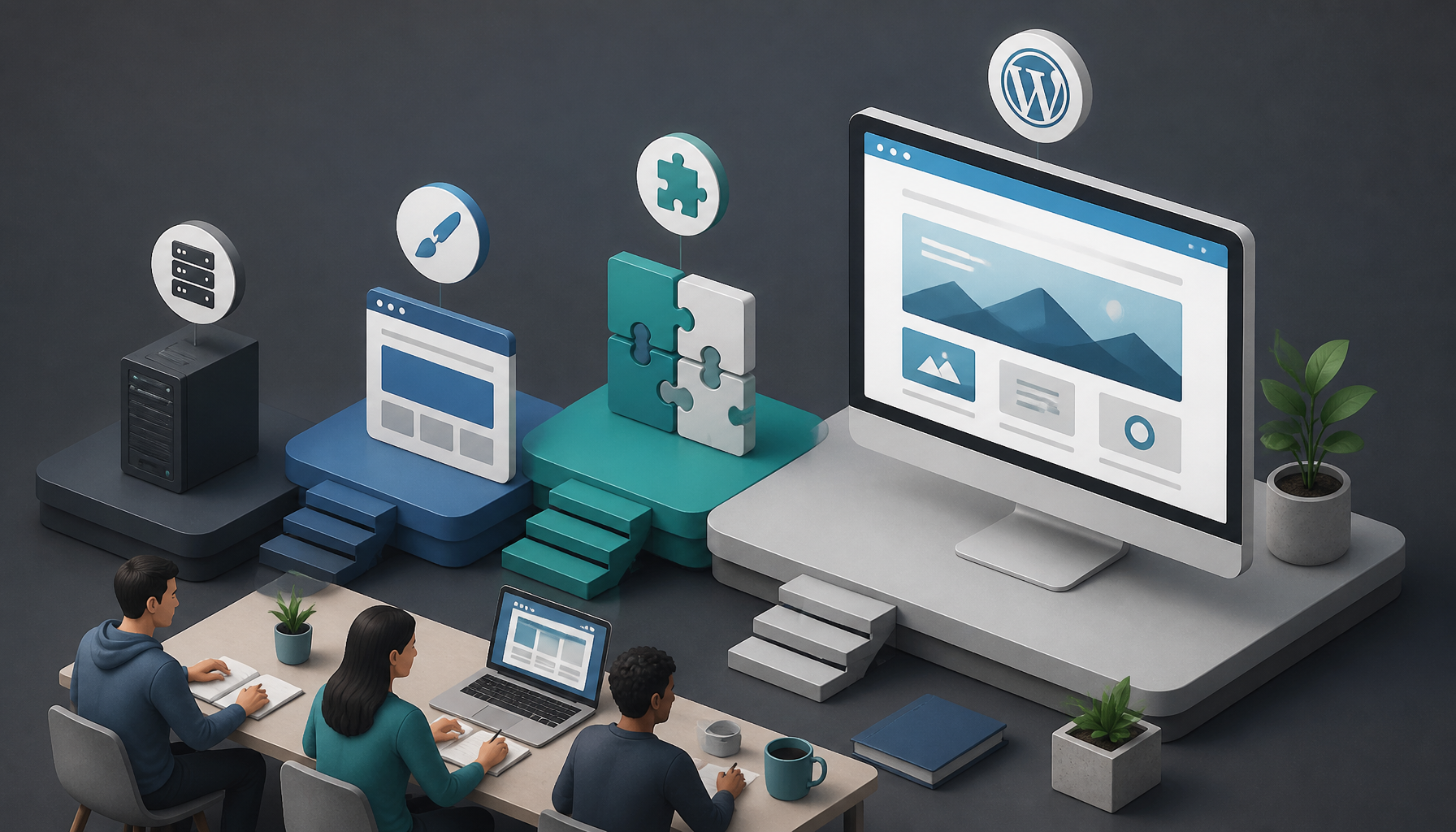
    What you do need is a sensible order of operations. If you skip around—theme first, pages later, plugins whenever—your site turns into a wobbly Jenga tower. So, below is the sequence I use when I’m building a site that has to look credible, load fast, and be easy to maintain.

    1. Choosing a Domain Name and Web Hosting

    Before you touch WordPress, lock down two things: the domain (your address) and the host (where the site lives). This part feels boring, but since it’s foundational, small choices here can save you hours later.

    • Domain Name: Keep it short, readable, and easy to say out loud. If you’re a service business, I like brandname.com over brandname-city-services.com. But if the clean brand name is gone, don’t panic—pick something you can actually put on a business card without apologizing.
    • Web Hosting: For beginners, reliable “WordPress-friendly” hosts like Bluehost or SiteGround are usually fine because setup is straightforward and support is reachable. Since you’re learning, that support matters more than shaving $2/month.

    A real example: I watched a freelance photographer friend buy a domain with hyphens, host it on the cheapest plan she could find, then wonder why her gallery pages took 8–10 seconds to load on mobile. The fix wasn’t a magical plugin—she moved to decent hosting, compressed images, and the site suddenly felt professional.

    Common mistakes I see here:
    – Buying a domain in one place, hosting in another, and losing track of logins. It’s manageable, but it gets messy fast.
    – Picking a domain that’s too clever. If you have to spell it every time, you’ll hate it.
    – Choosing hosting based only on “unlimited everything.” “Unlimited” usually comes with fine print.

    If you can, set up a dedicated email later (like hello@yourdomain.com). Even before you do, at least make sure your domain is registered in your name, with two-factor authentication turned on.

    2. Installing WordPress

    Most hosting providers offer one-click WordPress installs. That’s fine, but don’t click through on autopilot—there are a couple choices that matter.

    • Log in to your hosting account.
    • Find the option for Install WordPress (often in cPanel, or a host dashboard panel).
    • Choose the domain you want WordPress installed on (double-check you’re not installing to a temporary URL).
    • Set your admin username and password.

    A professional habit: don’t use admin as the username, and don’t reuse an old password. Since WordPress sites get constant login attempts, you want to make brute-force attacks boring for the attacker.

    After install, do two quick checks:
    1. Visit yourdomain.com and confirm the site loads.
    2. Log into yourdomain.com/wp-admin and confirm you can reach the dashboard.

    If your host offers “staging,” turn it on. It lets you test theme and plugin changes without breaking your live site. Not every beginner needs staging, but once you’ve broken a homepage five minutes before a launch, you’ll never skip it again.

    3. Selecting a Theme

    After installing WordPress, choose a theme that fits your goal and won’t fight you every time you edit.

    • Go to Appearance > Themes.
    • Click Add New and filter by popularity and last updated date.
    • Prioritize responsive layouts and solid reviews.

    Here’s my stance: pick a lightweight, well-maintained theme, then customize it. Don’t pick a “mega theme” that ships with 900 sliders, 14 page builders, and a kitchen sink. Those themes often look flashy in demos but feel sluggish and fragile once you add real content.

    Quick way to sanity-check a theme before you commit:
    – Is it updated recently?
    – Does the demo look good without motion effects?
    – Are the typography and spacing clean?

    A mistake I see a lot: people choose a theme based on the homepage demo, then realize the blog layout, contact page, and header options are limited. So, click through the theme’s templates first. If you’re building a professional site, the “boring” pages matter.

    4. Customizing Your Site

    Now you make it look like yours, not a fresh install.

    • Go to Appearance > Customize.
    • Set your Site Identity (logo, site title, favicon).
    • Pick your colors and fonts (keep it simple—two fonts max).
    • Create menus for your main navigation.

    Also, look at your site on mobile while you customize. Desktop-only design decisions are how you end up with giant headers and awkward spacing on phones.

    Widgets can still be useful (depending on your theme):
    – Add a simple footer with contact info.
    – Drop in social links if they’re relevant.
    – Avoid cramming sidebars with junk.

    A practical mini-checklist I use:
    – Header: clear logo + 4–6 nav items max.
    – Footer: contact, service area (if relevant), and one secondary menu.
    – Typography: readable body text (16px+), no ultra-light fonts.

    Common mistakes:
    – Changing ten design settings at once, then forgetting what caused what.
    – Using low-contrast colors because they “look modern.” If people can’t read it, it’s not modern—it’s broken.

    5. Installing Essential Plugins

    Plugins add functionality, but they also add risk and maintenance. So, install what you need, then stop.

    Here are useful basics:
    – Yoast SEO for search optimization.
    – WPForms for contact forms.
    – Elementor for drag-and-drop page building (helpful if you want layout control without code).

    To install:
    – Go to Plugins > Add New.
    – Search the plugin name.
    – Click Install Now > Activate.

    My rule: if two plugins do the same job, keep one. For example, don’t run multiple page builders, multiple SEO plugins, and multiple caching plugins “just in case.” That’s how you get random layout glitches, slow admin screens, and weird conflicts.

    A real-world mistake I’ve cleaned up more than once: someone installs a security plugin, a backup plugin, and an “optimization” plugin that all try to minify scripts. Then the site’s menu stops working, and they blame WordPress. The actual fix is usually to remove the overlapping features and keep a single source of truth.

    What to consider before installing any plugin:
    – When was it last updated?
    – Does it have active installs and support activity?
    – Do you truly need it, or are you avoiding a simple setting?

    6. Adding Content to Your Website

    Content is what makes the site real. So, build the core pages first, even if they’re rough drafts.

    Start with these essentials:
    – Home: who you help + what you do + a clear call-to-action.
    – About: credibility, story, and what makes you different.
    – Services (or Portfolio): what you offer, pricing ranges (optional), process.
    – Contact: form + email + service area + hours.

    To add pages:
    – Go to Pages > Add New.
    – Use the block editor to write and structure content (headings, lists, images).
    – If you’re using Elementor, build sections intentionally: hero, proof, offer, CTA.

    Here’s a simple “professional homepage” structure that works for most small businesses:
    1. Headline that says what you do (no riddles).
    2. One paragraph explaining who it’s for.
    3. 3 service bullets.
    4. Proof: testimonials, logos, before/after, or case notes.
    5. About preview.
    6. CTA: book a call / request a quote.

    Common mistakes:
    – Writing like a brochure: “We are passionate about excellence.” That tells me nothing.
    – Hiding the contact link in the footer.
    – Uploading giant images straight from a phone (this wrecks performance).

    One quick win: name your images properly and add alt text. If you add an image of your office or portfolio work, describe it clearly. It’s better for accessibility, and it helps search engines understand the page.

    7. Launching Your Website

    Launching is not “hit publish and pray.” It’s a checklist.

    Before you go live:
    – Go to Settings > General and confirm your site title/tagline.
    – Check Settings > Reading to ensure you’re not accidentally blocking search engines.
    – Click through every menu item and button on mobile.
    – Test your contact form (submit it and confirm you receive the email).

    I also do a fast “professionalism sweep”:
    – Is there placeholder text anywhere?
    – Do your pages have consistent headings?
    – Do you have a privacy policy page (especially if you use forms/analytics)?

    Then, announce it:
    – Post on social media, sure—but also send it to a few people who will actually click and give feedback.
    – If you have an email list, send a simple “we’re live” email with one clear next action.

    If you want another walkthrough, these two guides cover similar launch steps from different angles: How to Build a WordPress Website in 2026 – GoDaddy Blog and The Ultimate WordPress for Beginners Guide for 2026.

    8. Regular Maintenance and Updates

    Running your website doesn’t stop at launch. In fact, the sites that get “mysteriously slow” or “randomly hacked” are usually the ones that never got maintained.

    Your maintenance rhythm can be simple:
    – Weekly (or biweekly): update WordPress core, themes, and plugins.
    – Monthly: review plugins and remove anything you don’t use.
    – Ongoing: keep backups.

    Backing up matters. Use a tool like UpdraftPlus, and store backups off-site (not only on the same server). Because if the server dies, so do your backups.

    A mistake I’ve seen: someone updates five plugins at once, something breaks, and they have no backup. If you do nothing else, set up backups first, then update.

    Also, keep a tiny change log. Nothing fancy—just a note in a doc: “Updated theme + plugin X on Aug 7.” When something goes sideways, those notes save time.

    By following these steps, you’ll be well on your way to creating a WordPress site that looks professional and stays maintainable. Build the basics, ship it, then improve it in small rounds—you’ll get further than the people who chase perfection for three months.

    FAQs

    • Is WordPress outdated in 2026?
      No. WordPress is still actively maintained and widely used, so it’s a practical choice for many site types.
    • Can a tool write my WordPress content for me?
      Tools can help draft and brainstorm, but you still need to edit for accuracy, tone, and real-world specifics.
    • Why are people moving away from WordPress?
      Some people want simpler site builders or don’t want to handle updates and plugins. That tradeoff can be fair, but WordPress still wins on flexibility.
    • Do professional websites use WordPress?
      Yes. Professionals use WordPress all the time, especially when they need custom layouts, strong SEO control, and ownership of the site.