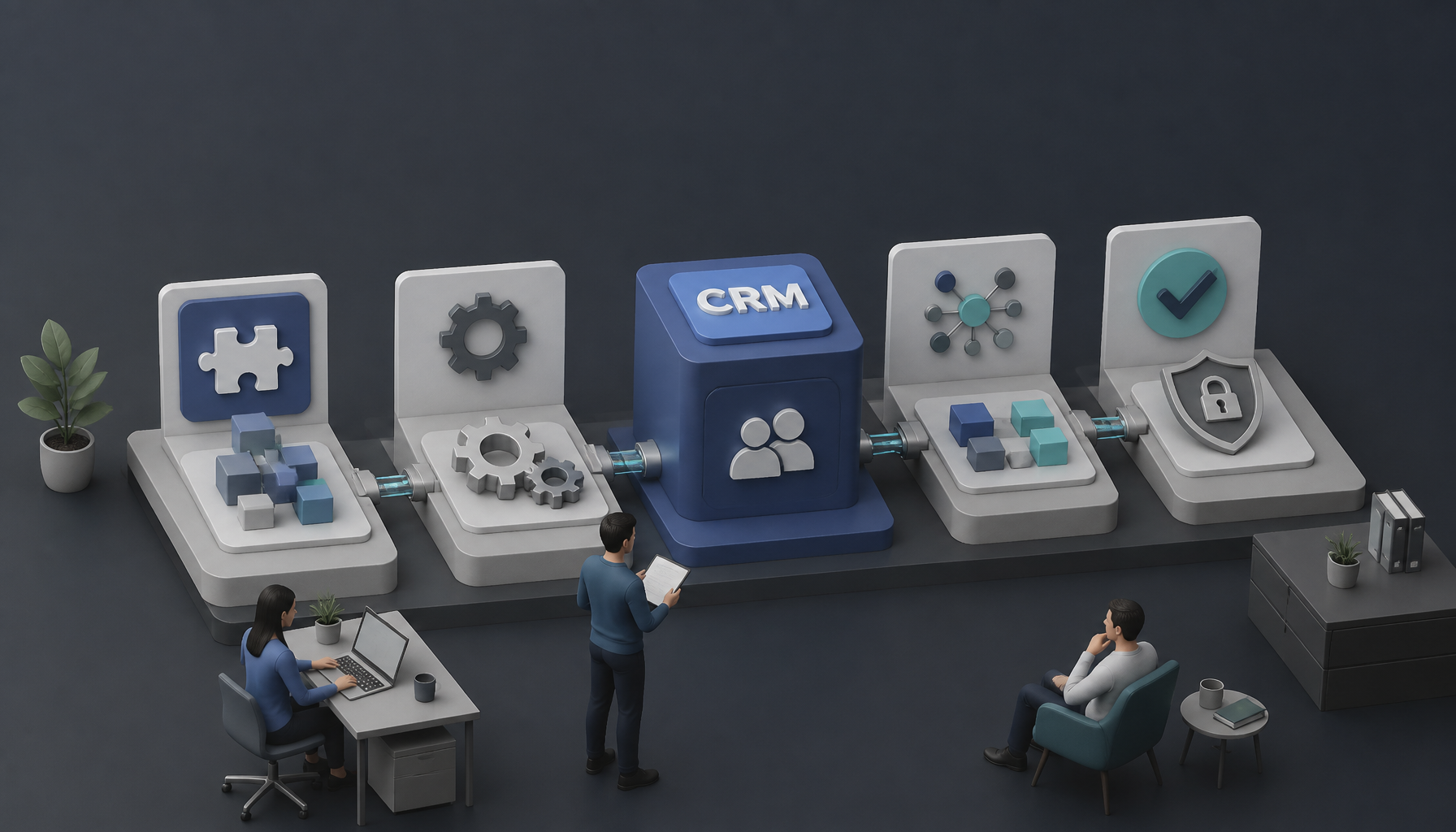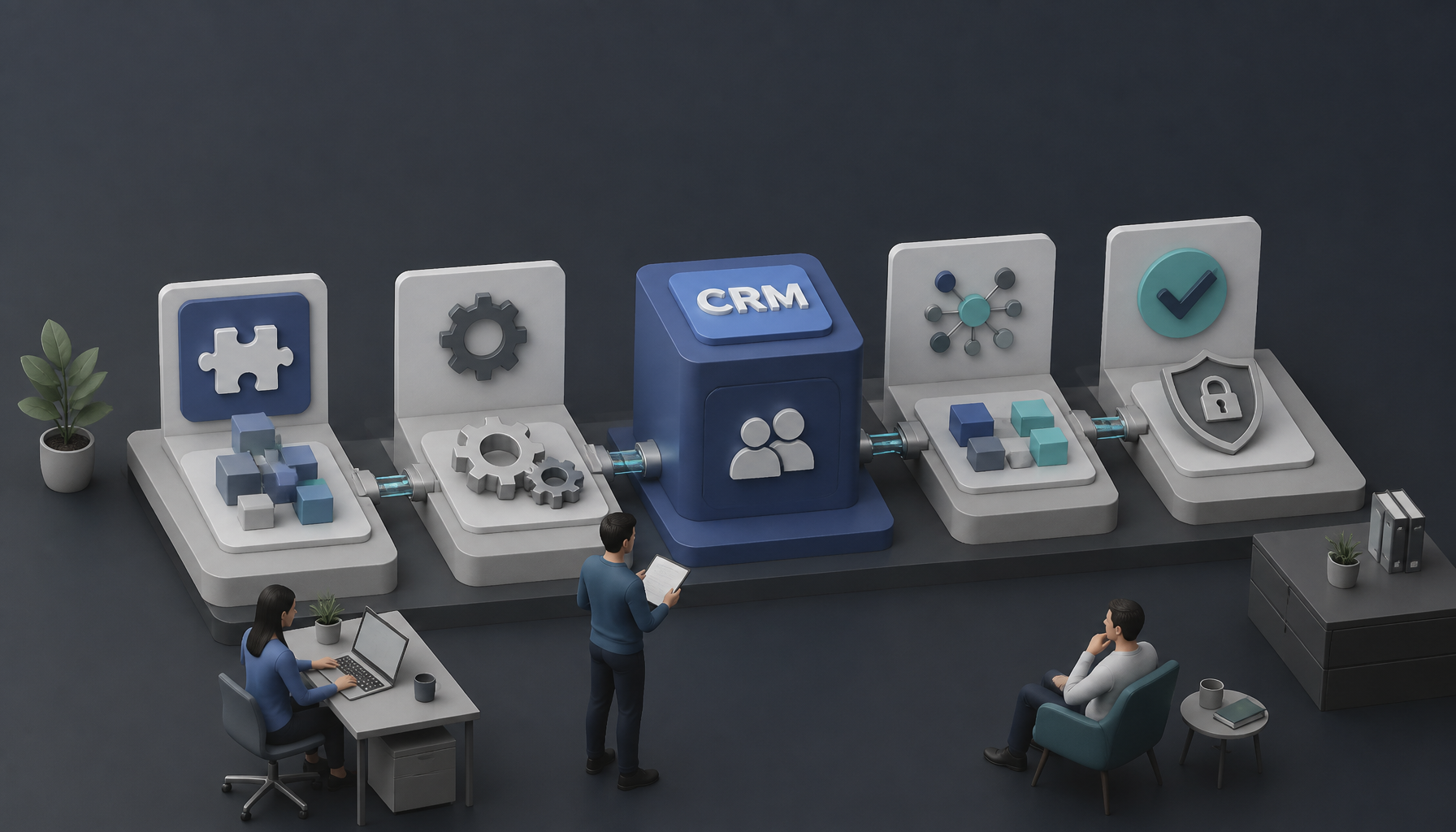
Learn how to integrate a CRM with WordPress in this step-by-step guide for beginners. Discover CRM integration tips and best practices.
Understanding CRM and WordPress Integration
A Customer Relationship Management (CRM) system helps you track people and conversations—who they are, what they asked for, what you sent them, and what happens next. When you integrate a CRM with your WordPress site, you stop treating your website like a brochure and start treating it like an intake desk.
The point isn’t “more software.” It’s fewer handoffs. Your form submits, the contact gets created (or updated), tags get applied, and an email sequence or task kicks off. Then you can spend time selling or helping customers instead of reconciling data.
Benefits of CRM Integration with WordPress
-
Streamlined Processes: When customer data lives in one place, you can automate follow-ups, assign owners, and track touchpoints without digging through inbox threads. But the real win is consistency—every lead gets the same first response, even when you’re busy.
-
Enhanced Customer Insights: A CRM makes it obvious what’s working. You can see which forms create the best leads, which emails get replies, and where people drop off. So instead of guessing, you tweak the actual bottleneck.
-
Improved Lead Management: Form-to-CRM automation cuts manual entry (and typos). It also reduces the “ghost lead” problem—those inquiries that sit in your WordPress admin or email and never get followed up.
Here’s a tiny example I’ve seen a bunch: a site gets 10–20 leads/week. If even 2 of those don’t get a reply within a day, that’s real money left on the table. A CRM integration doesn’t magically sell for you, but it stops the quiet leaks.
Steps to Integrate a CRM with WordPress
Step 1: Choose the Right CRM
Pick the CRM based on how you actually work, not on feature checklists. Before you install anything, answer three questions:
- Do you want the CRM inside WordPress (self-hosted), or do you want a hosted platform you log into separately?
- Do you mainly need email automation (nurture sequences), sales pipeline tracking, or both?
- What’s your “source of truth”—your CRM, or your email tool?
A few beginner-friendly options:
-
FluentCRM: A WordPress-native CRM focused on email marketing and automation. It’s great if you want everything in one dashboard and you’re okay owning the data and the deliverability setup. I’ve used setups like this where the business wanted fewer monthly SaaS subscriptions. (Gravity Forms)
-
HubSpot: Strong lead management and marketing tools, plus a big ecosystem. It’s usually the smoothest path when you want “it just works,” but you’ll live in HubSpot’s UI—not WordPress.
-
Jetpack CRM: Another WordPress-centric option. Solid if your workflow is more relationship and invoicing oriented, and you want something that feels like a WordPress admin experience.
-
Nutshell: A sales-focused platform that gives you a full view of interactions and helps automate follow-ups. I like it when a team is already thinking in pipelines and stages. (Nutshell)
Tradeoff I’ll say out loud: WordPress-native CRMs can be awesome, but they also mean your site becomes “mission critical.” So if your hosting is shaky, fix that first, because your CRM data depends on it.
Step 2: Install the CRM Plugin
Once you’ve picked a CRM, install the plugin like you would any other—but do it carefully.
- Go to your WordPress admin dashboard.
- Navigate to Plugins > Add New.
- Search for your chosen CRM plugin (e.g., FluentCRM, Jetpack CRM).
- Click Install Now and then Activate.
Now, a couple real-world checks people skip:
- Backup before you activate. Even “good” plugins can conflict with caching, SMTP, or form plugins. If you can’t restore quickly, you’re gambling with downtime.
- Use a staging site if you have one. If you don’t, at least do the install during a low-traffic window.
- Confirm plugin legitimacy. Make sure you’re installing the official plugin, not a random lookalike. I’ve seen beginners install the wrong thing because the names were similar.
If you’re using a hosted CRM (like HubSpot), the plugin often acts like a connector: it embeds forms, injects tracking, or syncs submissions. That’s normal—just pay attention to what permissions it asks for.
Step 3: Configure the Plugin Settings
After activation, configuration is where integrations either become reliable… or become “kinda works most of the time.” Take it slow.
Typical setup tasks:
-
Set up your user account: Create an admin user in the CRM that isn’t tied to one employee’s personal email. Otherwise, when that person leaves, your automations break and nobody knows why.
-
Connect email correctly: If your CRM sends emails, you’ll want to confirm deliverability. For WordPress-native CRMs, this often means configuring SMTP (or a transactional email service) rather than relying on default PHP mail.
-
Define fields and lifecycle stages: Decide what a “Lead” is versus a “Customer.” Also, map key fields you care about (name, email, phone, company, service interest). If you don’t define this upfront, you’ll end up with 12 versions of the same idea.
-
Set basic automation rules: Start small. For example: “If form = Consultation Request, tag = consult, assign to = sales owner, send email = consult-confirmation.” Then build from there.
One messy detail: duplicates. Most CRMs use email as the unique key, but some forms let people submit different emails or typos. So if your CRM has a “merge duplicates” setting, learn it early—future you will be grateful.
Step 4: Integrate Forms and Capture Leads
This is the make-or-break step, because your CRM is only as good as what you feed it.
-
If using FluentCRM, you can use its built-in forms, but I still like to think about UX: fewer fields usually means more submissions.
-
If using HubSpot (or another hosted CRM), you’ll typically embed their forms with a shortcode or HTML snippet. That approach is reliable, but it can affect styling—so test it on mobile.
-
If you’re already using a WordPress form builder, your goal is simple: every submission should create or update a contact in your CRM with the right tags.
Here’s a step-by-step test I run every time (even on small sites):
- Submit the form with a real email you control (not a fake domain).
- Confirm the contact appears in the CRM within 1–2 minutes.
- Check that the right fields mapped correctly (name split, phone format, dropdown values).
- Verify tags/lists got applied.
- Trigger the follow-up email or task, then confirm it actually happened.
- Submit the same form again with the same email and a different name—make sure it updates instead of duplicating.
If you only do one thing from this guide, do that checklist. It catches 90% of beginner integration failures.
Step 5: Monitor and Analyze the Data
Once your integration is live, the job shifts from “set it up” to “keep it honest.” CRMs drift over time—new forms get created, someone edits a field, a plugin updates, and suddenly the pipeline is filling with junk.
What I watch in the first 2–4 weeks:
- Lead volume by source: Which pages/forms produce contacts that actually convert?
- Time-to-first-response: Even a basic automated confirmation email can improve this.
- Email performance: open rates, click-through rates, replies.
- Pipeline health (if you use deals): how long leads sit in each stage.
Then I do a quick monthly hygiene pass: archive dead tags, standardize dropdown values (no more “Web design” vs “webdesign”), and remove spammy contacts. It’s boring, but it prevents the CRM from becoming a landfill.
Common Mistakes to Avoid
- Skipping the Testing Phase: This is the classic. People install the plugin, see “Connected,” and assume it’s fine. But “connected” doesn’t mean the form field mapping works.
A real example: I once audited a setup where leads were syncing, but the “message” field was dropping because it exceeded a character limit in the CRM. So sales got a contact record with zero context. The team blamed lead quality for weeks, but the issue was the integration.
Fix: run the end-to-end checklist from Step 4, and include a long message to test limits.
- Neglecting Customer Data Management: CRMs get messy fast—duplicates, inconsistent capitalization, random notes in the wrong field. Then automations misfire because tags don’t match.
Fix: pick naming conventions early (tags, lifecycle stages, interest categories). Also, decide what counts as a duplicate (usually email), and enforce it.
- Ignoring User Training: Even if you’re solo today, you might not be in six months. I’ve seen teams sabotage a good CRM because nobody agreed on “how we use it.”
Fix: write a one-page internal doc: how to create a deal, how to log a note, when to move stages, and what not to touch. Simple, but it prevents chaos.
- Over-automating on day one: Beginners love building 14-step workflows immediately. Then one field changes and everything breaks.
Fix: start with one automation per form. When it’s stable for a week, add the next.
FAQ Section
-
Q: What are the benefits of integrating a CRM with WordPress?
A: You get automatic data flow from your site into your contact database, so follow-ups happen on time and with context. But the sneaky benefit is accountability—once leads are in a CRM, you can see if they were contacted, when, and by whom. -
Q: How do I choose the right CRM for my needs?
A: Start with your primary workflow. If you mostly need newsletters and sequences, a WordPress-native tool like FluentCRM can be a clean fit (and it keeps things in one place). If you need a full sales pipeline with multiple reps, a hosted CRM like HubSpot or Nutshell tends to be easier to scale. Also, check integration points you already rely on—forms, booking tools, and email sending. -
Q: Can I integrate multiple CRMs with WordPress?
A: You can, but it usually turns into a data ownership fight. Two CRMs means two “truths,” duplicate contacts, and confused automations. If you must do it (say marketing vs sales), pick one system as the master contact record and push data one-way. -
Q: What if I encounter issues during integration?
A: Debug in this order: (1) confirm the form submission is being received, (2) confirm the plugin is firing the webhook/sync, (3) check field mapping errors, then (4) check email sending (SMTP/API). Support docs help, but screenshots of the exact form settings and a test contact record will get you a faster answer from support. -
Q: Will integrating a CRM affect site performance?
A: It shouldn’t be noticeable if the plugin is well-built, but you can accidentally slow things down with heavy tracking scripts or too many on-page embeds. I usually test key pages with and without the integration enabled, and I keep an eye on admin performance too—some CRMs add large database tables. -
Q: Do I need double opt-in for leads?
A: It depends on your region and what you’re sending. If you’re adding people to marketing emails, double opt-in is often the safer route. If it’s purely transactional (like replying to a request), it’s a different story. When in doubt, separate “contact request follow-up” from “newsletter subscription.”
Conclusion
If you set up WordPress and CRM integration properly, you stop treating every inquiry like a one-off email and start running a repeatable system. That’s the whole game—especially for beginners who don’t have time to babysit a pipeline.
One practical next step: pick a single form (your highest-intent one, like “Request a Quote”), connect it to your CRM, and make the automation dead simple—tag the lead, assign an owner, send a confirmation. Let it run for a week, then review the data quality and response times.
A quick story from the trenches: a small service business I worked with thought they needed “more traffic.” After we integrated their form into a CRM and added a basic 2-email follow-up, they discovered they were already getting leads—they just weren’t replying fast enough, and half the inquiries got buried. Traffic wasn’t the issue. Process was.
Keep it boring. Keep it tested. Your future self will thank you.
My Experience With This
I’m Mobeen Abdullah, and I’ve spent years building and shipping software where integrations are the part everyone underestimates. The UI is the easy part. The messy part is what happens after launch—field changes, plugin updates, staff habits, spam spikes, and “why did this contact not sync?” mysteries.
One pattern I’m biased toward: start with the simplest reliable flow, then iterate. For example, I’ll often begin with one WordPress form → one CRM list/tag → one automation → one measurable goal (reply within 1 business day). Once that’s stable, I’ll add segmentation, pipeline stages, and smarter sequences.
If you want this to actually stick, treat it like a mini engineering project: define what success looks like, test it end-to-end, and re-check it after updates. That’s how you avoid the common fate of CRMs—installed with excitement, ignored two months later.