Learn how to create a website in WordPress with this step-by-step guide aimed at beginners and intermediate users. Get started today!
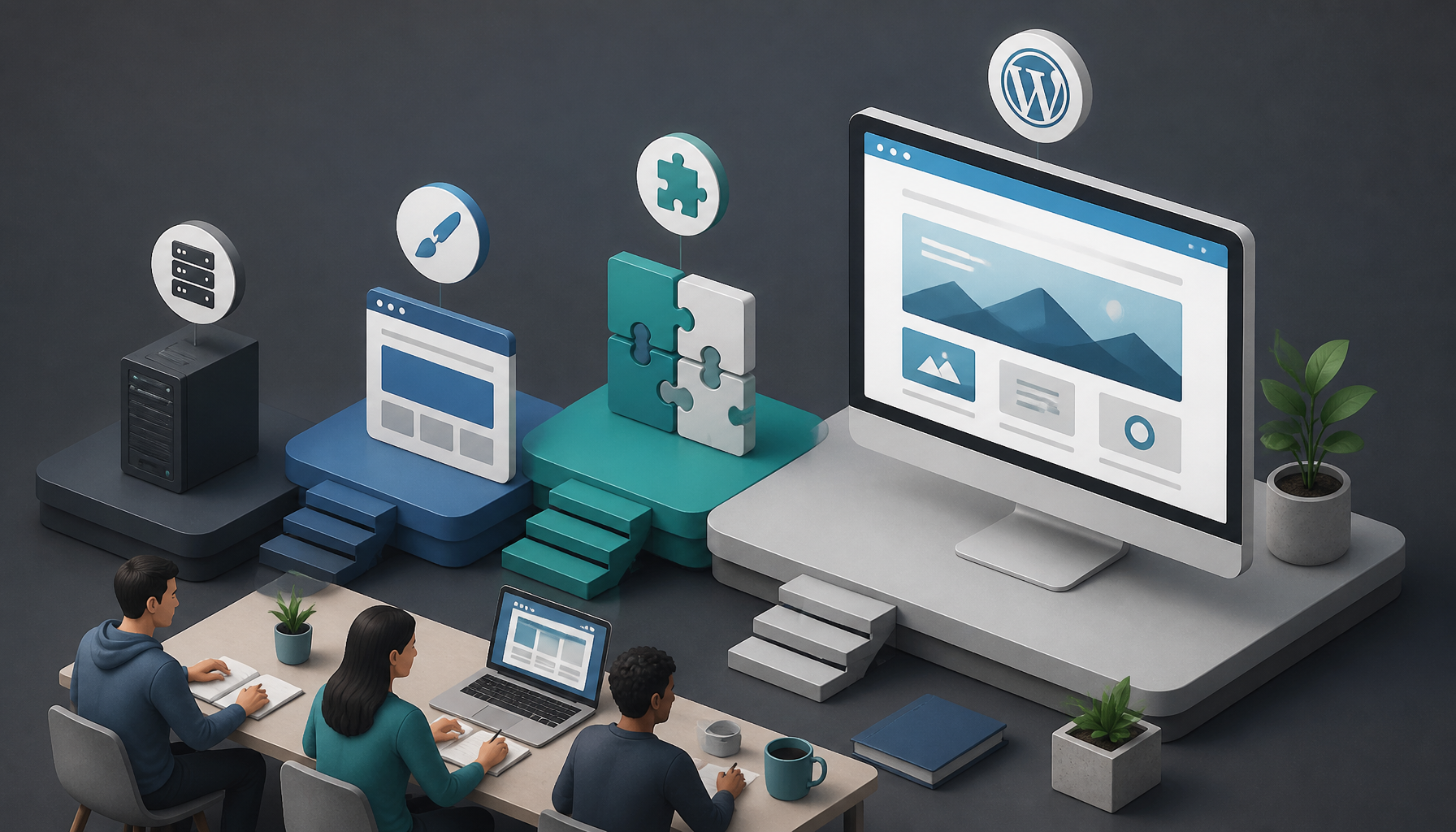
Step-by-Step Guide to Building a WordPress Website for Professionals
Creating a professional website using WordPress can feel daunting, especially if you’re just starting. But you don’t need to “learn everything WordPress” to ship something solid.
What you do need is a sensible order of operations. If you skip around—theme first, pages later, plugins whenever—your site turns into a wobbly Jenga tower. So, below is the sequence I use when I’m building a site that has to look credible, load fast, and be easy to maintain.
1. Choosing a Domain Name and Web Hosting
Before you touch WordPress, lock down two things: the domain (your address) and the host (where the site lives). This part feels boring, but since it’s foundational, small choices here can save you hours later.
- Domain Name: Keep it short, readable, and easy to say out loud. If you’re a service business, I like
brandname.comoverbrandname-city-services.com. But if the clean brand name is gone, don’t panic—pick something you can actually put on a business card without apologizing. - Web Hosting: For beginners, reliable “WordPress-friendly” hosts like Bluehost or SiteGround are usually fine because setup is straightforward and support is reachable. Since you’re learning, that support matters more than shaving $2/month.
A real example: I watched a freelance photographer friend buy a domain with hyphens, host it on the cheapest plan she could find, then wonder why her gallery pages took 8–10 seconds to load on mobile. The fix wasn’t a magical plugin—she moved to decent hosting, compressed images, and the site suddenly felt professional.
Common mistakes I see here:
– Buying a domain in one place, hosting in another, and losing track of logins. It’s manageable, but it gets messy fast.
– Picking a domain that’s too clever. If you have to spell it every time, you’ll hate it.
– Choosing hosting based only on “unlimited everything.” “Unlimited” usually comes with fine print.
If you can, set up a dedicated email later (like hello@yourdomain.com). Even before you do, at least make sure your domain is registered in your name, with two-factor authentication turned on.
2. Installing WordPress
Most hosting providers offer one-click WordPress installs. That’s fine, but don’t click through on autopilot—there are a couple choices that matter.
- Log in to your hosting account.
- Find the option for Install WordPress (often in cPanel, or a host dashboard panel).
- Choose the domain you want WordPress installed on (double-check you’re not installing to a temporary URL).
- Set your admin username and password.
A professional habit: don’t use admin as the username, and don’t reuse an old password. Since WordPress sites get constant login attempts, you want to make brute-force attacks boring for the attacker.
After install, do two quick checks:
1. Visit yourdomain.com and confirm the site loads.
2. Log into yourdomain.com/wp-admin and confirm you can reach the dashboard.
If your host offers “staging,” turn it on. It lets you test theme and plugin changes without breaking your live site. Not every beginner needs staging, but once you’ve broken a homepage five minutes before a launch, you’ll never skip it again.
3. Selecting a Theme
After installing WordPress, choose a theme that fits your goal and won’t fight you every time you edit.
- Go to Appearance > Themes.
- Click Add New and filter by popularity and last updated date.
- Prioritize responsive layouts and solid reviews.
Here’s my stance: pick a lightweight, well-maintained theme, then customize it. Don’t pick a “mega theme” that ships with 900 sliders, 14 page builders, and a kitchen sink. Those themes often look flashy in demos but feel sluggish and fragile once you add real content.
Quick way to sanity-check a theme before you commit:
– Is it updated recently?
– Does the demo look good without motion effects?
– Are the typography and spacing clean?
A mistake I see a lot: people choose a theme based on the homepage demo, then realize the blog layout, contact page, and header options are limited. So, click through the theme’s templates first. If you’re building a professional site, the “boring” pages matter.
4. Customizing Your Site
Now you make it look like yours, not a fresh install.
- Go to Appearance > Customize.
- Set your Site Identity (logo, site title, favicon).
- Pick your colors and fonts (keep it simple—two fonts max).
- Create menus for your main navigation.
Also, look at your site on mobile while you customize. Desktop-only design decisions are how you end up with giant headers and awkward spacing on phones.
Widgets can still be useful (depending on your theme):
– Add a simple footer with contact info.
– Drop in social links if they’re relevant.
– Avoid cramming sidebars with junk.
A practical mini-checklist I use:
– Header: clear logo + 4–6 nav items max.
– Footer: contact, service area (if relevant), and one secondary menu.
– Typography: readable body text (16px+), no ultra-light fonts.
Common mistakes:
– Changing ten design settings at once, then forgetting what caused what.
– Using low-contrast colors because they “look modern.” If people can’t read it, it’s not modern—it’s broken.
5. Installing Essential Plugins
Plugins add functionality, but they also add risk and maintenance. So, install what you need, then stop.
Here are useful basics:
– Yoast SEO for search optimization.
– WPForms for contact forms.
– Elementor for drag-and-drop page building (helpful if you want layout control without code).
To install:
– Go to Plugins > Add New.
– Search the plugin name.
– Click Install Now > Activate.
My rule: if two plugins do the same job, keep one. For example, don’t run multiple page builders, multiple SEO plugins, and multiple caching plugins “just in case.” That’s how you get random layout glitches, slow admin screens, and weird conflicts.
A real-world mistake I’ve cleaned up more than once: someone installs a security plugin, a backup plugin, and an “optimization” plugin that all try to minify scripts. Then the site’s menu stops working, and they blame WordPress. The actual fix is usually to remove the overlapping features and keep a single source of truth.
What to consider before installing any plugin:
– When was it last updated?
– Does it have active installs and support activity?
– Do you truly need it, or are you avoiding a simple setting?
6. Adding Content to Your Website
Content is what makes the site real. So, build the core pages first, even if they’re rough drafts.
Start with these essentials:
– Home: who you help + what you do + a clear call-to-action.
– About: credibility, story, and what makes you different.
– Services (or Portfolio): what you offer, pricing ranges (optional), process.
– Contact: form + email + service area + hours.
To add pages:
– Go to Pages > Add New.
– Use the block editor to write and structure content (headings, lists, images).
– If you’re using Elementor, build sections intentionally: hero, proof, offer, CTA.
Here’s a simple “professional homepage” structure that works for most small businesses:
1. Headline that says what you do (no riddles).
2. One paragraph explaining who it’s for.
3. 3 service bullets.
4. Proof: testimonials, logos, before/after, or case notes.
5. About preview.
6. CTA: book a call / request a quote.
Common mistakes:
– Writing like a brochure: “We are passionate about excellence.” That tells me nothing.
– Hiding the contact link in the footer.
– Uploading giant images straight from a phone (this wrecks performance).
One quick win: name your images properly and add alt text. If you add an image of your office or portfolio work, describe it clearly. It’s better for accessibility, and it helps search engines understand the page.
7. Launching Your Website
Launching is not “hit publish and pray.” It’s a checklist.
Before you go live:
– Go to Settings > General and confirm your site title/tagline.
– Check Settings > Reading to ensure you’re not accidentally blocking search engines.
– Click through every menu item and button on mobile.
– Test your contact form (submit it and confirm you receive the email).
I also do a fast “professionalism sweep”:
– Is there placeholder text anywhere?
– Do your pages have consistent headings?
– Do you have a privacy policy page (especially if you use forms/analytics)?
Then, announce it:
– Post on social media, sure—but also send it to a few people who will actually click and give feedback.
– If you have an email list, send a simple “we’re live” email with one clear next action.
If you want another walkthrough, these two guides cover similar launch steps from different angles: How to Build a WordPress Website in 2026 – GoDaddy Blog and The Ultimate WordPress for Beginners Guide for 2026.
8. Regular Maintenance and Updates
Running your website doesn’t stop at launch. In fact, the sites that get “mysteriously slow” or “randomly hacked” are usually the ones that never got maintained.
Your maintenance rhythm can be simple:
– Weekly (or biweekly): update WordPress core, themes, and plugins.
– Monthly: review plugins and remove anything you don’t use.
– Ongoing: keep backups.
Backing up matters. Use a tool like UpdraftPlus, and store backups off-site (not only on the same server). Because if the server dies, so do your backups.
A mistake I’ve seen: someone updates five plugins at once, something breaks, and they have no backup. If you do nothing else, set up backups first, then update.
Also, keep a tiny change log. Nothing fancy—just a note in a doc: “Updated theme + plugin X on Aug 7.” When something goes sideways, those notes save time.
By following these steps, you’ll be well on your way to creating a WordPress site that looks professional and stays maintainable. Build the basics, ship it, then improve it in small rounds—you’ll get further than the people who chase perfection for three months.
FAQs
- Is WordPress outdated in 2026?
No. WordPress is still actively maintained and widely used, so it’s a practical choice for many site types. - Can a tool write my WordPress content for me?
Tools can help draft and brainstorm, but you still need to edit for accuracy, tone, and real-world specifics. - Why are people moving away from WordPress?
Some people want simpler site builders or don’t want to handle updates and plugins. That tradeoff can be fair, but WordPress still wins on flexibility. - Do professional websites use WordPress?
Yes. Professionals use WordPress all the time, especially when they need custom layouts, strong SEO control, and ownership of the site.
Leave a Reply