WordPress CMS integration is easiest when you treat it like plumbing: get the basics right first, then add the fancy fixtures.
I’m Mobeen Abdullah. I’ve spent the last decade building and shipping full-stack products, and I’ve watched WordPress go from “blog tool” to “default CMS” for teams that just want publishing to work without hiring a platform squad.
In this guide, you’ll integrate WordPress as your CMS in a way that’s beginner-friendly but not hand-wavy. You’ll set up hosting, install WordPress, pick a theme, lock in the right settings, and add the plugins that actually matter (while avoiding the ones that quietly wreck performance).
By the end, you’ll have a clean, stable WordPress setup you can maintain without fear—plus you’ll know what usually breaks in the real world, how to spot it early, and what I’d do differently if you’re building for a business instead of a hobby site.
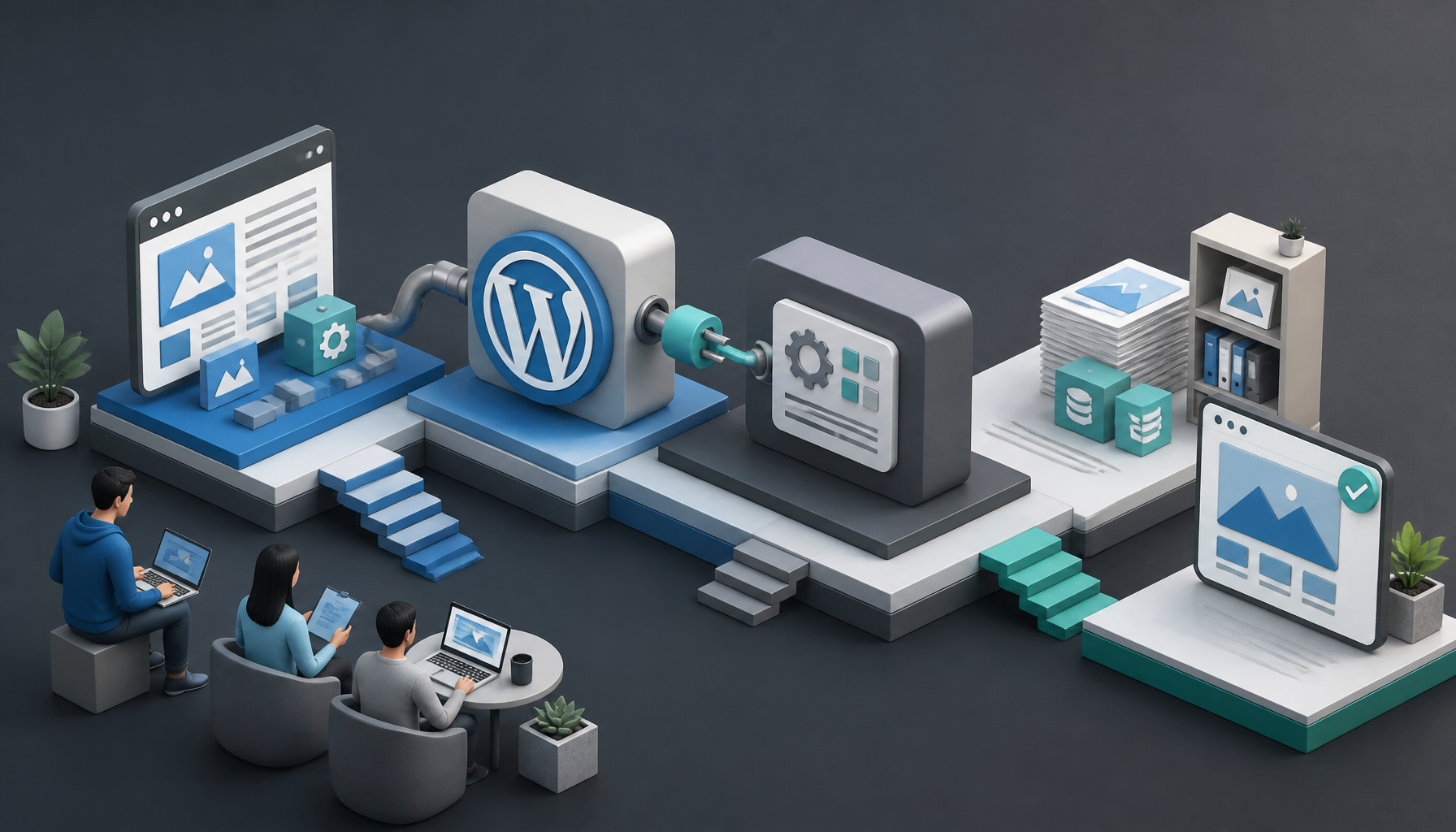
Comprehensive Guide to WordPress CMS Integration
Integrating WordPress as your content management system (CMS) can be smooth, but only if you do it in the right order. If you jump straight to themes and plugins, you’ll end up debugging weird stuff later (usually at the worst time).
What is WordPress?
WordPress is a content management system that lets you create, edit, and publish content without rebuilding your whole site every time you tweak a headline. It started as a blogging platform, but in practice it’s a full CMS with users, roles, media handling, menus, page templates, and an ecosystem that can cover everything from portfolios to e-commerce.
As of 2026, approximately 41.2% of all websites are powered by WordPress, making it the most widely used CMS globally (source). That number matters because it explains why you can almost always find a theme, plugin, tutorial, or contractor when you’re stuck.
Here’s the beginner-friendly mental model I use:
- WordPress Core = the engine (posts, pages, users, editor)
- Theme = the skin + layout system
- Plugins = bolt-on features (forms, SEO, caching, security)
- Hosting = where the whole thing runs, and where most performance issues actually come from
Why Choose WordPress as Your CMS?
WordPress is a solid choice when you need publishing, flexibility, and a reasonable learning curve.
- Extensive Customization: Thousands of themes and plugins let you shape the site without custom code.
- SEO Friendly: Out of the box it’s decent, and with the right setup it can rank well.
- Community Support: You’ll find answers fast because other people have already hit the same wall.
- Security Updates: Core and reputable plugins ship frequent patches—if you actually apply them.
That said, the tradeoff is you’re now the “site mechanic.” Even on managed hosting, you’re responsible for updates, plugin choices, and basic hygiene.
Step-by-Step Guide to WordPress CMS Integration
This is the sequence I’d use for a beginner build, and it’s the same order I use on client projects because it prevents rework.
1. Set Up Your Hosting Environment
Pick hosting before you think about design. If the foundation is shaky, every later step gets more painful.
Here’s what I look for:
- One-click WordPress install (saves you from manual DB config)
- Free SSL (your login should never be on HTTP)
- Daily backups or at least easy backup hooks
- Decent support that can explain errors, not just paste KB links
Many beginners do fine on WordPress-focused hosts like SiteGround or Bluehost because the onboarding is straightforward. But even then, check the plan limits—cheap tiers often throttle CPU, which shows up as random slowness when you add plugins.
Real example: I once helped a friend whose “brand new” site took 6–8 seconds to load. It wasn’t the theme. It was the host cramming too many accounts onto the same box. Moving hosts fixed 80% of it before we touched a single optimization.
2. Install WordPress
Most hosts offer a wizard. Use it.
- Log into your hosting account.
- Find the WordPress installer (often under “Website” or “Software”).
- Follow the prompts to complete the installation.
While you’re filling the form, slow down on two fields:
- Admin username: don’t use
admin. - Admin email: use an inbox you control long-term (not a temporary project email).
If you get asked about the database, the installer usually creates it automatically. If you’re doing it manually, name your DB and user clearly (wp_site1_db, wp_site1_user). Later, when you’re staring at phpMyAdmin at 2am, you’ll thank yourself.
3. Choose a Theme
A theme is your layout system, not just “how it looks.” So, pick for structure first, aesthetics second.
- Go to Appearance → Themes → Add New.
- Browse free themes or upload a premium theme.
- Install and activate.
My opinionated rule: avoid themes that require 15 companion plugins to look like the demo. That’s how you end up with a site that breaks when one vendor stops updating.
If you want a fast sanity check, preview these:
- Does the theme look acceptable without the demo content?
- Is it updated recently?
- Are there clear docs for menus, header, and homepage?
Drop an image into a test post to confirm the typography doesn’t collapse on mobile.
4. Customize Your Settings
Settings are boring—until they’re wrong. Lock these in early so you don’t fight them later.
- Go to Settings → General to set site title, tagline, and timezone.
- Go to Settings → Permalinks and pick a clean structure (usually “Post name”).
- Go to Settings → Reading to choose your homepage behavior.
A common beginner mistake: changing permalinks after you’ve already shared links publicly. It’s not fatal, but it can create 404s unless you add redirects.
Practical checklist I use on day one:
- Timezone correct (scheduled posts depend on it)
- Site language correct (affects date formats and some plugins)
- Permalinks set before publishing anything
5. Install Essential Plugins
Plugins are where beginners either unlock WordPress—or accidentally bury it.
- Go to Plugins → Add New.
- Search, install, and activate what you actually need.
A decent starter set for many sites:
- Yoast SEO (basic SEO control)
- WPForms (forms that don’t feel like a science project)
- WooCommerce (only if you’re selling)
Now the caution: every plugin is code running on every request. So, if you install 25 plugins “just in case,” you’ll eventually run into conflicts, slow admin pages, or security issues.
If security is your concern (it should be), don’t guess. I’d read a comparison like choose the right security plugin for your WordPress site and then follow up with a tighter selection process like learn how to select the best security plugin before you install anything.
6. Add Content
Content creation is where WordPress finally feels “real.”
- Go to Posts → Add New for blog content.
- Go to Pages → Add New for static pages (Home, About, Contact).
- Use the block editor to add headings, images, and lists.
Here’s the workflow I teach beginners because it prevents messy navigation:
- Create core pages: Home, About, Contact, Privacy Policy.
- Create your main menu and add only those pages.
- Publish 2–3 starter posts (even short ones) so your blog doesn’t look empty.
- Add categories only when you have at least 2–3 posts that belong in each.
One small but important move: write your About page early. It forces you to clarify what the site is for, which makes every later content decision easier.
7. Regular Updates
Updates are non-negotiable. Most WordPress “mystery hacks” I’ve seen came down to ignored updates plus a weak admin password.
What I recommend:
- Update WordPress core monthly (or sooner if it’s a security release).
- Update plugins/themes weekly, but do it with a backup.
- Keep at least one off-site backup (not just “on the same server”).
If you’re using UpdraftPlus or a host backup, do a restore test once. Seriously. Backups you can’t restore are just comforting stories.
Common Challenges and Solutions
You’ll hit bumps. That’s normal. The trick is recognizing whether it’s a “WordPress issue” or a “you installed three overlapping tools” issue.
Compatibility issues
Compatibility problems usually show up as:
- White screen
- Broken editor
- Random layout glitches
Fix it like a grown-up:
- Disable the last plugin you installed.
- Switch to a default theme temporarily.
- Check PHP version requirements in the plugin docs.
If you can’t access wp-admin, use your host’s file manager and rename the plugin folder in wp-content/plugins/ to force-disable it.
Page speed problems
Most slow sites I’ve fixed had one (or more) of these:
- Huge images straight from a phone
- Too many page builder widgets
- No caching
- A “free” theme loading five font families
Start with images: resize them and compress them. Then look at plugin bloat. Only after that should you touch advanced caching.
If you’re integrating WordPress with other platforms, speed issues can hide in sync jobs too—especially if you’re pulling content from multiple systems. When you get there, a guide like sync content effectively between WordPress and other CMSs helps you avoid the classic mistake of re-importing the same media library over and over.
Security vulnerabilities
Security isn’t one plugin. It’s habits.
- Use a password manager.
- Limit admin accounts.
- Turn on 2FA if your security plugin supports it.
- Remove plugins you’re not using (deactivated isn’t the same as removed).
And yes, updates matter, but so does exposure. If you install a plugin from a random zip file someone emailed you, you’re gambling.
Conclusion
Integrating WordPress as your CMS looks big at first, but it gets manageable once you follow a strict order: hosting, install, theme, settings, plugins, content, then maintenance. The real win is repeatability—when something breaks, you know where to look and what to roll back.
If you are looking for custom solutions tailored to your business needs, consider Revnix, which specializes in AI agents and open-source web applications for complete ownership and flexibility.
One last practical next step: block 60 minutes on your calendar this week, do your first update + backup + restore test, and write down what you learned. That’s the difference between “I have a site” and “I can run a site.”
FAQs
Q: Does WordPress have a CMS?
Yes—WordPress is a CMS.
Where beginners get tripped up is the wording. People sometimes say “WordPress + a CMS” as if WordPress needs a separate CMS layer. It doesn’t. Core WordPress already gives you the CMS basics: a database-backed content model (posts/pages), a media library, user roles, menus, revisions, and an editor.
Here’s a simple way to confirm you’re using it like a CMS (not just a blog):
- Create a Page called “Services” (Pages → Add New).
- Create child pages like “Web Design” and “Maintenance.”
- Add them to your menu under Services.
- Assign a homepage (Settings → Reading).
That flow—structured pages, navigation, and controlled publishing—is CMS behavior.
Quick real example: I helped a local clinic site that had everything as blog posts because “posts are what WordPress uses.” The result was messy URLs, broken menus, and no clear hierarchy. We moved core content into pages, left articles as posts, and the site immediately became easier to manage.
Common mistake: treating categories like “site sections” for static content. Categories are fine for blog organization, but they’re a weird crutch for evergreen pages.
Q: Why are people moving away from WordPress?
Some people leave WordPress because they outgrow it. Others leave because they set it up poorly and blame the tool.
The legit reasons I see:
- They want a locked-down platform with fewer moving parts (less maintenance).
- Their team wants a fully hosted drag-and-drop builder with no plugin decisions.
- They need enterprise workflows (complex approvals, multi-brand governance) and don’t want to build that on top.
But, honestly, a big chunk of “we’re leaving WordPress” stories start like this: someone installed 40 plugins, used an abandoned theme, never updated, then got hit with a malware redirect.
If you’re considering a move, do this mini-audit first:
- List every plugin and whether you still need it.
- Check update frequency (anything stale for 12+ months is a red flag).
- Measure performance with a baseline test (before you rip the platform out).
- Look at editorial needs—how many people publish, how often, and with what review steps.
Persona anecdote: one small e-commerce brand I worked with swore WordPress was “too slow.” After we removed two overlapping page builders and fixed image sizes, their product pages loaded in about half the time. They didn’t need a replatform. They needed less clutter.
Q: Is WordPress outdated in 2026?
No. It’s not outdated—but it can feel outdated if you’re using it like it’s 2014.
Modern WordPress in 2026 is about:
- Block-based editing (cleaner content structure)
- Better hosting stacks (server-side caching, CDN, modern PHP)
- Leaner themes that don’t ship a kitchen sink
Where it still frustrates people is the plugin ecosystem: it’s powerful, but it’s also uneven. So, you have to be picky.
If you want to “modernize” an existing WordPress setup without rebuilding everything, here’s a practical, low-risk path:
- Update core + plugins on a staging site.
- Replace abandoned plugins with actively maintained alternatives.
- Switch to a lightweight theme if your current one is bloated.
- Clean media (compress oversized images).
- Add caching (plugin or host-level) after you’ve reduced weight.
Common mistake: doing performance work before content/media cleanup. Caching can mask problems, but it won’t fix a 6MB hero image.
Q: Can WordPress be used as a CMS?
Absolutely. In fact, that’s what it’s best at for a lot of teams: predictable publishing, a huge ecosystem, and control over your data.
If you’re integrating it into a bigger stack (say, WordPress + another CMS + email platform), the trick is defining a “source of truth.” Decide where each content type lives.
A practical integration approach looks like this:
- Define content ownership: blog posts in WordPress, product data elsewhere, for example.
- Decide sync direction: one-way or two-way (two-way is harder than it sounds).
- Pick identifiers: slugs, IDs, or custom fields you won’t change later.
- Test with 10 items first: don’t sync your whole library as a first run.
- Monitor and log: you need visibility when imports fail.
If email marketing is part of your CMS workflow (it usually is), don’t pick tools blindly. I’d compare options using something like discover effective email marketing software and then narrow it down with a shortlist like explore top email marketing tools so you don’t end up migrating lists a month later.
Common mistakes I see in CMS integrations:
- Syncing images repeatedly (media libraries explode in size fast)
- Not mapping authors properly (everything becomes “admin”)
- Forgetting redirects when URLs change
If you fix those three early, your integration will feel boring—in the best way.
sync content effectively between WordPress and other CMSs
choose the right security plugin for your WordPress site
learn how to select the best security plugin
discover effective email marketing software
explore top email marketing tools
check out sustainable living tips for 2026
Leave a Reply