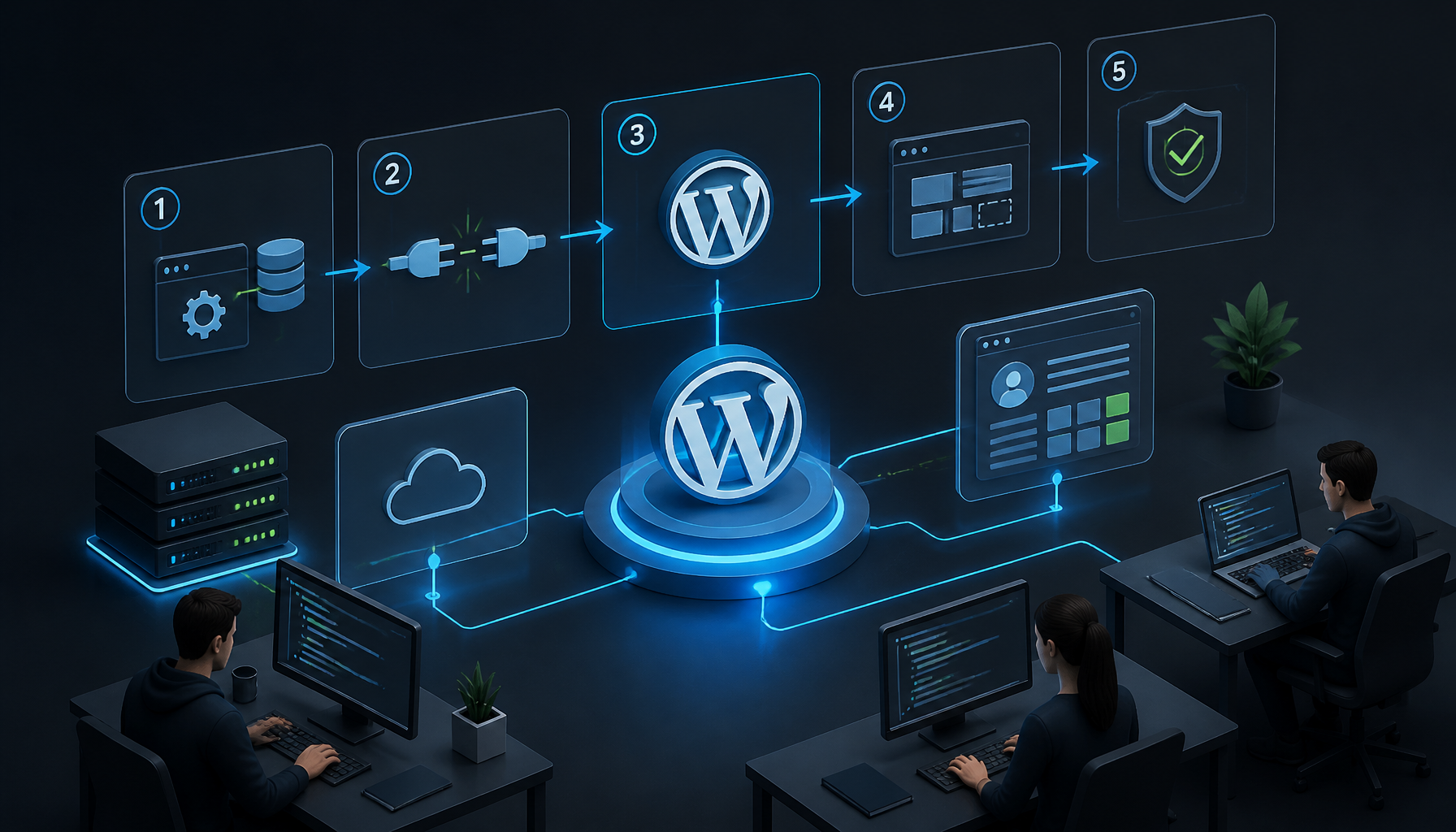
Learn how to integrate WordPress with your CMS in 2026 for enhanced content management. Follow this guide for effective setups and plugin recommendations.
How to Integrate WordPress with Your CMS
Integrating WordPress with a content management system (CMS) can give you tighter workflows, cleaner publishing, and fewer “where did that content come from?” surprises. As of 2026, WordPress powers 41.2% of all websites and dominates the CMS market with 59.1% share, so it’s usually already in the mix somewhere (WPZoom). The trick is picking an integration style you can actually operate.
Understanding WordPress Site Integration
“WordPress site integration” sounds like one thing, but it’s really a few different patterns. The right one depends on what you’re trying to centralize—editing, storage, rendering, or analytics.
Here are the three setups I see most often:
- WordPress as the editor, other CMS as the source of truth: WordPress pulls content via API and renders pages. This works when marketing needs WordPress, but product docs or catalog data lives elsewhere.
- WordPress as the source of truth, other CMS consumes it: You publish in WordPress, then push content outward (mobile app, kiosk, partner portal). This is common when WordPress is your “newsroom.”
- Split-brain with synchronization rules: Some content lives in WordPress, some lives in the other CMS, and you sync specific fields. This is where projects get messy, because someone has to own conflicts.
Before you pick tools, write down two blunt answers:
1) Which system is authoritative for each content type? (Blog posts, landing pages, product pages, authors, categories.)
2) What’s the failure mode you can tolerate? For example, if the sync fails at 2 a.m., is it acceptable that yesterday’s pricing table shows up for six hours? If not, you want “fetch live via API,” not “sync nightly.”
One more reality check: integrations aren’t only about content. Auth, redirects, image handling, and preview links become the real work.
Common CMS Plugins for WordPress
Most integrations end up using one of two APIs: GraphQL or REST. I’m biased toward whatever is simplest for your team to debug at 11 p.m.—because you will debug it at 11 p.m.
- WPGraphQL: Open-source plugin that exposes WordPress data through GraphQL. I like it when you’re building a modern front end (Next.js, Remix, etc.) or when consumers need flexible queries.
- Rest API Plugins: WordPress already has a REST API, but plugins can extend endpoints, add auth helpers, or map custom fields. REST stays easier for many teams because curl + JSON is straightforward.
A common mistake: installing three “integration” plugins that overlap (GraphQL + REST extender + some sync tool) and then blaming WordPress when endpoints behave inconsistently. Pick one primary contract first—GraphQL or REST—and only layer extras when you can explain why.
If you want a broader scan of plugin options and what they’re good at, this guide on essential CMS plugins for WordPress is a decent starting point.
Setting Up CMS Plugins for WordPress
You can absolutely install a plugin and “make it work,” but a stable integration needs a bit more discipline. The steps below are the same ones I follow on client builds, just written in plain English.
1) Identify your integration contract
Start by defining what moves between systems:
- Content types: posts, pages, products, people, FAQs
- Fields: title, slug, body, excerpt, tags, SEO meta, canonical URL
- Media: where images live, who resizes them, who owns alt text
- Taxonomy rules: categories vs. tags vs. custom taxonomies
Then decide how the other CMS will talk to WordPress:
- Read-only (fetch from WP)
- Write-only (push to WP)
- Read/write (rarely worth the complexity unless you have strong governance)
If you skip this and jump straight to plugin configuration, you’ll end up “syncing everything” and paying for it in performance and confusion.
2) Choose the right plugins (and keep the list short)
Based on your contract, choose one path:
- Headless / API-first: WPGraphQL (or REST enhancements) + proper auth (application passwords, OAuth, or a gateway).
- SEO + governance: you may also need tooling that checks content quality and consistency.
For teams who need content quality reporting inside WordPress, Siteimprove is one example of a CMS plugin approach that adds analytics and checks. Whether you use that or something else, the key is this: don’t bolt on “monitoring” after launch. Put it in early, so content issues get caught during publishing.
3) Install and configure without breaking production
I don’t like doing integration setup directly on a live site. Even if it’s “just a plugin,” integrations can change routing, caching behavior, and user permissions.
My baseline workflow:
- Clone production into staging.
- Install the plugin(s) in staging.
- Configure auth keys and environment variables.
- Add one test content type first (like posts) before touching complex ones (like products).
Then I test with real payloads, not lorem ipsum. Drafts, scheduled posts, password-protected pages—those are the things that expose edge cases.
4) Test the integration like you mean it
Most teams test “does it work once?” and stop. I test “does it fail safely?” because that’s what keeps support tickets down.
Here’s a quick checklist I reuse:
- Pagination: does page 2 return results consistently?
- Drafts and previews: can editors preview changes without publishing?
- Rate limits: what happens when the other CMS requests 1,000 items?
- Caching: are you caching API responses, and where?
- Images: do you get broken URLs, hotlinking, or missing sizes?
If you’re already using a cache layer (object cache, page cache, CDN), test with caching on. Otherwise you’ll ship something that works in staging and flakes out in production.
5) Document what you did (future-you will thank you)
Write down:
- Which plugins you installed and why
- Endpoint URLs or GraphQL schema notes
- Auth method and key rotation process
- Any “do not change this setting” landmines
This isn’t paperwork for the sake of it. It’s how you avoid a junior dev “cleaning up plugins” and quietly deleting the one piece holding your integration together.
Troubleshooting Integration Issues
Integration issues are normal. The difference between a good build and a painful one is how fast you can isolate the problem.
The fast isolation routine I use
When something breaks, I run the same sequence every time because it avoids guesswork:
1) Reproduce the issue with a single request. If the other CMS says “content is missing,” I hit the endpoint directly (browser, Postman, curl) and confirm what WordPress returns.
2) Check auth first. Expired tokens, wrong scopes, or blocked application passwords cause a ton of “it randomly fails” reports. If you see 401/403 anywhere, stop and fix auth before touching plugins.
3) Disable caching temporarily (or bypass it). CDN and object caching can make you chase ghosts. I’ll add a cache-busting header or hit origin directly.
4) Confirm data shape. Half of “integration bugs” are actually mapping bugs: the other CMS expects slug, WordPress returns post_name; one system uses arrays for tags, the other uses comma-separated strings.
5) Only then I look at plugin conflicts.
Common problems (and what actually fixes them)
-
Plugin conflicts: Yes, they happen, but “disable everything” is a blunt tool. I start by disabling anything that touches routing, caching, or security headers. Those are the usual culprits.
-
Configuration errors: This is the classic. A base URL with a missing trailing slash, wrong content type selection, or an endpoint set to “drafts included” when it shouldn’t be.
-
Compatibility checks: If the integration plugin hasn’t been updated in a long time, don’t gamble. I’d rather swap plugins than maintain a brittle fork.
A real-world example: the preview link trap
I once worked on an integration where everything looked fine—until the marketing team tried previews. Published pages rendered perfectly, but preview URLs returned 404s.
The cause wasn’t “WordPress being WordPress.” The other CMS generated preview URLs without the right query args, and WordPress had a security plugin stripping unknown parameters.
Fix was boring but effective:
- Create a dedicated preview route pattern.
- Allowlist the preview query args in the security layer.
- Add a small health check endpoint the other CMS could hit to confirm preview support.
If you’re stuck in a similar loop, this set of guides on CM integration troubleshooting can help you compare symptoms to known fixes.
Benefits of Integrating WordPress with a CMS
The benefits are real, but only if you integrate with intent. Otherwise you just create two systems that can both break.
Better workflows (less Slack chaos)
When WordPress and another CMS share a clear contract, editors stop copying/pasting between tools. That means:
- Fewer “which version is correct?” arguments
- Cleaner approvals (draft → review → publish)
- Less accidental overwriting of SEO fields
One underrated win: predictable roles. I like letting WordPress handle editorial roles and letting the other CMS handle structured content roles (like product managers). It keeps permissions aligned with reality.
More flexible delivery (web, app, whatever)
If you expose content through an API cleanly, you can render it anywhere:
- Marketing site pages in WordPress
- In-app help center consuming the same articles
- Partner portal pulling a subset of content
That said, don’t pretend “multi-channel” is free. You’ll need to standardize components (tables, callouts, embedded media), or else content looks wildly different across channels.
Scalability you can feel
A good integration reduces load in the places that matter:
- Offload heavy queries to the system best suited for them
- Cache API responses at the right layer
- Avoid duplicating media libraries
I’ve seen teams cut publish-related incidents simply by switching from a fragile “sync everything nightly” job to a smaller, event-based sync (only changed content), plus caching. How I know: fewer failed cron jobs, fewer “why is the homepage old?” alerts, and fewer emergency rollbacks.
A concrete scenario: the ecommerce + editorial split
If your product catalog lives in a commerce platform or headless CMS, WordPress can still be the editorial front door. You let WordPress handle campaigns, landing pages, and content-led SEO, while the other system remains authoritative for SKUs, inventory, and pricing.
That split avoids the worst move I still see: forcing WordPress to behave like an ERP. It can, but you’ll hate the maintenance.
My Experience With This
I’m Mobeen Abdullah, and I’ve spent 10+ years doing full-stack engineering where “content” is tied to auth, performance, SEO, and governance—so the integration details matter.
Here’s what I’ve learned the hard way: most WordPress-to-CMS integrations don’t fail because the code is impossible. They fail because nobody agrees on ownership. Two teams, two roadmaps, and then a sync script becomes the battlefield.
The mistake I see (and fix) the most
A team will say, “We’ll just mirror everything into WordPress so marketing can edit it.” Then six weeks later:
- The product team updates specs in the source CMS.
- Marketing tweaks the same specs in WordPress for a campaign.
- The nightly sync runs and overwrites someone.
Now everyone’s angry, and worse, nobody trusts the website.
So I push for one of two approaches:
- Strict ownership: WordPress owns editorial content; the other CMS owns structured data. No overlaps.
- Field-level rules: if overlaps are unavoidable, define write permissions per field (and log changes).
A step-by-step integration I shipped recently
This is the pattern that’s been the least dramatic in production:
1) Define content types and owners in a one-page spec.
2) Expose WordPress via GraphQL or REST with only the fields consumers need.
3) Add a staging-to-production promotion flow for plugin/config changes.
4) Build preview support early (editors will demand it).
5) Add monitoring around sync lag and API errors.
At Revnix, I focus on building modern applications with an API-first approach, ensuring clients maintain complete ownership of their systems without vendor lock-in. That experience made me picky: if an integration can’t be explained, tested, and handed off cleanly, it’s not “done.”
If you’re about to integrate WordPress with a CMS, start by writing down the ownership rules and the failure mode you can tolerate—then pick tools that match that reality.
Leave a Reply