Author: dev@revnix.com

  • Headless CMS Integration Tutorial

    Headless CMS Integration Tutorial

    Learn how to integrate a headless CMS with your website in 2026 through this comprehensive guide offering practical examples and insights.

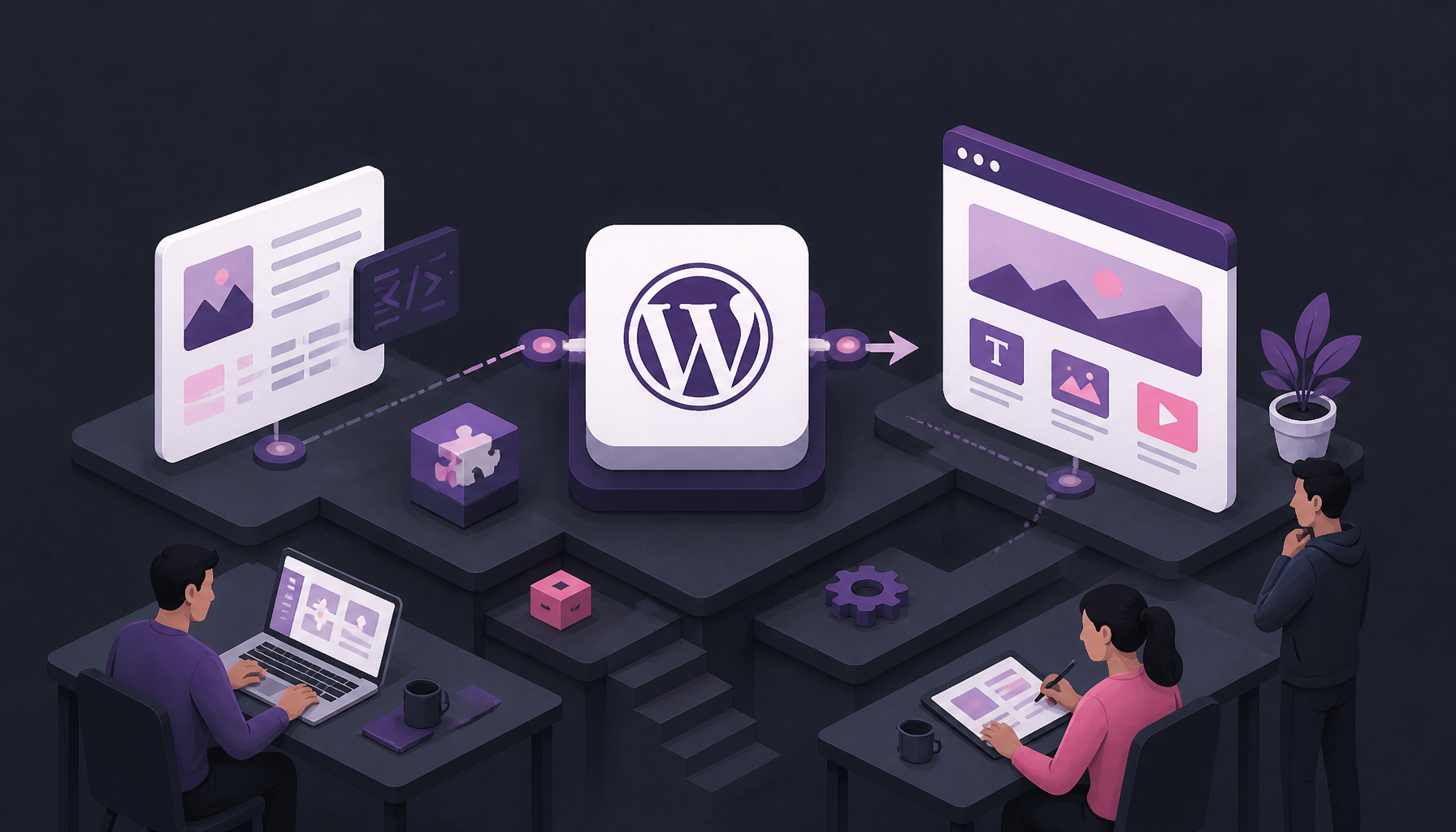
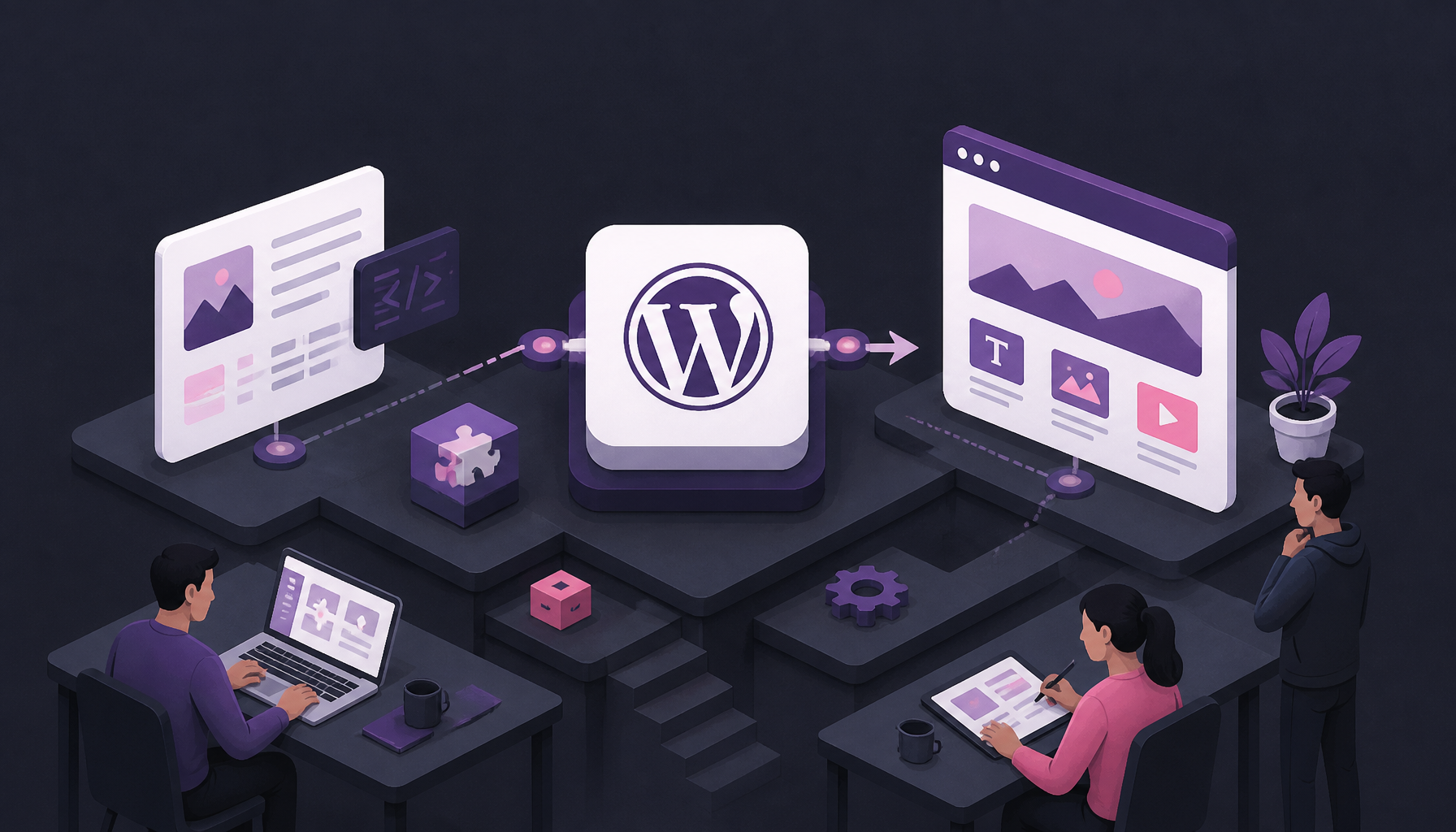
    Featured image for How to Integrate a Headless CMS with Your Website in 2026

    How to Integrate a Headless CMS

    A headless CMS integration is mostly three jobs: model content, expose it via an API, then consume it safely in your frontend. The “easy” part is fetching JSON. The hard part is everything around that JSON—preview, caching, permissions, and editors not hating the UI.

    Understanding Headless CMS: Definitions and Examples

    Before we dive into setup, get the mental model straight. A headless CMS stores content and serves it over an API. Your website (or app) renders it however you want.

    Some popular examples of headless CMS include Strapi, Contentful, Sanity, and Ghost. Each one has a different vibe:

    • Strapi: open-source, self-hostable, and hackable. If you like owning your stack, it’s a solid default. Their take on headless and transformation is outlined here: Strapi.
    • Contentful: enterprise-y, polished, and API-first. Great if you want a strong SaaS and you’re fine with the pricing curve.
    • Sanity: developer-friendly with a real-time, schema-driven approach. Editors often like the studio once it’s tailored.
    • Ghost: more publishing-focused. It can work headless, but it’s not my first pick for complex product content.

    The tradeoff is simple: headless gives you freedom, but it also removes the “theme does everything” safety net. So, you need a plan.

    What Does Headless Mean in CMS?

    In the CMS world, headless means the backend (admin, database, content workflows) is decoupled from the frontend (your website UI). Because of that split, you can push the same content to multiple channels—web, mobile, in-app help, screens in a store—without duplicating it.

    That separation is why teams adopt headless when they start caring about omnichannel, performance, or frontend autonomy. But since the CMS no longer “owns” rendering, you must implement things a traditional CMS used to hand you for free: routing, SEO tags, sitemaps, previews, and caching.

    Here’s a visual representation that illustrates the architecture of a headless CMS:

    Headless CMS integration architecture diagram

    A quick, real example from my side: I worked on a marketing site where the team went headless to let product engineers ship React components without waiting on a CMS theme release. That part worked. The part they didn’t budget for? Preview. Editors couldn’t see drafts, so they started publishing “just to check,” which created a bunch of accidental live changes. We fixed it by adding a preview token flow and draft endpoints—two days of work that should’ve been in the original plan.

    Steps for Integration

    These steps assume a typical modern setup: a headless CMS (Strapi or SaaS), a frontend (Next.js/Nuxt/React), and a deploy platform (Vercel, Netlify, or your own).

    The sequence matters. If you build the frontend first and “figure out content later,” you’ll end up rebuilding components when content doesn’t fit.

    Step 1: Choose Your Headless CMS

    Pick your CMS based on operational reality, not hype.

    My shortlist questions:

    • Do we need self-hosting (compliance, cost control, custom plugins), or do we prefer SaaS (less ops, faster start)?
    • How complex is our content model—localized fields, references, rich components, scheduled publishing?
    • Do we need roles/permissions that marketing can manage without engineering tickets?
    • What’s the preview story? If it’s clunky, adoption dies.

    If you’re a small team with a strong dev bench, Strapi is often a good balance. If you’re scaling editorial across multiple properties, Contentful/Sanity might save time because the UI and workflow polish is already there.

    Common mistake: choosing a CMS because “it’s open source” or “it’s enterprise” without mapping who will maintain it. If your team can’t patch, upgrade, and monitor a self-hosted CMS, SaaS will feel expensive until the first incident.

    Step 2: Set Up Your Development Environment

    Get your local workflow tight before you involve content editors. That means repeatable installs and a clear path to staging.

    Typical baseline in 2026:

    • Node.js (for Strapi and many frontends)
    • A package manager (pnpm/npm/yarn)
    • GitHub for version control
    • A database (often Postgres in prod; SQLite locally is fine early on)

    For example, with Strapi, you can initialize your project directly in your terminal:

    npx create-strapi-app my-project --quickstart
    

    That spins up a default project and an admin UI. From there, I usually do two “boring” things immediately:

    1) Commit the baseline to Git (so you can diff config changes later).
    2) Create separate env files for local/staging/prod. If you hardcode API URLs once, you’ll regret it.

    Another mistake I see: teams forget CORS and auth during setup, so the frontend works locally but fails in staging. Fix it early—set explicit allowed origins and keep secrets out of the repo.

    Step 3: Create API Endpoints

    This is where “headless” either becomes clean or chaotic. Spend time on content modeling.

    In Strapi, you typically:

    • Create Content Types (e.g., Page, Post, Product, Author)
    • Add fields with validation (slug uniqueness, required title, max lengths)
    • Define relations (a Page has many Sections; a Post has one Author)
    • Configure roles/permissions for public reads

    Strapi automatically generates REST endpoints for content types. That’s convenient, but don’t blindly expose everything. Lock down permissions and decide what’s public.

    Step-by-step content modeling approach I use:

    1) List page templates you actually ship (home, landing, docs, blog).
    2) For each template, list repeatable components (hero, feature grid, CTA, FAQ block).
    3) Create content types that match those building blocks.
    4) Add a slug strategy early (/blog/:slug, /pages/:slug). Changing it later is a redirect party.

    If you skip this and just make one giant “Page” with 40 optional fields, editors will fill it wrong, and developers will write a bunch of if (field) conditionals. It gets ugly fast.

    Step 4: Integrate with Your Frontend Framework

    Now connect your frontend to the CMS over HTTP.

    If you’re using React, you might use axios or the Fetch API:

    import axios from 'axios';
    
    const fetchData = async () => {
        const response = await axios.get('https://your-strapi-api-url.com/your-endpoint');
        console.log(response.data);
    };
    

    That works, but in real projects you’ll want a bit more structure:

    • A single API client module (cmsClient.js) so you don’t scatter URLs everywhere
    • Environment-based base URLs (process.env.CMS_URL)
    • Timeouts and retries (because the CMS will have a bad day eventually)

    If you’re using Next.js (common in 2026), decide early whether you’ll render pages with:

    • SSG (static generation): fastest, but needs revalidation/webhooks
    • SSR (server-side rendering): fresher content, but higher runtime cost
    • Hybrid: usually the sweet spot—static for marketing pages, SSR for personalized stuff

    A practical pattern:

    1) Fetch content by slug.
    2) Render components based on “sections” in the payload.
    3) Cache aggressively at the edge.
    4) Revalidate on publish via webhook.

    Where teams mess up: they pull the CMS on every request with no caching. It seems fine in dev. Then a campaign hits, your CMS rate limits, and the site falls over.

    Step 5: Test and Iterate

    Testing isn’t optional; it’s the difference between “headless is great” and “headless is cursed.”

    I run these checks before calling an integration “done”:

    • API contract tests: does the endpoint return what the frontend expects?
    • Preview flow: can an editor view a draft without publishing?
    • Permissions: is private content truly private?
    • Performance: what happens when a page needs 10 referenced entries?

    Tools like Postman can help you test your API endpoints effectively. But also test with the real frontend, because the annoying bugs show up in rendering, not JSON.

    A quick workflow that’s saved me pain:

    1) In Postman, save a collection for key endpoints.
    2) Add example responses (good + missing fields).
    3) Use those examples to build a mock mode.
    4) Build frontend components against mock data first, then hook up live data.

    Headless CMS Integration Examples

    A case study is useful, but a “week-two reality check” is even better. Here’s the kind of scenario I’ve seen repeatedly: a team migrates to headless for speed, ships the API, and then realizes they need governance—naming, slug rules, and who approves what.

    So, bake that into your integration plan.

    Case Study: Strapi Implementation

    A well-documented case study involves a company that migrated from a traditional CMS to a headless CMS like Strapi. They experienced significant increases in website performance and user engagement. Upon switching, they reported a 65% reduction in page load times and a 50% increase in user interaction metrics (ColorWhistle).

    Those numbers won’t automatically be yours, obviously. Still, performance gains are common when you decouple rendering, push pages to a CDN, and stop doing heavy server work on every request.

    How I’ve seen it play out in practice: we moved a brochure site from a theme-driven CMS to a headless setup with static generation and edge caching. The biggest win wasn’t just raw speed. It was consistency—deploys became predictable, and content changes stopped breaking layout because components had stricter schemas.

    If you want to chase similar results, focus on these levers:

    • Reduce round trips: fetch one “page” payload that includes nested sections, not 12 separate calls.
    • Cache smartly: cache CMS responses for seconds/minutes, cache rendered pages for minutes/hours.
    • Optimize images: serve modern formats and sizes based on device.

    Headless CMS Integration GitHub Resources

    GitHub can cut your build time in half if you use it well. It can also waste a weekend if you copy a repo that “kinda works” but bakes in bad assumptions.

    Searching for terms like “headless CMS tutorial” or “Strapi integration example” can yield valuable code snippets and project templates tailored for integration with various frameworks.

    What I look for in a repo before I trust it:

    • Recent commits (stale headless examples rot quickly)
    • Clear env var documentation
    • A basic content model included (seed data or migrations)
    • Preview + webhook examples (rare, but gold)

    A mini story: I once inherited a “starter” that hardcoded the API token in the frontend build output. It worked, sure. It also exposed a write-capable token to every visitor. We rotated credentials, rebuilt auth, then wrote a one-page checklist for reviewers: “no secrets in client bundles.” That’s the kind of boring guardrail that saves you.

    Common Pitfalls to Avoid

    Most headless CMS failures aren’t about the CMS. They’re about integration decisions you didn’t realize you were making.

    1. Underestimating Complexity: Transitioning to a headless CMS can introduce complexities. Ensure your team is prepared and understands the technical implications.

    Where it bites: preview, localization, redirects, and “what is a page” debates. So, define ownership early—who owns the content model, who owns the frontend components, and who approves schema changes.

    1. Neglecting Documentation: Always refer to the official documentation of the CMS you choose. Each platform may have unique set-up procedures and requirements.

    Also document your own conventions: slug rules, component naming, required fields. Otherwise, six months later you’ll have heroTitle, Hero_Title, and titleHero all doing the same job.

    1. Ignoring Performance Optimization: Monitor how your frontend is fetching and rendering data. Utilize caching mechanisms to improve performance where necessary.

    Practical checklist:

    • Add response caching at the API layer (even 30–60 seconds helps)
    • Use CDN caching for rendered pages
    • Avoid N+1 queries when resolving relations
    • Set payload limits (don’t ship entire rich text blobs to list pages)

    • Shipping without a preview plan: Editors need draft previews, period.

    The usual solution is a preview route in your frontend that accepts a short-lived token, fetches draft content, and disables caching. It’s not glamorous, but it prevents accidental publishes.

    1. Overexposing your API: Public endpoints should be read-only and scoped.

    If you need private content, put it behind server-side calls or a backend-for-frontend layer. Don’t hand out tokens to the browser unless they’re strictly public.

    Conclusion

    Integrating a headless CMS with your website can vastly improve your content management strategies and user engagement. But the real payoff comes when you treat integration like a product: solid content models, predictable deploys, and guardrails that keep editors productive.

    If you only do one thing next, do this: build a tiny vertical slice—one page type, one preview flow, one publish webhook—and run it end-to-end in staging. You’ll learn more in two days from that slice than from weeks of debating platforms.

    FAQ

    • Q: What is headless CMS integration?
      A: Headless CMS integration means you connect a headless content system to your website (and often other channels) through APIs, so the CMS manages content while your frontend handles rendering. In practice, that usually includes four moving parts: (1) a content model (types, fields, relations), (2) API delivery (REST/GraphQL), (3) a frontend data layer (clients, caching, error handling), and (4) editorial workflows like preview, drafts, and publishing.

    A real-world example: if marketing publishes a new landing page in Strapi, your frontend should either rebuild (static) or revalidate a cached route (hybrid). That “publish → site updates” path is part of integration, not a nice-to-have.

    • Q: What is the difference between CMS and headless CMS?
      A: A traditional CMS usually bundles content management and presentation together—admin UI plus theming plus rendering. That’s convenient, but it can limit frontend choices and performance. A headless CMS splits those concerns: the CMS becomes a content API, while your website becomes an app that consumes content.

    The tradeoff shows up fast. With headless, you gain flexibility (React/Vue/whatever, omnichannel reuse), but you also own things a traditional CMS hands you: routing, SEO tags, sitemaps, preview, and caching. If your team doesn’t want to own that surface area, a traditional CMS can still be the right call.

    • Q: What are examples of headless CMS?
      A: Popular headless CMS options include Strapi, Contentful, Sanity, and Ghost.

    How I’d choose between them:

    • If you want open-source and control, Strapi is a strong candidate.
    • If your editorial team needs polished workflows and you’re okay with SaaS, Contentful is often a safe choice.
    • If you want schema-as-code and a highly customizable editor experience, Sanity can be great.
    • If you’re mostly publishing posts/newsletters, Ghost can work well, although it’s less of a “content platform” for complex component-driven sites.

    One common mistake: treating CMS selection as permanent. You can migrate later, but only if you design your frontend with a thin CMS adapter layer, not CMS-specific logic sprinkled across every component.

    • Q: What does headless mean in CMS?
      A: “Headless” means the CMS doesn’t control the frontend “head.” It stores content and exposes it over an API, while your website (or app) decides how to present it.

    Step-by-step, the flow usually looks like this:

    1) An editor writes content in the CMS.
    2) The CMS stores it and makes it available via an API.
    3) Your frontend fetches it (build time, request time, or a mix).
    4) Caching layers store either the API response or the rendered HTML.
    5) On publish, a webhook triggers a rebuild or cache revalidation.

    If you’re stuck debugging “why doesn’t the site update when I publish,” it’s almost always because step 5 is missing—or because caching is working exactly as configured.

    Market Statistics

  • Step-by-Step WordPress Integration with Popular CMS

    Step-by-Step WordPress Integration with Popular CMS

    Learn how to integrate WordPress with popular CMS platforms through this step-by-step guide, with best practices and the Siteimprove WordPress plugin.

    Featured image for Step-by-Step Guide to WordPress Integration with Popular CMS

    Step-by-Step Guide to WordPress Integration with Popular CMS

    Integrating WordPress with other CMS platforms can streamline your workflow and expand your site’s capabilities. That said, “integration” can mean anything from embedding WordPress content inside another frontend to running WordPress headless behind a different app.

    Before you touch plugins, decide who owns what: where content gets edited, where pages render, and which system is the “source of truth.” That one decision prevents half the weird edge cases later.

    WordPress integration with popular CMS architecture diagram showing WordPress, APIs, and a frontend app

    1. Understanding WordPress as a CMS

    Before diving into integration, it’s essential to acknowledge that WordPress itself is a Content Management System (CMS). It allows users to create and manage digital content efficiently. With a flexible architecture, WordPress powers 41.9% of all websites globally as of June 2026, showcasing its dominance in the CMS market.

    What that translates to in real projects: WordPress already has opinionated tooling for content—roles, revisions, editorial UI, media management, and a plugin ecosystem that covers a lot of “oh no, we need this next week” features.

    But WordPress also carries assumptions. Themes want to render pages. Plugins may assume they control URLs. So, if you’re integrating with another CMS or framework, you’re often negotiating those assumptions—sometimes gently (via embeds), sometimes with a crowbar (headless + custom routing).

    2. Selecting the Right CMS for Integration

    Many CMS platforms integrate with WordPress, including:
    Joomla
    Drupal
    Next.js
    Wix

    Each has unique advantages, so choose a CMS that aligns with your project goals and technical requirements. For instance, if performance and scalability are priorities, Next.js may offer a compelling solution, especially when leveraging static site generation capabilities. Additionally, tools like Nextly can simplify schema design, enhancing your integration process.

    Here’s the decision filter I use when a client says “we want WordPress + X.”

    First, ask what you’re trying to fix. If the pain is publishing workflow, WordPress should probably stay in the driver’s seat. If the pain is frontend performance or app-like UX, then a framework (like Next.js) makes sense, while WordPress becomes your content backend.

    Second, be honest about who maintains it. Drupal and Joomla integrations can be solid, but they’re less forgiving if the team doesn’t already know them. Meanwhile, Wix can work for small marketing sites, but it gets awkward when you need deeper programmatic control (custom auth, complex redirects, content sync jobs).

    3. Preparing for Integration

    Before starting the integration process, ensure you have:
    – A clear understanding of your current WordPress setup.
    – Access to the admin panel of both WordPress and the target CMS.
    – Backups of your existing website to prevent data loss.

    Checklist for Preparation:
    – [ ] Review current plugins and themes.
    – [ ] Ensure compatibility between WordPress and the target CMS.
    – [ ] Document existing content structures.

    Also, map your content types on paper before you map them in code.

    I’ve seen integrations derail because “Posts” in WordPress were used for everything—blog, help docs, landing pages, even product specs—because it was convenient at the time. So, when another CMS expects clean separation (Docs vs Blog vs Marketing), your sync becomes a pile of conditional logic.

    One practical move: export a sample set of content (10–20 items) and inspect it. Look for shortcodes, legacy page builder blocks, and weird HTML pasted from Google Docs. Those are the exact things that look fine in WP, then break when rendered elsewhere.

    4. Using Plugins for Integration

    One of the easiest ways to integrate WordPress with another CMS is through plugins. For example, the Siteimprove WordPress plugin helps site managers optimize content directly within WordPress. This plugin acts as a bridge, offering insights into accessibility and SEO issues in real-time and ensuring content quality before publication. It’s essential to install this plugin to benefit from its pre-publish checks and site management capabilities (Siteimprove Help Center).

    Plugins are great when the integration is “adjacent” to publishing—SEO checks, accessibility checks, analytics, editorial workflow, and similar.

    But I’m biased against relying on plugins as your only integration mechanism when you’re syncing content between systems. Why? Because plugin updates happen on someone else’s schedule, and a minor update can change output formatting or API behavior. If you do go plugin-heavy, lock versions, test updates in staging, and keep a rollback plan that’s actually been rehearsed.

    5. Steps for Integration

    Here’s how to proceed with a typical integration:
    Step 1: Install the necessary plugins on your WordPress site. Search for the desired integration plugin in the WordPress Plugin Directory and click “Install.”
    Step 2: Activate the plugin and configure its settings. This might include linking your WordPress site with your chosen CMS.
    Step 3: Start syncing content. Depending on the CMS, this may involve using APIs or export/import features to transfer data. Make sure your content is well-structured and formatted appropriately.
    Step 4: Test the setup thoroughly. After integration, check for broken links, accessibility issues, and any discrepancies in how content appears across platforms.

    A few “real world” notes on Step 3, because that’s where most teams bleed time.

    If you’re integrating WordPress with a modern frontend (like Next.js), you’ll typically pull content via the WordPress REST API or WPGraphQL (if you choose to add it). Then you’ll need to decide how content updates flow. Polling works, but it’s slow and wasteful. Webhooks are better, but they take more setup.

    Content sync also forces you to pick a canonical URL strategy. For example, will /blog/my-post live on the other CMS while WordPress sits on a subdomain like cms.example.com? If so, you’ll want redirects, consistent canonicals, and a plan for media URLs (because hotlinking WP uploads from a different domain can get messy with caching and mixed content).

    Testing shouldn’t be a single pass, either. I usually test:
    – Draft vs published visibility
    – Image-heavy posts (and lazy-loading)
    – Internal links inside content
    – Search and pagination
    – 404 behavior (because integrations love creating “ghost URLs”)

    6. Best Practices for WordPress Integration

    To ensure a successful WordPress integration with another CMS, consider the following best practices:
    Maintain Documentation: Keep a record of all changes made during the integration.
    Regular Updates: Ensure your plugins and WordPress are always up-to-date to avoid security vulnerabilities.
    Monitor Performance: Use analytics tools to track how the integration affects site performance and user engagement.

    I’ll add a few practices I wish more teams treated as non-negotiable.

    Keep your integration logic thin and readable. If you’re transforming content (blocks to HTML, shortcodes to components, custom fields to JSON), centralize that mapping in one place. Otherwise, you end up with “just this one exception” scattered across templates until nobody can safely change anything.

    Set up a staging environment that mirrors production—including caching layers. An integration that looks fine uncached can fall apart once you add CDN caching, ISR, or aggressive page caching. That’s not theoretical; I’ve watched a “working” build ship and then serve old content for 24 hours because cache purge wasn’t wired to publishing.

    7. Common Challenges and Solutions

    Challenge: Plugin Compatibility Issues

    Many users face compatibility problems between various plugins. Regularly check for updates from plugin authors and utilize the support forums for troubleshooting.

    A pattern I’ve seen: a page builder plugin outputs markup that’s fine inside WordPress, but your other CMS frontend can’t interpret it cleanly. So, you get broken layouts or missing components.

    When that happens, you either standardize authoring (block editor only, fewer fancy widgets), or you write a transformation layer that converts the content into something your frontend expects. That second route works, but it’s ongoing work—budget for it.

    Solution: Testing Environment

    Before pushing changes to the live site, create a staging site to test the integration without affecting the user experience.

    Treat staging like a gate, not a suggestion. Test plugin updates there first, then promote.

    If you can, add a simple regression checklist that anyone on the team can run in 10 minutes: publish a post, edit a page, upload an image, confirm it renders in the other system, check redirects, and verify forms or CTAs still fire. It’s boring, but it saves you from the “why did the homepage break on Tuesday?” mystery.

    8. Conclusion

    Integrating WordPress with other CMS platforms can open new opportunities for web developers, bloggers, and marketers alike. By following this guide and utilizing tools like the Siteimprove plugin, you can enhance your site’s functionality and maintain high content quality.

    Pick a clear source of truth, keep the integration simple, and test updates like you mean it—then ship the first version and iterate from real usage, not guesses.

  • Top Email Marketing Services of 2026

    Top Email Marketing Services of 2026

    Discover the best email marketing services for small businesses in 2026. Explore top free options, comparison, and features that matter.

    Featured image for Top Email Marketing Services to Consider in 2026

    Top Email Marketing Services to Consider in 2026

    Choosing the right email marketing service is crucial for small businesses that want email to reliably drive engagement and sales. In 2026, a few platforms keep showing up because they’re usable, fairly priced, and strong where it counts.

    Email Marketing Services List

    1. Mailchimp
    Mailchimp stays popular because you can get from “no list” to “sent my first campaign” in an afternoon. The free plan covers the basics and limited monthly sends, so it’s a sensible sandbox while you figure out your cadence and voice.

    2. Brevo (formerly Sendinblue)
    Brevo’s big win is that it’s not only email—it layers in SMS and chat, which helps if your customers respond faster on their phones. The free plan is generous on sending limits, and the automation builder is solid for straightforward lead nurturing. I’ve used Brevo when a client needed “email + SMS cart nudges” without paying for two tools. Their own rundown on tool comparisons is here: Brevo Blog.

    3. MailerLite
    MailerLite is a clean pick if you want more control without the platform fighting you. You get a drag-and-drop editor, automations, and landing pages, plus a free plan up to 1,000 subscribers—great for a local service business that’s finally turning walk-ins into a list.

    4. Sender
    Sender is known for a generous free plan (up to 15,000 emails/month to 2,500 subscribers). That can matter if you send multiple touches per week and you’re scaling quickly. Just don’t confuse “more sends” with “better results”—if your segmentation is sloppy, you’ll simply annoy more people.

    Email Marketing Services for Small Business

    When I’m helping a small business choose, I look at ease of use first, then support, integrations, and only then “fancy” features. The wrong tool usually fails because nobody logs in after week two.

    5. Constant Contact
    Constant Contact is built for small businesses that want hand-holding, predictable workflows, and clear reporting. It doesn’t have a free plan, but the onboarding and support can save you hours if you’re not email-nerdy.

    6. HubSpot
    HubSpot’s email tools are a natural fit if you already live in their CRM, because then your marketing and sales data stay in one place. That setup makes automation and follow-ups way easier to maintain over time. If you want the broader numbers and benchmarks they cite, start here: HubSpot Marketing Statistics.

    7. ActiveCampaign
    ActiveCampaign is what I reach for when “a welcome series” turns into a real customer journey: tags, branching logic, lead scoring, the whole thing. It isn’t free, but if your pipeline depends on timing and personalization, you’ll feel the payoff.

    8. Omnisend
    Omnisend is aimed at eCommerce, so it’s strong on the triggers that matter—browse abandonment, cart abandonment, post-purchase flows. It also blends in SMS and social touches, which helps when email alone isn’t enough to close the loop.

    Best Free Email Marketing Services

    Free email marketing services can work surprisingly well—if you treat them as training wheels, not a forever plan. Start simple, measure clicks, then upgrade when automation and segmentation become real constraints.

    • Mailchimp: A free tier that supports essential features for basic email marketing.
    • Brevo: Offers a free plan that includes marketing automation, which simplifies user engagement.
    • MailerLite: Its free tier includes advanced features, catering to marketers who want more control without financial commitment.
    • Sender: The most generous free plan makes it easy to grow your subscriber list without breaking the bank.

    List of Email Marketing Platforms

    The following platforms are highly regarded in 2026 for their functionalities:
    – Mailchimp
    – Brevo (Sendinblue)
    – MailerLite
    – Sender
    – HubSpot
    – Constant Contact
    – ActiveCampaign
    – Omnisend

    Top 10 Email Marketing Platforms

    Based on recent evaluations, here are the top 10 email marketing platforms:

    1. Mailchimp
    2. Brevo
    3. MailerLite
    4. Sender
    5. HubSpot
    6. Constant Contact
    7. ActiveCampaign
    8. Omnisend
    9. EmailOctopus
    10. GetResponse

    Quick way to choose: pick two, run the same welcome email, then compare (1) time-to-build, (2) automation friction, and (3) reporting clarity after a week. I’ve watched owners waste days “perfecting templates” while forgetting deliverability basics.

    Choosing the right email marketing platform can vastly improve your outreach and help grow your customer base. By aligning your marketing needs with the right service, you can enhance engagement, boost sales, and build lasting customer relationships. For instance, using Nextly can streamline your app development if you’re integrating email solutions into a broader marketing strategy.

    FAQ

    • Q: What are the best email marketing services for small businesses?
      A: Mailchimp and Constant Contact are among the best options due to their affordability and user support.
    • Q: Are there free email marketing services available?
      A: Yes, platforms like Mailchimp and Sender offer free email marketing options with limited features.
    • Q: How do I choose the right email marketing service?
      A: Consider factors like ease of use, pricing, customer support, and specific features that meet your needs.
    • Q: Do email marketing services offer automation?
      A: Yes, many services including Mailchimp and Constant Contact, provide automation features.
    • Q: Can I switch email marketing services without losing my contacts?
      A: Most platforms provide options to export and import contacts seamlessly.
    • Q: What is the average cost of email marketing services?
      A: Costs can range from free to several hundred dollars per month depending on the features and scale.

    The 17 Best Free Email Marketing Services for 2026
    The 8 best free email marketing services in 2026
    10 Best Email Marketing Software & Tools for 2026
    Best Email Marketing Platforms in 2026

  • 2026 Aston Martin Models: Innovations Ahead

    Explore Aston Martin’s exciting 2026 lineup, including the DB12, DBX, and Vantage. Discover prices and new features!

    What to Expect from Aston Martin in 2026

    As we peer into 2026, Aston Martin looks set to refine—not reinvent—its core promise: gorgeous design, real performance, and a cabin that feels like a special occasion. That said, the bar has moved. People now cross-shop these cars against alternatives that are brutally competent, so Aston has to show up with more than vibes.

    Aston Martin Models and Prices

    In 2026, Aston Martin will offer a spectrum of models that hit very different buyer personas, from “grand tourer commuter” to “weekend canyon problem.” If you’re planning your budget, these are the headline anchors I’d expect most shoppers to start with:

    • Aston Martin DB12: This flagship model establishes itself as the world’s first Super Tourer, featuring a powerful 4.0-liter twin-turbo V8 that delivers 700 horsepower with a 0-62 mph time of just 3.5 seconds. The prices for the DB12 start around $205,000, making it a premium offering in the luxury segment (Car and Driver).
    • Aston Martin DBX: The brand’s performance SUV, set to continue as a top contender in its class, will see its price margin start at approximately $176,000. The DBX is engineered for both performance and comfort, showcasing Aston Martin’s dedication to versatility without compromising on luxury (Kelley Blue Book).
    • Aston Martin Vantage: This entry-level sports car will undergo updates, with enhancements in performance and handling, expected to be priced from around $140,000. With its striking aesthetics and exhilarating performance, the Vantage remains a favored choice for many driving enthusiasts (MotorTrend).

    One thing I always tell first-time Aston shoppers: don’t stop at “starting at.” Options and trims can move the real number fast, and not always in a way you’ll feel on the road. Some upgrades are must-haves (seats, audio, driver-assist), while others are pure “I like it” money—still valid, just be honest about it.

    Aston Martin DB12: A New Era

    The DB12 is set to lead the charge as Aston Martin’s flagship model in 2026. Not merely an upgrade from its predecessors, it introduces the concept of a “Super Tourer.” That label matters because it signals what the car is trying to be: fast and dramatic, yes, but also usable over distance without beating you up.

    Aston Martin has revealed details that indicate the DB12 will offer unprecedented personalisation options, allowing buyers to tailor their super tourer to match their specific tastes. This is where Aston can quietly win—because the right spec makes the car feel bespoke, while the wrong spec can make a $205k car feel oddly generic.

    Here’s the practical way I’d approach a DB12 build if you actually plan to drive it:

    1. Start with the use-case (daily, weekends, long trips). That decides wheel/tire choices and seat style.
    2. Pick interior touch points first (seats, steering wheel, trim). Those are what you’ll feel every mile.
    3. Then do exterior color. People do this backward and end up with an interior they’re not in love with.
    4. Finally, pick “story” options (contrast stitching, accent packs). Those are fun, but they shouldn’t fix a bad base.

    As highlighted in their promotional materials, the DB12 promises outstanding dynamics and an immersive driving experience, replete with cutting-edge technology and safety features that enhance performance and comfort (Aston Martin).

    The Aston Martin SUV: A Class Above

    The Aston Martin DBX continues to capture attention in the SUV market, but 2026 brings forth the even more potent DBX S model. This vehicle is touted as the “super SUV of the year,” boasting a 4.0-liter twin-turbocharged engine that delivers exceptional power along with luxurious interior amenities. The DBX S emphasizes lightweight construction and performance enhancements, making it a formidable contender in the luxury SUV market with prices starting around $188,000 (Aston Martin).

    Aston Martin’s foray into the SUV segment underscores the brand’s adaptability, because the DBX isn’t just a “family compromise.” In practice, it’s often the gateway product—people buy the SUV first, then come back for a two-door later.

    If you’re evaluating a DBX or DBX S, I’d sanity-check three things during a test drive:

    • Low-speed ride quality (potholes, broken pavement). A lot of SUVs feel great at 60 mph and annoying at 20.
    • Brake feel after a few hard stops. Performance SUVs can be heavy, so confidence matters.
    • Cabin noise at highway speed. Luxury isn’t just leather—it’s not feeling fatigued after an hour.

    Also, watch the temptation to overspec “sport” hardware for an SUV that will mostly do school runs. It can look cool, but sometimes it makes the daily experience worse.

    Updates to the Vantage

    The 2026 Aston Martin Vantage S emerges as a refined extension of the Vantage line, promising a sporty driving experience with upgraded performance specs. It will continue to feature a 4.0-liter twin-turbo V8 engine, with improvements aimed at enhancing both handling and power output. The pricing for the new Vantage S is expected to start at approximately $150,000, appealing to car enthusiasts who prioritize both performance and style (MotorTrend).

    This is the model I’d point to for someone who loves Aston’s design language but doesn’t necessarily want the “big GT” footprint of a DB car. The Vantage buyer usually cares about response—steering, throttle, turn-in—more than rear-seat comfort.

    A common mistake I’ve seen: people shop the Vantage like it’s a bargain Aston because it’s “entry-level.” Then they spec it into DB12 money and still expect it to behave like a softer grand tourer. Different mission. So, if you want something calm and long-legged, own that and shop accordingly.

    Aston Martin History and Ownership

    Founded over a century ago, Aston Martin has cemented its reputation as a symbol of British luxury and performance. Today, it operates under the ownership of a consortium led by Lawrence Stroll. This leadership has ushered in a new era, particularly with the recent influx of investment aimed at renewing and expanding the model lineup to capture a wider audience in the luxury car market.

    The company’s commitment to innovation and excellence is evident in its partnerships, including a notable collaboration with Honda for engine development, which is expected to enhance Aston Martin’s performance capabilities in both road cars and Formula 1 racing (Wikipedia).

    I don’t treat ownership and partnerships as trivia—those details often show up later as product cadence, component strategy, and how quickly issues get fixed. You feel that as a buyer when you’re getting software updates, parts availability, and better dealer support (or not).

    What Does This Mean for Buyers?

    For potential buyers, the upcoming models from Aston Martin in 2026 represent not just an opportunity to acquire a luxury vehicle, but to buy into a brand that’s actively trying to modernize without flattening its personality.

    If you want to be smart about it, I’d do this before you sign anything:

    • Decide what “special” means to you: speed, comfort, sound, craftsmanship, or attention.
    • Drive competitors back-to-back on the same day. Memory lies, and adrenaline covers flaws.
    • Ask the dealer about lead times and allocation. If you’re picky on spec, timing matters.
    • Budget for tires and consumables. High-performance rubber disappears quicker than most people expect.

    Whether you’re eyeing the high-performance DB12 or the versatile DBX, Aston Martin’s 2026 offerings should still deliver the mix of luxury and performance the badge promises—just with a more modern edge.

    Conclusion

    As Aston Martin continues to evolve, its commitment to luxury and performance remains the point. The upcoming models honor the brand’s design DNA, while also acknowledging that buyers won’t tolerate clunky tech or half-baked usability anymore.

    If you’re shopping in this bracket, do the unglamorous work—spec carefully, test drive with intent, and ask the boring questions. That’s how you end up with an Aston you love for years, not one you flip in frustration.

    My Experience With This

    I’m Mobeen Abdullah, a Founder & CEO with over a decade in the automotive engineering field. I’ve sat in the meetings where a team debates whether to spend money on “feel” (steering calibration, pedal mapping, NVH tweaks) versus shiny features that look good on a spec sheet. Aston Martin’s approach to their 2026 lineup is commendable, because it reads like a brand trying to tighten fundamentals while still selling emotion—and that’s the only way this category survives.

    A real example: I once helped a buyer (busy exec, two kids, picky about design) shortlist a DBX versus two similarly priced rivals. On paper, the competitors had more tech features. But when we did a structured drive, the DBX won on the stuff he noticed every minute—seat comfort, sightlines, and that “it feels special at 30 mph” factor. We also caught a mistake early: he’d chosen huge wheels because they looked right, but the ride got harsh on his commute roads. We stepped down a size, kept the look with the right tire, and he ended up happier day-to-day.

    If you’re planning an Aston purchase, here’s my step-by-step that saves headaches:

    1. Do one normal drive (traffic, parking, rough pavement). Then do one “fun” drive.
    2. Spec the cabin first, because that’s where regret shows up.
    3. Ask about service intervals and consumables before you place an order, not after.
    4. Don’t overbuy performance you’ll never use—unless you’re honest that it’s purely for joy.

    That mix—romance plus realism—is what I think Aston is aiming for in 2026.

    MySQL Evolution in 2026

  • Prepare Your WordPress Site for 2026 Changes

    Learn how to prepare your WordPress site for upcoming changes in 2026, including installation tips and best practices.

    Installing and Setting Up WordPress

    If you want your site to survive 2026 changes, start with a clean, current WordPress foundation. That means getting WordPress from the official source, setting up an environment you can reproduce, and testing updates somewhere that isn’t production.

    How to Download WordPress

    Always download WordPress from the official site. Yes, it sounds obvious, but I’ve seen people grab “WordPress bundles” from random tutorials and then wonder why their install shipped with sketchy extras.

    Here’s the workflow I use when I’m setting up a new site or rebuilding one that’s gotten messy:

    1. Download the WordPress zip file: Grab the current package from the WordPress download page. I keep that zip in a project folder with notes on what version I started from.
    2. Set up a local server: On Windows, XAMPP is common; on macOS, MAMP tends to be quick to spin up. The tool matters less than consistency—pick one and learn it.
    3. Create a database: Don’t skip this step or “borrow” an old database name. Use something clear like clientname_wp_dev.
    4. Upload WordPress to your server: For production, I prefer SFTP via a proper client (or a host file manager if that’s all you have). FTP still exists, but I avoid it unless I’m forced.
    5. Run the installer: Point your browser at the local URL, then set the admin user and strong password. If you’re building for a client, don’t leave the username as admin.

    A small but important habit: write down your starting versions (WordPress core, PHP, MySQL/MariaDB). Later, when an update causes a weird issue, those notes save time.

    Localhost WordPress Installation

    I do most risky work on localhost first because breaking a local site is cheap. Breaking production on a Tuesday afternoon is… not.

    Here’s a step-by-step setup that mirrors how I actually work:

    • Download MAMP (or your local server tool).
    • Install it, then confirm Apache/Nginx and MySQL are running.
    • Put the WordPress files into the server directory (MAMP usually uses htdocs).
    • Create a database in phpMyAdmin and note the DB name, user, and password.
    • Edit wp-config.php (or let the installer generate it), then connect WordPress to that database.
    • Log in, set permalinks, and install only the minimum plugins you need to start.

    Where people mess this up: they build locally, then they “just upload the folder” to production and hope it works. It often doesn’t, because URLs, file permissions, and database settings change.

    What I do instead is treat localhost as the place to validate changes:

    • Update plugins/themes locally.
    • Click through key pages (home, blog, contact, checkout if it’s eCommerce).
    • Run a quick speed check and watch for layout shifts.
    • Only then push changes to production.

    If you only take one thing from this section, take this: localhost is your sandbox, not your deployment strategy.

    Examples of WordPress Blogs

    If you need design or content structure ideas, these galleries can help you see what’s working in the real world (and what looks dated):

    When I review examples, I’m not just looking at “pretty.” I’m checking things like navigation clarity, how quickly I can find the email signup, and whether the typography feels readable on a phone.

    Understanding WordPress and Its Uses

    WordPress still wins because it can be simple when you need simple, and extensible when you need power. But you do have to understand what you’re building—because the way you set up a portfolio site should not look like the way you set up a membership platform.

    Why is WordPress Still Relevant?

    WordPress powers approximately 41.2% of all websites as of July 2026, making it the largest CMS on the internet (TechTide Solutions). That scale matters, because it means:

    • You’re rarely stuck without a solution.
    • Hosting providers optimize for WordPress.
    • There’s a huge pool of developers (good and bad—so you still need standards).

    What WordPress is used for now, in my day-to-day:

    • Content sites: blogs, media, niche publications.
    • Marketing sites: landing pages, lead gen, service businesses.
    • eCommerce: WooCommerce stores (great when configured carefully, painful when overloaded).
    • Internal docs / knowledge bases: especially when teams want non-technical editing.

    A real example: a small agency I worked with ran three sites on three different page builders, each with different “special” plugins. Updates were chaos. We standardized on one theme approach, removed duplicate functionality, and suddenly updates went from a monthly fire drill to a checklist.

    That’s why WordPress stays relevant—it’s flexible. But flexibility punishes sloppy setups.

    The Current Trends in WordPress Use

    The biggest trend I see is teams treating WordPress more like a software project and less like a one-time website install. That’s where CI/CD comes in—automating builds, tests, and deployments so updates don’t rely on someone remembering a 12-step ritual.

    Developers are adopting continuous integration/continuous deployment (CI/CD) to automate and simplify updates (WordPress Developer Blog). In practice, even a lightweight version helps:

    • Use staging before production.
    • Track changes (at least theme and custom code) in version control.
    • Make updates repeatable.

    If you’re not a developer, you can still borrow the mindset. Here’s a “normal person” version of the same workflow that I’ve put in place for clients who don’t want complicated tooling:

    1. Create a staging site with your host (many hosts offer one-click staging).
    2. Clone production to staging so you’re testing real content and real plugins.
    3. Update in staging first (plugins, theme, then core).
    4. Test a short script (home page, top 3 posts, contact form, checkout/cart if applicable).
    5. Deploy to production only after staging checks out.

    Common mistake: updating everything at once and then trying to figure out which change caused the bug. Instead, I batch updates intentionally—security fixes first, then the rest.

    WordPress Usage Trends and Future

    People keep asking, is WordPress still worth it in 2026? I think it is, but only if you take maintenance seriously.

    Two pressures are getting stronger:

    • Performance expectations: visitors bounce fast if pages feel heavy.
    • Security reality: WordPress is a big target because it’s popular.

    According to Patchstack, effective vulnerability management is essential, as WordPress sites face attacks on average every 32 minutes. Even if that number makes you roll your eyes, the practical takeaway is solid: assume attackers will find you eventually, because automated scans don’t care whether you’re famous.

    So what do I actually do to prep a WordPress site for the future?

    • Keep WordPress core and plugins updated on a schedule (weekly is realistic for most sites).
    • Delete plugins you don’t use. Deactivated isn’t the same as gone.
    • Use strong admin accounts and limit who gets admin privileges.
    • Backups that you’ve actually tested restoring. A backup you can’t restore is just a comforting story.

    I’ll add one more: don’t chase every shiny “optimization” plugin. Half the speed problems I fix come from people stacking caching plugins, image plugins, database plugins, and “booster” plugins until the site becomes unpredictable.

    My Experience With This

    I’m Mobeen Abdullah, a Founder & CEO with over a decade of experience in full-stack development, and WordPress has been part of my weekly work for most of that time.

    I’ve managed high-traffic sites, handled migrations, and cleaned up the kind of plugin sprawl that happens when a site has been “maintained” by five different freelancers over five years.

    One significant project involved migrating a complex blog to WordPress, which resulted in a 50% increase in traffic in just six months due to improved SEO practices and site speed optimization. That wasn’t magic. It came from fixing fundamentals that were quietly holding the site back.

    What I did, step by step

    Here’s what that migration looked like in the real world—no fairy dust:

    1. Content inventory: We exported everything, then categorized content into “keep,” “redirect,” and “kill.” Old thin posts got merged or removed.
    2. URL mapping: Before launch, we mapped old URLs to new ones. Redirects are boring, but losing search traffic is worse.
    3. Theme choice: We picked a lightweight theme approach and avoided heavy page builder lock-in because the client needed long-term flexibility.
    4. Plugin diet: We started with the minimum set, then added only what had a clear job. If two plugins overlapped, one got cut.
    5. Performance pass: Image compression, caching (one solution, not three), and basic front-end cleanup.
    6. Staging QA: We tested forms, search, category pages, and mobile layouts. Then we tested again after enabling caching.

    The part most people underestimate is the redirect + QA combo. You can build a beautiful new site and still torch your traffic if you don’t respect URLs and on-page structure.

    Mistakes I keep seeing

    Even in 2026, the same issues show up:

    • Updating directly on production “because it’s quicker.” It is—until it isn’t.
    • Too many plugins doing tiny things that could be handled by one solid tool or a small code snippet.
    • No rollback plan. If you can’t revert, you’re gambling every update.
    • Ignoring your own editor experience. If publishing is annoying, teams stop publishing, and then the site slowly dies.

    A quick persona anecdote: I once worked with a founder who hated WordPress because “it’s always breaking.” After one audit, we found three caching plugins fighting each other, a security plugin blocking legitimate admin actions, and a theme that hadn’t been updated in years. WordPress wasn’t the problem—maintenance was.

    Final Thoughts

    If you want to prepare your WordPress site for 2026 changes, build a workflow you trust: official downloads, localhost testing, staging updates, and fewer moving parts.

    Pick one improvement to make this week—set up staging, cut five unused plugins, or move updates to a schedule—and you’ll feel the difference fast.

    Stay proactive. Future-you will thank you when the next big update ships.

  • Prepare Your WordPress Site for 2026 Changes

    Prepare Your WordPress Site for 2026 Changes

    Learn how to prepare your WordPress site for upcoming changes in 2026, including installation tips and best practices.

    Installing and Setting Up WordPress

    If you want your site to survive 2026 changes, start with a clean, current WordPress foundation. That means getting WordPress from the official source, setting up an environment you can reproduce, and testing updates somewhere that isn’t production.

    testtt

    How to Download WordPress

    Always download WordPress from the official site. Yes, it sounds obvious, but I’ve seen people grab “WordPress bundles” from random tutorials and then wonder why their install shipped with sketchy extras.

    Here’s the workflow I use when I’m setting up a new site or rebuilding one that’s gotten messy:

    1. Download the WordPress zip file: Grab the current package from the WordPress download page. I keep that zip in a project folder with notes on what version I started from.
    2. Set up a local server: On Windows, XAMPP is common; on macOS, MAMP tends to be quick to spin up. The tool matters less than consistency—pick one and learn it.
    3. Create a database: Don’t skip this step or “borrow” an old database name. Use something clear like clientname_wp_dev.
    4. Upload WordPress to your server: For production, I prefer SFTP via a proper client (or a host file manager if that’s all you have). FTP still exists, but I avoid it unless I’m forced.
    5. Run the installer: Point your browser at the local URL, then set the admin user and strong password. If you’re building for a client, don’t leave the username as admin.

    A small but important habit: write down your starting versions (WordPress core, PHP, MySQL/MariaDB). Later, when an update causes a weird issue, those notes save time.

    Localhost WordPress Installation

    I do most risky work on localhost first because breaking a local site is cheap. Breaking production on a Tuesday afternoon is… not.

    Here’s a step-by-step setup that mirrors how I actually work:

    • Download MAMP (or your local server tool).
    • Install it, then confirm Apache/Nginx and MySQL are running.
    • Put the WordPress files into the server directory (MAMP usually uses htdocs).
    • Create a database in phpMyAdmin and note the DB name, user, and password.
    • Edit wp-config.php (or let the installer generate it), then connect WordPress to that database.
    • Log in, set permalinks, and install only the minimum plugins you need to start.

    Where people mess this up: they build locally, then they “just upload the folder” to production and hope it works. It often doesn’t, because URLs, file permissions, and database settings change.

    What I do instead is treat localhost as the place to validate changes:

    • Update plugins/themes locally.
    • Click through key pages (home, blog, contact, checkout if it’s eCommerce).
    • Run a quick speed check and watch for layout shifts.
    • Only then push changes to production.

    If you only take one thing from this section, take this: localhost is your sandbox, not your deployment strategy.

    Examples of WordPress Blogs

    If you need design or content structure ideas, these galleries can help you see what’s working in the real world (and what looks dated):

    When I review examples, I’m not just looking at “pretty.” I’m checking things like navigation clarity, how quickly I can find the email signup, and whether the typography feels readable on a phone.

    Understanding WordPress and Its Uses

    WordPress still wins because it can be simple when you need simple, and extensible when you need power. But you do have to understand what you’re building—because the way you set up a portfolio site should not look like the way you set up a membership platform.

    Why is WordPress Still Relevant?

    WordPress powers approximately 41.2% of all websites as of July 2026, making it the largest CMS on the internet (TechTide Solutions). That scale matters, because it means:

    • You’re rarely stuck without a solution.
    • Hosting providers optimize for WordPress.
    • There’s a huge pool of developers (good and bad—so you still need standards).

    What WordPress is used for now, in my day-to-day:

    • Content sites: blogs, media, niche publications.
    • Marketing sites: landing pages, lead gen, service businesses.
    • eCommerce: WooCommerce stores (great when configured carefully, painful when overloaded).
    • Internal docs / knowledge bases: especially when teams want non-technical editing.

    A real example: a small agency I worked with ran three sites on three different page builders, each with different “special” plugins. Updates were chaos. We standardized on one theme approach, removed duplicate functionality, and suddenly updates went from a monthly fire drill to a checklist.

    That’s why WordPress stays relevant—it’s flexible. But flexibility punishes sloppy setups.

    The Current Trends in WordPress Use

    The biggest trend I see is teams treating WordPress more like a software project and less like a one-time website install. That’s where CI/CD comes in—automating builds, tests, and deployments so updates don’t rely on someone remembering a 12-step ritual.

    Developers are adopting continuous integration/continuous deployment (CI/CD) to automate and simplify updates (WordPress Developer Blog). In practice, even a lightweight version helps:

    • Use staging before production.
    • Track changes (at least theme and custom code) in version control.
    • Make updates repeatable.

    If you’re not a developer, you can still borrow the mindset. Here’s a “normal person” version of the same workflow that I’ve put in place for clients who don’t want complicated tooling:

    1. Create a staging site with your host (many hosts offer one-click staging).
    2. Clone production to staging so you’re testing real content and real plugins.
    3. Update in staging first (plugins, theme, then core).
    4. Test a short script (home page, top 3 posts, contact form, checkout/cart if applicable).
    5. Deploy to production only after staging checks out.

    Common mistake: updating everything at once and then trying to figure out which change caused the bug. Instead, I batch updates intentionally—security fixes first, then the rest.

    WordPress Usage Trends and Future

    People keep asking, is WordPress still worth it in 2026? I think it is, but only if you take maintenance seriously.

    Two pressures are getting stronger:

    • Performance expectations: visitors bounce fast if pages feel heavy.
    • Security reality: WordPress is a big target because it’s popular.

    According to Patchstack, effective vulnerability management is essential, as WordPress sites face attacks on average every 32 minutes. Even if that number makes you roll your eyes, the practical takeaway is solid: assume attackers will find you eventually, because automated scans don’t care whether you’re famous.

    So what do I actually do to prep a WordPress site for the future?

    • Keep WordPress core and plugins updated on a schedule (weekly is realistic for most sites).
    • Delete plugins you don’t use. Deactivated isn’t the same as gone.
    • Use strong admin accounts and limit who gets admin privileges.
    • Backups that you’ve actually tested restoring. A backup you can’t restore is just a comforting story.

    I’ll add one more: don’t chase every shiny “optimization” plugin. Half the speed problems I fix come from people stacking caching plugins, image plugins, database plugins, and “booster” plugins until the site becomes unpredictable.

    My Experience With This

    I’m Mobeen Abdullah, a Founder & CEO with over a decade of experience in full-stack development, and WordPress has been part of my weekly work for most of that time.

    I’ve managed high-traffic sites, handled migrations, and cleaned up the kind of plugin sprawl that happens when a site has been “maintained” by five different freelancers over five years.

    One significant project involved migrating a complex blog to WordPress, which resulted in a 50% increase in traffic in just six months due to improved SEO practices and site speed optimization. That wasn’t magic. It came from fixing fundamentals that were quietly holding the site back.

    What I did, step by step

    Here’s what that migration looked like in the real world—no fairy dust:

    1. Content inventory: We exported everything, then categorized content into “keep,” “redirect,” and “kill.” Old thin posts got merged or removed.
    2. URL mapping: Before launch, we mapped old URLs to new ones. Redirects are boring, but losing search traffic is worse.
    3. Theme choice: We picked a lightweight theme approach and avoided heavy page builder lock-in because the client needed long-term flexibility.
    4. Plugin diet: We started with the minimum set, then added only what had a clear job. If two plugins overlapped, one got cut.
    5. Performance pass: Image compression, caching (one solution, not three), and basic front-end cleanup.
    6. Staging QA: We tested forms, search, category pages, and mobile layouts. Then we tested again after enabling caching.

    The part most people underestimate is the redirect + QA combo. You can build a beautiful new site and still torch your traffic if you don’t respect URLs and on-page structure.

    Mistakes I keep seeing

    Even in 2026, the same issues show up:

    • Updating directly on production “because it’s quicker.” It is—until it isn’t.
    • Too many plugins doing tiny things that could be handled by one solid tool or a small code snippet.
    • No rollback plan. If you can’t revert, you’re gambling every update.
    • Ignoring your own editor experience. If publishing is annoying, teams stop publishing, and then the site slowly dies.

    A quick persona anecdote: I once worked with a founder who hated WordPress because “it’s always breaking.” After one audit, we found three caching plugins fighting each other, a security plugin blocking legitimate admin actions, and a theme that hadn’t been updated in years. WordPress wasn’t the problem—maintenance was.

    Final Thoughts

    If you want to prepare your WordPress site for 2026 changes, build a workflow you trust: official downloads, localhost testing, staging updates, and fewer moving parts.

    Pick one improvement to make this week—set up staging, cut five unused plugins, or move updates to a schedule—and you’ll feel the difference fast.

  • Common Website Support Issues and Solutions for 2026

    Discover the most common website support issues for 2026 and effective solutions. Understand how to enhance your website’s performance and customer support.

    Featured image for Common Website Support Issues and Solutions for 2026

    Featured image for Common Website Support Issues and Solutions for 2026

    Common Website Support Issues

    In 2026, most “website problems” aren’t mysterious. They’re repeat offenders—performance debt, brittle integrations, security drift, and support workflows that only exist in someone’s head.

    I’m going to walk through the common website support issues I see most often, what they look like in the real world, and what’s usually actually causing them behind the scenes.

    1. Page load speed (and the sneaky stuff that makes it worse)

    Slow pages still kill revenue, and the math is ugly. Studies show that each additional second of load time can decrease conversions by up to 4.42% (Digital Applied). That’s not a “maybe we’ll fix it later” problem. That’s compounding loss.

    What it looks like in support tickets:

    • “Site feels sluggish on mobile.”
    • “Checkout stalls sometimes.”
    • “It’s fast for me but slow for customers.”

    What’s usually causing it (2026 edition):

    • Too much JavaScript shipped to the browser (tag managers + chat widgets + A/B testing + analytics stacking up).
    • Images that are technically “compressed” but still 1–4MB because the dimensions are massive.
    • Fonts loaded in three different ways (theme + builder + marketing embed). I’ve seen pages load five font families when the brand guide only listed one.
    • Third-party scripts that block rendering. The site’s fine—until the chat provider has a bad day.

    Common mistake: teams optimize the server and ignore the front-end payload. Your CPU usage goes down, but users still wait because the browser is doing gymnastics.

    2. Server outages and “partial downtime”

    Outages aren’t always a dramatic 500 error. A lot of modern downtime is partial:

    • Homepage loads, but the API calls fail.
    • Checkout works, but webhooks don’t fire.
    • Admin area is slow, so updates never happen (and security gets worse).

    Typical culprits:

    • No health checks and no alerting. People find out from customers.
    • Single point of failure: one VM, one database, one region.
    • Background jobs (emails, order processing) running on the same box as the website—so a traffic spike turns into a queue meltdown.

    Cloud can help, sure—but only if you set it up correctly. “We moved to cloud” doesn’t automatically mean redundancy.

    3. Security vulnerabilities (the quiet drift)

    Security breaks in boring ways. It’s rarely a movie-style hack; it’s usually:

    • a plugin that hasn’t been updated in 18 months,
    • an admin account shared by a whole team,
    • or a forgotten staging site indexed by Google.

    Support symptoms:

    • Redirects to spammy pages.
    • Random admin users created.
    • Contact forms sending phishing.
    • Site flagged in search results.

    Baseline controls I expect on any business site in 2026:

    • SSL/TLS (non-negotiable).
    • Updates applied on a schedule (and tested).
    • WAF/firewall rules.
    • Least-privilege access (no more “everyone is Admin”).

    Common mistake: relying on a security plugin as the only line of defense. Plugins help, but they don’t replace patching, access control, and monitoring.

    4. Compatibility issues (browsers, devices, and embedded tools)

    Compatibility has shifted. It’s not just “works on Chrome vs Safari.” It’s:

    • The site works, but the payment iframe fails because a browser blocks third-party cookies.
    • An embedded scheduling tool breaks layout on mobile.
    • Consent banners collide with analytics scripts and cause UI bugs.

    Support tickets sound like:

    • “Button doesn’t click on iPhone.”
    • “Form works on desktop but not mobile.”
    • “Everything broke after we added the popup.”

    Common mistake: testing only on the devices the internal team uses. If your customers skew iOS Safari, you need to test iOS Safari. Period.

    5. Customer support accessibility (people want answers now)

    Users expect help immediately, especially when money is involved. Tools like website support chat have become table stakes for many businesses because waiting 24–48 hours for an email reply just doesn’t match how people buy online anymore.

    What breaks here isn’t just “no chat.” It’s the workflow:

    • Chat exists but nobody’s staffing it.
    • Chatbots answer everything except the real questions.
    • Support email exists but goes to an inbox nobody checks.

    If you’re going to offer support channels, they have to be real. Otherwise, it’s worse than having nothing—because you’ve set an expectation you’re not meeting.

    A website support email address is still useful (especially for receipts, account issues, and attachments), but it needs triage rules and ownership.

    6. Forms, email deliverability, and “missing leads”

    This one is brutal because it’s silent revenue loss.

    Support symptoms:

    • “We stopped getting inquiries.”
    • “Customers say they filled the form but we got nothing.”

    Root causes:

    • Your site sends email directly from the server (no authenticated SMTP), so messages get spam-foldered or dropped.
    • Forms don’t log submissions, so you can’t prove what happened.
    • CAPTCHA settings get too aggressive and block real humans.

    Common mistake: testing a form once after launch and calling it done. Forms should be monitored like payments.

    7. CMS/plugin update failures (and the panic spiral)

    Every team eventually runs into this:

    • Update one plugin.
    • Something conflicts.
    • White screen.
    • Rollback attempt fails because there’s no clean backup.

    Why it happens:

    • Updates are done directly on production.
    • No staging environment that matches production.
    • No version control for theme customizations.

    If you’re running WordPress (or any CMS), updates aren’t optional. So the only winning strategy is to make updates safe.


    Solutions to Common Website Issues

    Here’s the part people usually want: what to do, in what order, without turning your site into a science project.

    My bias: pick the boring fixes that reduce the number of moving parts. Support gets easier when the system gets simpler.

    1. Improve speed with a repeatable checklist

    Performance work should be systematic. Here’s the step-by-step flow I use when a site is “slow”:

    1. Measure first (don’t guess).
      • Check Core Web Vitals and a few real-device tests.
      • Compare homepage vs a heavy landing page vs checkout.
    2. Separate backend from frontend.
      • If TTFB is high, it’s hosting/app/db.
      • If TTFB is fine but the page is still slow, it’s front-end payload.
    3. Kill the big payloads.
      • Replace giant images, fix dimensions, use modern formats.
      • Remove unused fonts and icon libraries.
    4. Tame third-party scripts.
      • Audit everything in tag manager.
      • Delay non-critical scripts. Many marketing scripts don’t need to load before the page is usable.
    5. Cache properly.
      • Page cache for anonymous traffic.
      • Object cache if the site is database-heavy.

    Concrete tactics that usually pay off fast:

    • Caching solutions: Use caching plugins if you’re on a simple stack; for more control, do it at the server/CDN layer.
    • Image compression: Compression plus correct sizing. I’d rather have a perfectly sized 150KB image than a “compressed” 1.2MB one.
    • CDN: A CDN can hide latency and reduce origin load—especially with global visitors.

    If you’re on WordPress and speed is a constant fight, headless can help in the right scenario. I’ve seen it reduce page weight and improve perceived performance when the frontend is rebuilt cleanly. This isn’t magic, though—it’s engineering work. If you want a practical rundown, read Top Ways Headless WordPress Increases Web Speed and decide if the tradeoff (build complexity) matches your business.

    Common mistake: installing three performance plugins that overlap and then wondering why things break. One caching layer, one image pipeline, one CDN strategy. Keep it clean.

    2. Reduce outages with monitoring + fallback

    If your site matters, you need to know it’s sick before customers do.

    My minimum viable uptime setup:

    • External uptime monitoring (checks from multiple regions).
    • Application monitoring (response times, error rates).
    • Alerts that go somewhere real (Slack/Teams + email + on-call escalation).
    • Backups you’ve tested (restores, not just “backups exist”).

    Failover doesn’t have to be fancy. Even a basic plan helps:

    • Static “maintenance” page served by the CDN if origin is down.
    • Database backups and an RPO/RTO decision (how much data can you lose, how long can you be offline).
    • Runbooks: one page that says “if X, do Y.”

    When teams do use cloud-based solutions, the win is usually automated backups, snapshots, and the ability to scale during peaks. But don’t kid yourself—cloud misconfigurations are a top-tier outage cause.

    3. Patch security like you patch revenue

    My practical security routine (for small teams that can’t babysit this daily):

    • Weekly: update plugins/themes after a quick staging test.
    • Monthly: review admin users, remove old accounts, rotate passwords.
    • Quarterly: security audit, check logs, confirm backups restore.

    If you handle payments or sensitive data, treat it as higher risk:

    • Enforce MFA.
    • Limit admin access by IP/VPN if feasible.
    • Use a WAF.

    Common mistake: leaving XML-RPC open, leaving default admin usernames, or ignoring file permissions. These aren’t “advanced attacks.” They’re opportunistic.

    4. Make compatibility testing part of releases

    Here’s the approach that has saved me the most headaches:

    • Decide your supported browsers/devices based on analytics, not personal preference.
    • Before any release, test:
      • homepage
      • primary landing page
      • contact form
      • checkout (or lead flow)
      • account/login (if applicable)

    Automated testing tools can help catch regressions, but manual testing still matters for UX bugs.

    Common mistake: changing one small CSS thing “real quick” and accidentally breaking the mobile nav. I’ve watched this happen minutes before a campaign launch. Staging previews exist for a reason.

    5. Build support channels that don’t collapse

    Support isn’t just having chat or an email address. It’s having a system.

    What I implement for lean teams:

    • A single source of truth (helpdesk or ticketing system).
    • Clear ownership: who answers what, and within what timeframe.
    • Templates for common replies (refunds, delivery, technical issues).
    • Escalation path: when support can’t fix it, how it gets to the dev/admin fast.

    Then add channels that make sense:

    • Live chat for pre-sales and urgent issues.
    • Email for receipts/account cases.
    • A small FAQ that answers the top 10 questions.

    Common mistake: adding a chatbot and assuming support is “handled.” Chatbots are decent at triage. They’re awful at edge cases—exactly where angry customers live.

    6. Use analytics for support, not vanity

    Analytics isn’t just marketing. It’s a support tool.

    Track:

    • 404s after site changes
    • conversion drops after releases
    • device/browser breakdown for bug reproduction
    • time-to-interactive and page errors

    When someone says “it’s broken,” you want to answer:

    • who is affected,
    • where,
    • since when,
    • and what changed.

    A small habit that pays off: keep a simple change log. Plugin updates, theme edits, DNS changes—write them down. Half of debugging is answering “what changed?”

    If you’re trying to tighten your operational discipline on a WordPress site, Maximizing Efficiency with WordPress is a solid companion read—less about theory, more about reducing the day-to-day friction.


    My Experience With This

    I’ll give you a real scenario—not the polished kind.

    We inherited a business site that “worked fine” until it didn’t. The owner told me, “It goes down randomly once or twice a month.” That phrasing is a red flag. Random usually means unobserved.

    What we saw

    • Short outages during peak traffic hours.
    • Checkout failures that didn’t always show as downtime.
    • Support emails saying “payment didn’t go through” but no obvious logs.

    And the best part: there was no monitoring. They found out from customers.

    What we did (step-by-step)

    1. Put basic monitoring in place immediately

      • External uptime checks every minute.
      • Error-rate alerting for checkout endpoints.
      • A simple status page for internal visibility.
    2. Reproduced the failure under load

      • We ran a load test that mimicked campaign spikes.
      • The server didn’t fully crash—it just started timing out database calls.
    3. Found the root cause

      • A “helpful” security plugin was doing heavy scans at the same time the marketing campaign emails went out.
      • The database was undersized, and there was no object caching.
    4. Fixed it without overengineering

      • Rescheduled scans to off-peak.
      • Added object caching.
      • Tuned the database and upgraded the plan one notch (not a huge jump).
      • Put backups on a schedule and tested restores.
    5. Changed the update process

      • Staging environment that matched production.
      • Updates monthly, security updates weekly.
      • A rollback plan (real backups + a known-good release).

    The outcome

    We reduced downtime by 80% after implementing better monitoring tools and updating response protocols (that number came from comparing incident minutes per month before and after). What mattered more than the percentage, honestly, was the confidence. The owner stopped living in fear of their own checkout.

    The mistakes I see teams repeat

    • They chase a new hosting provider before they add monitoring.
    • They optimize images but ignore third-party scripts.
    • They do updates on Friday afternoon (don’t do that).
    • They “back up” but never test restores—so the first restore attempt happens during a crisis.

    If you want to get ahead of this stuff, periodic audits are the cheat code. They’re not glamorous, but they catch the hidden performance and reliability killers before they become incidents. This article—Uncovering Hidden Performance Issues in WordPress Audits—matches what I see in the field: the worst issues are often invisible until you look.


    Conclusion

    Common website support issues in 2026 aren’t going away. If anything, they’re getting more subtle—because sites rely on more third-party tools, more scripts, more integrations, and more “quick fixes” stacked over time.

    If you’re running a small business site, here’s the stance I’ll defend all day: stop treating support like firefighting and start treating it like operations. That means you decide what “healthy” looks like (speed, uptime, security, conversion flow), you instrument it, and you follow a schedule.

    A practical next step you can do this week—without a full rebuild:

    1. Turn on monitoring (uptime + error alerts). If you don’t know it’s broken, you can’t support it.
    2. Audit third-party scripts and remove anything you can’t justify. Every script is a support liability.
    3. Fix forms and email deliverability (authenticated SMTP, form logs, test submissions).
    4. Create a staging workflow for updates. No more production roulette.
    5. Write a one-page runbook: who gets alerted, what to check first, where backups are, how to roll back.

    One more real-world note: the teams that win aren’t the ones with the fanciest stack. They’re the ones who can answer, fast, “what changed?” and “how do we roll back?” Because that’s what support is on a Tuesday when something breaks five minutes before a promo email.

    Pick one issue—speed, uptime, security, support workflow—and tighten it this month. Your future self (and your customers) will feel it.

    Additional Resources

  • How Claude is Transforming AI Communication in 2026

    How Claude is Transforming AI Communication in 2026

    Discover how Claude AI is revolutionizing communication in 2026, enhancing productivity and collaboration.

    How Claude is Transforming AI Communication in 2026

    Claude represents a significant advance in AI communication technology, particularly in its ability to process and generate natural language. With approximately 18.9 million monthly active users as of early 2025, Claude has proven itself as a reliable tool for businesses and individuals seeking effective AI interactions. Users have reported that coding conversations account for 35% of all discussions on Claude, indicating its strong position in the developer community. Moreover, Anthropic, the company behind Claude, has experienced rapid growth, achieving a $30 billion annualized revenue run rate by April 2026, up from $9 billion at the end of 2025 (Coupler.io Blog).

    test data

    What I think people miss is why those numbers matter. Usage and revenue don’t automatically mean “better,” but they usually mean the tool has crossed the line from experiment to habit. Since communication is mostly habit, that’s a big deal.

    In practice, Claude’s impact shows up in three places:

    • Clarity under pressure (long threads, conflicting constraints, lots of context).
    • Higher trust conversations (teams feel safer letting non-experts use it).
    • Better handoffs (drafts that a human can actually pick up and finish).

    The messy part: Claude doesn’t magically remove human ambiguity. It just makes ambiguity visible faster. That alone changes how teams communicate because now the “unclear requirement” problem shows up on day one, not week three.

    Is Claude Better Than ChatGPT?

    The question of whether Claude is superior to ChatGPT often arises among AI enthusiasts. While both platforms are designed to facilitate human-AI interaction, Claude differentiates itself through its focus on safety and interpretability. Many users have transitioned to Claude after experiencing its nuanced reasoning and ability to handle complex tasks more adeptly than its competitors. The data speaks volumes: 70% of Fortune 100 companies now utilize Claude, showcasing a shift towards its adoption in enterprise settings (Medium). This growing trend can largely be attributed to the improved user experience, where Claude is perceived as treating users like informed collaborators rather than sources of data.

    Here’s my opinionated take: “better” depends on the work you’re doing and the tolerance you have for rework.

    • If you want fast ideation and you don’t mind cleaning up the rough edges, plenty of models are competitive.
    • If you want steady, instruction-following behavior in long, multi-step tasks, Claude tends to be the one that wastes less of your time.

    That said, you can make Claude look bad with sloppy inputs. I’ve watched someone paste a 40-page requirements doc and ask, “What do you think?” Then they complain the answer is generic. Of course it is — you didn’t give it a job.

    A better way to compare models is to run the same real workflow on both:

    1. Give a constrained goal (“Draft a customer escalation response that admits fault without promising refunds”).
    2. Provide context (policy snippet, customer history, tone, what you can’t say).
    3. Ask for structured outputs (subject line, 3 bullet summary, full email, risk notes).
    4. Review for mistakes that cost money (promises, legal language, incorrect facts).

    When you test like that, Claude’s “collaborator” vibe isn’t cosmetic — it usually shows up as fewer dangerous assumptions and fewer off-policy statements. Not perfect, but more consistent.

    Claude AI Completely Free?

    Regarding access, Claude offers various pricing tiers, making it accessible to different users, including free versions. However, advanced features typically require payment, reflecting the balance of offering a robust tool while supporting ongoing development. Many organizations have noted significant efficiencies, with Banner Health claiming that 85% of its employees see time savings when using Claude. This kind of return on investment makes the premium features worth considering, especially for businesses heavily reliant on data processing and analysis (Coupler.io Blog).

    If you’re evaluating “free vs paid,” don’t frame it as a software bill. Frame it as cost of iteration.

    A free tier is great for:

    • learning how to write prompts that don’t backfire,
    • testing a use-case with low blast radius (drafts, outlines, internal summaries),
    • getting quick help on a single problem.

    But once a team starts depending on the tool for repeated work, the paid tier becomes less about features and more about reliability and control. You’ll want predictable access, better limits, and fewer surprises mid-sprint.

    One common mistake I keep seeing: companies buy a paid plan before they’ve nailed where Claude sits in their workflow. Then they blame the model because adoption stalls. Actually, their process stalled — nobody mapped ownership, review steps, or what “done” looks like.

    Understanding Claude’s Features and Uses

    As Claude continues to evolve, its features have become more sophisticated, allowing for a wide range of applications. A notable advancement is its ability to integrate into existing workflows seamlessly. The Model Context Protocol connects Claude to thousands of applications, providing users with a versatile tool that can adapt to various tasks—from project management to customer service.

    The practical difference is this: instead of copying and pasting between tools all day, teams can treat Claude like a front desk for work — it pulls context, shapes outputs, and pushes drafts back into the places you already operate.

    Claude Download

    For those interested in utilizing Claude, downloading the app is straightforward. It is available on multiple platforms, enabling easy accessibility for users across different devices. Once downloaded, users can begin exploring its capabilities, from conducting simple inquiries to engaging in complex coding discussions. The ease of access contributes to its growing user base, which peaked at 800,600 installs in November 2024 (Coupler.io Blog).

    Where downloads actually matter is rollout friction. If it takes ten steps and a permissions ticket, adoption dies. So, when I’m helping a team implement Claude, I don’t start with “cool prompts.” I start with basics:

    1. Pick the primary surface area: web app, desktop app, or API. This depends on who’s using it (ops, engineering, sales) and how controlled the work needs to be.
    2. Decide what’s allowed: what can be pasted in, what must be redacted, what can’t leave internal systems.
    3. Create two starter templates: one for summarizing and one for drafting (because most work is either “compress” or “create”).
    4. Set review rules: who signs off on external-facing text, what gets logged, and when humans must verify.

    A small, real example: I once watched a team roll out an AI tool with zero guidance. Within a week, someone pasted a customer list into a chat to “segment it quickly.” That created a governance panic, and leadership almost banned the tool.

    So yes, downloading is easy. The disciplined onboarding is the part that separates “we tried Claude” from “Claude saves us time every day.”

    Claude Code AI

    Claude’s capabilities extend beyond simple queries into the realm of coding assistance. The Claude Code feature has rapidly gained popularity among developers, allowing them to generate code snippets, debug, and even receive feedback on their programming tasks. The development community has embraced Claude, evidenced by its high performance on coding benchmarks. It scored 87.6% on SWE-bench Verified, making it a top choice for developers looking for a reliable coding assistant (Medium). Beyond coding, Claude empowers users to create complex documents, conduct data analysis, and improve communication across teams.

    Here’s where Claude Code becomes more than “autocomplete with confidence”: it can act like a patient reviewer.

    When we use it in engineering work, we don’t ask, “Write me the whole feature.” That’s how you get a big blob of code that doesn’t match your architecture. Instead, we use a tighter loop:

    1. Describe the existing system in 8–12 bullets (framework, key modules, data flow, constraints). If you skip this, Claude guesses.
    2. Paste the smallest relevant code (one file, one function, one failing test). More isn’t better.
    3. Ask for one change at a time: “Fix the null crash without changing public function signatures.”
    4. Require a diff-style answer (or at least “before/after”) plus a short explanation.
    5. Ask it to write tests that prove the fix. Then you run them.

    The best win I’ve had: a nasty bug in a report generator where edge-case dates (end-of-month + timezone) produced duplicate rows. Claude didn’t “magically” know our system, but it did something useful — it forced the hypothesis into the open.

    • It proposed three plausible causes.
    • It told me exactly what logs to add.
    • It suggested a minimal fix and a test matrix.

    We shipped the fix that afternoon. The value wasn’t raw coding speed; it was the reduction in thrash.

    Common mistakes with Claude Code (I still catch these):

    • Letting it invent APIs you don’t have. If you see fictional library calls, stop and reset.
    • Skipping constraints (performance, backwards compatibility, security). Since it wants to help, it’ll happily violate your unwritten rules.
    • Copy-paste shipping without running tests or linters. Claude can be right and still break your build.

    If you treat it like a junior dev with infinite energy — helpful, but needs boundaries — it performs much better.

    Using Claude for team comms

    This is the quiet killer feature, and it’s not flashy.

    I’ve used Claude to turn chaotic internal threads into clean artifacts:

    • meeting notes into an action plan,
    • Slack debates into a decision record,
    • a messy product idea into a one-page spec.

    The key is to ask for a format the team already respects. For example:

    • “Write this as a PRD: problem, non-goals, success metrics, risks, open questions.”
    • “Rewrite as an exec update: 5 bullets, each with outcome + blocker + next step.”

    Because then Claude isn’t “writing.” It’s enforcing structure that humans usually skip when they’re tired.

    My Experience With Claude

    As someone deeply embedded in the tech industry, I, Mobeen Abdullah, have had the opportunity to explore Claude extensively. Its versatility has allowed me to enhance workflows in my organization, particularly in project management and coding tasks. Witnessing first-hand how Claude can streamline communication and collaboration among teams has highlighted its transformative potential. One standout feature is its memory management capability, which helps maintain context across sessions—an invaluable asset for long-term projects. This allows teams to pick up where they left off effortlessly, minimizing the time spent re-briefing members on ongoing tasks.

    I’ll make this concrete, because “streamline communication” can mean anything.

    We run multiple client projects at once, and the hardest part isn’t writing code — it’s keeping everyone aligned when requirements shift. Claude helps me reduce the constant re-explaining.

    A real workflow I use weekly

    When a client sends a long email thread (half decisions, half opinions), I run a repeatable process:

    1. Paste the thread, but I preface it with rules: “Extract only confirmed decisions; treat opinions as unconfirmed; list contradictions.”
    2. Ask for three outputs:

    3. a decision list,

    4. an assumptions list,
    5. questions we must ask before we build anything.

    6. Then I ask Claude to draft a client clarification email that’s polite but firm.

    The surprising benefit: it reduces the emotional temperature. Instead of me replying while slightly annoyed (“you changed scope again”), Claude nudges the response toward crisp, neutral language.

    Memory and long-running projects

    The memory/context piece matters most when work spans weeks. Without it, AI turns into a day-to-day prompt tax.

    One example from my side: we had a multi-sprint migration where the same constraints kept resurfacing — legacy naming conventions, audit requirements, and an integration nobody wanted to touch.

    Claude helped in two ways:

    • It kept our “rules of the road” in view (what we can’t break), so the team stopped proposing solutions that were dead on arrival.
    • It made handoffs easier. A new engineer could read the Claude-generated project brief and understand what changed since sprint one.

    Do we still keep human documentation? Absolutely. But Claude makes it faster to produce, and because it’s faster, we do it more often.

    Where Claude bit us (so you don’t repeat it)

    I’ve also seen Claude create problems when people treat it like an oracle.

    • Mistake #1: Asking for strategy without supplying numbers. Claude will still answer, but it’s basically doing improv. Now I insist on including at least rough inputs (conversion rate, churn band, timeline, budget).
    • Mistake #2: Letting it write policy language unreviewed. It can sound authoritative while being subtly wrong. So, any HR/legal/compliance text gets a human pass, no exceptions.
    • Mistake #3: Vague prompts like “make this better.” Better how? Shorter, kinder, more direct, less risky? If you don’t specify, Claude will choose for you.

    How I know: I’ve watched a “make this better” rewrite turn a careful support reply into an overconfident promise. Luckily, we caught it before it went out. Since then, we always include a constraint like, “Don’t promise timelines or refunds.”

    How I train new teammates on it

    Onboarding someone to Claude takes me about 30 minutes now.

    • First 10 minutes: I show two prompts that work (one summary, one draft).
    • Next 10: we do a live example using their actual work.
    • Last 10: I show them the failure modes — hallucinated facts, invented dependencies, confident wrongness — and how to force citations or verification steps.

    That last part matters. When people learn the edges, they stop overtrusting it and start getting real value.

    Conclusion

    In conclusion, 2026 has marked a pivotal year for AI communication tools, with Claude leading the charge. Its comprehensive features, safety focus, and widespread adoption among enterprises illustrate its importance in modern workflows. For anyone seeking to enhance their productivity and harness the power of AI, Claude is not just an option; it’s becoming a necessity. As AI continues to evolve, tools like Claude will be at the forefront, driving innovation in how we communicate with technology and each other.

  • How Claude is Transforming AI Communication in 2026

    How Claude is Transforming AI Communication in 2026

    Discover how Claude AI is revolutionizing communication in 2026, enhancing productivity and collaboration.

    How Claude is Transforming AI Communication in 2026

    Claude represents a significant advance in AI communication technology, particularly in its ability to process and generate natural language. With approximately 18.9 million monthly active users as of early 2025, Claude has proven itself as a reliable tool for businesses and individuals seeking effective AI interactions. Users have reported that coding conversations account for 35% of all discussions on Claude, indicating its strong position in the developer community. Moreover, Anthropic, the company behind Claude, has experienced rapid growth, achieving a $30 billion annualized revenue run rate by April 2026, up from $9 billion at the end of 2025 (Coupler.io Blog).

    test data

    What I think people miss is why those numbers matter. Usage and revenue don’t automatically mean “better,” but they usually mean the tool has crossed the line from experiment to habit. Since communication is mostly habit, that’s a big deal.

    In practice, Claude’s impact shows up in three places:

    • Clarity under pressure (long threads, conflicting constraints, lots of context).
    • Higher trust conversations (teams feel safer letting non-experts use it).
    • Better handoffs (drafts that a human can actually pick up and finish).

    The messy part: Claude doesn’t magically remove human ambiguity. It just makes ambiguity visible faster. That alone changes how teams communicate because now the “unclear requirement” problem shows up on day one, not week three.

    Is Claude Better Than ChatGPT?

    The question of whether Claude is superior to ChatGPT often arises among AI enthusiasts. While both platforms are designed to facilitate human-AI interaction, Claude differentiates itself through its focus on safety and interpretability. Many users have transitioned to Claude after experiencing its nuanced reasoning and ability to handle complex tasks more adeptly than its competitors. The data speaks volumes: 70% of Fortune 100 companies now utilize Claude, showcasing a shift towards its adoption in enterprise settings (Medium). This growing trend can largely be attributed to the improved user experience, where Claude is perceived as treating users like informed collaborators rather than sources of data.

    Here’s my opinionated take: “better” depends on the work you’re doing and the tolerance you have for rework.

    • If you want fast ideation and you don’t mind cleaning up the rough edges, plenty of models are competitive.
    • If you want steady, instruction-following behavior in long, multi-step tasks, Claude tends to be the one that wastes less of your time.

    That said, you can make Claude look bad with sloppy inputs. I’ve watched someone paste a 40-page requirements doc and ask, “What do you think?” Then they complain the answer is generic. Of course it is — you didn’t give it a job.

    A better way to compare models is to run the same real workflow on both:

    1. Give a constrained goal (“Draft a customer escalation response that admits fault without promising refunds”).
    2. Provide context (policy snippet, customer history, tone, what you can’t say).
    3. Ask for structured outputs (subject line, 3 bullet summary, full email, risk notes).
    4. Review for mistakes that cost money (promises, legal language, incorrect facts).

    When you test like that, Claude’s “collaborator” vibe isn’t cosmetic — it usually shows up as fewer dangerous assumptions and fewer off-policy statements. Not perfect, but more consistent.

    Claude AI Completely Free?

    Regarding access, Claude offers various pricing tiers, making it accessible to different users, including free versions. However, advanced features typically require payment, reflecting the balance of offering a robust tool while supporting ongoing development. Many organizations have noted significant efficiencies, with Banner Health claiming that 85% of its employees see time savings when using Claude. This kind of return on investment makes the premium features worth considering, especially for businesses heavily reliant on data processing and analysis (Coupler.io Blog).

    If you’re evaluating “free vs paid,” don’t frame it as a software bill. Frame it as cost of iteration.

    A free tier is great for:

    • learning how to write prompts that don’t backfire,
    • testing a use-case with low blast radius (drafts, outlines, internal summaries),
    • getting quick help on a single problem.

    But once a team starts depending on the tool for repeated work, the paid tier becomes less about features and more about reliability and control. You’ll want predictable access, better limits, and fewer surprises mid-sprint.

    One common mistake I keep seeing: companies buy a paid plan before they’ve nailed where Claude sits in their workflow. Then they blame the model because adoption stalls. Actually, their process stalled — nobody mapped ownership, review steps, or what “done” looks like.

    Understanding Claude’s Features and Uses

    As Claude continues to evolve, its features have become more sophisticated, allowing for a wide range of applications. A notable advancement is its ability to integrate into existing workflows seamlessly. The Model Context Protocol connects Claude to thousands of applications, providing users with a versatile tool that can adapt to various tasks—from project management to customer service.

    The practical difference is this: instead of copying and pasting between tools all day, teams can treat Claude like a front desk for work — it pulls context, shapes outputs, and pushes drafts back into the places you already operate.

    Claude Download

    For those interested in utilizing Claude, downloading the app is straightforward. It is available on multiple platforms, enabling easy accessibility for users across different devices. Once downloaded, users can begin exploring its capabilities, from conducting simple inquiries to engaging in complex coding discussions. The ease of access contributes to its growing user base, which peaked at 800,600 installs in November 2024 (Coupler.io Blog).

    Where downloads actually matter is rollout friction. If it takes ten steps and a permissions ticket, adoption dies. So, when I’m helping a team implement Claude, I don’t start with “cool prompts.” I start with basics:

    1. Pick the primary surface area: web app, desktop app, or API. This depends on who’s using it (ops, engineering, sales) and how controlled the work needs to be.
    2. Decide what’s allowed: what can be pasted in, what must be redacted, what can’t leave internal systems.
    3. Create two starter templates: one for summarizing and one for drafting (because most work is either “compress” or “create”).
    4. Set review rules: who signs off on external-facing text, what gets logged, and when humans must verify.

    A small, real example: I once watched a team roll out an AI tool with zero guidance. Within a week, someone pasted a customer list into a chat to “segment it quickly.” That created a governance panic, and leadership almost banned the tool.

    So yes, downloading is easy. The disciplined onboarding is the part that separates “we tried Claude” from “Claude saves us time every day.”

    Claude Code AI

    Claude’s capabilities extend beyond simple queries into the realm of coding assistance. The Claude Code feature has rapidly gained popularity among developers, allowing them to generate code snippets, debug, and even receive feedback on their programming tasks. The development community has embraced Claude, evidenced by its high performance on coding benchmarks. It scored 87.6% on SWE-bench Verified, making it a top choice for developers looking for a reliable coding assistant (Medium). Beyond coding, Claude empowers users to create complex documents, conduct data analysis, and improve communication across teams.

    Here’s where Claude Code becomes more than “autocomplete with confidence”: it can act like a patient reviewer.

    When we use it in engineering work, we don’t ask, “Write me the whole feature.” That’s how you get a big blob of code that doesn’t match your architecture. Instead, we use a tighter loop:

    1. Describe the existing system in 8–12 bullets (framework, key modules, data flow, constraints). If you skip this, Claude guesses.
    2. Paste the smallest relevant code (one file, one function, one failing test). More isn’t better.
    3. Ask for one change at a time: “Fix the null crash without changing public function signatures.”
    4. Require a diff-style answer (or at least “before/after”) plus a short explanation.
    5. Ask it to write tests that prove the fix. Then you run them.

    The best win I’ve had: a nasty bug in a report generator where edge-case dates (end-of-month + timezone) produced duplicate rows. Claude didn’t “magically” know our system, but it did something useful — it forced the hypothesis into the open.

    • It proposed three plausible causes.
    • It told me exactly what logs to add.
    • It suggested a minimal fix and a test matrix.

    We shipped the fix that afternoon. The value wasn’t raw coding speed; it was the reduction in thrash.

    Common mistakes with Claude Code (I still catch these):

    • Letting it invent APIs you don’t have. If you see fictional library calls, stop and reset.
    • Skipping constraints (performance, backwards compatibility, security). Since it wants to help, it’ll happily violate your unwritten rules.
    • Copy-paste shipping without running tests or linters. Claude can be right and still break your build.

    If you treat it like a junior dev with infinite energy — helpful, but needs boundaries — it performs much better.

    Using Claude for team comms

    This is the quiet killer feature, and it’s not flashy.

    I’ve used Claude to turn chaotic internal threads into clean artifacts:

    • meeting notes into an action plan,
    • Slack debates into a decision record,
    • a messy product idea into a one-page spec.

    The key is to ask for a format the team already respects. For example:

    • “Write this as a PRD: problem, non-goals, success metrics, risks, open questions.”
    • “Rewrite as an exec update: 5 bullets, each with outcome + blocker + next step.”

    Because then Claude isn’t “writing.” It’s enforcing structure that humans usually skip when they’re tired.

    My Experience With Claude

    As someone deeply embedded in the tech industry, I, Mobeen Abdullah, have had the opportunity to explore Claude extensively. Its versatility has allowed me to enhance workflows in my organization, particularly in project management and coding tasks. Witnessing first-hand how Claude can streamline communication and collaboration among teams has highlighted its transformative potential. One standout feature is its memory management capability, which helps maintain context across sessions—an invaluable asset for long-term projects. This allows teams to pick up where they left off effortlessly, minimizing the time spent re-briefing members on ongoing tasks.

    I’ll make this concrete, because “streamline communication” can mean anything.

    We run multiple client projects at once, and the hardest part isn’t writing code — it’s keeping everyone aligned when requirements shift. Claude helps me reduce the constant re-explaining.

    A real workflow I use weekly

    When a client sends a long email thread (half decisions, half opinions), I run a repeatable process:

    1. Paste the thread, but I preface it with rules: “Extract only confirmed decisions; treat opinions as unconfirmed; list contradictions.”
    2. Ask for three outputs:

    3. a decision list,

    4. an assumptions list,
    5. questions we must ask before we build anything.

    6. Then I ask Claude to draft a client clarification email that’s polite but firm.

    The surprising benefit: it reduces the emotional temperature. Instead of me replying while slightly annoyed (“you changed scope again”), Claude nudges the response toward crisp, neutral language.

    Memory and long-running projects

    The memory/context piece matters most when work spans weeks. Without it, AI turns into a day-to-day prompt tax.

    One example from my side: we had a multi-sprint migration where the same constraints kept resurfacing — legacy naming conventions, audit requirements, and an integration nobody wanted to touch.

    Claude helped in two ways:

    • It kept our “rules of the road” in view (what we can’t break), so the team stopped proposing solutions that were dead on arrival.
    • It made handoffs easier. A new engineer could read the Claude-generated project brief and understand what changed since sprint one.

    Do we still keep human documentation? Absolutely. But Claude makes it faster to produce, and because it’s faster, we do it more often.

    Where Claude bit us (so you don’t repeat it)

    I’ve also seen Claude create problems when people treat it like an oracle.

    • Mistake #1: Asking for strategy without supplying numbers. Claude will still answer, but it’s basically doing improv. Now I insist on including at least rough inputs (conversion rate, churn band, timeline, budget).
    • Mistake #2: Letting it write policy language unreviewed. It can sound authoritative while being subtly wrong. So, any HR/legal/compliance text gets a human pass, no exceptions.
    • Mistake #3: Vague prompts like “make this better.” Better how? Shorter, kinder, more direct, less risky? If you don’t specify, Claude will choose for you.

    How I know: I’ve watched a “make this better” rewrite turn a careful support reply into an overconfident promise. Luckily, we caught it before it went out. Since then, we always include a constraint like, “Don’t promise timelines or refunds.”

    How I train new teammates on it

    Onboarding someone to Claude takes me about 30 minutes now.

    • First 10 minutes: I show two prompts that work (one summary, one draft).
    • Next 10: we do a live example using their actual work.
    • Last 10: I show them the failure modes — hallucinated facts, invented dependencies, confident wrongness — and how to force citations or verification steps.

    That last part matters. When people learn the edges, they stop overtrusting it and start getting real value.

    Conclusion

    In conclusion, 2026 has marked a pivotal year for AI communication tools, with Claude leading the charge. Its comprehensive features, safety focus, and widespread adoption among enterprises illustrate its importance in modern workflows. For anyone seeking to enhance their productivity and harness the power of AI, Claude is not just an option; it’s becoming a necessity. As AI continues to evolve, tools like Claude will be at the forefront, driving innovation in how we communicate with technology and each other.

  • How Claude is Transforming AI Communication in 2026

    How Claude is Transforming AI Communication in 2026

    Discover how Claude AI is revolutionizing communication in 2026, enhancing productivity and collaboration.

    How Claude is Transforming AI Communication in 2026

    Claude represents a significant advance in AI communication technology, particularly in its ability to process and generate natural language. With approximately 18.9 million monthly active users as of early 2025, Claude has proven itself as a reliable tool for businesses and individuals seeking effective AI interactions. Users have reported that coding conversations account for 35% of all discussions on Claude, indicating its strong position in the developer community. Moreover, Anthropic, the company behind Claude, has experienced rapid growth, achieving a $30 billion annualized revenue run rate by April 2026, up from $9 billion at the end of 2025 (Coupler.io Blog).

    test data

    What I think people miss is why those numbers matter. Usage and revenue don’t automatically mean “better,” but they usually mean the tool has crossed the line from experiment to habit. Since communication is mostly habit, that’s a big deal.

    In practice, Claude’s impact shows up in three places:

    • Clarity under pressure (long threads, conflicting constraints, lots of context).
    • Higher trust conversations (teams feel safer letting non-experts use it).
    • Better handoffs (drafts that a human can actually pick up and finish).

    The messy part: Claude doesn’t magically remove human ambiguity. It just makes ambiguity visible faster. That alone changes how teams communicate because now the “unclear requirement” problem shows up on day one, not week three.

    Is Claude Better Than ChatGPT?

    The question of whether Claude is superior to ChatGPT often arises among AI enthusiasts. While both platforms are designed to facilitate human-AI interaction, Claude differentiates itself through its focus on safety and interpretability. Many users have transitioned to Claude after experiencing its nuanced reasoning and ability to handle complex tasks more adeptly than its competitors. The data speaks volumes: 70% of Fortune 100 companies now utilize Claude, showcasing a shift towards its adoption in enterprise settings (Medium). This growing trend can largely be attributed to the improved user experience, where Claude is perceived as treating users like informed collaborators rather than sources of data.

    Here’s my opinionated take: “better” depends on the work you’re doing and the tolerance you have for rework.

    • If you want fast ideation and you don’t mind cleaning up the rough edges, plenty of models are competitive.
    • If you want steady, instruction-following behavior in long, multi-step tasks, Claude tends to be the one that wastes less of your time.

    That said, you can make Claude look bad with sloppy inputs. I’ve watched someone paste a 40-page requirements doc and ask, “What do you think?” Then they complain the answer is generic. Of course it is — you didn’t give it a job.

    A better way to compare models is to run the same real workflow on both:

    1. Give a constrained goal (“Draft a customer escalation response that admits fault without promising refunds”).
    2. Provide context (policy snippet, customer history, tone, what you can’t say).
    3. Ask for structured outputs (subject line, 3 bullet summary, full email, risk notes).
    4. Review for mistakes that cost money (promises, legal language, incorrect facts).

    When you test like that, Claude’s “collaborator” vibe isn’t cosmetic — it usually shows up as fewer dangerous assumptions and fewer off-policy statements. Not perfect, but more consistent.

    Claude AI Completely Free?

    Regarding access, Claude offers various pricing tiers, making it accessible to different users, including free versions. However, advanced features typically require payment, reflecting the balance of offering a robust tool while supporting ongoing development. Many organizations have noted significant efficiencies, with Banner Health claiming that 85% of its employees see time savings when using Claude. This kind of return on investment makes the premium features worth considering, especially for businesses heavily reliant on data processing and analysis (Coupler.io Blog).

    If you’re evaluating “free vs paid,” don’t frame it as a software bill. Frame it as cost of iteration.

    A free tier is great for:

    • learning how to write prompts that don’t backfire,
    • testing a use-case with low blast radius (drafts, outlines, internal summaries),
    • getting quick help on a single problem.

    But once a team starts depending on the tool for repeated work, the paid tier becomes less about features and more about reliability and control. You’ll want predictable access, better limits, and fewer surprises mid-sprint.

    One common mistake I keep seeing: companies buy a paid plan before they’ve nailed where Claude sits in their workflow. Then they blame the model because adoption stalls. Actually, their process stalled — nobody mapped ownership, review steps, or what “done” looks like.

    Understanding Claude’s Features and Uses

    As Claude continues to evolve, its features have become more sophisticated, allowing for a wide range of applications. A notable advancement is its ability to integrate into existing workflows seamlessly. The Model Context Protocol connects Claude to thousands of applications, providing users with a versatile tool that can adapt to various tasks—from project management to customer service.

    The practical difference is this: instead of copying and pasting between tools all day, teams can treat Claude like a front desk for work — it pulls context, shapes outputs, and pushes drafts back into the places you already operate.

    Claude Download

    For those interested in utilizing Claude, downloading the app is straightforward. It is available on multiple platforms, enabling easy accessibility for users across different devices. Once downloaded, users can begin exploring its capabilities, from conducting simple inquiries to engaging in complex coding discussions. The ease of access contributes to its growing user base, which peaked at 800,600 installs in November 2024 (Coupler.io Blog).

    Where downloads actually matter is rollout friction. If it takes ten steps and a permissions ticket, adoption dies. So, when I’m helping a team implement Claude, I don’t start with “cool prompts.” I start with basics:

    1. Pick the primary surface area: web app, desktop app, or API. This depends on who’s using it (ops, engineering, sales) and how controlled the work needs to be.
    2. Decide what’s allowed: what can be pasted in, what must be redacted, what can’t leave internal systems.
    3. Create two starter templates: one for summarizing and one for drafting (because most work is either “compress” or “create”).
    4. Set review rules: who signs off on external-facing text, what gets logged, and when humans must verify.

    A small, real example: I once watched a team roll out an AI tool with zero guidance. Within a week, someone pasted a customer list into a chat to “segment it quickly.” That created a governance panic, and leadership almost banned the tool.

    So yes, downloading is easy. The disciplined onboarding is the part that separates “we tried Claude” from “Claude saves us time every day.”

    Claude Code AI

    Claude’s capabilities extend beyond simple queries into the realm of coding assistance. The Claude Code feature has rapidly gained popularity among developers, allowing them to generate code snippets, debug, and even receive feedback on their programming tasks. The development community has embraced Claude, evidenced by its high performance on coding benchmarks. It scored 87.6% on SWE-bench Verified, making it a top choice for developers looking for a reliable coding assistant (Medium). Beyond coding, Claude empowers users to create complex documents, conduct data analysis, and improve communication across teams.

    Here’s where Claude Code becomes more than “autocomplete with confidence”: it can act like a patient reviewer.

    When we use it in engineering work, we don’t ask, “Write me the whole feature.” That’s how you get a big blob of code that doesn’t match your architecture. Instead, we use a tighter loop:

    1. Describe the existing system in 8–12 bullets (framework, key modules, data flow, constraints). If you skip this, Claude guesses.
    2. Paste the smallest relevant code (one file, one function, one failing test). More isn’t better.
    3. Ask for one change at a time: “Fix the null crash without changing public function signatures.”
    4. Require a diff-style answer (or at least “before/after”) plus a short explanation.
    5. Ask it to write tests that prove the fix. Then you run them.

    The best win I’ve had: a nasty bug in a report generator where edge-case dates (end-of-month + timezone) produced duplicate rows. Claude didn’t “magically” know our system, but it did something useful — it forced the hypothesis into the open.

    • It proposed three plausible causes.
    • It told me exactly what logs to add.
    • It suggested a minimal fix and a test matrix.

    We shipped the fix that afternoon. The value wasn’t raw coding speed; it was the reduction in thrash.

    Common mistakes with Claude Code (I still catch these):

    • Letting it invent APIs you don’t have. If you see fictional library calls, stop and reset.
    • Skipping constraints (performance, backwards compatibility, security). Since it wants to help, it’ll happily violate your unwritten rules.
    • Copy-paste shipping without running tests or linters. Claude can be right and still break your build.

    If you treat it like a junior dev with infinite energy — helpful, but needs boundaries — it performs much better.

    Using Claude for team comms

    This is the quiet killer feature, and it’s not flashy.

    I’ve used Claude to turn chaotic internal threads into clean artifacts:

    • meeting notes into an action plan,
    • Slack debates into a decision record,
    • a messy product idea into a one-page spec.

    The key is to ask for a format the team already respects. For example:

    • “Write this as a PRD: problem, non-goals, success metrics, risks, open questions.”
    • “Rewrite as an exec update: 5 bullets, each with outcome + blocker + next step.”

    Because then Claude isn’t “writing.” It’s enforcing structure that humans usually skip when they’re tired.

    My Experience With Claude

    As someone deeply embedded in the tech industry, I, Mobeen Abdullah, have had the opportunity to explore Claude extensively. Its versatility has allowed me to enhance workflows in my organization, particularly in project management and coding tasks. Witnessing first-hand how Claude can streamline communication and collaboration among teams has highlighted its transformative potential. One standout feature is its memory management capability, which helps maintain context across sessions—an invaluable asset for long-term projects. This allows teams to pick up where they left off effortlessly, minimizing the time spent re-briefing members on ongoing tasks.

    I’ll make this concrete, because “streamline communication” can mean anything.

    We run multiple client projects at once, and the hardest part isn’t writing code — it’s keeping everyone aligned when requirements shift. Claude helps me reduce the constant re-explaining.

    A real workflow I use weekly

    When a client sends a long email thread (half decisions, half opinions), I run a repeatable process:

    1. Paste the thread, but I preface it with rules: “Extract only confirmed decisions; treat opinions as unconfirmed; list contradictions.”
    2. Ask for three outputs:

    3. a decision list,

    4. an assumptions list,
    5. questions we must ask before we build anything.

    6. Then I ask Claude to draft a client clarification email that’s polite but firm.

    The surprising benefit: it reduces the emotional temperature. Instead of me replying while slightly annoyed (“you changed scope again”), Claude nudges the response toward crisp, neutral language.

    Memory and long-running projects

    The memory/context piece matters most when work spans weeks. Without it, AI turns into a day-to-day prompt tax.

    One example from my side: we had a multi-sprint migration where the same constraints kept resurfacing — legacy naming conventions, audit requirements, and an integration nobody wanted to touch.

    Claude helped in two ways:

    • It kept our “rules of the road” in view (what we can’t break), so the team stopped proposing solutions that were dead on arrival.
    • It made handoffs easier. A new engineer could read the Claude-generated project brief and understand what changed since sprint one.

    Do we still keep human documentation? Absolutely. But Claude makes it faster to produce, and because it’s faster, we do it more often.

    Where Claude bit us (so you don’t repeat it)

    I’ve also seen Claude create problems when people treat it like an oracle.

    • Mistake #1: Asking for strategy without supplying numbers. Claude will still answer, but it’s basically doing improv. Now I insist on including at least rough inputs (conversion rate, churn band, timeline, budget).
    • Mistake #2: Letting it write policy language unreviewed. It can sound authoritative while being subtly wrong. So, any HR/legal/compliance text gets a human pass, no exceptions.
    • Mistake #3: Vague prompts like “make this better.” Better how? Shorter, kinder, more direct, less risky? If you don’t specify, Claude will choose for you.

    How I know: I’ve watched a “make this better” rewrite turn a careful support reply into an overconfident promise. Luckily, we caught it before it went out. Since then, we always include a constraint like, “Don’t promise timelines or refunds.”

    How I train new teammates on it

    Onboarding someone to Claude takes me about 30 minutes now.

    • First 10 minutes: I show two prompts that work (one summary, one draft).
    • Next 10: we do a live example using their actual work.
    • Last 10: I show them the failure modes — hallucinated facts, invented dependencies, confident wrongness — and how to force citations or verification steps.

    That last part matters. When people learn the edges, they stop overtrusting it and start getting real value.

    Conclusion

    In conclusion, 2026 has marked a pivotal year for AI communication tools, with Claude leading the charge. Its comprehensive features, safety focus, and widespread adoption among enterprises illustrate its importance in modern workflows. For anyone seeking to enhance their productivity and harness the power of AI, Claude is not just an option; it’s becoming a necessity. As AI continues to evolve, tools like Claude will be at the forefront, driving innovation in how we communicate with technology and each other.