Category: WordPress Security

  • Choose the Best WordPress Security Plugin 2026

    Choose the Best WordPress Security Plugin 2026

    Discover how to select the ideal WordPress security plugins for 2026. Learn about features, effectiveness, and popular options like Wordfence and Sucuri.

    Featured image for How to Choose the Best Security Plugin for Your WordPress Site

    How to Choose the Best Security Plugins for Your WordPress Site in 2026

    Picking a WordPress security plugin is basically choosing what you want automated, what you want alerted, and what you want blocked. The best choice depends on what you’re running (blog vs WooCommerce), who logs in (one admin vs a team), and how much downtime you can stomach.

    Key Features to Look For

    1. Malware Scanning: A good plugin should regularly scan your site for malware and other vulnerabilities. Look for options that offer real-time scanning and alerts.

    Here’s the part people miss: scanning isn’t just “find bad code.” It’s also integrity checks (core files changed), new admin users, and weird outbound requests. If the plugin can only run a manual scan, you’ll forget—and then you’ll remember after your SEO tanks.

    1. Firewall Protection: Firewalls are crucial as they monitor incoming traffic to detect and block malicious requests. Plugins like Wordfence use Web Application Firewalls (WAF) to secure your site effectively.

    A WAF matters more in 2026 because bots don’t “poke around” anymore—they hammer endpoints (login, XML-RPC, REST routes) at scale. Also, you want to see why something got blocked so you can fix the underlying issue instead of playing whack-a-mole.

    1. Brute Force Protection: As attackers continuously try to guess passwords, having features that limit login attempts can be a lifesaver.

    Rate limiting alone helps, but I’m biased toward plugins that combine it with 2FA, reCAPTCHA/Turnstile-style challenges, and alerts when a valid username gets hit hard. Otherwise, you’re just slowing the attacker down.

    1. Regular Updates: Choose plugins that receive frequent updates to combat new vulnerabilities and threats.

    Updates aren’t a “nice to have.” If a plugin ships security fixes slowly, it’s telling you how it will behave when you need it most. So, I always check the changelog cadence before I install anything.

    1. Customer Support: Reliable customer support can make all the difference when you encounter security issues. Check reviews and user experiences regarding support responsiveness.

    Support is underrated until you’re staring at a compromised site at 2:00 AM. If you’re running WooCommerce or taking leads for your business, “we’ll reply in 3–5 business days” isn’t support.

    Popular Security Plugins in 2026

    Several plugins stand out in the crowded market of WordPress security:

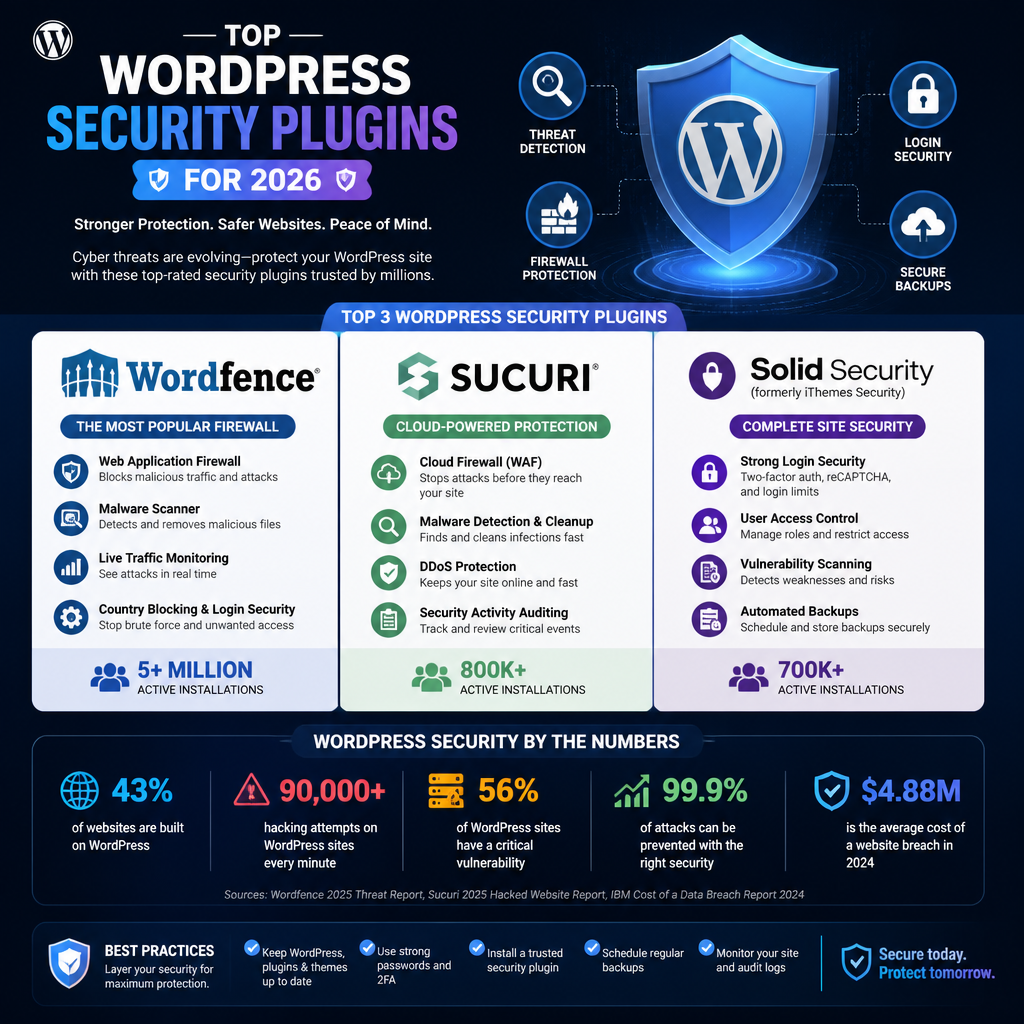
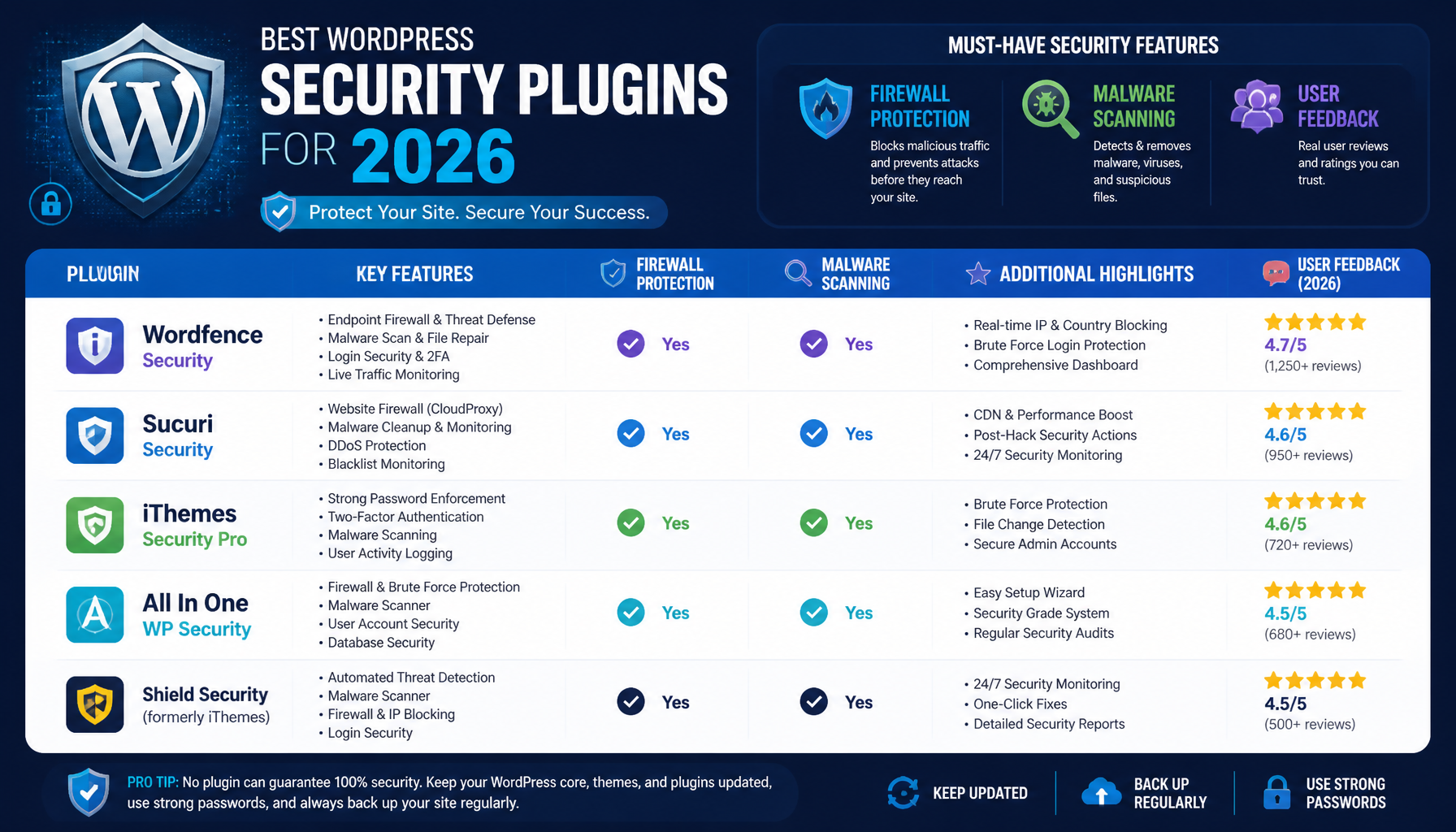
    • Wordfence Security Plugin: With over 4 million active installations, Wordfence is renowned for its powerful firewall and malware scanning capabilities. The plugin provides real-time updates and includes features like maximum security and login protection. It combines proactive blocking with effective monitoring, making it a favorite among security-conscious users. You can learn more about it here.

    Where Wordfence tends to shine, in my experience: visibility. You get detail on blocked IPs, targeted URLs, and login attempts. That said, you still have to tune it—default settings can be noisy on membership sites, and if you block too aggressively you’ll lock out real users.

    • Sucuri Security: Known for its robust malware scanning and removal services, Sucuri also includes features like activity auditing and SSL support, which are essential for maintaining a secure WordPress site. Check out their offerings here.

    I’ve seen Sucuri work well when the real need is “keep the site clean and get help if it goes sideways.” If you don’t have a technical team, that cleanup/remediation angle can matter more than fancy dashboards.

    • Solid Security: This plugin is gaining traction for its comprehensive protection features, including two-factor authentication and user login security. While it may not be as popular as Wordfence, its unique approach appeals to many users looking for powerful protection without excessive complexity.

    The tradeoff here is usually configuration depth versus simplicity. If you want lots of granular rules, you’ll spend time tuning. If you want reasonable defaults, Solid’s approach can feel calmer.

    Free WordPress Security Plugins

    If you’re on a budget, there are still effective options available. Many free plugins provide solid protection for smaller websites:

    • Wordfence Free: The free version of Wordfence includes basic features like a firewall and malware scanner, although with a 30-day delay for certain updates. This can be a good starting point for those who need basic protection.

    Practical approach: start free, learn what your site’s “normal” traffic looks like, then decide if the premium features fix a real problem you can name. If you can’t name the problem, don’t pay yet.

    • Sucuri Security Free: The free version offers site auditing, security activity monitoring, and a file integrity checker. It’s a great option for users who want essential security features without a cost.

    The big win with a free option is getting basic monitoring in place right now. Because, honestly, “no security plugin at all” is how a lot of small sites end up as spam cannons.

    Understanding WordPress Security

    In order to fully appreciate the importance of choosing the right security plugins, it’s essential to understand the broader aspects of WordPress security. With WordPress being a leader in website creation, it has become a prime target for hackers and automated bots. The majority of attacks exploit common vulnerabilities such as weak passwords, outdated plugins, and poorly coded themes.

    If you remember one thing: most WordPress compromises I’ve dealt with weren’t “Hollywood hacks.” They were automation plus negligence—old plugins, reused passwords, and admins who never check the users list.

    The Role of a Security Plugin Admin

    A security plugin admin oversees the installation, configuration, and ongoing management of security plugins. Their responsibilities include:
    – Monitoring security alerts and plugin updates
    – Configuring security settings to match the site’s needs
    – Responding swiftly to any detected threats or vulnerabilities

    Having a dedicated security admin can significantly enhance your defense against potential breaches. Overall, their role is crucial in maintaining a secure environment for your WordPress site.

    In practice, that “admin” might be you, your developer, or your hosting provider. Either way, someone needs to own a weekly routine: check alerts, apply updates, and confirm backups actually restore.

    The Importance of Regular Updates

    Maintaining plugin updates is one of the most critical methods in protecting your website. According to TechTide Solutions, vulnerabilities in WordPress significantly increased, with over 11,000 new vulnerabilities reported in 2025. Keeping your security plugins updated ensures they are equipped to handle the latest threats effectively.

    I’d add one reality check: updates can break stuff, so you need a process. Even a lightweight one.

    A simple update process I’ve used on small business sites (no giant DevOps setup required):

    1. Clone to staging (or at least take a full backup). If you skip this, you’ll eventually learn the hard way.
    2. Update security plugin first, then WordPress core, then other plugins. Order matters because security plugins often hook deep into login, REST, and file checks.
    3. Smoke test critical flows: login, contact form, checkout, password reset. Keep a tiny checklist in a note.
    4. Watch your logs for 30–60 minutes after release. If a rule starts blocking real users, you’ll see it quickly.
    5. Only then update production.

    What Not to Do

    1. Avoid Using Multiple Security Plugins: While it might seem logical to have multiple layers of security, using several plugins can lead to conflicts that could compromise your site’s functionality. Choose one comprehensive plugin that meets your needs.

    The conflict I see most: two plugins both trying to add firewall rules, modify .htaccess, or enforce brute-force limits. The result is random 403 errors, broken AJAX calls, and admins getting locked out. So, yes—pick one “center of gravity” security plugin.

    1. Neglecting Security Backups: Always ensure that you are making regular backups. In case of an attack, restoring your site is much easier if you have recent backups.

    A backup that can’t restore is just a comforting story. Test restores quarterly. Also, keep at least one backup off-host—because if your server gets wiped, your on-server backups go with it.

    Here are a few more mistakes I keep seeing, even on “pretty serious” sites:

    • Running with default admin usernames (or a public author archive that exposes usernames). That hands attackers half the puzzle.
    • Treating security emails as spam. If your plugin is screaming about changed files, don’t wait until “next week.”
    • Cranking WAF settings to max on day one. Start sane, then tighten. Otherwise, you’ll block your own payment gateway callbacks or membership renewals.

    Conclusion

    Ultimately, selecting the best security plugin for your WordPress site is not just about choosing a popular name. It requires careful consideration of your specific needs, the plugin’s features, and its ability to adapt to the evolving landscape of online threats. By being proactive and investing in a reliable security plugin, you set the foundation for a safe and successful online presence.

    If you want a next step that actually moves the needle: pick one plugin, set up 2FA for admins, enable alerts, and schedule a monthly “update + audit” hour. That routine beats fancy settings you never revisit.

    A Bit About My Background

    I’m Mobeen Abdullah, the Founder & Chief Executive Officer at Revnix. With years of experience in developing innovative tech solutions, I understand the critical importance of robust website security. I have helped numerous clients navigate the complexities of maintaining secure online environments.

    I don’t come at WordPress security from theory. I come at it from incidents.

    A real example: a small ecommerce site (not a household name, maybe a few hundred orders a month) called us because customers were getting redirected sometimes—not always—to a fake “card verification” page. The site wasn’t down, so the owner assumed it was a browser issue. It wasn’t. It was injected JavaScript that only triggered for certain referrers and only on checkout.

    Here’s how that kind of cleanup usually goes when I’m wearing the “security plugin admin” hat:

    1. Stop the bleeding: put the site behind maintenance for checkout pages or temporarily disable payments. It’s painful, but it prevents more victims.
    2. Run a malware scan in the security plugin, but also compare core files against known-good versions. Scanners catch a lot, but they don’t catch everything.
    3. Rotate credentials: WordPress admin passwords, hosting panel, SFTP/SSH, database user, and any API keys stored in the app. If you only change WP passwords, you’re guessing.
    4. Update everything (core, theme, plugins) after confirming compatibility. Old vulnerabilities are the front door.
    5. Harden login: enforce 2FA for admins, limit login attempts, and block suspicious countries only if it matches your business. Otherwise you’ll block real customers.
    6. Set alerting so the next time files change, you know within minutes—not after chargebacks show up.

    That’s why I’m picky about plugins. I want clear logs, sensible controls, and enough signal to know what happened. I’m biased toward boring, repeatable processes—because those are the only ones that work when you’re tired and the site is on fire.

    FAQs

    • Q: What should I look for in a WordPress security plugin?
      A: Look for features like malware scanning, firewall protection, and reliable customer support.

    More specifically, I’d shortlist plugins that can do three things without drama: (1) block obvious bad traffic (WAF / rate limits), (2) tell you when files/users change, and (3) help you recover (clear remediation steps, not just red warnings). Then, because performance matters, I’d check whether it adds noticeable load—on cheap shared hosting, an aggressive scanner can absolutely slow admin pages.

    • Q: Are free security plugins effective?
      A: Many free plugins offer solid protection; however, premium versions usually provide better features.

    Free is fine when your site is small and the risk is lower, but you still need discipline. If you go free, I’d compensate by being strict on basics: unique passwords, 2FA (if available), and fast updates. Premium makes more sense when downtime costs you real money (stores, membership sites, lead-gen campaigns) or when you need faster rule updates and better support.

    • Q: How often should I update my security plugin?
      A: You should update it immediately upon new releases and regularly check for updates.

    My rule: patch security plugins quickly, but don’t be reckless. If you can, update on staging first and run a five-minute smoke test (login, forms, checkout). If you’re solo and staging isn’t realistic yet, at least take a backup first—then update during a low-traffic window so you can react.

    • Q: Can I use multiple security plugins at the same time?
      A: It is not advisable as they may conflict; choose one comprehensive plugin.

    I’ll be blunt: “stacking” security plugins is how people create self-inflicted outages. Two firewalls can double-block legitimate requests, and two brute-force tools can lock out your whole team. If you want layers, do it cleanly: one WordPress security plugin + good hosting security + a CDN/WAF upstream (not three WordPress plugins fighting each other).

    • Q: What is the best free security plugin for WordPress?
      A: Wordfence and Sucuri are among the top-rated options for free security plugins.

    If you’re choosing between them, pick based on your needs: do you want deeper on-site firewall controls and visibility (Wordfence), or do you want a lighter monitor plus an ecosystem that’s known for cleanup services (Sucuri)?

    • Q: How do I remove a WordPress security plugin?
      A: Go to your WordPress dashboard, navigate to plugins, and select ‘Deactivate’ then ‘Delete’.

    A couple of gotchas before you delete:

    1. Disable its “hardening” features first (things like renamed login URLs or custom firewall rules). Otherwise you can lock yourself out and think WordPress is broken.
    2. Check for leftovers: some plugins write to .htaccess, wp-config.php, or create must-use plugins. If you remove the plugin but keep the rules, you may keep the problems.
    3. Replace it immediately if you’re deleting because of performance. Running unprotected for “a few days” turns into months surprisingly fast.

    4. Q: I installed a security plugin and now my site is breaking—what’s the first thing to check?
      A: Start with false positives. Look at the plugin’s logs for blocked requests, then test in an incognito window while you reproduce the issue.

    The common breakages I see: blocked REST API calls (Gutenberg/editor issues), blocked AJAX endpoints (WooCommerce cart problems), and aggressive country/IP blocks (payment webhooks failing). Fix the rule first, then tighten again slowly.

    Revnix

  • Best WordPress Security Plugin 2026

    Best WordPress Security Plugin 2026

    Learn how to choose the best WordPress security plugin in 2026 to protect your site from threats.

    Featured image for How to Choose the Best WordPress Security Plugin in 2026

    How to Choose the Best WordPress Security Plugins in 2026

    When it comes to wordpress security, choosing a plugin can feel like picking a lock at a hardware store—everything claims to be “high security,” and then you read reviews and get more confused.

    WordPress powers a huge chunk of the web, so attackers don’t need to “target you personally.” They just spray-and-pray across thousands of sites until something sticks. So in 2026, the best WordPress security plugin isn’t the one with the longest feature list. It’s the one you’ll configure correctly, keep enabled, and understand well enough to trust.

    Key Features to Look For

    Malware scanning that’s usable

    “Scanning” is table stakes. What matters is how it scans and what happens next.

    Look for real-time or frequent scans, clear reporting (what file, what signature, what behavior), and a safe remediation path. I’m biased toward tools that can quarantine or roll back changes instead of deleting files blindly.

    A quick way to sanity-check a scanner: does it catch the common junk—base64 blobs injected into wp-options, weird cron jobs, and modified index.php/wp-config.php patterns? If the report is just “malware found” with no detail, you’ll still be stuck.

    Common mistake: people run a scan once, see “0 issues,” and assume they’re done. But new plugins get installed, themes get updated, credentials leak—so the scan needs to be ongoing.

    Firewall protection (and where it runs)

    A Web Application Firewall (WAF) helps block bad requests before they do damage. But not all firewalls are equal.

    Plugin-level firewalls run inside WordPress/PHP. They can help, but they still require WordPress to load far enough to execute rules. Cloud/WAF-at-the-edge options can stop a lot of nonsense before your server spends CPU on it.

    Tradeoff: cloud WAFs can be more effective, but you’ll deal with DNS changes, caching quirks, and the occasional false positive that blocks a legit checkout.

    Login security that matches your reality

    Two-factor authentication (2FA) is great—until you force it on a client who loses their phone, can’t find backup codes, and calls you at 11pm.

    So yes, prefer plugins with 2FA, login attempt limiting, and alerts. But also check whether they support:

    • role-based enforcement (admins require 2FA, authors optional)
    • recovery codes
    • trusted device windows
    • reCAPTCHA or similar challenges (careful—can annoy real users)

    Common mistake: enabling 2FA without documenting recovery steps. The attacker isn’t always the one who gets locked out.

    Backups: either included or tightly integrated

    Some security plugins include backups. Many don’t—and that’s fine.

    What’s not fine is having “security” and “backups” live in separate worlds where nobody knows the restore process. In real incidents, restore time is the difference between a contained mess and a public meltdown.

    If your security plugin doesn’t do backups, I still want it to:

    • warn on file changes
    • make it easy to export logs
    • play nicely with your backup tool (no giant cache directories exploding backup size)

    A UI you’ll actually use

    This is more important than people admit.

    If a plugin has 90 toggles and you don’t know what half of them do, you’ll either misconfigure it or disable it. I’d rather see a plugin with a clean “baseline hardening” mode and a few advanced controls than a cockpit full of mystery switches.

    A practical selection process (the part most people skip)

    Here’s the decision flow I use when I’m helping a small business site or a content-heavy blog.

    Step 1: Define what you’re protecting

    Ask two questions:

    1. If the site goes down for a day, what does it cost you?
    2. If the site gets defaced or starts redirecting to spam, how bad is the reputation hit?

    If you run WooCommerce, take bookings, or collect leads, you’re not in the “basic” bucket anymore. Even if your traffic is small.

    Step 2: Check your hosting and stack first

    Before you buy a plugin, look at your foundation.

    If your host already provides a WAF, malware cleanup, and daily backups, you might only need login hardening + monitoring. On the flip side, if you’re on cheap shared hosting with no isolation, a plugin can’t magically fix neighbor-site infections.

    Step 3: Install one plugin and configure it fully

    A pile of half-configured security plugins is how you get:

    • duplicate firewalls fighting each other
    • admin lockouts
    • broken REST API or XML-RPC behavior
    • performance slowdowns that make you blame WordPress itself

    Pick one, do it properly, then add supporting tools only if there’s a clear gap.

    Step 4: Test the boring stuff

    I always do a quick “does it behave?” pass:

    • Can I log in normally?
    • Do password resets work?
    • Does the contact form still submit?
    • Does checkout still complete?
    • Do scheduled posts still publish?

    Security that breaks the business isn’t security—it’s self-sabotage.

    Popular Security Plugins in 2026

    No plugin is perfect. Each one has a personality, and you’ll feel it after a month.

    Wordfence

    Wordfence is popular for a reason: the free tier is genuinely useful, and it covers a lot of ground—firewall + scanner + alerts.

    Where I’ve seen it shine: small business sites with a single admin who wants visibility. The email alerts can be noisy at first, but once you tune them, they’re a solid early-warning system.

    Where people trip up: they enable everything, then wonder why the site feels slower. Be selective with real-time features on weak hosting.

    Sucuri

    Sucuri is often a better fit when you want a strong cloud firewall without turning your WordPress dashboard into a security console.

    The big win is stopping junk traffic before it hits your origin server. That can be the difference between “site is fine” and “server is pegged at 100% CPU.”

    Tradeoff: you’ll spend time on DNS and caching rules. It’s not hard, but it’s also not a one-click magic wand.

    iThemes Security

    iThemes is focused on WordPress hardening—changing defaults, enforcing rules, monitoring changes.

    It’s useful when your biggest risk is admin hygiene (weak passwords, too many users, outdated plugins). File change detection can also catch “something weird happened last night” events.

    Common mistake: people turn on aggressive hardening without understanding their stack, then break API integrations or editor workflows.

    All In One WP Security & Firewall

    This one is beginner-friendly and packaged nicely.

    I like it for small, brochure-style sites where the priority is tightening the basics without a steep learning curve. The interface walks you through improvements, which is a nice touch.

    Just don’t confuse “lots of green checkmarks” with “invincible.” You still need updates, decent hosting, and sane user access.

    MalCare

    MalCare’s strength is cleanup. That matters because detection alone doesn’t pay the bills when a site is already compromised.

    I’ve seen too many site owners learn the hard way that removing malware manually is tedious: you clean one file, it comes back through a backdoor you missed. A tool that handles cleanup confidently can save you days.

    Free WordPress Security Plugins 2026

    Free can be totally fine—if you understand the limits.

    Wordfence Free

    Good baseline scanning and firewall features. It’s often the first thing I install on a low-budget site.

    The catch is response speed and advanced capabilities compared to paid tiers. Still, if you configure it and keep it updated, it beats “nothing.”

    All In One WP Security

    Also a strong free option, especially for beginners who want guided improvements.

    If you’re using it, spend 20 minutes reading what each toggle actually does. Otherwise you’ll end up with weird side effects and no clue why.

    WPScan

    WPScan is useful because it checks known vulnerabilities against what you’re running.

    It’s not the same as malware cleanup. Think of it as “inventory and exposure checking.” If it tells you a plugin version is vulnerable, your next step is patching or replacing that plugin—not staring at the report.

    Understanding WordPress Security Features and Relevance

    WordPress security isn’t one feature. It’s a chain—and plugins are only one link in it.

    If you get this section right, you’ll stop shopping for a “miracle plugin” and start building a setup that actually holds up when your site gets poked (because it will).

    Is WordPress Still Relevant in 2026?

    Yes, and the numbers back it up. As of mid-2026, WordPress still powers 41.2% of all websites. That scale is exactly why it stays relevant: endless themes, plugins, and a talent pool that isn’t going away.

    But that same scale makes it a big target. Attackers don’t need a grudge against your bakery site or your portfolio. They run automation that hunts for:

    • outdated plugins with known holes
    • exposed admin panels
    • weak passwords reused from other breaches
    • insecure hosting setups

    A quick real-world example I’ve dealt with: a small services business had a “set-and-forget” WordPress site for two years. Traffic was modest, so they assumed nobody cared. Then one day their homepage started redirecting to a fake “mobile prize” page—but only on phones. Desktop looked normal, which is why it went unnoticed.

    How did it happen? A stale plugin with a known vulnerability, plus an admin password that had shown up in a previous credential dump. Nothing exotic.

    What fixed it wasn’t one magical tool. We had to:

    1. put the site behind a firewall
    2. remove the injected code and backdoor
    3. rotate all credentials (WordPress, hosting, FTP/SSH, database)
    4. update and replace the vulnerable plugin
    5. add monitoring so the next change triggers an alert

    WordPress is still relevant. You just can’t run it like it’s 2014.

    Does WordPress Have Built-In Security?

    It does, and it’s better than people give it credit for. WordPress includes core security practices like user roles/capabilities, authentication cookies, nonces for request validation, and a steady update cadence.

    So why do sites still get popped?

    Because built-in security mostly assumes you’re doing the basics right:

    • you update core, themes, and plugins quickly
    • you run strong passwords (and ideally 2FA)
    • you don’t install abandoned plugins
    • you limit who has admin access
    • your hosting environment is configured safely

    Security plugins extend WordPress where real-world site owners struggle: monitoring, hardening defaults, blocking brute force attempts, and giving you a paper trail when something changes.

    Here’s a step-by-step baseline I recommend (even on “simple” sites):

    1. Lock down admin accounts: remove old admins, enforce strong passwords, enable 2FA where it won’t break workflows.
    2. Reduce the attack surface: disable what you don’t use (XML-RPC if it’s not needed, old plugins, unused themes).
    3. Add detection: file integrity checks, malware scans, and alerts that go to an inbox you actually read.
    4. Block the obvious garbage: rate limiting on login, WAF rules, bot protection.
    5. Plan the restore: make sure you can restore in under an hour, not “someday.”

    Common mistakes I see constantly:

    • Installing two security plugins “for extra protection,” then getting locked out or breaking the editor.
    • Treating alerts as spam. The first alert is usually the gift.
    • Forgetting staging sites. Attackers love forgotten subdomains with old WordPress installs.

    How security plugins fit in (and where they don’t)

    A security plugin can’t compensate for reckless plugin choices or an unmanaged server. It can, however, make a well-run WordPress site much harder to mess with.

    If you’re deciding how much to rely on a plugin, use this mental model:

    • Plugin is great for: login defense, monitoring, basic WAF rules, malware scanning, audit logs, notifications.
    • Plugin is weak at: stopping upstream DDoS, fixing insecure hosting, protecting you from a compromised admin laptop.

    That’s not a knock on plugins—it’s just scope.

    Picking “top free” lists carefully

    I’ve seen plenty of “best plugin” listicles that are basically affiliate pages with screenshots. Some are useful, but you still need to match the recommendation to your situation.

    If you want a starting point for budget options, this roundup of top free WordPress security plugins in 2026 can help you shortlist. Then do your homework:

    • check last update date
    • read recent support threads
    • confirm it works with your PHP/WP versions
    • test on staging before production

    If you only do one thing after reading this: pick one security plugin, configure it with intention, and set a recurring reminder to review alerts and updates. That habit beats any “set-and-forget” setup.