Learn how to choose the best WordPress security plugin in 2026 to protect your site from threats.
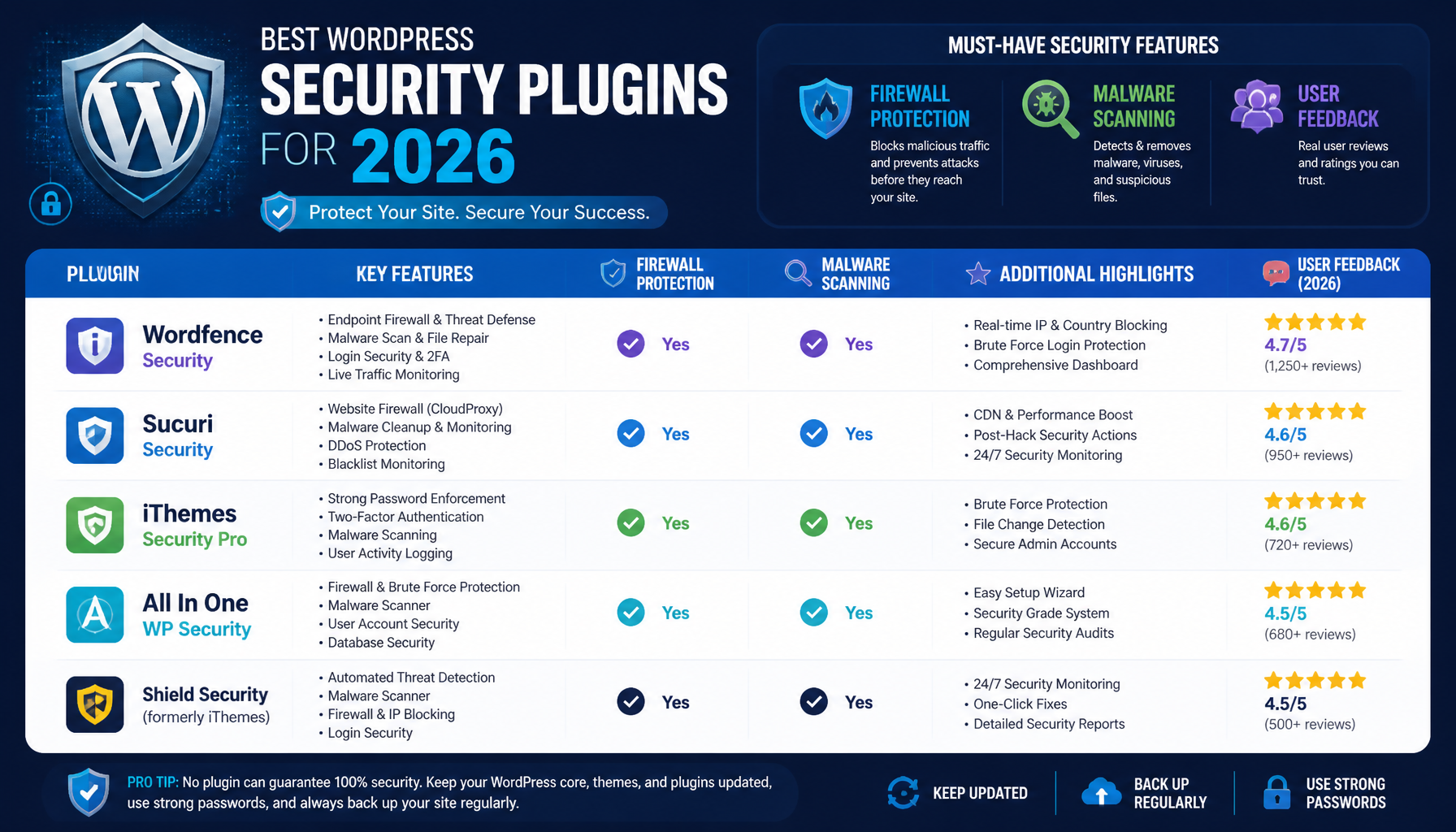
How to Choose the Best WordPress Security Plugins in 2026
When it comes to wordpress security, choosing a plugin can feel like picking a lock at a hardware store—everything claims to be “high security,” and then you read reviews and get more confused.
WordPress powers a huge chunk of the web, so attackers don’t need to “target you personally.” They just spray-and-pray across thousands of sites until something sticks. So in 2026, the best WordPress security plugin isn’t the one with the longest feature list. It’s the one you’ll configure correctly, keep enabled, and understand well enough to trust.
Key Features to Look For
Malware scanning that’s usable
“Scanning” is table stakes. What matters is how it scans and what happens next.
Look for real-time or frequent scans, clear reporting (what file, what signature, what behavior), and a safe remediation path. I’m biased toward tools that can quarantine or roll back changes instead of deleting files blindly.
A quick way to sanity-check a scanner: does it catch the common junk—base64 blobs injected into wp-options, weird cron jobs, and modified index.php/wp-config.php patterns? If the report is just “malware found” with no detail, you’ll still be stuck.
Common mistake: people run a scan once, see “0 issues,” and assume they’re done. But new plugins get installed, themes get updated, credentials leak—so the scan needs to be ongoing.
Firewall protection (and where it runs)
A Web Application Firewall (WAF) helps block bad requests before they do damage. But not all firewalls are equal.
Plugin-level firewalls run inside WordPress/PHP. They can help, but they still require WordPress to load far enough to execute rules. Cloud/WAF-at-the-edge options can stop a lot of nonsense before your server spends CPU on it.
Tradeoff: cloud WAFs can be more effective, but you’ll deal with DNS changes, caching quirks, and the occasional false positive that blocks a legit checkout.
Login security that matches your reality
Two-factor authentication (2FA) is great—until you force it on a client who loses their phone, can’t find backup codes, and calls you at 11pm.
So yes, prefer plugins with 2FA, login attempt limiting, and alerts. But also check whether they support:
- role-based enforcement (admins require 2FA, authors optional)
- recovery codes
- trusted device windows
- reCAPTCHA or similar challenges (careful—can annoy real users)
Common mistake: enabling 2FA without documenting recovery steps. The attacker isn’t always the one who gets locked out.
Backups: either included or tightly integrated
Some security plugins include backups. Many don’t—and that’s fine.
What’s not fine is having “security” and “backups” live in separate worlds where nobody knows the restore process. In real incidents, restore time is the difference between a contained mess and a public meltdown.
If your security plugin doesn’t do backups, I still want it to:
- warn on file changes
- make it easy to export logs
- play nicely with your backup tool (no giant cache directories exploding backup size)
A UI you’ll actually use
This is more important than people admit.
If a plugin has 90 toggles and you don’t know what half of them do, you’ll either misconfigure it or disable it. I’d rather see a plugin with a clean “baseline hardening” mode and a few advanced controls than a cockpit full of mystery switches.
A practical selection process (the part most people skip)
Here’s the decision flow I use when I’m helping a small business site or a content-heavy blog.
Step 1: Define what you’re protecting
Ask two questions:
- If the site goes down for a day, what does it cost you?
- If the site gets defaced or starts redirecting to spam, how bad is the reputation hit?
If you run WooCommerce, take bookings, or collect leads, you’re not in the “basic” bucket anymore. Even if your traffic is small.
Step 2: Check your hosting and stack first
Before you buy a plugin, look at your foundation.
If your host already provides a WAF, malware cleanup, and daily backups, you might only need login hardening + monitoring. On the flip side, if you’re on cheap shared hosting with no isolation, a plugin can’t magically fix neighbor-site infections.
Step 3: Install one plugin and configure it fully
A pile of half-configured security plugins is how you get:
- duplicate firewalls fighting each other
- admin lockouts
- broken REST API or XML-RPC behavior
- performance slowdowns that make you blame WordPress itself
Pick one, do it properly, then add supporting tools only if there’s a clear gap.
Step 4: Test the boring stuff
I always do a quick “does it behave?” pass:
- Can I log in normally?
- Do password resets work?
- Does the contact form still submit?
- Does checkout still complete?
- Do scheduled posts still publish?
Security that breaks the business isn’t security—it’s self-sabotage.
Popular Security Plugins in 2026
No plugin is perfect. Each one has a personality, and you’ll feel it after a month.
Wordfence
Wordfence is popular for a reason: the free tier is genuinely useful, and it covers a lot of ground—firewall + scanner + alerts.
Where I’ve seen it shine: small business sites with a single admin who wants visibility. The email alerts can be noisy at first, but once you tune them, they’re a solid early-warning system.
Where people trip up: they enable everything, then wonder why the site feels slower. Be selective with real-time features on weak hosting.
Sucuri
Sucuri is often a better fit when you want a strong cloud firewall without turning your WordPress dashboard into a security console.
The big win is stopping junk traffic before it hits your origin server. That can be the difference between “site is fine” and “server is pegged at 100% CPU.”
Tradeoff: you’ll spend time on DNS and caching rules. It’s not hard, but it’s also not a one-click magic wand.
iThemes Security
iThemes is focused on WordPress hardening—changing defaults, enforcing rules, monitoring changes.
It’s useful when your biggest risk is admin hygiene (weak passwords, too many users, outdated plugins). File change detection can also catch “something weird happened last night” events.
Common mistake: people turn on aggressive hardening without understanding their stack, then break API integrations or editor workflows.
All In One WP Security & Firewall
This one is beginner-friendly and packaged nicely.
I like it for small, brochure-style sites where the priority is tightening the basics without a steep learning curve. The interface walks you through improvements, which is a nice touch.
Just don’t confuse “lots of green checkmarks” with “invincible.” You still need updates, decent hosting, and sane user access.
MalCare
MalCare’s strength is cleanup. That matters because detection alone doesn’t pay the bills when a site is already compromised.
I’ve seen too many site owners learn the hard way that removing malware manually is tedious: you clean one file, it comes back through a backdoor you missed. A tool that handles cleanup confidently can save you days.
Free WordPress Security Plugins 2026
Free can be totally fine—if you understand the limits.
Wordfence Free
Good baseline scanning and firewall features. It’s often the first thing I install on a low-budget site.
The catch is response speed and advanced capabilities compared to paid tiers. Still, if you configure it and keep it updated, it beats “nothing.”
All In One WP Security
Also a strong free option, especially for beginners who want guided improvements.
If you’re using it, spend 20 minutes reading what each toggle actually does. Otherwise you’ll end up with weird side effects and no clue why.
WPScan
WPScan is useful because it checks known vulnerabilities against what you’re running.
It’s not the same as malware cleanup. Think of it as “inventory and exposure checking.” If it tells you a plugin version is vulnerable, your next step is patching or replacing that plugin—not staring at the report.
Understanding WordPress Security Features and Relevance
WordPress security isn’t one feature. It’s a chain—and plugins are only one link in it.
If you get this section right, you’ll stop shopping for a “miracle plugin” and start building a setup that actually holds up when your site gets poked (because it will).
Is WordPress Still Relevant in 2026?
Yes, and the numbers back it up. As of mid-2026, WordPress still powers 41.2% of all websites. That scale is exactly why it stays relevant: endless themes, plugins, and a talent pool that isn’t going away.
But that same scale makes it a big target. Attackers don’t need a grudge against your bakery site or your portfolio. They run automation that hunts for:
- outdated plugins with known holes
- exposed admin panels
- weak passwords reused from other breaches
- insecure hosting setups
A quick real-world example I’ve dealt with: a small services business had a “set-and-forget” WordPress site for two years. Traffic was modest, so they assumed nobody cared. Then one day their homepage started redirecting to a fake “mobile prize” page—but only on phones. Desktop looked normal, which is why it went unnoticed.
How did it happen? A stale plugin with a known vulnerability, plus an admin password that had shown up in a previous credential dump. Nothing exotic.
What fixed it wasn’t one magical tool. We had to:
- put the site behind a firewall
- remove the injected code and backdoor
- rotate all credentials (WordPress, hosting, FTP/SSH, database)
- update and replace the vulnerable plugin
- add monitoring so the next change triggers an alert
WordPress is still relevant. You just can’t run it like it’s 2014.
Does WordPress Have Built-In Security?
It does, and it’s better than people give it credit for. WordPress includes core security practices like user roles/capabilities, authentication cookies, nonces for request validation, and a steady update cadence.
So why do sites still get popped?
Because built-in security mostly assumes you’re doing the basics right:
- you update core, themes, and plugins quickly
- you run strong passwords (and ideally 2FA)
- you don’t install abandoned plugins
- you limit who has admin access
- your hosting environment is configured safely
Security plugins extend WordPress where real-world site owners struggle: monitoring, hardening defaults, blocking brute force attempts, and giving you a paper trail when something changes.
Here’s a step-by-step baseline I recommend (even on “simple” sites):
- Lock down admin accounts: remove old admins, enforce strong passwords, enable 2FA where it won’t break workflows.
- Reduce the attack surface: disable what you don’t use (XML-RPC if it’s not needed, old plugins, unused themes).
- Add detection: file integrity checks, malware scans, and alerts that go to an inbox you actually read.
- Block the obvious garbage: rate limiting on login, WAF rules, bot protection.
- Plan the restore: make sure you can restore in under an hour, not “someday.”
Common mistakes I see constantly:
- Installing two security plugins “for extra protection,” then getting locked out or breaking the editor.
- Treating alerts as spam. The first alert is usually the gift.
- Forgetting staging sites. Attackers love forgotten subdomains with old WordPress installs.
How security plugins fit in (and where they don’t)
A security plugin can’t compensate for reckless plugin choices or an unmanaged server. It can, however, make a well-run WordPress site much harder to mess with.
If you’re deciding how much to rely on a plugin, use this mental model:
- Plugin is great for: login defense, monitoring, basic WAF rules, malware scanning, audit logs, notifications.
- Plugin is weak at: stopping upstream DDoS, fixing insecure hosting, protecting you from a compromised admin laptop.
That’s not a knock on plugins—it’s just scope.
Picking “top free” lists carefully
I’ve seen plenty of “best plugin” listicles that are basically affiliate pages with screenshots. Some are useful, but you still need to match the recommendation to your situation.
If you want a starting point for budget options, this roundup of top free WordPress security plugins in 2026 can help you shortlist. Then do your homework:
- check last update date
- read recent support threads
- confirm it works with your PHP/WP versions
- test on staging before production
If you only do one thing after reading this: pick one security plugin, configure it with intention, and set a recurring reminder to review alerts and updates. That habit beats any “set-and-forget” setup.
Leave a Reply