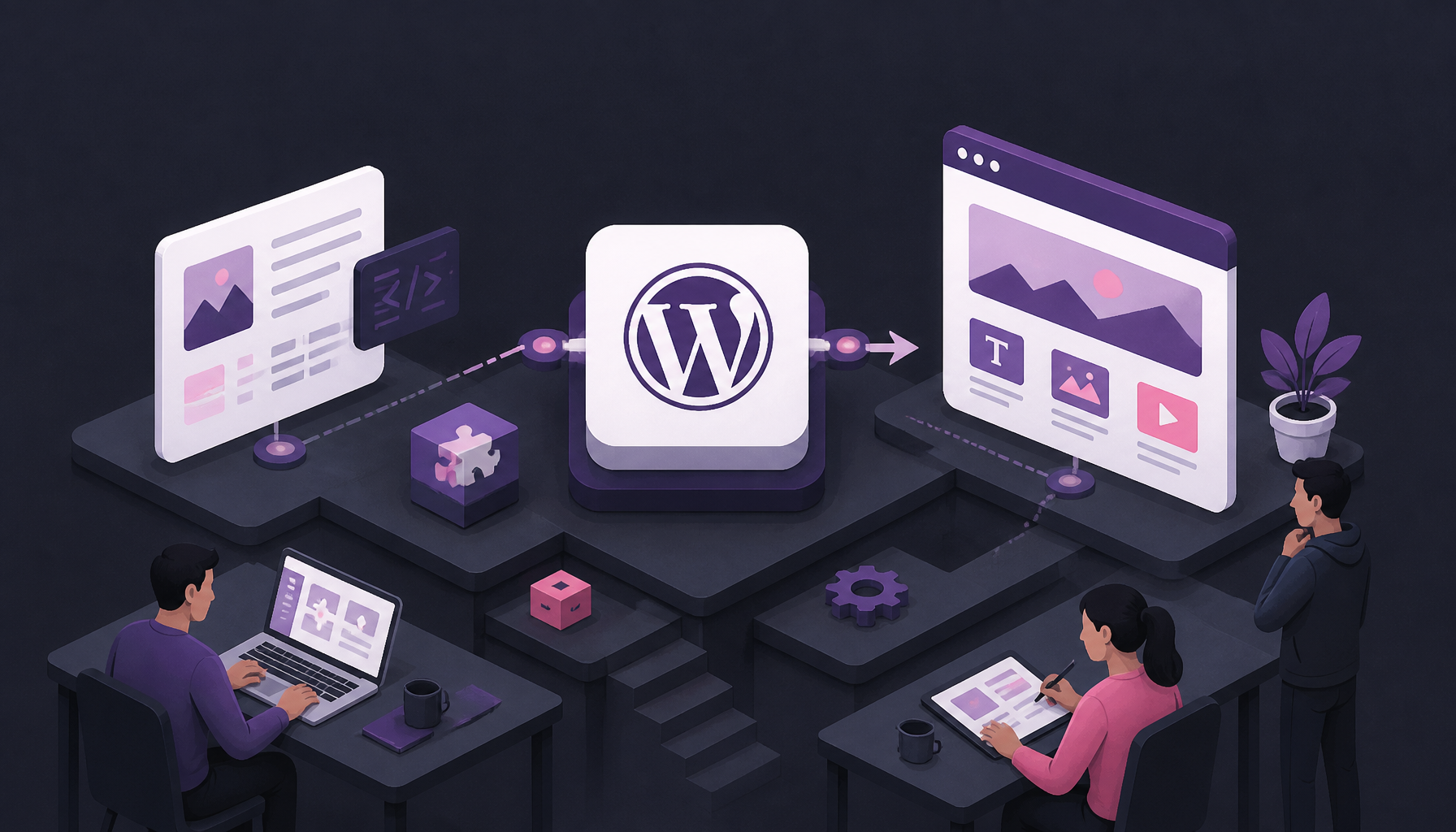
Learn how to effectively set up WordPress as a CMS in 2026 with this comprehensive guide. Perfect for developers and marketers alike!
How to Integrate WordPress as a CMS in 2026
Integrating WordPress as a CMS isn’t hard. Keeping it fast, maintainable, and predictable is the part that usually goes sideways.
What I aim for is boring success: clear content types, minimal plugin overlap, and integrations that don’t break every time you update PHP or swap themes.
Understanding WordPress Integration
WordPress integration is simply connecting WordPress to other tools—CRMs, email platforms, analytics, eCommerce, internal APIs—so content and data move where they should.
The mistake I keep seeing is teams “integrating” by stacking plugins until the admin panel looks like a junk drawer. Instead, start by writing down what must be true (lead goes to CRM, newsletter signup tags correctly, product inventory syncs daily) and then choose the simplest path.
In fact, a study showed that WordPress powers approximately 41.2% of all websites in 2026, highlighting its widespread adoption and trust in the market (WPZOOM). That number isn’t magic, but it does explain why integrations are plentiful—and why you still have to pick carefully.
Steps to Set Up WordPress as a CMS
Below is the setup flow I use when I want WordPress to behave like a real CMS (not just “a blog that grew up”).
1) Select hosting you won’t regret
Pick hosting that matches your actual traffic and your tolerance for ops work.
- If you want managed guardrails, providers like WP Engine can reduce footguns, but you pay for it.
- If you want value and decent performance, SiteGround is often fine for small-to-mid sites.
- If you’re running WooCommerce or heavy traffic, prioritize CPU/RAM and object caching support.
Common mistake: buying the cheapest plan, then installing five performance plugins to compensate. You’ll still lose—just more slowly.
2) Install WordPress the clean way
One-click installers are okay, but I still like to verify the basics after install.
- Download core from WordPress.org if you need a manual setup.
- Set strong admin credentials (and don’t use
adminas the username—still happens). - Confirm permalinks early (I default to “Post name”) so you don’t create URL churn later.
If you’re doing this for a client, set up a staging site now. It saves you later when a “small plugin change” breaks the header on production.
3) Choose a theme with restraint
Your theme is not just design—it’s also performance and editor experience.
I look for:
- Clean block editor support (so editors aren’t trapped in shortcodes)
- Accessibility basics (skip links, readable contrast)
- Minimal bundled page-builder baggage
If you need pixel-perfect layouts, you can still do it with blocks + a lightweight theme. But if you install a builder, commit to it—mixing builders is how content becomes uneditable.
4) Add only essential plugins
This is where most WordPress builds either stay healthy or become a maintenance job.
My baseline stack usually includes:
- SEO: Yoast SEO (fine for most sites)
- Caching/performance: W3 Total Cache or a host-level solution (don’t double-cache)
- Security: Wordfence (useful, but configure it—defaults aren’t a strategy)
- eCommerce (if needed): WooCommerce
Common mistakes I’ve personally had to unwind:
- Two SEO plugins fighting over metadata
- Three form plugins because “this one does popups”
- A backup plugin writing gigs of zip files to disk until the server runs out of space
If a plugin overlaps 70% with another, I delete one. Every extra plugin is another update cycle and another potential incident.
5) Set up your CMS structure first
Before you publish content, decide how you want to model it.
- Use Pages for evergreen, hierarchical stuff (About, Contact, Services)
- Use Posts for time-based content (blog, news)
- Use Categories for broad grouping; Tags for cross-cutting labels (don’t treat them as the same thing)
If you have “things” that aren’t posts—case studies, team members, podcasts—use custom post types. That’s where WordPress starts to feel like a real CMS.
A quick rule I use: if an editor asks, “Where do I add a new one of these?” more than once, it probably deserves its own content type.
6) Integrate third-party services deliberately
Integrations are where you can either simplify work—or create silent data loss.
A clean approach:
- List required flows (e.g., form submission → CRM → email nurture)
- Decide plugin vs API (plugins are faster; APIs are usually more reliable long-term)
- Add logging so you can tell when something fails
For example, integrating HubSpot with WordPress can streamline marketing, but only if you standardize field mapping (name, email, lifecycle stage) and test edge cases.
If you want a guided walkthrough, here’s a deeper internal guide: Step-by-Step Guide to WordPress and CRM Integration.
7) Content migration without breaking SEO
Migrations are never “copy/paste.” They’re URL strategy + redirects + media sanity.
What I do:
- Export content from the old system and audit slugs
- Create a redirect map (old URL → new URL)
- Migrate in batches, then spot-check the top 20 landing pages
Plugins like All-in-One WP Migration can help, but don’t trust them blindly. I’ve seen image URLs migrate while the actual media files didn’t—so the site looked fine on staging and then broke on production.
8) Test like you mean it
Before launch, I test three layers:
- Editor workflow: can a non-technical person publish without breaking layout?
- Integrations: do form leads arrive? are tags correct? do webhooks fire?
- Performance: check core pages on mobile, not just your dev laptop
If you only test “the homepage loads,” you’re basically betting your launch on luck.
9) Launch, then monitor
After launch:
- Watch error logs for 48 hours
- Track performance baselines (TTFB, LCP, page weight)
- Set update cadence (weekly for plugins, monthly for bigger changes)
The win isn’t “site is live.” The win is “site stays healthy while content and campaigns change.”
WordPress Integration CMS Features
Once you treat WordPress as a CMS (not a theme demo), you get a few features that matter a lot in real teams.
Roles, permissions, and approvals
Role-based access control is one of WordPress’s quiet superpowers.
I typically set it up like this:
- Authors can write and upload media, but can’t publish
- Editors can publish and manage categories
- Admins handle plugins/themes/users
If you’re in a regulated org, you’ll probably add an editorial workflow plugin. But even without one, you can enforce basic governance by keeping admin accounts rare and audited.
Content versioning and rollback
Revisions save projects. Still, they don’t replace backups.
A real incident I’ve dealt with: an editor “cleaned up” a page and deleted three pricing tables. Revisions got the content back in minutes. Without them, you’d be reconstructing from memory (or Slack screenshots, which is grim).
Headless vs traditional (pick the right fight)
Some teams jump straight to headless because it sounds modern. Sometimes it’s the right move—often it’s not.
- Traditional WordPress is faster to ship and easier to staff.
- Headless can be great for performance and multi-channel publishing, but it adds complexity fast (auth, previews, caching, deployments).
If your main goal is marketing pages + blog + a few integrations, classic WordPress still wins.
Why WordPress Continues to Thrive
WordPress survives because it’s adaptable, and because the ecosystem is deep enough to solve weird real-world problems.
The community advantage (and the downside)
The community means there’s a plugin for everything. But, since anyone can publish a plugin, quality varies wildly.
My filter before I install anything:
- Has it been updated recently?
- Does it have support activity?
- Is the author reputable?
- Can I remove it later without wrecking content?
That last one matters more than people admit.
Hybrid builds are now normal
A lot of teams run WordPress in a hybrid setup: WordPress for editing and content, plus modern front-end tooling for delivery.
Reports indicate that WordPress is being utilized in a hybrid capacity, combining traditional CMS features with headless integration for enhanced performance (Itineris). I’ve seen this work well when the team already has strong front-end chops and a real need for it.
Integrating solutions such as Nextly can further enhance your development capabilities, allowing for TypeScript integration and a visual schema builder that makes managing content more intuitive.
A practical performance checkpoint
Here’s a quick checkpoint I use after a build is “done”:
- Homepage under ~2MB transfer on first load
- No more than 1–2 caching layers (plugin + CDN is fine; three plugins is not)
- Admin dashboard stays responsive with 10+ users and a decent media library
If you miss these by a mile, you don’t need a redesign—you need to remove weight.
Conclusion
If you want WordPress to feel like a dependable CMS in 2026, build the content model early, integrate with intention, and keep plugins on a short leash.
Start with one concrete next step: outline your content types (Posts, Pages, and any custom post types) on paper, then set up WordPress to match that structure before you migrate or publish.
FAQ
Q: Does WordPress have a CMS?
A: Yes—WordPress is a CMS, and a pretty capable one once you stop treating it like “just a blog.”
Here’s how I explain it to clients: if you can create content, structure it (categories/tags/custom types), manage users, and publish with permissions, you’re working inside a CMS.
A quick setup path that makes it feel “CMS-first”:
- Create the main Pages (About, Services, Contact)
- Define Categories for your blog (3–6 max to start)
- Add a custom post type for anything repeatable (case studies, testimonials)
- Assign roles so not everyone can install plugins
Common mistake: people dump everything into Posts, then wonder why navigation, SEO, and editing become chaotic.
Q: Why are people moving away from WordPress?
A: Usually because they hit one of these walls: plugin bloat, security anxiety, or a dev team that prefers code-driven content pipelines.
I once inherited a site where a previous agency installed 48 plugins. It “worked,” but updates were scary, and the admin panel was painfully slow. The business didn’t need a new CMS—they needed a cleanup: remove duplicates, replace three page-builder add-ons with native blocks, and move analytics/scripts into a proper tag manager.
If you’re considering switching, sanity-check this first:
- List what’s actually broken (speed? workflow? preview? security?)
- Identify whether WordPress caused it—or whether bad implementation did
- Prototype the alternative with one real content type, not a demo homepage
Common mistake: migrating because it feels trendy, then rebuilding the same mess somewhere else with fewer plugins but more custom code.
Q: Is WordPress outdated in 2026?
A: No, but it can look outdated if you use outdated practices.
What makes WordPress feel modern in 2026:
- Block editor patterns instead of shortcodes everywhere
- Clean theme architecture (no massive “kitchen sink” theme)
- Clear content types and template hierarchy
- A performance budget (page size, script limits)
What makes it feel old:
- Hard-coded layouts editors can’t change
- Builders stacked on builders
- “We’ll fix it later” security and updates
If your team complains WordPress is outdated, ask them what they mean. Half the time they’re reacting to a neglected build, not the platform.
Q: Which CMS is better than WordPress?
A: Depends on the job.
- Drupal can be great for complex permissions and structured content at enterprise scale.
- Joomla can work for certain portal-style sites, though it’s less common in my day-to-day.
- A dedicated headless CMS can be excellent when you must distribute content to apps, kiosks, and multiple front-ends.
But, if you need to hire quickly, ship marketing pages fast, and hand editing to non-technical teams, WordPress is hard to beat.
A practical way to decide:
- Count the content types you truly need
- Map editorial workflow (draft → review → publish)
- List integrations (CRM, email, payments)
- Estimate who maintains it for 2 years
Common mistake: choosing a CMS for what you might build, then paying the complexity tax forever.
Q: How can I integrate third-party services with WordPress?
A: Use plugins when the integration is standard, and use APIs/webhooks when reliability and control matter.
A step-by-step approach I’ve used on business sites:
- Start with one integration (say, forms → CRM)
- Define the data contract (fields, required vs optional)
- Implement with a reputable plugin or a small custom connector
- Add logging (even simple email alerts on failure)
- Test edge cases: duplicate emails, missing last name, non-Latin characters
Common mistake: assuming “connected” means “correct.” I’ve seen leads arrive in CRMs without consent flags or with broken attribution, which then wrecks reporting.
If CRM is your main pain point, use this internal reference to go deeper: Step-by-Step Guide to WordPress and CRM Integration.
Q: Can I migrate my existing website to WordPress?
A: Yes, and you can do it safely—but you need a plan for URLs, media, and redirects.
A migration checklist I trust:
- Crawl the old site and export all URLs
- Identify top traffic pages (keep slugs the same if you can)
- Migrate content into staging
- Validate internal links and media library integrity
- Create 301 redirects for anything that changes
- Launch during a low-traffic window
- Monitor Search Console and logs for 2–4 weeks
Common mistake: launching without redirects because “Google will figure it out.” Sometimes it does. Often it doesn’t, and you spend months clawing back rankings.
If you’re pairing WordPress with a modern front end, this internal piece can help you think through the build side too: How to Get Started with Next.js in 2026.
Leave a Reply