Author: dev@revnix.com

  • Email Marketing Platforms Comparison 2026

    Explore the top email marketing platforms in 2026, their features, costs, and best use cases for small businesses and marketers.

    Featured image for Email Marketing Platforms: Comparing Features in 2026

    Comparing Email Marketing Platforms Features in 2026

    Picking an email platform in 2026 is mostly about fit. Not “best features.” Fit.

    Here’s the messy reality I’ve seen: a bakery with 2,000 subscribers needs an easy editor and simple automations; a Shopify store doing $200k/month needs revenue attribution and segmentation; an agency needs testing, client-proof previews, and a way to avoid embarrassing rendering bugs. The right platform makes those normal tasks fast. The wrong platform turns every send into a tiny crisis.

    Below are seven commonly used platforms (and two testing-focused tools) with the practical pros/cons that actually show up after the honeymoon period.

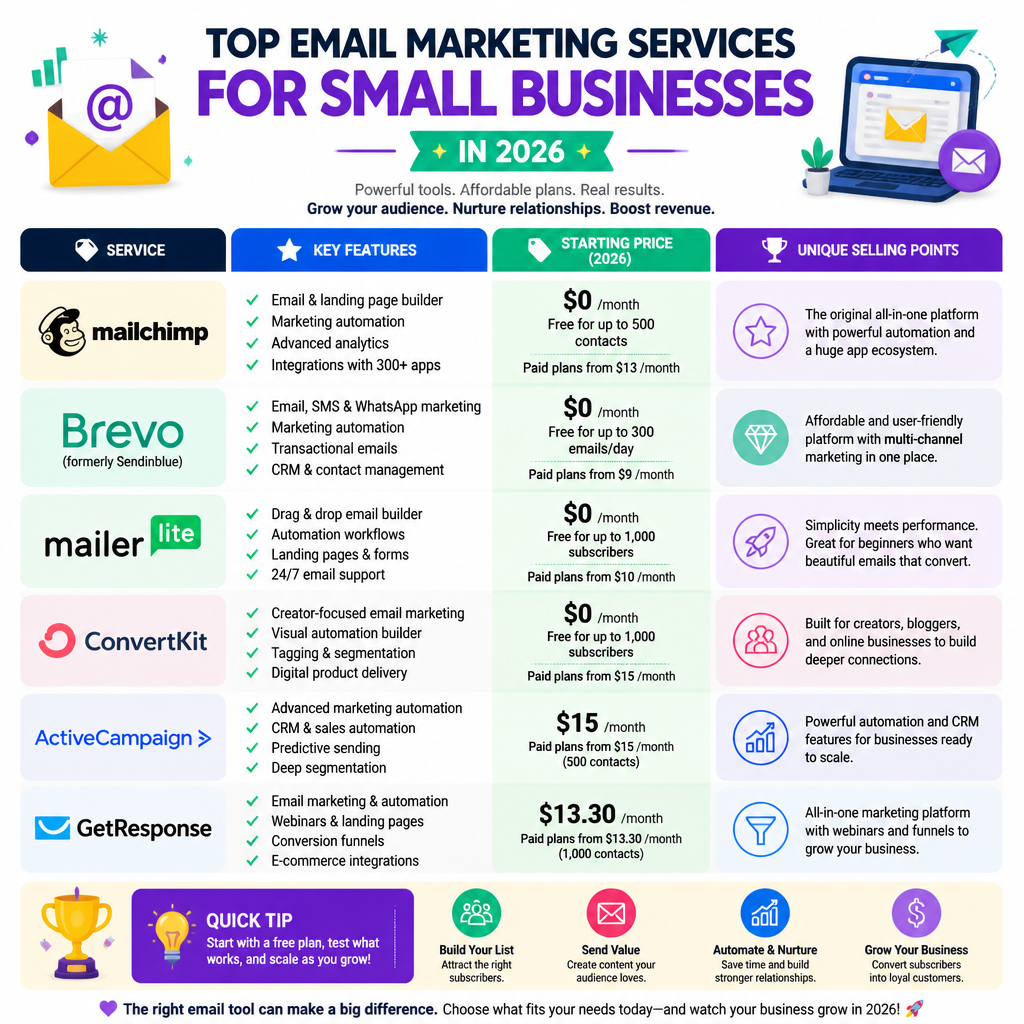
    1. Mailchimp

    Mailchimp stays popular for one reason: it’s approachable. The UI is friendly, the drag-and-drop builder is good enough for most small businesses, and it’s usually the first platform a non-technical founder can operate without calling for help.

    A key perk for early-stage lists: Mailchimp’s free plan allows up to 500 subscribers, which is a solid runway if you’re validating an offer or just building consistency. Where Mailchimp often wins is momentum—you can go from “we should email our customers” to a decent-looking send in an afternoon.

    It also leans into optimization features like AI to help with send times and subject lines (HubSpot). I’ve seen that help teams who don’t have the time (or discipline) to run subject line tests, but I’d still treat AI suggestions as a draft, not gospel. If your subject lines sound like a robot, people will treat your brand like a robot.

    Best for: small businesses, solo marketers, newsletters that don’t need deep behavioral logic.

    Tradeoff I’d watch: Mailchimp can feel “easy” right up until you need more granular segmentation or you want to build multi-branch automations tied to real customer behavior.

    2. ActiveCampaign

    ActiveCampaign is the platform I reach for when the question is: “How do we follow up properly?” It’s built for automation—meaning you can stitch together sequences based on what someone does (or doesn’t do).

    If you’ve ever wanted to run logic like:
    – if they click pricing → send case study
    – if they don’t click anything → resend with a different angle
    – if they book a call → stop promos

    …ActiveCampaign is comfortable there.

    It’s also the kind of platform where you can earn the classic email ROI numbers, but only if you implement the unsexy basics: consistent tagging, a real segmentation plan, and periodic list cleanup. The ROI benchmark gets thrown around for a reason—businesses can expect an average return of $36-$42 per dollar spent (Digital Applied)—but I’ve watched teams miss it by blasting the entire list with every promo because “more eyeballs.” That’s how you train subscribers to ignore you.

    Best for: service businesses, SaaS, B2B, and anyone who wants lifecycle emails beyond a welcome sequence.

    Tradeoff I’d watch: you’ll pay (in money or time) for complexity. Someone on the team needs to own the system, or it becomes a spaghetti bowl of tags and half-finished automations.

    3. Brevo (formerly SendinBlue)

    Brevo is a practical pick when you want email plus SMS without gluing together three tools. For small teams, that “one login, one bill, one set of contacts” approach is a relief.

    I like Brevo for businesses that run promotions and need speed. Think local services, appointment-based businesses, or brands that do limited-time offers. An SMS nudge paired with an email can work well when it’s used sparingly.

    The UI is generally straightforward, and the pricing model is flexible enough that you don’t feel punished for growth. That matters because list growth rarely happens in a neat line—one giveaway or seasonal spike and suddenly your subscriber count jumps.

    Best for: small businesses that want email + SMS in one place.

    Tradeoff I’d watch: if you’re planning to build very sophisticated e-commerce flows with deep store data, you may find yourself wanting more advanced revenue attribution and segmentation depth.

    4. Klaviyo

    Klaviyo is e-commerce-first, and it shows. If you’re on Shopify, it’s often the fastest path to “revenue-driven email” instead of “pretty newsletters.” You get strong segmentation, flows, and analytics that focus on what store owners actually care about: did the email make money?

    The big lever here is segmentation. When you target based on behavior—browse history, purchase frequency, average order value—you can send fewer emails that perform better. That’s not theory; it’s the difference between “10% off everything” and “replacement filters are due” or “you left something in your cart.”

    This is where that segmentation stat gets used a lot: segmented email campaigns can drive 760% more revenue compared to non-segmented sends. If you’ve ever run a broad blast to an entire list and watched engagement sag, you already understand why.

    A mini story: I once audited an online shop that was sending the same weekly promo to everyone—new subscribers, VIP buyers, people who hadn’t opened in a year. We split the list into three segments (new, active, sleepy), changed nothing else, and the “active” segment alone covered the month’s email spend. Same products. Same offers. Different targeting.

    Best for: Shopify and e-commerce brands that want segmentation + automation tied to sales.

    Tradeoff I’d watch: you’ll be tempted to over-automate. If every click triggers three messages, customers notice—and unsubscribes are a real cost.

    5. Omnisend

    Omnisend is also e-commerce-focused, but I’ve found it’s often chosen by teams who want multi-channel touches without going full enterprise. It supports email, SMS, and web push notifications, and it’s generally template-driven—good for marketers who need speed and consistency.

    Where Omnisend tends to shine is “campaign production.” If you’re running frequent promotions (holiday pushes, flash sales, product drops), templates and repeatable workflows keep you sane. You don’t want to redesign the same layout 40 times a year.

    A practical approach I’ve used with Omnisend-style setups:
    – build 3–5 modular templates (newsletter, product drop, sale, content, plain-text)
    – lock down brand styles (type, buttons, spacing)
    – create a QA checklist (mobile preview, dark mode sanity check, links tagged)

    That process sounds boring—and it is—but it’s also how you avoid sending a “50% OFF” email with a broken button to 80,000 subscribers.

    Best for: e-commerce teams that want email + SMS + push with a marketer-friendly workflow.

    Tradeoff I’d watch: if your strategy relies on deep custom data modeling, you may outgrow template-first tools.

    6. Mailtrap

    Mailtrap is not your typical “marketing platform.” It’s an email testing tool, and it’s incredibly useful when sending email is more technical—apps, agencies, multi-client environments.

    If you’ve ever shipped a campaign and discovered (after the send) that Outlook mangled the layout or a variable didn’t populate, you understand why testing matters. Mailtrap helps you validate how emails render and behave before real users see them.

    I’ve used Mailtrap-style testing on teams where marketing and engineering share responsibility. Example: product sends transactional emails (password resets, order confirmations) and marketing sends promos. The branding should match, the links should work, and the deliverability footprint should stay clean. A testing workflow catches issues early.

    Best for: developers, agencies, product teams sending transactional + marketing email.

    Tradeoff I’d watch: it won’t replace your marketing platform; it complements it. Budget for both if email is mission-critical.

    7. Litmus

    Litmus is about one thing: making sure your emails look right and perform.

    It’s a preview + testing + analytics platform that helps you see how emails render across devices and email clients. This sounds like a “nice extra” until you realize how fragile email HTML is. One mis-nested table or an overly clever CSS trick and your layout falls apart in a major client.

    Litmus becomes a no-brainer when brand reputation is on the line. If you’re sending to a big list and a third of your audience sees a broken design, you don’t just lose clicks—you lose trust.

    Benchmarks also push teams toward more disciplined testing. With email benchmarks showing that properly formatted emails have open rates skyrocket (Litmus), it’s hard to justify skipping QA once your list is meaningful.

    A mistake I’ve seen more than once: someone builds a gorgeous email, tests it in Gmail only, then it breaks in Outlook and iOS Mail. The team spends the next day doing damage control. Litmus is basically insurance against that.

    Best for: teams that care about brand polish, agencies, and high-volume senders.

    Tradeoff I’d watch: it’s another subscription. If you send twice a month to a tiny list, you may not need it yet.

    Average Costs for Email Lists

    List economics matter, especially when people start asking, “Should we just buy a list?” (My bias: don’t. You’re paying for spam complaints and poor deliverability.)

    Still, it’s useful to understand what email audiences can cost in the market:

    • The cost of a consumer email list can range from $100 to $400 CPM (Cost Per Mille)
    • B2B lists may range from $300 to over $1,000 per thousand emails

    Those ranges are cited in (Beehiiv). And the note that matters most is already baked in: the more targeted your email list, the higher the price.

    In practice, I’d rather spend that money building owned acquisition—lead magnets, post-purchase opt-ins, events, referral offers—because you get consent, engagement, and deliverability that doesn’t collapse after two sends.

    Email Marketing Use Cases and Value

    Email marketing is still the workhorse channel for small businesses because it handles two jobs well: keeping relationships warm and driving revenue on demand.

    The trick is to stop thinking of “email” as one thing. You’re really running multiple programs at once: acquisition, nurture, conversion, and retention. Different platforms make those easier or harder.

    Use Cases for Small Businesses

    Here are the use cases I’d prioritize if you’re trying to be effective without building a giant marketing department.

    • Newsletters: A newsletter isn’t just “updates.” Done right, it’s your ongoing relationship. I’ve seen newsletters work best when they follow a simple format: one useful tip, one story, one offer. Predictable. Skimmable.

    • Automated Campaigns: Automations save time and usually outperform one-off blasts because they match intent. The classics still print money: welcome series, abandoned cart, browse abandon, post-purchase follow-ups.

    If you only build one automation, build a welcome series with a clear promise (what they’ll get) and one strong offer. And if you’re doing e-commerce, keep pushing segmentation—segmented email campaigns can drive up to 760% more revenue compared to non-segmented sends (Digital Applied).

    • Customer Feedback Requests: Feedback emails are underrated. They’re also a sneaky retention lever. Ask one question, not ten. “How did we do?” or “What almost stopped you from buying?” Then actually read the replies. Some of the best copy improvements I’ve made came straight from those responses.

    • Reactivation (win-back) sequences: This is where small businesses often leave money on the table. People go quiet for normal reasons—life happens. A simple two-email win-back (“still want this?” + “we’ll stop emailing unless you click”) can clean your list and recover customers.

    Real-World Examples

    The local bakery example is real-life plausible because it’s the pattern I see most: simple list, consistent sends, clear offers. A local bakery increased sales by 30% over three months by implementing an email campaign that featured customer favorites and special discounts for subscribers.

    What made it work wasn’t fancy design. It was relevance:
    – emails went out on the same day/time each week
    – content matched buying behavior (weekend specials, seasonal items)
    – discounts were small but timely (e.g., slower weekdays)

    Another example from the “don’t do this” pile: a small retailer imported old contacts from a POS system and blasted a promo without consent. The campaign got a spike in complaints, future sends landed in spam, and their “cheap win” cost them months of poor deliverability. That’s the part nobody puts in case studies.

    Trends to Watch in 2026

    A few trends are shaping how these platforms compete and how teams should operate.

    • AI and Personalization: AI is now baked into most tools, but it’s most valuable when it speeds up iteration, not when it replaces judgment. One stat that keeps getting repeated (and I’ve seen versions of it play out in testing) is that AI-generated subject lines are outperforming traditional ones by 26% (Digital Applied).

    My take: use AI to generate 10 options quickly, then pick the one that sounds like your brand and fits the segment. If it reads like generic ad copy, toss it.

    • Privacy Regulations: Tracking is harder, and that’s not changing. You’ll lean more on first-party data (what people click, buy, and ask for) rather than creepy inference. This also pushes better list hygiene—permission, clear preference centers, and honest expectations.

    • Integration of Multiple Channels: Omnichannel is real, but only works when it’s coordinated. Email + SMS + push can either feel helpful or annoying. The difference is frequency control and message hierarchy. If someone already bought, don’t keep chasing them with “last chance” messages because the automation didn’t update.

    Conclusion

    Email marketing remains a high-leverage channel going into 2026, but the platform you choose should match how you actually work. If you want quick sends, pick the tool that keeps you shipping. If you want deep lifecycle automation, pick the one that won’t fight you when your logic gets complex.

    If you want a practical shortlist beyond this overview, start with this guide: Top Email Marketing Platforms for 2026. Then pick one platform and commit to doing the fundamentals well—segments, automations, and testing—before you chase shiny features.

  • Top 10 Content Writing Tools for 2026

    Discover the best content writing tools of 2026 for enhanced writing efficiency and creativity. Perfect for beginners and content marketers!

    Featured image for Top 10 Content Writing Tools to Enhance Your Writing in 2026

    Top 10 Content Writing Tools Available

    If you’re building a writing stack in 2026, my bias is simple: pick tools that remove friction without flattening your voice.

    Most teams I’ve worked with end up with a “triangle” of needs:

    • Drafting speed (getting words on the page)
    • Quality control (grammar, clarity, consistency)
    • Performance (SEO, structure, intent match)

    The mistake is buying three AI writers that all do the same thing, then wondering why nothing sounds human.

    Before we get into the list, here’s a practical way to use these tools together:

    1. Brief / research (Frase, MarketMuse, Semrush, Surfer)
    2. Draft (Jasper, Writesonic, Rytr, Copy AI)
    3. Rewrite / tighten (QuillBot)
    4. Final polish (Grammarly)
    5. Ideation when you’re stuck (HubSpot’s generator)

    And yes—you can absolutely do great work with fewer tools. I’ve seen a two-tool setup (Google Docs + Grammarly) outperform a $400/month “AI stack” because the writer had taste and a repeatable process.

    Top 10 content writing tools dashboard-style illustration

    1. Grammarly

    Grammarly is still the last gate before I publish anything. Not because it’s perfect—because it’s relentless.

    What it’s best at:
    – Catching the boring stuff (typos, agreement issues, repeated words)
    – Flagging clarity problems when you’ve stared at a paragraph too long
    – Keeping tone reasonably consistent across a team

    Where people mess up: trusting every suggestion.

    Grammarly can “correct” a sentence that was intentionally punchy, informal, or brand-voiced. I treat it like a copy editor who’s great at mechanics but doesn’t always understand the vibe.

    How I actually use it:
    – First pass: fix obvious grammar/punctuation
    – Second pass: only accept clarity suggestions if they preserve meaning and cadence
    – Team tip: set a shared style doc anyway (Grammarly won’t save you from inconsistent capitalization, product naming, or “we/our” voice debates)

    A real scenario: I once watched a junior writer accept dozens of Grammarly rewrites and accidentally soften every strong claim into mush. We rolled it back and used Grammarly as a “find issues” tool, not a “rewrite my voice” tool. Content got sharper overnight.

    2. Jasper

    Jasper is one of the few AI tools that can help you get from blank page to workable draft without fighting you.

    What it’s best at:
    – Marketing copy that needs momentum (landing pages, email sequences)
    – Drafting sections fast once you have an outline
    – Generating multiple variants (headlines, intros, CTAs)

    Tradeoff: Jasper’s biggest strength—speed—can tempt you to publish “average.” The draft is rarely the final. If you skip the human rewrite, it’ll read like a competent intern.

    How I slot it in:
    – I feed Jasper an outline + notes + 2–3 example paragraphs in the intended voice.
    – I ask for sections, not entire articles in one go.
    – Then I rewrite with my own stories, specifics, and POV.

    If you’re writing for SEO, Jasper works best after you’ve done real research (Frase/Surfer/Semrush), otherwise you end up with a draft that covers topics shallowly.

    3. Semrush

    Semrush is still the “grown-up” SEO suite when you need to stop guessing what to write and start making decisions.

    What it’s best at:
    – Keyword research and intent validation
    – Content optimization guidance (what to include, what you missed)
    – Competitive analysis that isn’t just vibes

    What I’ve learned the hard way: SEO tools can push you into writing for the algorithm instead of the reader. Semrush is powerful, but you need a filter.

    My rule: optimize after the draft is good.

    If you obsess over keywords too early, you write stiff paragraphs designed to hit “green scores.” Write something useful first, then use Semrush to patch gaps.

    If you want a broader list of SEO writing tools and how people use them, Semrush has a decent roundup here: 8 Best SEO Content Writing Tools We Like in 2026.

    4. Surfer SEO

    Surfer SEO is the tool I reach for when a piece needs to compete in a brutal SERP—think “best project management software” type queries where everyone is optimizing.

    What it’s best at:
    – Real-time “do you cover what top pages cover?” feedback
    – Content structure suggestions (sections, topics, missing entities)
    – Helping you avoid under-answering the query

    The tradeoff: it’s easy to overfit.

    I’ve seen writers stuff in every suggested term and turn a clean article into a keyword soup. Surfer is a compass, not a checklist.

    A workflow that works:
    – Use Surfer to build the outline (H2/H3 topics)
    – Draft normally
    – Use Surfer again to see what’s missing
    – Add missing ideas, not missing words

    If Surfer suggests “latency” and “uptime,” don’t jam them into one sentence—add a short section about performance if it genuinely matters.

    5. Writesonic

    Writesonic is the “fast hands” tool. When you need 10 ad variants, 5 product descriptions, or a rough blog draft before a meeting, it’s useful.

    What it’s best at:
    – Short-form marketing content
    – Variations and iterations
    – Getting a serviceable first draft quickly

    Where it can disappoint: long-form coherence.

    For longer articles, I’ve found Writesonic tends to drift unless you tightly constrain it with an outline and strong prompts.

    My practical use:
    – I use it for top-of-funnel pieces when the goal is speed and breadth.
    – Then I manually inject experience: actual numbers, screenshots, steps, gotchas.

    Without that, it can read like every other AI-generated post your audience has already skimmed.

    6. Frase

    Frase is a strong “brief builder,” especially if you’re tired of writing content that misses the obvious questions readers have.

    What it’s best at:
    – Generating content briefs based on what’s ranking
    – Surfacing common subtopics and questions
    – Helping you structure an article to match intent

    How I’ve seen it used well:
    – Build the brief in Frase
    – Assign sections to writers
    – Editors check coverage against the brief before publishing

    That one change—editing against a structured brief—cuts revision cycles a lot.

    Watch-out: Frase can nudge you toward sameness (because it’s based on what already exists). If you want to stand out, you have to add what competitors can’t: your process, your screenshots, your failures, your numbers.

    7. Rytr

    Rytr is the budget-friendly AI assistant that’s genuinely helpful for newer writers who need scaffolding.

    What it’s best at:
    – Brainstorming angles and outlines
    – Drafting simple sections quickly
    – Rewriting a paragraph in a different tone

    Best use case: getting unstuck.

    If you’re staring at a blank doc, Rytr can push you into motion. Motion matters. You can’t edit nothing.

    Where to be careful: if you rely on it for the “thinking,” your writing won’t develop. Use it like training wheels—helpful, not permanent.

    8. MarketMuse

    MarketMuse is for when you care about topical authority and you’re willing to do the work.

    What it’s best at:
    – Deep content analysis (coverage, gaps, prioritization)
    – Planning topic clusters rather than one-off posts
    – Helping teams build a library that compounds

    Who it’s for: content leads, SEO strategists, writers working on pillar pages.

    I’ve used tools like this when cleaning up a blog that had years of scattered posts. MarketMuse-style analysis helps you decide:
    – What to update vs. merge vs. kill
    – What supporting articles you need
    – Which topics you’re thin on compared to competitors

    Tradeoff: it can be overkill if you publish occasionally. If you write two posts a month, you might not need this level of analysis.

    9. QuillBot

    QuillBot is a scalpel. It’s not glamorous, but it’s useful when you need to reshape sentences without rewriting from scratch.

    What it’s best at:
    – Paraphrasing clunky sentences
    – Tightening repetitive phrasing
    – Giving you alternate ways to say the same idea

    How I use it without ruining the writing:
    – Only on small chunks (a paragraph or two)
    – Only when I already know what I want to say
    – I pick the version that keeps meaning and sounds like me

    It’s also handy when you’ve written something technically correct but painfully stiff. QuillBot can loosen it up, then you do a final pass in your own voice.

    10. HubSpot’s Blog Ideas Generator

    This one is simple, and that’s the point.

    What it’s best at:
    – Breaking “I have no ideas” paralysis
    – Generating starter titles you can refine
    – Helping junior writers practice turning topics into angles

    Pro tip: don’t publish the ideas as-is.

    Use them as sparks. Then add specificity:
    – Audience (for who?)
    – Context (for what situation?)
    – Promise (what will they be able to do?)

    For example, “Email marketing tips” becomes “Email marketing tips for SaaS trials that don’t convert (with 3 sequences).” Now you’ve got something.

    If you want another curated list of tools (and you’re sanity-checking what to try next), these roundups are worth skimming:

    Best AI Content Writing Tools for 2026

    AI writing tools are at their best when they’re a co-writer, not a ghostwriter.

    Here’s the working reality I see in 2026:

    • For experienced writers, AI is a multiplier. You bring taste, structure, and judgment; AI brings speed.
    • For new writers, AI can become a crutch. You get output, but not improvement.

    So I’m going to talk about the AI tools the way I’d talk about hiring help: what they’re good at, where they’re unreliable, and how to manage them.

    1. Jasper

    Jasper is still a top pick if you want AI that plays well with marketing workflows.

    Where it shines (AI-specific):
    – Creating multiple on-brand variations fast
    – Expanding bullet outlines into prose
    – Repurposing content (turn a blog section into emails, social posts)

    How I keep it honest: I require “source notes” in my doc.

    Even if Jasper writes a clean paragraph, I’ll add a quick note under it: What’s the claim? How do we know? What example proves it? That prevents the common AI failure mode: confident generalities.

    2. Writesonic

    Writesonic is good when you’re balancing speed and acceptable quality—especially for campaigns.

    Strong fit:
    – Ad copy testing (lots of variants)
    – Product messaging drafts
    – Social content drafts that you’ll edit anyway

    My watch-out: it can repeat patterns.

    If your brand voice is “short, sharp, slightly edgy,” you’ll still need to punch up the rhythm. AI tends to average everything out.

    3. Rytr

    Rytr stays on the list because it lowers the barrier to starting.

    What I’d use it for on a real project:
    – Outline 10 angles for a topic
    – Generate a few intro options
    – Draft FAQs based on a list of questions you already collected

    If you’re trying to build a habit of publishing, Rytr can help you move from “thinking about writing” to “drafting.” That’s not trivial.

    4. Copy AI

    Copy AI is one I see brand marketers use heavily because it’s template-driven and geared toward punchy, high-conversion formats.

    What it’s best at:
    – Hooks, headlines, subject lines
    – Short-form sales copy
    – Quick first drafts for campaign assets

    Tradeoff: templates can make teams lazy.

    If everyone uses the same handful of templates, everything starts to look the same across competitors. The fix is easy: treat the templates like starting points, then bring real customer language in—pull from sales calls, support tickets, reviews.

    For a broader view of AI tool options this year, here’s another roundup that’s useful for comparison shopping: Best AI Content Writing Tools for 2026.

    5. Frase

    Frase earns its spot here because “AI writing” isn’t just generation—it’s helping you write content that answers the query completely.

    Where it wins:
    – Turning SERP patterns into a usable brief
    – Helping you avoid missing key subtopics
    – Speeding up the research-to-outline phase

    What I’d avoid: letting Frase dictate your POV.

    If every competitor says the same safe thing, and your brief mirrors them, your article will land with a thud. Use Frase to cover the basics, then differentiate with:
    – A real process (steps you actually follow)
    – A mini case study (what happened when you tried it)
    – A strong stance (what you’d do, what you wouldn’t)

    Conclusion

    Good tools don’t replace good judgment. They replace the repetitive stuff that drains your energy—rewrites, cleanup, research wrangling, optimization checks—so you can spend your time on what readers actually feel: clarity, specificity, and a point of view.

    If you’re building your 2026 stack from scratch, pick one tool from each “lane” (SEO brief + AI draft + editing), run it for two weeks, and measure: Did you publish faster? Did edits go down? Did the content perform?

    Then keep what helps, cut what doesn’t, and get back to writing.

  • Top WordPress CMS Integrations for 2026

    Discover the best WordPress CMS integrations for 2026. Learn about essential plugins, APIs, and strategies for web developers, site administrators, and business owners.

    Featured image for Top WordPress CMS Integrations for 2026: What Works Best?

    Top WordPress CMS Integrations for 2026

    In 2026, WordPress remains a powerhouse in the CMS market, boasting over 41% of all websites globally. That stat matters because it explains why the integration ecosystem is so deep—and why the best tools still treat WordPress as a first-class citizen.

    But “lots of integrations” isn’t the same thing as “good integrations.” The gap between the two is where budgets go to die.

    Here’s the stance I’ve landed on after shipping a lot of WordPress builds: pick fewer integrations, pick the ones with a long maintenance history, and make sure each one has a job you can explain in a sentence. Every plugin you add is another update cycle, another security surface, another place for performance to quietly degrade.

    Below are the integrations that tend to earn their keep.

    WordPress CMS plugins

    One of the main advantages of using WordPress is access to a vast repository of plugins. As of 2026, there are more than 63,000 plugins available, from SEO optimization tools to eCommerce solutions. That’s both the superpower and the trap.

    The superpower: you can assemble a serious stack quickly. A decent dev can take a blank WordPress install to “fast, secure, lead-gen ready” in a day.

    The trap: there are 12 plugins that claim to do the same thing, and 9 of them are half-abandoned. Or they overlap. Or they hook into the same filters and create a weird edge-case bug that only shows up on Tuesdays when a logged-in editor previews a draft.

    A practical way to think about plugins is by responsibility. I like a “one plugin per responsibility” rule as a default:

    • One SEO tool (not two that fight over titles)
    • One forms tool
    • One caching/performance layer
    • One security layer
    • One eCommerce layer (if you’re selling)

    If a plugin tries to do five jobs, it better be exceptional—or it’s going to become your next migration.

    Popular plugins for enhanced functionality

    • Yoast SEO: Still a staple for on-page SEO hygiene. The real value isn’t the green lights (people obsess over those). It’s the consistency: titles, meta descriptions, canonical handling, XML sitemaps, and guardrails for non-technical editors.

    Where I’ve seen Yoast used well: a multi-author site where editors were publishing 10–20 posts/week. We set a simple checklist—one keyphrase, one internal link, proper headings—and Yoast helped enforce a baseline. Traffic gains came more from consistency than from “SEO tricks.”

    • WooCommerce: If you’re doing eCommerce on WordPress, WooCommerce is still the default for a reason. It’s flexible, extensible, and it doesn’t lock you into a proprietary platform.

    The messy part: WooCommerce builds are integration builds. Payment gateway, shipping rules, taxes, emails, fraud tools, analytics—each is its own decision. The strongest Woo stores I’ve worked on were conservative: a lean theme, a small set of well-supported extensions, and a hard rule that marketing can’t install random plugins without a staging test.

    • Elementor: It’s popular because it lowers the “time to layout.” Drag-and-drop can be a lifesaver when a client needs fast iteration.

    The tradeoff is real: you’re choosing a builder dependency that can impact performance and long-term maintainability. I’ve inherited Elementor sites with 50+ templates and global widgets nested like Russian dolls—editing became slower than just writing code.

    My compromise approach: Elementor can be fine for marketing pages, but I avoid letting it become the entire site architecture. If the project needs long-term scale, I’ll push for block-based templates or a more structured approach.

    The plugin choices that quietly matter

    The integrations that cause the most pain aren’t always the “headline” ones. It’s the quiet stuff:

    • Forms + deliverability: Contact forms are deceptively high-stakes. If your form emails go to spam, you lose leads and nobody notices for weeks.
    • Spam protection: Comment spam is one thing; form spam is worse. It pollutes CRMs and triggers rate limits.
    • Backups: If you don’t have tested restores, you don’t have backups.
    • Image optimization: Site speed and Core Web Vitals live and die on images.

    I’m not naming specific plugins here because the right pick depends on your stack and hosting, but the responsibilities don’t change. Whatever you choose, test it with:

    • A staging site
    • A real form submission
    • A restore drill
    • A speed test before/after

    If that sounds like “extra work,” it is. It’s also cheaper than incident response.

    WordPress integration API

    WordPress’s REST API is a critical feature that allows developers to integrate third-party applications seamlessly. Whether you’re pulling in data from external sources, building a mobile app, or running WordPress in a headless setup, the REST API is usually the cleanest path.

    One noteworthy example of utilizing the WordPress API is integrating with CRM platforms like HubSpot. This integration can automatically sync contacts and leads between your WordPress site and your CRM, streamlining marketing efforts and improving customer relationship management.

    Here’s what that looks like when it’s done right (and where it goes wrong):

    What “good CRM sync” actually means

    A lot of teams think “we connected WordPress to the CRM” is the finish line. It’s not.

    A good integration answers these questions explicitly:

    1. What is a lead? A form submission? A newsletter signup? A chat transcript? A purchase? Decide.
    2. What fields matter? Name/email is not enough if sales needs context. Capture page URL, campaign parameters, product interest, and consent status.
    3. What happens on failure? If the CRM API is down for 30 minutes, do you lose leads or queue them?
    4. How do we prevent garbage? Bot submissions can flood a CRM and cost real money.

    I’ve seen a basic WordPress-to-CRM integration turn into a mess because of one small choice: mapping every form field “just in case.” Six months later, the CRM had 40 barely-used properties, reporting was unreliable, and sales stopped trusting the data. The fix was boring: tighten the schema, standardize UTM capture, and send fewer, cleaner events.

    Headless and hybrid setups in 2026

    Headless WordPress isn’t new, but it’s more common now because teams want:

    • Faster front-ends
    • Better developer ergonomics
    • The ability to reuse content across web + app + email

    The REST API is usually the spine of that. The integration work shifts from “install plugin” to “design content models and endpoints.” If you’re going headless, the big lesson is: your editor experience matters as much as the front-end.

    If editors hate the workflow, they’ll work around it—paste content into Google Docs, publish late, or create duplicate pages because they can’t find the right block. That’s not an editor problem. That’s an integration design problem.

    Analytics and tracking integrations

    With the rise of data-driven strategies in digital marketing, integrating analytics tools with your WordPress site is crucial. Google Analytics, for example, can be embedded into your site using plugins, allowing you to track user behavior, conversion rates, and other essential metrics.

    By connecting Google Analytics with a plugin like MonsterInsights, you can easily access critical insights directly within your WordPress dashboard without needing to navigate through multiple platforms.

    That convenience is real, but here’s my opinionated take: dashboards inside WordPress are nice for quick checks, not for serious analysis. The best setups separate concerns:

    • WordPress collects events correctly (including consent)
    • Analytics platforms store and analyze
    • Reports live where marketing and leadership actually look (often not inside WP)

    What to track (so it’s not vanity data)

    Most WordPress sites I audit track pageviews and… stop there. If your site exists to generate leads or sales, you need to track steps that align with that:

    • Form submit success (not just form views)
    • Phone/email click events (if you’re service-based)
    • Checkout funnel steps (if eCommerce)
    • Downloads (for gated content)
    • Logged-in actions (for memberships/courses)

    And you need to validate it. I don’t mean “it probably works.” I mean:

    • Submit the form yourself
    • Confirm the event appears
    • Confirm the source/medium is correct
    • Confirm conversions match reality over a week

    One mini war story: I once worked on a site where conversions dropped 30% “overnight.” Panic. Turns out the conversions didn’t drop—tracking broke after a theme update changed a button ID. The business was fine, but decision-making was suddenly blind. The fix took 20 minutes; the confusion took days.

    Consent and privacy realities

    By 2026, you can’t treat tracking like a set-and-forget script tag. Consent banners, regional rules, and ad blockers change what data you’ll actually get. The integration job is to be honest about that.

    A practical approach I like:

    • Track a small set of high-confidence events
    • Treat the numbers as directional, not absolute
    • Reconcile with backend data (CRM, Woo orders)

    If your analytics says 100 conversions but Woo says 78 orders, believe Woo.

    Social media integrations

    Social media platforms are essential for driving traffic and enhancing user engagement. Integrations with social media allow your website to benefit from increased visibility and customer interaction.

    Popular plugins that facilitate social media integration include:

    • Social Warfare: Adds social sharing buttons to content. What matters isn’t just the buttons—it’s placement and performance. I’ve seen sharing plugins add seconds of load time because they pull too many third-party scripts.

    The best implementations keep it lean: load scripts conditionally, avoid unnecessary counts lookups, and don’t plaster buttons everywhere. Put them where people actually share: above/below posts, or on long-form evergreen pages.

    • Revive Old Posts: Automatically shares older posts on social channels.

    This is one of those tools that can either look smart or look spammy. The difference is curation. Don’t revive everything. Set categories/tags that are evergreen, exclude time-sensitive posts, and use custom messages so your account doesn’t read like a bot.

    Social integration that doesn’t get enough respect

    Two other “social” angles matter in real life:

    1. Open Graph and previews: If your link previews are broken, your social performance drops. This usually comes down to your SEO plugin doing the right thing and your theme not blocking metadata.
    2. Embedded content: Embedding posts/reels can be useful, but it can also bloat pages. For marketing pages, I often prefer screenshots or curated embeds rather than auto-loading a whole platform widget.

    Performance integrations (the stuff users feel)

    If you want a WordPress site to feel modern in 2026, you have to treat performance as an integration decision, not a last-minute optimization.

    In practice, performance usually comes from a few layers working together:

    • Caching (page cache, object cache)
    • CDN (static assets close to the user)
    • Image optimization (compression, next-gen formats)
    • Database hygiene (revisions, transients, cron jobs)

    Here’s the real tradeoff: performance plugins can overlap with host-level caching. If your host already provides strong caching, adding another caching plugin can make debugging harder.

    What I do on client sites:

    • First, understand what hosting already provides.
    • Second, pick one caching strategy.
    • Third, measure before/after with the same pages.

    And yes, I’ve shipped sites where removing a “performance plugin” made the site faster because it was doing redundant work or breaking cache rules.

    Email, forms, and deliverability

    Every WordPress site that captures leads needs an email strategy. Not “we get form emails.” I mean deliverability you can trust.

    Common failure modes I see:

    • The site sends mail via PHP mail and gets flagged
    • Forms don’t store submissions, so lost emails are lost leads
    • Spam submissions fill inboxes and CRMs

    A more resilient setup usually includes:

    • Storing submissions in WordPress (or sending to a CRM) so email isn’t the single point of failure
    • SMTP or a transactional email service integration
    • Spam filtering (honeypot, CAPTCHA alternatives, rate limiting)

    If you’re running a business site, do one simple drill quarterly: submit the main form, confirm it arrives, confirm it’s logged somewhere, confirm the CRM contact is created with the right fields.

    It’s boring. It also prevents the worst kind of bug: the silent one.

    eCommerce and payments (where integrations explode)

    WooCommerce is mentioned above, but it deserves its own integration lens because stores fail in very specific ways.

    The integrations that usually matter most:

    • Payment gateways (and their fraud rules)
    • Shipping calculations
    • Taxes/VAT handling
    • Inventory sync (if you have a warehouse/ERP)
    • Abandoned cart recovery

    My biggest “how I know” point here: the stores that run smoothly tend to standardize on fewer moving parts. When a store has three payment gateways, two shipping rule engines, and a dozen “conversion booster” plugins, every update becomes Russian roulette.

    If you’re building for revenue, keep the checkout path brutally simple. Add the fancy stuff only after you’ve measured a real bottleneck.

    Security integrations (non-negotiable)

    You can’t talk about WordPress integrations in 2026 without acknowledging the obvious: WordPress is popular, and popular things get attacked.

    Security isn’t one plugin. It’s a posture. But integrations help:

    • WAF/CDN protections (often at the edge)
    • Login protection (rate limits, MFA where possible)
    • Backups with offsite storage
    • Update management and monitoring

    The one mistake I keep seeing: teams add a security plugin and then ignore updates because they’re afraid of breaking things. That fear is valid—updates can break things. The answer isn’t “never update,” it’s “use staging and test.”

    If you can’t stage/test, at least schedule maintenance windows and keep a rollback plan.

    Using WordPress as a CMS

    Advantages of WordPress for businesses

    While some critics claim that WordPress is outdated, its adaptability is one of its most significant strengths. In 2026, it remains a leading choice for businesses due to its flexibility and scalability.

    The best part, in my opinion, is ownership. With WordPress you can usually:

    • Own your content outright
    • Choose your host
    • Migrate without begging a vendor
    • Extend the system without waiting for a platform roadmap

    Many organizations leverage WordPress to create websites that range from simple blogs to complex eCommerce platforms, all while maintaining ownership of their content and data.

    The ability to customize the website according to business requirements without the need for extensive technical knowledge is a unique selling point. But I’ll add a caveat from the trenches: “without technical knowledge” is only true up to a point. Once you’re integrating CRM, analytics, payments, and performance layers, you need someone technical to keep the system coherent.

    A clean WordPress build is like a well-organized workshop. You can do a lot quickly. A messy one is like a garage full of random tools—technically you can still fix stuff, but everything takes longer and you cut yourself more.

    Addressing common concerns

    Is WordPress outdated in 2026?

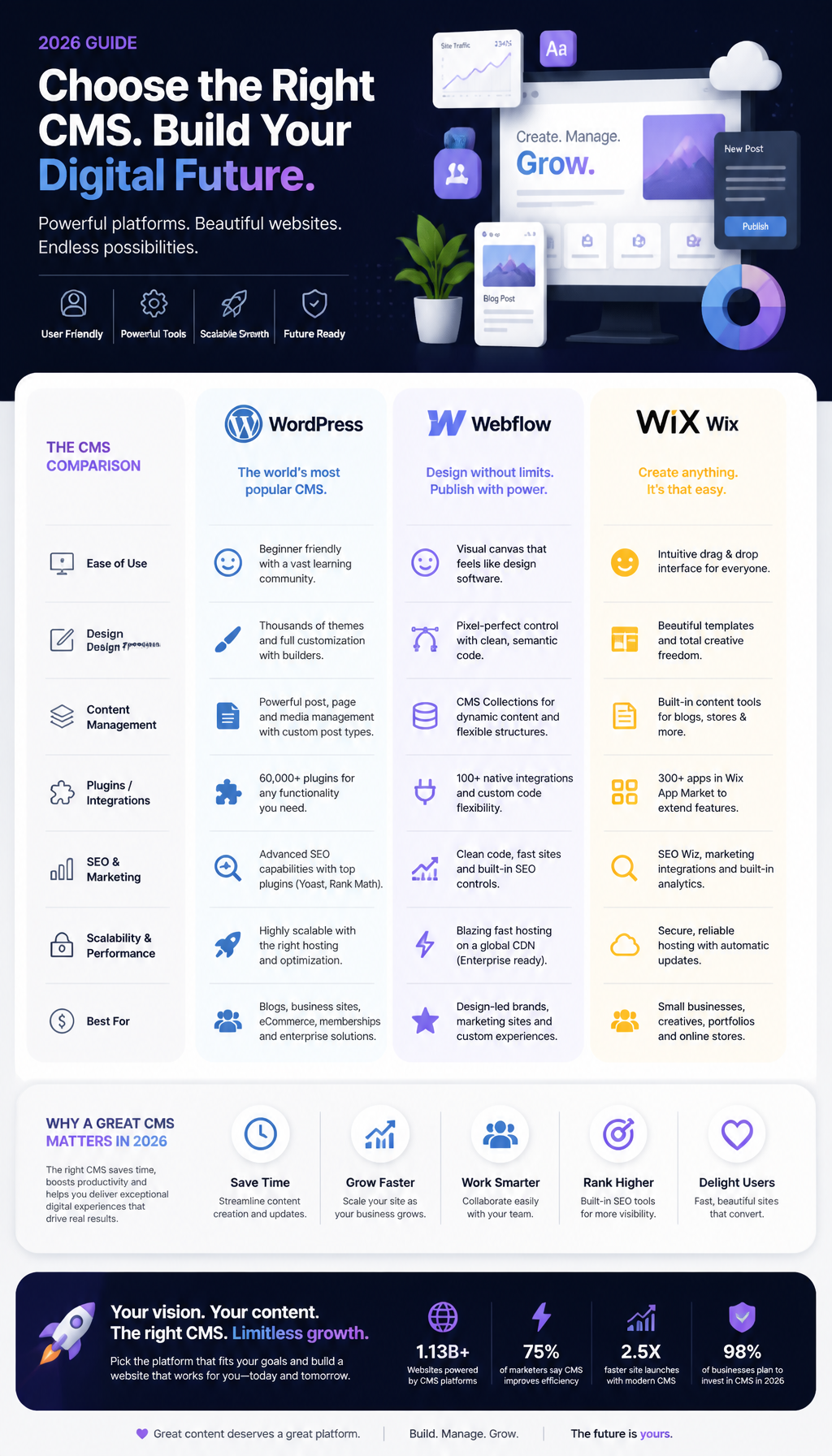
    No. The narrative of WordPress becoming obsolete primarily stems from comparisons with specialized solutions. But WordPress has consistently evolved, integrating modern technology and development standards, such as block-based development and headless architecture.

    Where people get burned is not WordPress itself—it’s bad implementation:

    • Too many plugins installed without a plan
    • Themes that ship everything and the kitchen sink
    • No staging environment
    • No performance budget

    With its active community and frequent updates, WordPress is well-equipped to compete in today’s digital environment (and the “obsolete” debate is often more about taste than results) (White Label Coders).

    If you’re deciding between WordPress and a specialized platform, I’d frame it like this:

    • If you want tight control, long-term flexibility, and a massive ecosystem: WordPress is still a strong bet.
    • If you want a single-vendor, opinionated system with fewer choices: a specialized platform might reduce decisions—but you pay for that in flexibility.

    Neither is morally superior. But WordPress wins when you treat integrations as architecture, not add-ons.

    FAQs

    Can WordPress be used as a CMS?

    Absolutely. WordPress was designed as a CMS and continues to be one of the most popular options for managing content online, offering countless plugins and themes to enhance its functionality.

    In real terms: if you can model your content (pages, posts, custom post types), manage users, and publish with workflow, it’s a CMS. WordPress does that well, and integrations are how you tailor it to your business.

    Why are people moving away from WordPress?

    Some businesses want fewer choices and less maintenance. Others have been burned by a messy plugin stack or a site that got slow over time. A few genuinely need a specialized platform that’s built around one use case (like a commerce-only SaaS).

    But a lot of “we moved away from WordPress” stories are really “we had a poorly maintained WordPress site.” Those aren’t the same thing.

    If you’re staying on WordPress, your next step is simple: audit your current integrations. List every plugin, what it does, whether it’s still needed, and who owns it internally. Then delete the ones that can’t justify their existence.

    WordPress Usage Statistics

  • Best WordPress Security Services: 2026 Reviews

    Explore the best WordPress security services of 2026, comparing features, prices, and effectiveness to secure your website. Learn more!

    Featured image for Best WordPress Security Services: 2026 Reviews & Comparisons

    Featured image for Best WordPress Security Services: 2026 Reviews & Comparisons

    Best WordPress Security Services: 2026 Reviews & Comparisons

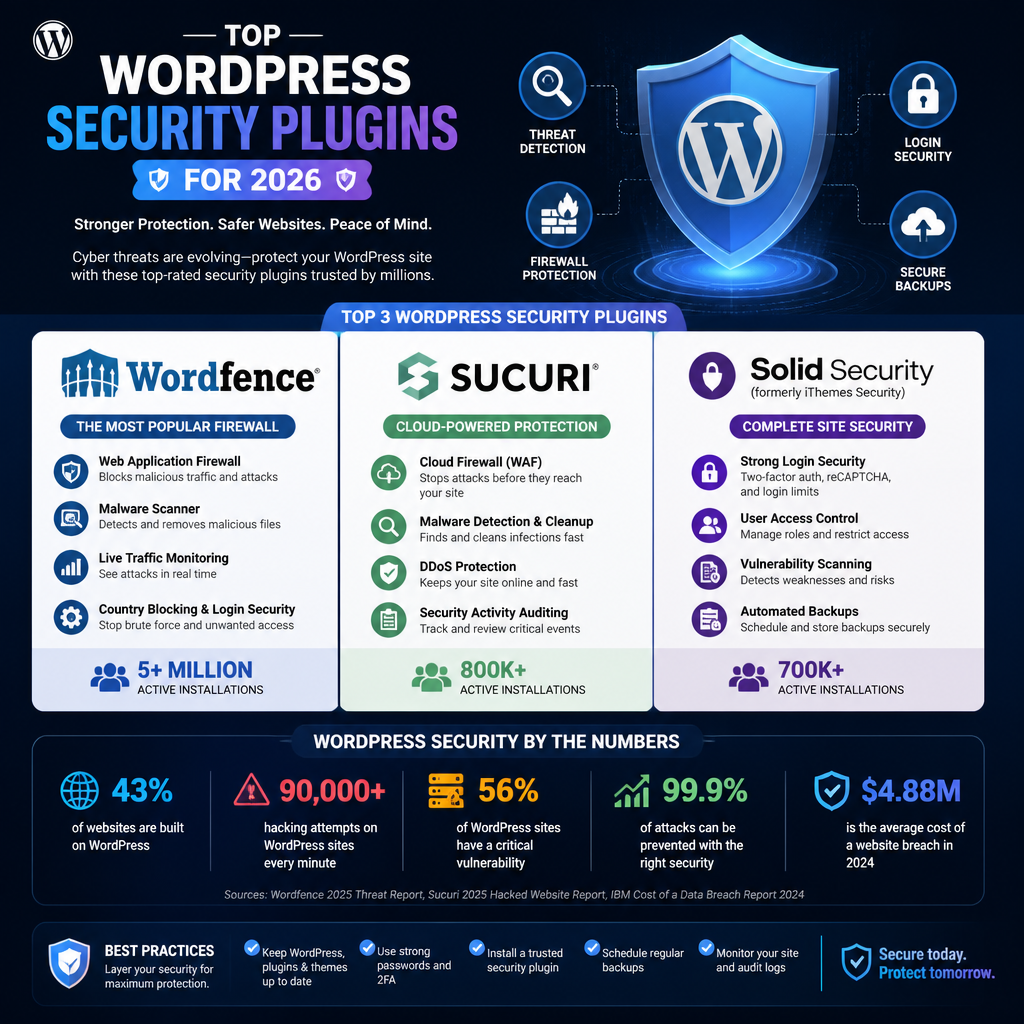
    When it comes to securing your WordPress site, the options available can be overwhelming. Picking the “best” tool isn’t about brand names—it’s about coverage. You need to stop automated junk (bot logins, scans, injection attempts), catch real compromises fast, and recover cleanly when something slips through.

    I usually evaluate a WordPress security service on five things:

    • Prevention: WAF, brute-force protection, hardening, patching help.
    • Detection: malware scanning that actually finds obfuscated payloads and backdoors.
    • Response: cleanup, restore, and guidance that doesn’t waste your time.
    • Noise level: false positives can break checkout, admin, REST API, or caching.
    • Operational fit: works with your host/CDN, doesn’t tank performance, and is maintainable.

    One quick reality check: a plugin-only setup can be fine for small sites, but a WAF in front of the site changes the game because it blocks a lot of traffic before WordPress even touches it. That’s why you’ll see services like Sucuri show up in “serious” stacks more often.

    1. Sucuri Security

    Overview: Sucuri is a well-established name in the web security field. This comprehensive platform provides robust security features including a web application firewall (WAF), malware scanning, and cleanup services.

    If you’ve never used a WAF before, here’s the practical difference: it can block a pile of bad requests at the edge, so your origin server doesn’t waste CPU running WordPress just to say “no.” On busy sites, that alone can prevent a minor attack from turning into downtime.

    Features:

    • Firewall Protection: Sucuri’s WAF blocks malware and prevents attacks before they reach your server, significantly reducing the risk of breaches.
    • Malware Cleanup: In the unfortunate event of a malware attack, Sucuri offers professional cleanup services to restore your site quickly.
    • Performance Monitoring: This service also monitors your website’s performance, ensuring that security measures do not impact load times negatively.

    A setup note people miss: if you enable the WAF but don’t force all traffic through it (DNS/proxy correctly + locking down origin access where possible), attackers can still hit your server IP directly. So you think you’re protected… but you aren’t.

    Pricing: Sucuri's plans start from around $199.99 annually, making it a cost-effective solution for many small and medium-sized businesses.

    Why Choose Sucuri? I like Sucuri when the site has real business value and you want a team that can help you dig out of a compromise without guessing. Also, the “less guesswork” part matters when you’re dealing with blacklist warnings and customer trust. You can read more about Sucuri's offerings at Sucuri Security.

    Common mistakes I see with Sucuri:

    • Turning on the WAF and assuming you’re done—while leaving XML-RPC, wp-login, and old endpoints wide open.
    • Not checking for plugin conflicts after enabling rules (especially on custom APIs).
    • Forgetting to set up alerting, then discovering issues days later.

    2. Wordfence Security

    Overview: Wordfence offers a popular free plugin as well as premium options that include advanced features. It provides real-time security monitoring and a firewall designed specifically for WordPress.

    Wordfence is the “default answer” for a lot of WordPress folks because it’s approachable, and the visibility is good. The live traffic view is also a great teaching tool—you can literally watch bots hammer endpoints in real time.

    Features:

    • Malware Scan: Regular scans for malware, backdoors, and vulnerabilities with real-time alerts.
    • Login Security Features: The service includes two-factor authentication and CAPTCHA to protect against brute force attacks.
    • Live Traffic Monitoring: It displays real-time traffic and hack attempts on your site, allowing you to respond quickly.

    Here’s where I’m opinionated: Wordfence is strong for site-level controls (logins, scanning, monitoring). But it’s still running inside WordPress. So if the server is under heavy load, or the site is already compromised at a deeper level, the plugin can become less effective—or you can lose access entirely.

    Pricing: Wordfence’s premium plans start at $99 per year for a single site, which is competitive compared to other services.

    Why Choose Wordfence? If you’re technical enough to tune settings and pay attention to alerts, Wordfence can carry a lot of weight, especially on smaller sites. It’s also a solid stepping stone: start with free, upgrade when the risk or revenue climbs. More information can be found on Wordfence Security.

    My Wordfence “do this first” checklist:

    1. Turn on 2FA for every admin account.
    2. Enable brute-force protection and set sane lockout thresholds.
    3. Configure scan sensitivity (too aggressive can melt cheap hosting).
    4. Set alerts to a monitored inbox (not the site’s own domain if possible).

    3. iThemes Security

    Overview: iThemes Security offers a comprehensive suite of security features designed to protect your WordPress site from the most common threats.

    iThemes has always leaned into “make hardening easier.” That’s valuable because the best security tool is the one you’ll actually keep configured correctly for six months.

    Features:

    • Strong Password Enforcement: It enforces strong passwords for all users to minimize the risk of unauthorized access.
    • File Change Detection: Alerts you to any changes made to your website files, helping you identify potential breaches quickly.
    • User Activity Logging: Keeps track of user activity, further adding a layer of security to your site.

    That file change detection piece is underrated. A lot of compromises don’t scream “malware” at first—they quietly add a new PHP file in an uploads folder, or they modify a theme file by a couple of lines. Getting an alert quickly can save you days.

    Pricing: Starting at around $80 per year, it offers great value for those seeking an effective security solution.

    Why Choose iThemes Security? If you’re running a small business site and you want guardrails without living in security logs, iThemes is a practical pick. More details are available at iThemes Security.

    Where people trip up:

    • Enforcing strong passwords but leaving old admin accounts active.
    • Turning on lots of hardening toggles without testing checkout, forms, and mobile menus.

    4. Jetpack Security

    Overview: While Jetpack is often marketed as an all-in-one plugin for WordPress, its security features are robust and worth mentioning.

    Jetpack is a bit polarizing, but I’ll give it this: on sites where the team already uses Jetpack and wants a simple path to backups + scanning, it’s convenient. Convenience isn’t a dirty word if it keeps you consistent.

    Features:

    • Real-Time Backups: Continually backs up your site, allowing for quick restoration after an incident.
    • Spam Filtering: Effectively filters spam comments and malicious login attempts.
    • Security Scanning: Scans your website for vulnerabilities.

    Backups matter more than most owners think. Not because you’ll definitely get hacked, but because “oops” happens—bad updates, broken themes, accidental deletions. A good backup system is both security and sanity.

    Pricing: Jetpack’s security plans start at $99 annually.

    Why Choose Jetpack? If you want backups and scanning in one place, and you don’t want to stitch together five tools, Jetpack can be a reasonable middle ground. For more on Jetpack, check out Jetpack Security.

    Jetpack gotchas:

    • Owners assume backups mean “safe” and stop updating plugins (that’s how you end up restoring the same vulnerability repeatedly).
    • People don’t test restores. A backup you can’t restore under pressure is just a subscription.

    5. All In One WP Security & Firewall

    Overview: This free plugin provides a comprehensive security solution, focusing on enhancing the security of WordPress sites.

    I’ve used this on early-stage sites where budget is tight and the goal is “stop the dumb stuff.” It does a lot for free, and for some projects that’s the right move.

    Features:

    • User Account Security: Restrict login attempts and implement captcha.
    • File Integrity Monitoring: Monitors the integrity of your WordPress core files to detect unauthorized changes.

    Pricing: This plugin is entirely free, making it an attractive option for budget-conscious site owners.

    Why Choose All In One WP Security? If you’re starting from zero, this can lift your baseline security fast without paying for a premium stack. Learn more at All In One WP Security.

    What I’d watch carefully:

    • Some settings can interfere with caching/minification plugins.
    • “Free” still costs time—if you never review alerts or logs, you’re basically installing it for placebo.

    Understanding WordPress Security Services Vulnerabilities

    If you don’t understand the vulnerabilities you’re trying to cover, you’ll buy the wrong tool and feel oddly safe. Security services vary a lot: some focus on malware cleanup, some on firewalls, some on login protection. Meanwhile, attackers don’t care what you purchased.

    According to research, over 11,334 new vulnerabilities were identified in the WordPress ecosystem in 2025 (Swif). I believe it, because the plugin ecosystem is enormous, and even “good” developers ship bugs under deadline pressure.

    Key vulnerabilities to be aware of include:

    • Outdated Plugins and Themes: Regular updates are essential; failure to do so can expose your site to attacks.
    • Weak Passwords: Many breaches occur due to easily guessable passwords or reused credentials.
    • SQL Injection Attacks: Attackers can exploit unsecured databases if safety measures aren't in place.
    • Cross-Site Scripting (XSS): Malicious scripts can be injected into webpages viewed by other users.

    Here’s the part most articles skip: it’s rarely one issue. It’s usually a chain.

    A real chain I’ve seen (more than once):

    1. A site runs an outdated form plugin.
    2. The plugin has an XSS or file upload weakness.
    3. Attacker drops a webshell into /wp-content/uploads/ with a harmless name.
    4. The shell downloads a second-stage payload that injects spam links sitewide.
    5. Google flags the domain, traffic tanks, and the owner finally notices.

    And then the cleanup goes badly because people delete the obvious malicious file, but miss the hidden persistence.

    Where security services help—and where they don’t

    A security service is strongest when it either blocks the request before WordPress executes it (WAF), or it detects and removes the compromise fast (scanning + cleanup). But there are gaps you should plan for:

    • Plugin supply chain risk: if a plugin update is compromised, you can still get hit. You need staging and change control.
    • Stolen admin sessions: if an attacker steals a cookie/token, brute-force protection won’t matter.
    • Bad hosting isolation: on cheap shared hosting, you can do everything “right” and still inherit neighbor problems.

    That’s why I treat security services as one layer, not the layer.

    Step-by-step: how I map vulnerabilities to controls

    If you want a practical way to choose a service, do this quick mapping exercise. It takes 20 minutes and saves you hours of wandering.

    1. List what matters: admin accounts, customer data, WooCommerce orders, email list, content, uptime.
    2. List your public entry points: wp-login, XML-RPC (if enabled), contact forms, checkout, REST API endpoints.
    3. Count plugins and themes: anything unmaintained is a liability. If it hasn’t been updated in a long time, replace it.
    4. Decide your “blast radius” tolerance: can you handle 1 hour down? 1 day? zero?
    5. Pick controls to match:
      • Brute force → 2FA + rate limiting + bot protection.
      • Vulnerable plugins → patching discipline + scanning + WAF rules.
      • Injection attempts → WAF + input validation (dev-side) + least privilege DB.
      • Account takeover → 2FA + minimal admins + audit logs.

    Then you pick the product that covers the biggest risks for your site, not the internet’s favorite plugin.

    Common mistakes that create vulnerabilities

    These show up constantly in post-breach cleanups:

    • “We’ll update later.” Later becomes never, then a bot finds you.
    • Too many plugins doing the same job. Every plugin is more code and more risk.
    • Leaving old admins active. Former contractors, old agency logins, test accounts—easy wins for attackers.
    • Assuming backups are security. Backups are recovery. You still need prevention.

    Security Monitoring Practices

    Effective security monitoring is essential in not only preventing attacks but also in preparing for rapid response should a breach occur. Here are best practices to include:

    • Regular Backups: Ensure your site is backed up regularly, ideally with an offsite solution to easily recover from attacks.
    • Audit Logs: Keep logs of all changes made to the site to track any unauthorized access or changes.
    • Automated Scanning: Schedule scans frequently to check for malware or vulnerabilities.

    Let me make this operational, because “monitor continuously” is vague when you’re busy.

    A monitoring routine that actually works (without living in dashboards):

    1. Daily (automated):

      • Security alerts to email + optionally Slack.
      • Uptime monitoring (a simple external ping) so you know when the site is down.
    2. Weekly (15 minutes):

      • Review blocked login attempts and top targeted URLs.
      • Check for new users with admin role.
      • Confirm backups ran and you can see restore points.
    3. Monthly (30–60 minutes):

      • Update plugins/themes/core (ideally after testing on staging).
      • Review audit logs for weird patterns (logins from new countries, repeated 404 probes).
      • Remove unused plugins and delete abandoned themes.
    4. Quarterly (1–2 hours):

      • Test a restore to staging. Time it.
      • Rotate passwords for critical accounts.
      • Re-check DNS/WAF settings and make sure origin isn’t exposed.

    One quick mini-story: I once dealt with a site that “had monitoring,” but alerts went to an inbox on the same domain. The attacker compromised mail forwarding rules, so the owner never saw alerts. We fixed the site, but the lesson stuck: send security alerts somewhere independent.

    To summarize, securing your WordPress website in 2026 requires a proactive approach. The security landscape is constantly evolving, and staying informed about the latest tools and practices is essential for success. As Mobeen Abdullah, I've witnessed how effective security measures can ensure business continuity and trust online.

    My Experience With This

    I’ve been in the tech industry for several years and have seen firsthand the devastating impact of security breaches on businesses of all sizes. In my experience, investing in quality WordPress security services is non-negotiable. Not only do these services protect your site, but they also safeguard your reputation and relationship with your users. I've personally utilized several of the services discussed here and appreciate their unique strengths and weaknesses.

    Now the real version, not the motivational poster.

    The ugliest WordPress incidents I’ve handled weren’t “Hollywood hacks.” They were quiet compromises that sat for weeks: a hidden admin user, a backdoor in an old theme file, or a spam injector that only showed up for Googlebot. The site looked fine to the owner, so they kept running ads to it while the domain reputation slowly got torched.

    A real-world example of how this plays out

    One small e-commerce site (not huge—think a few dozen orders a day) called in because checkout started redirecting randomly. Not every time, just enough to cause chargebacks and angry emails.

    What we found, step by step:

    1. Baseline checks: We compared recent plugin/theme updates with when the issue started. No clean correlation.
    2. Log review: A spike in POST requests to a form endpoint showed up, then weird admin-ajax calls.
    3. File integrity scan: A “normal-looking” PHP file appeared inside uploads. That’s almost always wrong.
    4. Persistence hunt: We found a second backdoor in a mu-plugin. That’s the one that would’ve reinfected the site after a naive cleanup.
    5. Response: We cleaned, rotated credentials, forced logouts, and invalidated sessions.
    6. Hardening: 2FA for admins, removed unused plugins, blocked direct access to suspicious paths, and put a WAF in front.

    The owner’s biggest surprise? They already had a security plugin installed. It just wasn’t configured well, alerts weren’t monitored, and nobody had tested restores.

    How I decide what a site needs

    I’m biased toward “boring and reliable” security—fewer moving parts, fewer plugins, clear ownership. So I usually land here:

    • Content site / brochure site: strong login protection + scanning + backups. A free plugin can be fine if updates are disciplined.
    • Business site that captures leads: scanning + hardening + a plan for incident response. WAF starts to make sense.
    • WooCommerce / membership / anything with payments: WAF + paid scanning + tested restores + strict admin control. No exceptions.

    The most common mistakes I see (and what I do instead)

    • Mistake: Treating “installed” as “secured.”

      • Fix: I schedule alerts, test rules, and make sure someone owns the inbox.
    • Mistake: Letting agencies keep admin access forever.

      • Fix: Temporary accounts, least privilege, and a monthly user review.
    • Mistake: Updating live without a rollback plan.

      • Fix: Staging, backups, and a 10-minute restore drill once a quarter.

    If you’re reading this because you’ve already had one scare, don’t just “add another plugin.” Pick a service, configure it properly, and set a routine you can keep.

    FAQ

    What are the best WordPress security practices for 2026?
    The best practices include keeping all plugins and themes updated, using strong passwords, employing two-factor authentication, and regularly backing up your site.

    If you want a tighter checklist (the one I’d hand to a busy owner):

    1. Turn on 2FA for all admins (today, not “soon”).
    2. Delete unused plugins/themes—deactivated isn’t the same as gone.
    3. Put a WAF in front of the site if revenue depends on uptime.
    4. Backups offsite + tested restores (test at least quarterly).
    5. Limit admin accounts and review users monthly.
    6. Update on a schedule (weekly or biweekly), and use staging if the site is complex.

    A lot of people obsess over “hiding wp-admin.” I’d rather you do the boring fundamentals above, because they actually reduce risk.

    How often should I monitor my WordPress site for security threats?
    It's advisable to monitor your site continuously. Automated scanning tools can help to proactively identify and mitigate threats before they escalate.

    Continuous doesn’t mean “stare at graphs.” It means:

    • Alerts must be enabled and delivered somewhere you’ll see them.
    • Uptime monitoring should notify you within a couple minutes.
    • A human should review logs and users at least weekly.

    If you only check security when something feels off, you’re already late.

    Can I rely solely on a security plugin for protection?
    While security plugins are essential, they should be part of a broader security strategy that includes regular updates and good password hygiene.

    I’ll be blunt: plugin-only security is better than nothing, but it has limits.

    • A plugin can’t reliably block traffic before it hits your server.
    • If the site is under heavy load, scans and dashboards can become unusable.
    • If your host is sloppy, you inherit risk you didn’t create.

    So yes, start with a plugin if that’s where you are. But if the site earns money, move toward layered security: WAF + monitoring + backups + disciplined updates. That combo is what keeps you out of panic mode.

  • Understanding Traditional vs Headless WordPress

    Gain a foundational understanding of Traditional vs Headless WordPress, exploring core differences, hosting options, and costs.

    Featured image for Understanding Traditional vs Headless WordPress for Beginners

    Featured image for Understanding Traditional vs Headless WordPress for Beginners

    Understanding Headless WordPress: A Comprehensive Guide

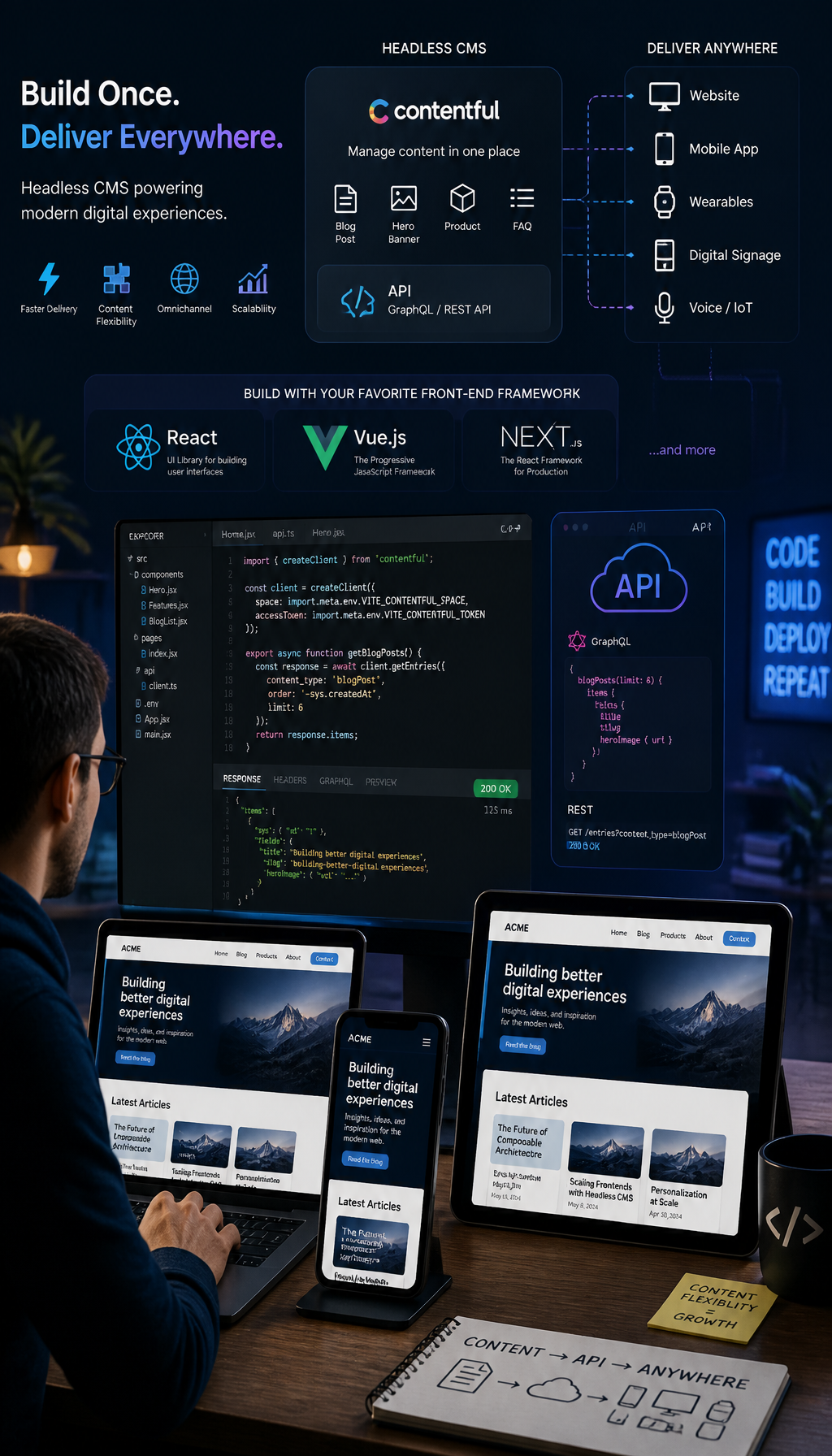
    Headless WordPress means WordPress stops being “the website” and starts being “the content database + admin.” The site visitors see is built somewhere else.

    That one change—decoupling the front-end from the back-end—drives most of the benefits and most of the headaches. So, if you’re a beginner, don’t frame this as “old vs new.” Frame it as “simple all-in-one vs flexible but more complex.”

    Here’s the plain-English comparison I use with clients:

    • Traditional WordPress: WordPress stores content and renders pages using themes (PHP) and plugins.
    • Headless WordPress: WordPress stores content, while a separate front-end (React/Next.js, Vue/Nuxt, etc.) renders pages by calling APIs.

    If you want to move quickly, ship a marketing site, and iterate without a dev on speed dial, traditional is usually the right call. But if you’re building something that behaves like an application (logged-in dashboards, heavy personalization, omnichannel content), headless can start to make sense.

    What Is Headless WordPress Architecture?

    In headless WordPress architecture, you still write and manage content in WordPress. The difference is how that content reaches users.

    Instead of WordPress generating HTML on every page request (via PHP templates), your front-end app pulls content from WordPress using an API—typically the REST API or GraphQL (often via WPGraphQL). Then it renders the UI using whatever you chose: Next.js, Gatsby, Nuxt, or even a native mobile app.

    A practical way to picture it:

    1. Editor publishes a post in WordPress.
    2. WordPress stores it in MySQL like usual.
    3. The front-end requests /wp-json/... (REST) or a GraphQL query.
    4. The front-end renders the page, sometimes ahead of time (static generation), sometimes on request (server-side rendering), sometimes in the browser.

    Because you can use JavaScript frameworks and static site generation, a headless setup can feel dramatically faster than a traditional theme—especially under load. That said, it’s not magic. You’re trading runtime PHP rendering for build steps, caching strategy, and API performance.

    The claim that headless can load in a fraction of the time isn’t pulled out of thin air, but it depends on how you implement it. A well-cached traditional WordPress site can be extremely fast too. Still, the architectural advantage of decoupling is real, and it’s why people keep exploring it (Headless CMS vs WordPress: Which Is Better in 2026?).

    Where headless usually shines:

    • Highly interactive UI: filters, search, dashboards, client portals.
    • Multiple front-ends: website + app + kiosk + in-store screens.
    • Strict performance goals: especially if you’re serving globally and want edge caching.

    Where it often disappoints beginners:

    • Preview workflows: “Why doesn’t preview look like the live page?” (Because WordPress isn’t rendering it.)
    • Plugin assumptions: lots of plugins assume they control the front-end.
    • More DevOps: builds, deploy hooks, environment variables, caching layers.

    Benefits of Headless WordPress

    The biggest benefit is freedom. You can design the front-end without fighting theme limitations, shortcode spaghetti, or page builder markup bloat.

    But freedom isn’t the same as simplicity. So here are the benefits I’ve seen actually matter in real projects:

    1) Omnichannel publishing

    You create content once, then reuse it everywhere. That’s the real “headless superpower.” A product description can show up on the website, in a mobile app, and in an email template—without copying and pasting.

    2) Front-end performance options

    Because the front-end is separate, you can do static generation for marketing pages, edge caching for popular content, and fine-grained control over bundle size. Traditional WordPress can be fast, but you often fight your theme and plugins to get there.

    3) Cleaner separation of concerns

    Editors work in WordPress. Developers work in a front-end repo. That separation can reduce accidental breakage (like an editor dropping a widget that tanks your Core Web Vitals).

    That said, you’ll want to plan the workflow, because otherwise it turns into two disconnected worlds.

    Here’s a step-by-step breakdown I’ve used to keep headless projects sane:

    1. Define content models first. Pages, posts, product, FAQ, landing page sections—whatever you need.
    2. Lock down custom fields. Use ACF or a block strategy, but pick one approach and stick to it.
    3. Choose your API approach. REST is fine for many sites; GraphQL is nice when queries get complex.
    4. Build preview early. If preview isn’t solved, editors will hate the system.
    5. Set caching rules intentionally. Cache API responses, cache rendered pages, and define purge rules.

    Common mistakes I see:

    • Teams build the front-end first, then “figure out the content” later. That’s backwards and expensive.
    • They assume SEO is automatic. It isn’t—you have to implement metadata, canonical tags, sitemaps, structured data, and 301s intentionally.
    • They keep too much logic in WordPress because it’s familiar, then wonder why headless feels messy.

    Headless WordPress Hosting Options

    Hosting is where headless stops being an idea and becomes a monthly bill.

    In a traditional setup, you pay for one hosting environment. It runs WordPress, serves the theme, handles caching (maybe), and you’re done.

    In a headless setup, you usually have two things to host:

    • WordPress back-end: where editors log in and content lives.
    • Front-end app: where users hit pages.

    Many developers put the front-end on platforms like Vercel or Netlify because they’re built for modern deploy workflows and fast delivery. Meanwhile, WordPress can live on managed WordPress hosting, a VPS, or a container platform.

    Here’s the tradeoff I’ve run into:

    • Vercel/Netlify: great DX (developer experience), CI/CD is smooth, global delivery is strong. But costs can jump with build frequency, image optimization, bandwidth, or team seats.
    • Traditional WordPress hosts (Bluehost/SiteGround, etc.): easier for beginners, often cheaper at small scale, and support teams understand WordPress. But you might not get the same app-level performance patterns.

    Also, don’t ignore how content updates trigger deploys. If you statically generate pages, a new post might require a rebuild. That’s fine—until marketing publishes 15 updates during a product launch and your build queue starts stacking up.

    A simple approach that works well for beginners testing headless:

    1. Host WordPress on a managed host you trust.
    2. Deploy a Next.js front-end to Vercel.
    3. Use incremental static regeneration (or a similar pattern) so not every content tweak rebuilds the entire site.
    4. Add a webhook from WordPress to trigger targeted rebuilds.

    If you want a broader view of hosting options (traditional and beyond), this roundup is a decent starting point: 13 Best WordPress Hosting Plans in 2026.

    Examples of Headless CMS in Use

    Headless isn’t just a developer hobby. Big orgs use it because they have multiple channels, multiple teams, and high content volume.

    You’ll see headless patterns in companies like Nike and The New York Times, because they need content to appear in many experiences without rebuilding everything each time. Even when they aren’t using WordPress specifically, the same decoupled thinking applies.

    For headless WordPress-adjacent inspiration, it’s worth looking at brands that operate at “everything is content” scale. Two public examples that show the range of what’s possible:

    • The Walt Disney Company (huge content ecosystem, lots of properties, lots of publishing needs)
    • NASA (massive audience spikes, performance constraints, and broad content distribution)

    Now, a reality check: you don’t need NASA architecture for your local service business site. I’ve seen people copy “enterprise” patterns, then drown in complexity. So, use big brands as proof headless can work—not as a blueprint.

    A mini story from the trenches: I once inherited a project where a team went headless because “React is modern,” but the site was basically five pages and a blog. They spent weeks rebuilding what WordPress themes already did, and then got stuck on preview + redirects during launch. We rolled it back to traditional WordPress, shipped in two days, and their conversion rate went up because we finally focused on content and speed instead of architecture.

    Traditional vs Headless WordPress Costs

    Costs aren’t just “hosting + dev.” The real budget is build + maintain + change over time.

    Traditional WordPress is cheap to start because the basics are free and the path is paved. You can buy a theme, install a few plugins, and go live in a weekend. But as your requirements grow, you can get death-by-a-thousand-add-ons: performance plugins, SEO plugins, form plugins, security plugins, page builder licenses, and then a developer to keep it all from stepping on itself.

    Headless usually flips the curve: higher upfront cost, sometimes lower long-term friction—if your product genuinely benefits from it.

    What you pay for in traditional WordPress

    Typical cost buckets I see in real projects:

    • Hosting: low to moderate monthly cost.
    • Theme/page builder: one-time or yearly licenses.
    • Plugins: security, backups, SEO, forms, caching, translations, etc.
    • Developer time (eventually): fixing conflicts, improving speed, dealing with odd edge cases.

    The hidden cost is plugin sprawl. It’s not even the money—it’s the operational risk. Updates break things. Two plugins fight over caching headers. A “simple” pop-up plugin injects render-blocking scripts site-wide.

    A common mistake: beginners buy a cheap shared host, add 25 plugins, then blame WordPress when the site gets slow. In reality, they’ve built a Jenga tower.

    What you pay for in headless WordPress

    Headless costs more upfront because you’re building a custom front-end application. Even if WordPress stays familiar on the back-end, you’re paying for engineering hours.

    Depending on complexity, initial development often lands between $20,000 to $80,000 (When to Go Headless WordPress: 2026 Honest Decision Guide). I’ve seen it go higher when teams add:

    • design systems
    • localization
    • personalized content
    • advanced search
    • complex deployment environments

    But the bigger ongoing costs tend to be:

    • Two hosting bills: WordPress + front-end platform.
    • CI/CD and builds: more deploys, more tooling.
    • Monitoring and caching: you need visibility into API latency and front-end performance.
    • Developer support: when something breaks, it’s rarely “click one setting.”

    A realistic cost breakdown (example)

    Here’s a simplified example I’ve used when scoping a mid-sized business site (not enterprise, but not tiny):

    Scenario: A content-heavy site with landing pages, a blog, 5–10 custom content types, and a few interactive tools.

    Traditional WordPress approach (roughly):

    1. Theme + child theme customization: 20–40 hours
    2. Core plugins + configuration: 10–20 hours
    3. Performance pass (caching, image pipeline): 5–15 hours
    4. QA + launch: 10–20 hours

    This can be affordable and fast, but you’re constrained by theme architecture and plugin behavior.

    Headless approach (roughly):

    1. Content modeling + editorial workflow: 15–30 hours
    2. API layer decisions (REST/GraphQL), auth rules: 10–25 hours
    3. Front-end build (Next.js pages, templates, components): 80–200 hours
    4. Preview system: 15–40 hours (people underestimate this constantly)
    5. SEO implementation: 10–30 hours
    6. Caching + rebuild strategy + webhooks: 10–30 hours
    7. QA + launch + redirects: 20–40 hours

    Headless can absolutely be worth it. But you only get ROI when that flexibility prevents future rework.

    How to decide without guessing

    If you’re on the fence, I use a quick checklist:

    • If editors need drag-and-drop pages weekly: traditional is usually calmer.
    • If you need content in multiple apps: headless starts to shine.
    • If your site is basically a brochure: headless is probably overkill.
    • If your front-end team already ships React apps: headless can fit naturally.

    One more mistake to avoid: choosing headless because you want “better security.” You can reduce exposure by not serving WordPress publicly, sure. But you’ve also added APIs, tokens, and a separate surface area. Security improves when you design it, not when you change buzzwords.

    Conclusion

    Traditional WordPress is the right default for beginners because it’s cohesive, well-documented, and forgiving. You can get a site live, learn the fundamentals, and iterate without turning every change into a development task.

    Headless WordPress is worth considering when the website stops being “pages” and starts being “a product.” If you need a custom front-end, want content reused across multiple channels, or you’re hitting real performance and scalability limits, then decoupling can unlock options that themes just don’t handle gracefully.

    Here’s the decision path I recommend (and yes, I’ve watched it save budgets):

    Step-by-step: pick your approach

    1. Write down what you’re building. A blog? Marketing site? Store? App dashboard?
    2. List your must-haves for the next 12 months. Not “someday,” but the stuff you’ll actually ship.
    3. Count who will maintain it. One non-technical owner? A marketing team? A dev team?
    4. Decide how often the layout changes. Weekly landing pages scream traditional. A stable design system often fits headless.
    5. Budget for change, not launch. Launch is the easy part. Year-two maintenance is where architecture choices hurt.

    A real-world “beginner” scenario I’ve seen

    A founder came to me with a simple goal: a fast site with a blog and a few landing pages, plus an email capture flow. They’d heard headless was “the future,” so they started a Next.js build.

    Two weeks later, they were blocked on basics: preview wasn’t working, SEO titles weren’t consistent, and every content tweak needed a redeploy. The site wasn’t even live yet.

    We switched them to traditional WordPress with a lightweight theme and strict plugin rules (only what we could justify). They launched in a few days, then revisited headless months later when they actually had a product dashboard and real traffic patterns to optimize.

    That’s the pattern I trust: start traditional unless your requirements demand headless. You can always migrate later when the pain is real and measurable.

    If you’re unsure, do this next: sketch your site features, then circle the ones that feel “app-like” (personalization, heavy interactivity, omnichannel content). If that circle is tiny, ship traditional and move on. If it’s most of the page, headless is worth a serious look—and a serious plan.

  • Top Malware Removal Tools for WordPress 2026

    Explore the best malware removal tools for WordPress in 2026, including free options and essential plugins.

    Featured image for Top Malware Removal Tools for WordPress in 2026

    Featured image for Top Malware Removal Tools for WordPress in 2026

    Top Malware Removal Tools for WordPress in 2026

    When it comes to safeguarding a WordPress site from malware, choosing the right tools is essential. The landscape of malware threats keeps shifting, so the “best” tool depends on what you’re dealing with—an active infection, a prevention setup, or a dev workflow where you want vulnerability visibility.

    I’m opinionated about this: for most site owners, the best tool is the one you’ll actually keep running, keep updated, and understand well enough to react fast. Fancy dashboards don’t help if the cleanup process is confusing or the alerts are noisy.

    That said, here are the top malware removal tools for WordPress in 2026, plus the real-world reasons you’d pick each.

    1. Wordfence: The Leading Choice

    Wordfence is still the default recommendation for a lot of WordPress folks because it covers the basics well: scanning, firewalling, login protection, and visibility into what’s changing on the site.

    Where Wordfence shines is day-to-day defense. You install it, tune a few settings, and you get immediate value—especially if you manage multiple small to mid-sized sites and need a consistent baseline.

    In 2025, Wordfence reported that over 325,000 WordPress sites were infected with malware each day, which is a big, ugly reminder that “it won’t happen to me” is not a strategy. The plugin’s ability to block over 99% of automated attacks is also why I like it for brute-force and bot noise.

    My practical take: Wordfence is great when you want a single plugin to cover the common stuff. But you still need decent hosting, timely updates, and a plan for what happens when the site is already compromised.

    2. MalCare: Intelligent Malware Removal

    Another top contender, MalCare, stands out because it leans hard into fast, guided cleanup. If you’ve ever tried to manually remove malware from a WordPress install (and then discovered a second backdoor 24 hours later), you’ll understand why that matters.

    Unlike a lot of scanners that basically say “good luck,” MalCare pushes you toward removal workflows that don’t require you to be a security engineer. That’s useful when the person responsible is a marketer, a founder, or a busy dev who just needs the site clean now.

    An added advantage is its fast scanning speed; in many cases, it can clean an infected site in under 60 seconds. That speed isn’t just convenience—downtime can wreck SEO, break checkout flows, and tank conversion rates.

    Tradeoff: fast cleanup tools are only as good as your follow-up. If you clean the malware but don’t fix the original entry point (nulled plugin, outdated theme, leaked admin password), you’re going to get reinfected.

    3. Sucuri: A Comprehensive Security Suite

    Sucuri is the “I want a security company in the loop” option. It has a free scanner, but the bigger value is the premium service: firewall, monitoring, and a cleanup process that’s closer to managed response than a DIY plugin.

    If you run a business site where reputation matters—local services, SaaS marketing, ecommerce—Sucuri’s firewall is often the difference between “attack traffic hits me” and “attack traffic dies at the edge.”

    In a recent study, it was found that 60-80% of modern malware threats are missed by traditional security measures. That’s exactly why I like putting a cloud-based firewall in front of sites that can’t afford surprises.

    My caution here: don’t treat a firewall as magic. You still need updates, least-privilege access, and clean admin habits, because attackers love stealing credentials and walking in like they own the place.

    4. CleanTalk: User-Friendly and Effective

    For people who want something simple, CleanTalk keeps things straightforward. It’s commonly thought of as anti-spam first, but it also helps with blocking malicious behavior and reducing the garbage traffic that often comes with brute-force attempts and scripted abuse.

    This matters because noisy sites are hard to secure. If your logs are full of junk, you miss the one request that actually matters. So while CleanTalk isn’t the “deep forensic cleanup” tool on this list, it can lower the overall pressure on your site.

    I’ve seen it work well on community sites and blogs where comment spam and form abuse are constant. Less noise, fewer weird injections, fewer “why is my CPU pegged?” moments.

    5. iThemes Security: Holistic Protection

    iThemes Security focuses on hardening—locking doors, improving visibility, and reducing dumb risks. It’s not only about malware removal; it’s about stopping the easy wins attackers love.

    It includes brute force protection, file change detection, and security logs. Those features don’t sound exciting, but they’re the stuff that actually helps you answer: “What changed, when did it change, and who triggered it?”

    I like iThemes when a site has multiple admins or editors and you need accountability. Meanwhile, if you’re already running another firewall or scanner, make sure features don’t overlap in a way that creates conflicts (double rate-limiting can get weird fast).

    6. WPScan: Evaluating Vulnerabilities

    Finally, WPScan is a developer’s friend. It’s less “click to clean” and more “show me what’s risky in this stack.” It’s especially useful in maintenance workflows, pre-launch checks, and agency environments.

    WPScan’s vulnerability database and scanning approach helps you identify weak points—old plugins, exposed versions, and known issues that you can fix before they turn into a real incident.

    My rule: vulnerability scanning doesn’t replace malware scanning. It complements it. I’ve seen “clean” sites that were one outdated plugin away from being owned, and I’ve also seen “secure” configs that still got infected because credentials were reused.

    Understanding WordPress Malware and Security Risks

    If you want to fight malware, you need a realistic mental model of how WordPress sites get hit. Most infections aren’t movie-style hacking. They’re automation, sloppy credentials, or neglected updates.

    Also, the initial compromise often isn’t the end. Attackers aim for persistence—backdoors, admin users you didn’t create, scheduled tasks that reinfect, or injected code that only triggers for certain user agents.

    Recent statistics indicate a 42% increase in identified vulnerabilities over the past year alone. That’s why “I updated last month” can still be dangerously out of date—especially if you run a stack with 20+ plugins.

    Common Vulnerabilities and Entry Points

    WordPress sites can fall prey to various vulnerabilities, including:

    • Outdated Plugins and Themes: Many hacks originate from plugins or themes that have not been updated. Attackers scan the internet for known vulnerable versions, so once an exploit is public, it’s basically a race.
    • Weak Passwords: A significant number of hacks start with bad passwords or reused credentials. So even if the code is perfect, a leaked password from some other service can sink you.
    • Configuration Gaps: Default settings can leave sites exposed. For example, overly permissive file permissions or too many admin accounts tend to come back to bite.

    One mistake I see constantly: people “secure WordPress” but skip the hosting layer. If your server is outdated, or your file ownership is wrong, or you’re letting anyone write to plugin directories, malware removal becomes a loop.

    The Evolution of Malware Threats

    The landscape for WordPress malware is evolving quickly. Attackers are now using AI-generated code and more evasive techniques—stuff that blends in, hides in must-use plugins, or piggybacks on legitimate files.

    For instance, a recent study found that AI-generated malware can mimic legitimate code so well that it often goes undetected by standard security plugins. In practice, that means signature-only scanning is less reliable than it used to be.

    So what works? Layering. You want scanning, a firewall (plugin or edge), strong auth, plus basic hygiene like updates and backups. It’s not glamorous, but it’s what holds up.

    Statistics and Trends for 2026

    As we progress into 2026, a few trends show up repeatedly:

    • Increased Attack Frequency: Attacks are more frequent and more targeted, so “set it and forget it” security doesn’t hold.
    • Rising Malware Complexity: Malware is more complex—backdoors, delayed execution, conditional redirects, and reinfection mechanisms.
    • Growing Importance of Security Plugins: Given the rise in threats, reliable security plugins are now essential for every WordPress website.

    Because of those trends, I recommend integrating regular security audits into your maintenance routine. A performance-focused audit can still reveal security red flags (weird PHP execution, strange cron jobs, unexpected outbound requests), and the process in this guide on uncovering hidden performance issues maps nicely to real security triage.

    My Experience With This

    I’m Mobeen Abdullah, and as the founder of Revnix, I spend a lot of time in the intersection of cloud-native platforms and security. That’s a fancy way of saying I’ve seen what happens when a WordPress site gets infected on a Friday night and nobody has a clean rollback.

    Here’s a real pattern I’ve dealt with more than once: a site owner notices a ranking drop first, not malware. Search Console starts throwing “This site may be hacked” warnings, paid ads get disapproved, and revenue gets weirdly soft. When we look, the homepage is fine—until you visit from a mobile user-agent, or you land on a long-tail blog URL. Then you get redirected to a spam domain. That’s not random. Attackers do it on purpose because it delays detection.

    When I’m cleaning a hacked WordPress site, I follow a boring checklist. Boring is good.

    How I actually approach a cleanup

    1. Put the site in a safe state. I’ll temporarily restrict access (maintenance mode, basic auth, or a WAF “under attack” style mode) so the infection doesn’t keep spreading while I’m working.

    2. Take a snapshot backup anyway. Even if the site is infected, I archive the current state. That’s how I compare files later and figure out what changed. It’s also how I prove what happened if a client asks.

    3. Scan with at least two angles. I’ll use a plugin scanner (Wordfence/MalCare style) and then I’ll sanity-check the filesystem and database. Why? Because I’ve seen clean scans miss a malicious mu-plugin, and I’ve seen database injections hide in options tables.

    4. Remove the malware—and the persistence. Cleaning visible payloads is easy. The hard part is finding the reinfection path: rogue admin users, injected cron events, backdoored plugins, or writable directories that shouldn’t be writable.

    5. Patch the entry point. If the infection came from an outdated plugin, you update or replace it. If it came from stolen credentials, you rotate passwords, force logout sessions, and tighten roles.

    6. Harden and monitor. This is where tools like Sucuri firewall, Wordfence rules, iThemes hardening, and WPScan checks become the ongoing guardrails instead of a one-time cleanup.

    Common mistakes I see (and why they hurt)

    • Only deleting “suspicious” files. Attackers love naming files like normal WordPress files. If you delete one wp-vcd.php but miss the injected code in functions.php, you’ll be back here tomorrow.

    • Restoring a backup without fixing the vulnerability. A restore is not a fix. If the vulnerable plugin stays, the attacker just walks back in.

    • Keeping too many admins. Every extra admin is another set of credentials that can leak. Reduce it. Then document who owns what.

    • Ignoring hosting-level signals. If your host is logging outbound spam, or your CPU spikes at odd hours, don’t shrug. Those are often the first breadcrumbs.

    A quick persona story (because this is common)

    One client—a small ecommerce shop—installed a “free premium theme” from a random site. It worked great for two weeks. Then checkout started failing intermittently, and their customers got redirected to a sketchy pharmacy page on mobile.

    We cleaned it, but the real fix was replacing the theme, rotating every credential (WP admin, hosting panel, database, SFTP), and putting a firewall in front. After that, we added a monthly WPScan-style vulnerability review and a weekly file change report. The site stayed stable because the process stayed boring.

    If you take one thing from my experience: malware removal isn’t a plugin you install once. It’s a loop—detect, clean, patch, harden, monitor. The tools make the loop faster, but you still have to run it.

    Conclusion

    As we move through 2026, the security of WordPress sites remains a daily operational concern, not a once-a-year project. Effective malware removal tools, paired with proactive habits, will reduce the risk from increasingly evasive malware.

    If you want to keep the site fast while staying secure, start tightening your maintenance routine. For performance and stability work that pairs nicely with security, read maximizing efficiency with WordPress and fold those checks into your monthly schedule.

    Also, if you’re exploring architecture changes, headless WordPress can reduce some attack surface and improve performance—although it introduces its own complexity. Either way, pick your tools, set a cadence, and don’t wait for the next infection to take security seriously.

  • Top Headless CMS for Next.js Projects in 2026

    Discover the best headless CMS choices for Next.js projects in 2026. Compare features, pricing, and integrations to find your ideal CMS.

    Featured image for Top Headless CMS Choices for Next.js Projects in 2026

    Featured image for Top Headless CMS Choices for Next.js Projects in 2026

    Top Headless CMS Choices for Next.js Projects in 2026

    Understanding Headless CMS and Their Importance for Next.js

    A headless CMS separates the back end (content management) from the front end (presentation). In practice, that means your editors work in a content studio (web UI), and your Next.js app pulls content over an API (REST/GraphQL or a query language like GROQ). The CMS doesn’t “render pages” — Next.js does.

    That separation is the whole point, but it’s also where teams get tripped up.

    What this looks like in a real Next.js build

    Here’s the clean, boring flow I aim for on most projects:

    1. Model content intentionally (not “whatever fields feel right today”).

      • Define types like Page, BlogPost, Author, Category, Product.
      • Decide which fields are required, which are optional, and what can be reused.
    2. Fetch content server-side in the right place.

      • For SSG/ISR, you fetch at build time or revalidate on an interval.
      • For SSR, you fetch on request (and you need to care about latency and caching).
    3. Render through components that match the content model.

      • A “hero” component shouldn’t accept 12 random props because your CMS is messy.
      • Your CMS should produce structured data that maps cleanly to your design system.
    4. Preview is a first-class feature, not an afterthought.

      • Editors need to see draft content rendered through the real Next.js templates.
      • Developers need preview routes that don’t require tribal knowledge.
    5. Publishing triggers revalidation/build reliably.

      • If you’re using ISR, publishing should invalidate the right pages.
      • If you’re doing full static builds, publishing should kick a deployment.

    When teams skip steps 1 and 4, they pay for it later. Not in dramatic ways — in death-by-a-thousand-cuts ways.

    A real example: the “everything is a Rich Text field” mistake

    A while back I inherited a Next.js marketing site where the CMS model was basically:

    • title (string)
    • body (rich text)
    • seo (optional)

    That sounds flexible… until you try to build anything more complex than a blog post. The marketing team wanted landing pages with comparison tables, testimonial sliders, and feature grids.

    So what happened?

    • Developers started parsing rich text blocks and adding secret “markers” like [[FEATURE_GRID]] inside the body.
    • Editors started copy/pasting those markers without understanding them.
    • Preview never matched production because the parsing logic differed between environments.
    • Every new layout request turned into custom one-off code.

    A headless CMS should reduce coupling, but sloppy content modeling increases it. You end up coupling the site to editorial quirks instead of to a stable schema.

    Why Next.js makes headless CMS more valuable (and more annoying)

    Next.js gives you a lot of rendering modes. That’s good. It also means your CMS choice needs to play nicely with:

    • SSR when content must be fresh on every request (think dashboards, pricing experiments, logged-in experiences).
    • SSG when content changes less often and you want max speed (docs, marketing pages).
    • ISR when you want “mostly static” but still publish without rebuilding the universe.
    • Preview when drafts matter (they always do, once you have editors).

    A headless CMS is especially helpful here because it doesn’t fight your rendering decisions. It just supplies structured content.

    Step-by-step: how I evaluate headless CMS fit for Next.js

    If you’re a dev lead or technical PM, here’s the checklist I actually use before committing:

    1. Can we model content without hacks?

      • Reusable blocks? Relationships? Validation? Versioning?
    2. How does preview work, exactly?

      • Does it support draft content securely?
      • Can editors preview a specific route (including dynamic routes)?
    3. What’s the API ergonomics?

      • Query language pleasant or painful?
      • Filtering, pagination, localization — does it feel clean?
    4. Auth and roles

      • Can marketing publish without engineering permissions?
      • Can contractors get limited access?
    5. Operational reality

      • If self-hosted: who patches it, monitors it, backs it up?
      • If SaaS: what happens when the API slows down or billing changes?

    Common mistakes I see (and how to avoid them)

    • Mistake: choosing a CMS purely for the editor UI.
      Great UI doesn’t save you from a weak content model or painful preview integration. I’ve watched teams pick a CMS because “marketing likes it,” then spend months building custom tooling around it.

    • Mistake: treating content types like page templates.
      You want structured content with composable blocks, not 40 “page types” that hardcode layout decisions.

    • Mistake: ignoring caching and revalidation.
      If you do SSR and your CMS API is slow, your site becomes slow. If you do ISR and never wire revalidation, content won’t update when it should.

    • Mistake: not planning for localization early.
      Retrofitting i18n into a messy schema is brutal. If there’s even a 20% chance you’ll go multilingual, model for it now.

    That’s why headless CMS matters for Next.js: it’s not just “where content lives.” It’s a dependency that affects delivery speed, editor happiness, and how many weird edge cases you’ll be debugging later.

    Top Headless CMS Choices for Next.js Projects in 2026

    When I’m picking a headless CMS for a Next.js build, I’m looking at four things first: (1) content modeling, (2) preview, (3) API + performance, and (4) operational burden. Everything else is secondary.

    1. Sanity

    Sanity is still one of the most flexible choices when you need structured content that doesn’t box you in. I like it most when the site has lots of “content that isn’t just pages” — complex relationships, reusable modules, and editorial workflows where people collaborate in real time.

    • Key Features:

      • Real-time editing and collaboration tools.
      • Powerful API for easy integration.
      • Rich text editing with customizable schemas.
    • Use Case: Perfect for content-heavy applications requiring precision and flexibility.

    Sanity’s ecosystem around Next.js is mature, and the official integration via next-sanity reduces the “glue code” you’d otherwise write. If you want an overview of how it fits into a Next.js stack, this breakdown is a decent starting point: More details can be found here.

    Tradeoff I’ve hit in the real world: Sanity’s flexibility can encourage teams to over-engineer schemas. Keep your first version small, add validation rules early, and don’t let “we can model anything” turn into “we modeled everything three different ways.”

    2. Payload CMS

    Payload is what I reach for when the team is TypeScript-heavy and wants the CMS to feel like part of the codebase, not a separate universe. Its code-first configuration is the selling point: you define collections and fields programmatically, which can be a huge relief if you’ve been burned by clickops schema builders.

    • Key Features:

      • Full control over the backend with customizable APIs (REST, GraphQL).
      • Live previews to enhance the editing experience.
      • Built directly into the Next.js environment, simplifying deployment processes.
    • Use Case: Ideal for developer-led projects that require extensive customization and scalability.

    Tradeoff: you’re accepting more engineering ownership. That’s fine if you have the team for it. If your company treats infra work like a tax nobody pays, a SaaS CMS might be the healthier choice.

    3. Strapi

    Strapi is still the go-to open-source option when you want control, self-hosting, and a big ecosystem. It’s rarely my “fastest to ship” pick, but it’s often my “we won’t regret this later” pick when data ownership and extensibility matter.

    • Key Features:

      • Flexible API generation (REST and GraphQL).
      • Extensive plugin ecosystem for additional features.
      • Community-driven support and documentation.
    • Use Case: Great for startups and developers looking for an easy-to-use system without recurring costs associated with SaaS solutions.

    If you’re integrating Strapi with Next.js in 2026 specifically (app router patterns, previews, auth boundaries), this guide covers a lot of the practical stuff teams trip over: Learn more.

    Tradeoff: self-hosted means you own upgrades, security patches, backups, and performance tuning. People underestimate that. If you don’t have a real owner for “keep the CMS alive,” you’ll feel it later.

    4. Contentful

    Contentful is still a common enterprise choice because it’s stable, well-supported, and built for larger organizations with governance needs. When I’m working with teams that have multiple brands, multiple locales, and strict publishing workflows, it’s often on the shortlist.

    • Key Features:

      • Strong capabilities for localization and internationalization.
      • Detailed content governance tools for editorial teams.
      • Reliable performance suited for high-traffic sites.
    • Use Case: Best suited for enterprises that need a robust solution with strict governance protocols and complex workflows.

    Tradeoff: you’re paying for maturity and guardrails. That’s not a bad thing — just don’t pick it for a tiny site where you’ll never use the governance features.

    5. Prismic

    Prismic earns its spot when marketing teams want visual editing and developers still want control over how content turns into pages. Slice-based modeling can be a sweet spot: editors assemble pages from approved “slices,” and devs maintain the slice components.

    • Key Features:

      • Visual editor for marketing-focused teams.
      • Document versioning and integration with popular frameworks.
      • Efficient content modeling and slicing strategies.
    • Use Case: Perfect for marketing teams that require a blend of developer support and content flexibility.

    Tradeoff: slice sprawl is real. If you create a new slice for every slightly different layout, you’ll end up with 60 slices that nobody wants to touch. Establish design constraints early.

    Evaluating Open Source Headless CMS for Next.js Development

    When you’re looking at open-source options like Strapi and Payload, the pitch is obvious: no per-seat SaaS pricing and full control. The hidden cost is also obvious (once you’ve lived it): you become the platform team.

    Here’s how I evaluate open-source CMS choices specifically for Next.js work:

    1. Community Support

      • Is the community active this year, not just historically?
      • Are plugins maintained, or are you going to fork everything?
    2. Customization

      • Can you extend auth, add fields, and build custom endpoints without fighting the framework?
      • How painful is it to keep customizations across upgrades?
    3. Performance

      • Test realistic content sizes, not toy datasets.
      • If you’re doing SSR in Next.js, measure API latency early. Don’t guess.
    4. Security

      • How are roles handled?
      • What’s the story for upgrades, dependency scanning, and patch cadence?

    One more thing I’ll add from experience: if you self-host, write down your “day 2” plan before you ship day 1. Who gets paged when the CMS falls over? Where do backups live? What’s your upgrade window? If nobody owns those answers, you don’t actually have a plan.

    In the end, the right headless CMS for your Next.js projects in 2026 depends on your team shape more than your tech taste. If you need maximum flexibility and structured content, I lean Sanity. If you want code-first control and TypeScript alignment, Payload is compelling. If you need open-source with a big ecosystem, Strapi is a safe bet. If governance and scale are the priority, Contentful is hard to argue with. If marketing needs visual building blocks without giving up developer control, Prismic fits.

    And if you’re exploring newer “visual + code” approaches, tools like Nextly are worth a look — especially when you want a builder feel without abandoning a real Next.js codebase.

    Next step: pick two CMSs, model one real page (not a demo page), wire preview, and time-box it to a day. The one that feels boring and predictable at the end of that day is usually your winner.

    FAQ:

    • What is a headless CMS?
      A headless CMS is a content management system that allows users to manage content without being tied to a specific front-end presentation layer. It communicates via APIs, providing flexibility for developers to use various frontend technologies like Next.js.

    • Why should I use a headless CMS with Next.js?
      Combining a headless CMS with Next.js offers developers a lot of flexibility in building fast, modern web applications while allowing content editors to manage their content easily.

    • What factors should I consider when choosing a headless CMS?
      Consider scalability, ease of integration with Next.js, customization abilities, and whether you prefer a cloud-based or self-hosted solution.

    • Can a headless CMS improve my site's performance?
      Yes, because headless CMS supports static site generation and server-side rendering, which can significantly improve load times and overall performance of your website.

    • Are there free headless CMS options available?
      Yes, platforms like Strapi and Payload offer open-source solutions that allow you to host your CMS without associated monthly fees, although you may incur costs for hosting and maintenance.

  • Headless CMS Next.js Insights for 2026

    Discover the future of headless CMS with Next.js in 2026. Explore the best platforms and best practices for developers and business decision-makers.

    Featured image for The Future of Headless CMS with Next.js: Insights for 2026

    Featured image for The Future of Headless CMS with Next.js: Insights for 2026

    Open Source Headless CMS for Next.js

    Open source headless CMS for Next.js is appealing for a simple reason: you can get escape velocity without signing your architecture away. You own the data model, you can run it locally, and if pricing or product direction changes, you’re not stuck rewriting your content layer under pressure.

    That said, open source isn’t “free.” You pay in ops, upgrades, and the occasional Saturday debugging an auth callback. The win is control.

    Two platforms that come up constantly in real Next.js builds are Payload and Strapi.

    Payload CMS

    Payload CMS is the open-source headless CMS I reach for when the team is code-heavy and wants the CMS to feel like part of the app—not a separate universe. It’s TypeScript-friendly, it’s deeply customizable, and it behaves well in a Next.js/Node ecosystem.

    A detail that matters more than people think: Payload encourages a code-first workflow. That makes it easier to do the stuff you’ll inevitably need later—custom access rules, hooks, versioning workflows, and content relationships that aren’t just “title + rich text.”

    According to a recent Techsy article, Payload is rated as the top choice for Next.js developers due to its seamless integration and powerful API capabilities. As of 2026, Payload allows for both local API development and cloud hosting options, making it incredibly versatile for various use cases.

    Here’s a step-by-step approach I’ve used to keep a Payload + Next.js project sane:

    1. Model content around pages, not fields. Start with the routes your Next.js app needs (e.g., /blog/[slug], /docs/[...path]) and build collections to match. If you start with “fields marketing asked for,” you’ll end up with a content model that doesn’t map cleanly to rendering.
    2. Add a “status” field early (draft/review/published) and treat it as a first-class filter in queries. People always bolt this on later, and it hurts.
    3. Plan preview from day one. Preview is where headless projects go to die. Decide how drafts should be fetched, who can see them, and how tokens/cookies will work across environments.
    4. Separate “authoring images” from “delivery images.” Editors upload huge images. Your Next.js layer needs responsive versions, caching headers, and predictable URLs. Decide whether Payload handles transformations or whether you offload to an image CDN.

    A real example: I helped on a Next.js product marketing site where the team initially treated Payload like “WordPress but headless.” Every page became a single giant document with dozens of optional fields. Two months later, every new landing page request required a dev to add yet another conditional block.

    We fixed it by shifting to modular blocks (hero, testimonial grid, pricing table, FAQ), locking down each block’s schema, and giving editors building blocks instead of a free-for-all. Net result: fewer regressions, faster content launches, and the marketing team stopped DM’ing engineers at 5pm on Fridays.

    Common mistakes I see with Payload specifically:

    • Over-customizing the admin UI immediately. Teams spend week one making the admin “pretty,” then discover they never implemented proper access control.
    • Not pinning versions and migration strategy. You need a predictable upgrade cadence. If you don’t plan it, you’ll end up upgrading during an incident.
    • Ignoring seed data. Without realistic seed content, your Next.js UI looks fine in Storybook but collapses when real editors enter real-world content.

    Strapi

    Strapi is usually the open-source pick when a team wants open source benefits but needs a more “CMS-like” editorial experience out of the box. It’s approachable for content managers, and it doesn’t demand that everyone on the team thinks in TypeScript types.

    It also hits the baseline integration needs: Strapi supports REST and GraphQL APIs, providing flexibility in how data can be consumed.

    Where Strapi tends to fit best in Next.js projects:

    • Multi-language sites where editors need a familiar interface.
    • Teams with a mix of skills—some dev-heavy, some content-heavy.
    • Projects where you want the CMS to feel like a product your company “runs,” not a library you “embed.”

    A practical Next.js integration path I’ve used:

    1. Pick REST or GraphQL and commit. You can support both, but you’ll double your testing and docs burden.
    2. Define a small set of API clients (one per content area), not one mega-client.
    3. Add caching at the edge or in Next.js fetch where it actually helps. Don’t cache everything blindly; cache “slow to change” content like navigation and footer, and handle “fast to change” content (like breaking announcements) with shorter TTLs or on-demand revalidation.

    Common Strapi mistakes:

    • Permissions misconfigurations. People open up public roles too broadly during development and forget to lock them down.
    • Treating content types like database tables. Editors don’t think in joins. If they can’t find content quickly, they’ll create duplicates.

    Future trends in open source CMS

    Looking at trends for 2026, the demand for next.js CMS open source solutions is expected to rise. The driver isn’t ideology—it’s procurement and risk management. Companies are tired of vendor lock-in and pricing shifts that turn a “reasonable CMS bill” into a line item that gets scrutinized every quarter.

    Also, Next.js teams increasingly want their CMS to be:

    • Composable (plugs into auth, search, analytics without fighting you)
    • Preview-friendly (draft content that renders in real UI)
    • Deployable anywhere (local, VM, container, managed)

    As highlighted by community discussions on platforms like Reddit, many developers are transitioning to open-source systems to capitalize on community-driven updates and improvements.

    The tradeoff I’ll say out loud: open source is awesome until your org can’t staff it. If you don’t have someone who can own upgrades, backups, and security patching, SaaS can be the cheaper option—even if the sticker price looks higher.

    Best Headless CMS for Next.js in 2026

    Best headless CMS for Next.js in 2026 doesn’t mean “best on a grid.” It means best for your constraints: editorial workflow, preview needs, performance targets, governance, and how much platform work you’re willing to own.

    When teams ask me for a recommendation, I ask three questions first:

    1. Do you need real-time collaboration and a content studio that editors love?
    2. Do you need enterprise governance (roles, environments, approvals, audit trails)?
    3. Are you optimizing for developer speed (ship features weekly) or organizational safety (ship carefully, with guardrails)?

    With that lens, here are the platforms that show up as leaders.

    Sanity CMS

    Sanity is the CMS I’ve seen win when teams care about a strong editing experience and developers want a content layer that’s flexible without being chaotic.

    It’s particularly recognized for its real-time collaboration features and a powerful query language that allows for intricate data models. As stated in the Sanity Next.js guide, this CMS is ideal for teams looking to build applications that require both speed and flexibility. Its emphasis on developer experience makes it a go-to for many Next.js projects.

    A concrete way Sanity tends to play out in Next.js builds:

    • You model content with enough structure that it’s queryable, but you’re not stuck with rigid “page templates.”
    • You build a preview setup so editors can see drafts in the actual Next.js front end.
    • You lean on Sanity’s strengths for structured content: complex relationships, references, and custom editorial tooling.

    Persona anecdote: I worked with a small product team (2 devs, 1 designer, 2 marketers) shipping a docs + blog + product pages setup. They started with a simpler CMS, but docs became a mess—duplicate pages, inconsistent metadata, and no one trusted the “published” state.

    We moved them to Sanity, but the real fix wasn’t the migration itself. The fix was designing the schema around how they work:

    • Docs pages had required fields (title, slug, sidebar section, last reviewed date).
    • Blog posts had a separate workflow (author, canonical URL rules, related products).
    • Product pages had structured sections with validation (no empty CTAs, no missing OG image).

    Once validations were in place, the “random broken pages” basically stopped. How I know: before the switch, we’d patch content-caused UI issues every sprint. Afterward, it was closer to once a month.

    Common mistakes with Sanity:

    • Overusing free-form rich text when the content should be structured. Your future self will hate you when you need to render “feature tables” consistently.
    • Not defining canonical patterns for slugs and references. Editors will invent their own taxonomy if you don’t give them one.
    • Skipping a query review. GROQ is powerful; it’s also easy to write overly broad queries that pull half your dataset for a page.

    Contentful

    Contentful stays relevant in 2026 because big orgs often want someone else to own the platform layer. You’re buying predictable uptime, enterprise controls, and a lot of “boring but necessary” features.

    While primarily a SaaS solution, Contentful remains a viable option for enterprises needing comprehensive content management and governance features. It excels in environments where multiple teams need to collaborate efficiently. Its RESTful APIs integrate seamlessly with Next.js applications, providing a smooth user experience across various content types.

    Where Contentful tends to be the right answer:

    • Multiple teams publishing across brands/regions.
    • A need for stricter permissions, environments, and approvals.
    • Less appetite for self-hosting and maintaining a CMS.

    The tradeoff: you’ll often spend more time designing your content model up front, and migrations can be more formal. In exchange, you get guardrails that matter when 50 people can publish.

    Prismic

    Prismic is a strong choice when you want editors moving fast and you like the “slices” mental model.

    Another contender is Prismic, which is favored for its user-friendly interface and features like the Slice Machine that enables reusable components. Teams requiring a rapid development cycle often prefer Prismic as it allows for quick iterations without sacrificing content quality. Prismic’s blog notes that its visual editing tools make it easier for non-technical users to manage content without developer intervention.

    A practical way I’ve seen Prismic succeed with Next.js:

    1. Define 10–20 slices that cover 90% of marketing needs (hero, logo wall, pricing, CTA band, FAQ, comparison table).
    2. For anything outside that set, don’t immediately add a new slice. First ask: is this a one-off campaign that can be handled by a variant of an existing slice?
    3. Add content guidelines inside the slice fields (character limits, image ratios, “don’t use all caps” notes). Editors actually read them when it’s in the UI.

    Common mistake: teams create slices for every single page, turning slices into “page templates with extra steps.” You want a limited set of reusable blocks, not a museum of one-offs.

    Headless CMS Best Practices with Next.js

    Headless CMS best practices with Next.js are mostly about avoiding self-inflicted pain: build times, preview confusion, accidental content leaks, and slow pages because you’re fetching too much.

    Efficient data fetching

    Next.js gives you multiple rendering modes, and the “right” one is usually mixed.

    Utilizing Next.js's mixed rendering capabilities—Static Site Generation (SSG), Server-Side Rendering (SSR), and Incremental Static Regeneration (ISR)—allows developers to optimize how they fetch and serve content. For instance, using ISR can keep content fresh without needing full site rebuilds, which is essential for content-heavy applications. Developers integrating Payload CMS can leverage this effectively to automate static page revalidation (DEV Community).

    What I do in practice:

    • SSG/ISR for marketing and docs where performance matters and content changes are predictable.
    • SSR for highly personalized pages (dashboards, account pages), or where auth is involved.
    • Client-side fetching sparingly, mostly for interactive widgets where SEO isn’t the point.

    A step-by-step pattern for content-heavy sites:

    1. Use ISR for most content pages.
    2. Set revalidation based on business reality (e.g., docs revalidate every hour, marketing pages every 5 minutes during campaign weeks, otherwise every few hours).
    3. Add on-demand revalidation for “publish now” moments. Editors hate waiting for a timer.
    4. Cache global data (navigation, footer, site settings). Don’t refetch it 200 times per build.

    Common mistakes:

    • Rebuilding the whole site on every publish. This is the classic headless anti-pattern. It works until it doesn’t.
    • Overfetching in page queries. If you only need title/slug/excerpt for a listing page, don’t pull full rich text and assets.

    Content modeling

    Proper content modeling is crucial for a headless CMS. Taking advantage of these platforms’ schema-driven content modeling capabilities can significantly streamline the development of complex applications.

    My stance: content modeling is a product decision, not just a CMS setup task. If you get it wrong, you’ll feel it in every release.

    A concrete workflow that tends to work:

    • Start with three tiers of content: global settings, page-level documents, reusable modules.
    • Decide what must be structured (pricing, specs, CTAs, FAQs) vs what can be rich text.
    • Add validation rules early: required metadata, max lengths, allowed formats.

    A mistake I’ve seen more than once: someone puts SEO fields (title/description/OG image) on some content types but not others. Six months later you’re debugging why certain pages share the wrong OG image on social.

    Optimization for SEO

    SEO remains a cornerstone of web visibility, and headless setups can either help or hurt depending on how disciplined you are.

    This includes ensuring that all content is indexed correctly and leveraging Next.js features for generating sitemaps, metadata, and other SEO-friendly elements. The chosen CMS should support easy management of SEO attributes directly in the content editor.

    What I’d do for a 2026 Next.js + headless build:

    • Ensure every indexable page has: canonical URL, OG title/description/image, robots directives when needed.
    • Store SEO fields in the CMS, but enforce guardrails (lengths, required OG image for key templates).
    • Make redirects a first-class feature (editors will change slugs). Don’t rely on engineers to hardcode redirects for content updates.

    Common mistake: teams ship headless without a redirect workflow. Then a marketer renames a slug, and you quietly bleed SEO until someone notices in analytics.

    Performance monitoring

    Finally, monitor performance metrics continually. It’s the only way to know if your CMS choices are helping or hurting.

    Utilizing tools like Google Lighthouse or custom analytics dashboards can help track how the headless CMS impacts page load times and user engagement.

    My practical checklist:

    • Run Lighthouse in CI for a few key pages (home, top landing page, top blog post). Watch it over time.
    • Track build times and revalidation times. If your builds creep from 4 minutes to 25, something’s off.
    • Watch your largest content payloads (giant rich text blobs, unoptimized images, huge navigation trees).

    A small war story: on a docs site, performance tanked after “just adding a sidebar.” Turns out the sidebar query pulled the full document for every page in the tree—including markdown bodies and image arrays. Fix was simple: query only IDs, titles, and slugs for navigation. But without monitoring, it looked like “Next.js got slow.” It didn’t. We did.

    In conclusion, the future of headless CMS with Next.js looks promising as developers and organizations seek more flexibility and control over their content delivery systems. The choice of the right CMS can greatly affect project outcomes, making it essential to evaluate based on your specific requirements and objectives. As we move into 2026, platforms like Payload, Sanity, and Strapi are paving the way, offering innovative features that cater to both developers and marketers alike.

  • Top Email Marketing Services for 2026

    Explore the best email marketing services to watch in 2026, including trends, tools, and automation strategies for success.

    Featured image for Top Email Marketing Services to Watch in 2026

    Featured image for Top Email Marketing Services to Watch in 2026

    Understanding the Email Marketing Landscape in 2026

    Email marketing in 2026 is getting squeezed from both sides: people expect personalization like it’s table stakes, and mailbox providers are less tolerant of noisy, generic sending. At the same time, the tools are better than ever—AI-assisted writing, predictive segmentation, smarter send-time optimization, deeper ecommerce events, and automation builders that don’t require a developer.

    But here’s the uncomfortable truth I’ve seen while QA’ing campaigns: most email programs don’t fail because the tool is “missing features.” They fail because the data is messy, the logic is vague, and nobody is watching the post-send reality (bounces, complaints, unsubscribes, deliverability drift, and broken dynamic blocks).

    In 2026, the winners are the teams who treat email like a product:

    • They instrument it (events, UTMs, revenue attribution)
    • They test it (rendering, segmentation logic, edge cases)
    • They iterate weekly (not quarterly)
    • They keep lists clean and permissions clear

    If you do that, the platform matters—but it matters less than you think. If you don’t do that, the platform matters more than you want.

    The importance of personalization

    Personalization is key, but not in the cheesy “Hi {first_name}” way.

    What works in 2026 is behavioral relevance:

    • Someone viewed a product twice but didn’t add to cart
    • Someone bought, then browsed accessories
    • Someone hasn’t opened in 60 days but still visits the site
    • Someone’s on a renewal cycle (subscriptions, memberships)

    According to a recent report, brands that implement personalized email marketing strategies experience up to 26% higher open rates and improved customer retention. That aligns with what I’ve seen in practice: when we narrowed segments from “All subscribers” to “Clicked in last 30 days + browsed category X,” open rate and click rate didn’t just inch up—they jumped enough that it changed paid spend decisions.

    A real example (small ecommerce):

    I helped QA an email program for a small apparel shop that was blasting the same promo to everyone twice a week. We split the list into three buckets:

    1. Warm: opened or clicked in last 30 days
    2. Lukewarm: last engagement 31–90 days
    3. Cold: no engagement 90+ days

    Then we changed only two things:

    • Warm got the normal promos
    • Lukewarm got “best sellers + social proof” with a lighter discount
    • Cold got a re-permission campaign (and we stopped mailing them if they didn’t respond)

    Result: overall list size shrank a bit, but revenue per recipient went up, and deliverability stabilized. That tradeoff—mail fewer people, make more money—still makes some teams nervous, but it’s often the right move.

    Common personalization mistake I keep seeing:

    Teams “personalize” with too many segments before they’ve validated tracking. If your events are wrong (double-fired add-to-cart, missing purchase events, incorrect currency), your personalization becomes confident nonsense. I’d rather ship three trustworthy segments than fifteen fragile ones.

    Why automation is a game changer

    Automation is the difference between email being a recurring task and being a system that sells while you sleep (yes, it’s a cliché—still true).

    In 2026, automated flows typically outperform campaigns because:

    • They’re timed to user intent (welcome, browse, cart, post-purchase)
    • They run continuously
    • They can be improved in small increments

    My baseline automation stack (what I implement first):

    1. Welcome series (2–4 emails)
      • Email 1: brand promise + what to expect
      • Email 2: best sellers / top content
      • Email 3: objection handling (shipping, returns, sizing, case studies)
      • Optional Email 4: offer (if you use one)
    2. Abandoned cart (2–3 emails)
      • Reminder, then urgency, then alternative/help
    3. Post-purchase (3–5 emails)
      • Order education, usage tips, cross-sell, review request
    4. Winback (2–3 emails)
      • Personalized re-entry based on category interest

    If a business has none of these, switching tools won’t save them. Building these will.

    Automation mistake that burns teams:

    They turn on every default flow in the platform. Suddenly customers receive overlapping messages—welcome offer + cart reminder + “we miss you” in the same week. You can feel the unsubscribe rate rising.

    My rule: map the customer journey on one page first, then implement flows in priority order.


    Best Email Marketing Services to Watch in 2026

    These tools are worth watching in 2026 because they’re either (a) strong generalists with reliable automation and integrations, or (b) specialized for ecommerce behavior and revenue reporting.

    One important stance before we get into the list: pick the platform that matches your complexity.

    • If you’re a creator, local business, or early-stage startup: you probably need “simple, clean, cheap, reliable.”
    • If you’re ecommerce at scale: you need deep event data, segmentation, and revenue attribution.
    • If you’re B2B with sales involvement: you’ll care about CRM alignment, lead scoring, lifecycle stages.

    1) Mailchimp

    Mailchimp is still a go-to for small businesses because it’s approachable. It’s often the first platform a team can use without a dedicated email person.

    Where it shines in 2026:

    • Fast setup, decent templates
    • Solid basics: segmentation, automation, reporting
    • Wide integration ecosystem (especially for smaller tools)

    Where it can bite you:

    • As your segmentation and automation needs grow, you may feel boxed in
    • Reporting can become “good enough” rather than deeply diagnostic

    Who I’d put on Mailchimp:

    • Local service businesses
    • Small shops with low SKU counts
    • Teams that need to ship newsletters and a welcome series quickly

    Quick implementation checklist (what I’d do in week one):

    1. Authenticate domain (SPF/DKIM)
    2. Create one audience (avoid splitting unless you have a reason)
    3. Build a 3-email welcome series
    4. Create a simple preference center (newsletter vs promos)
    5. Set naming conventions for campaigns (so reporting isn’t chaos)

    2) Klaviyo

    If you’re ecommerce and you’re serious about lifecycle marketing, Klaviyo remains the heavyweight.

    Why it’s a 2026 tool to watch:

    • Deep ecommerce data model (browse, cart, purchase, product affinity)
    • Strong segmentation and flow building
    • Analytics that actually answers “did this make money?”

    Tradeoff: it’s not the cheapest, and it rewards teams who are disciplined about events and catalog hygiene.

    A mistake I’ve seen (and fixed):

    A brand migrated to Klaviyo and imported every historical subscriber without cleaning. Engagement tanked, then deliverability followed. We had to:

    • Suppress unengaged users
    • Warm up sending on engaged segments first
    • Rebuild flows with tighter triggers

    Klaviyo didn’t cause the issue—it exposed it.

    3) ActiveCampaign

    ActiveCampaign is the tool I reach for when email automation and CRM-like lifecycle tracking matter, but the business isn’t ready for a full enterprise setup.

    What it does well:

    • Complex automation logic without feeling like you need an engineer
    • CRM features that can support sales + marketing alignment
    • Good fit for B2B, agencies, and service businesses with pipelines

    Tradeoff: you can build a spaghetti monster of automations if you don’t enforce rules.

    My QA-style rule for ActiveCampaign automations:

    • Every automation needs an owner
    • Every automation needs an “exit condition”
    • Every tag added should be removable (or it becomes permanent junk)

    4) Omnisend

    Omnisend is strong for ecommerce brands who want email + SMS without stitching together a bunch of tools.

    Why it’s relevant in 2026:

    • Omni-channel flows (email + SMS)
    • Ecommerce-friendly templates and automations
    • Quick time-to-value for stores that want prebuilt journeys

    Tradeoff: If you want extremely custom data models or unique attribution logic, you might outgrow it.

    Practical use case:

    • Email: cart abandonment reminder
    • SMS: last-chance nudge (only to customers who opted in)

    The combined approach can work really well—as long as you respect frequency. Nothing kills trust like a midnight SMS because someone looked at socks.

    5) Brevo

    Brevo (formerly Sendinblue) keeps pushing into the “affordable marketing suite” category: email, SMS, sometimes chat, and automation for SMBs.

    Why it’s on my 2026 watch list:

    • Solid value for small-to-mid businesses
    • Automation and personalization without enterprise pricing
    • Useful if you want more than just newsletters

    Tradeoff: like many all-in-one-ish tools, it may not be “best in class” at one specific thing—but it can be good enough across several.

    Bonus shortlist: tools I’d also keep an eye on

    Depending on your business model, these come up a lot in real evaluations:

    • HubSpot (more on it below): great for lifecycle + CRM-centric teams
    • MailerLite: underrated for clean, simple email programs
    • ConvertKit (creator-led businesses): strong for newsletters + automations

    Email Automation Services: Why You Need Them

    If you’re still sending only one-off campaigns in 2026, you’re leaving money on the table and you’re probably annoying your list.

    Automation services let you:

    • Respond to behavior (not guesses)
    • Reduce manual sending
    • Create consistent experiences
    • Learn faster (because flows run continuously)

    But “automation” isn’t automatically good. I’ve watched teams set up a dozen flows, pat themselves on the back, then never check if the logic is correct. That’s how you end up emailing a customer “Still thinking it over?” two days after they purchased.

    Key features to look for

    Here’s what I actually look at when I’m evaluating a platform (or QA’ing an implementation).

    1) A sane automation builder

    You want:

    • Clear triggers (“Placed order”, “Visited page”, “Tag added”)
    • Wait steps that behave predictably
    • Branching logic you can read six months later

    If the builder makes you squint, you’ll ship bugs.

    2) Advanced analytics that answer real questions

    Don’t settle for vanity metrics.

    I want to see:

    • Revenue attribution (where relevant)
    • Per-flow performance over time
    • Deliverability indicators (bounce/complaints)
    • Segment comparisons

    3) Integration capabilities that don’t break

    At minimum:

    • Ecommerce: Shopify/WooCommerce/etc.
    • CRM (if you have sales)
    • Forms/landing pages
    • Web analytics (UTMs, event tracking)

    A platform can be amazing, but if your integration randomly drops events, you’ll end up “debugging vibes.”

    4) Deliverability controls

    You don’t need to be a deliverability nerd, but the platform should support:

    • Domain authentication
    • Suppression lists
    • Easy unsubscribe handling
    • Preference centers (ideally)

    A step-by-step automation rollout (what I’d do in 30 days)

    This is the plan I’ve used with small teams that want results without chaos.

    Week 1: Foundations

    1. Authenticate sending domain (SPF/DKIM)
    2. Decide on naming conventions (lists, segments, campaigns, flows)
    3. Define your core events (subscribe, view, add-to-cart, purchase)
    4. Create a baseline segment: “Engaged 30 days”

    Week 2: Welcome flow

    1. Build 3-email welcome series
    2. Add a simple split test to Email 1 (subject line only)
    3. QA it like a product:
      • Subscribe via every form
      • Confirm timing
      • Check mobile rendering
      • Verify links and UTMs

    Week 3: Abandoned cart flow

    1. Trigger: started checkout or added to cart
    2. Exclusion: purchased since starting cart
    3. Copy: helpful first, promotional second
    4. Add product blocks carefully (test missing images, out-of-stock)

    Week 4: Post-purchase + winback

    1. Post-purchase education (reduce returns, increase satisfaction)
    2. Review request (timed to product delivery)
    3. Winback for 60–90 day inactivity

    Then you pause and measure before building “nice to have” flows.

    Examples of automation services to consider

    HubSpot

    HubSpot is the dependable choice when email is part of a broader growth system: CRM, lifecycle stages, sales handoffs, lead scoring, and reporting that a whole team can share.

    When I recommend it:

    • B2B with a real pipeline
    • Teams that are sick of duct-taping five tools together

    Tradeoff: you’ll pay for the convenience, and you should commit to keeping your CRM clean—or it becomes an expensive junk drawer.

    MailerLite

    MailerLite is a cost-effective option for small businesses that want automation without the steep learning curve.

    When it’s a great fit:

    • Simple funnels
    • Newsletters + a few core flows

    Tradeoff: if you need deep ecommerce analytics, you may want a more specialized platform.


    My Experience With Email Marketing Tools

    I’m MARIA, and my angle is different from most “tool review” writeups because I live in the failure modes.

    I’ve tested email programs where:

    • The same campaign sent twice because the scheduler was misunderstood
    • Dynamic blocks displayed blank because a product feed field name changed
    • Segments included internal employees (yep—your team got the VIP discount)
    • UTM parameters were missing, so “email drove zero revenue” (it didn’t)
    • An automation loop re-added users to the same flow every time they clicked

    One of the most painful bugs I’ve seen: a “winback” automation triggered for customers who just bought because the “last purchase date” property wasn’t mapped correctly after a store migration. The brand sent a “We miss you—here’s 15% off” email to recent buyers. Some used it. Revenue looked fine. Profit didn’t.

    Here’s what I learned the hard way: tool choice matters less than your operational discipline.

    So when someone asks me, “Which email marketing service is best?” I ask three questions first:

    1. What’s your business model? (ecom vs B2B vs creator)
    2. Where does your customer data live? (Shopify, CRM, spreadsheets, all of the above)
    3. Who will own the flows weekly? (if the answer is “no one,” pick simpler)

    If you’re a solo marketer and you pick an enterprise-grade platform, you’ll drown. If you’re doing $500k/month ecommerce and you pick a lightweight newsletter tool, you’ll plateau.

    The QA checklist I run before I trust a tool in production:

    • Confirm domain authentication is set
    • Test every form entry path (site popup, footer, checkout opt-in)
    • Verify segmentation with known test contacts
    • Check rendering in Gmail + iOS Mail at minimum
    • Click every link, confirm UTMs
    • Run a small send to engaged users first

    It’s not glamorous. It prevents disasters.


    Conclusion

    Email marketing in 2026 rewards the marketers who treat email like a system: clean data, deliberate segmentation, and automation that matches real customer behavior. The tools—Mailchimp, Klaviyo, ActiveCampaign, Omnisend, and Brevo—are all worth watching, but they shine in different situations.

    If you want my biased-but-practical take: start with the simplest platform that supports (1) reliable automations, (2) decent reporting, and (3) the integrations you actually use. Then build the core flows before you obsess over fancy stuff.

    Your next step: pick one lifecycle moment (welcome, cart, post-purchase, or winback) and build a flow you can improve every week. If you want a deeper platform comparison to narrow your shortlist, use this guide: Best Email Marketing Platforms 2026 Review.

    Top Email Marketing Services to Watch in 2026 dashboard comparison

    Top Email Marketing Services to Watch in 2026 dashboard comparison

  • Best Email Marketing Platforms 2026 Review

    Discover the best email marketing services for businesses in 2026. Compare features, pricing, and user experiences to find the perfect fit for your needs.

    Featured image for In-Depth Review: Best Email Marketing Platforms for Businesses

    Featured image for In-Depth Review: Best Email Marketing Platforms for Businesses

    Top Email Marketing Platforms Reviewed

    Most email marketing services look similar on the pricing page. The differences show up a few weeks later—when you’re trying to segment properly, troubleshoot an automation, or explain to your boss why “revenue from email” doesn’t match Shopify.

    When I evaluate platforms, I’m not just checking feature boxes. I’m asking questions that come from living in the messy middle:

    • Can I trust the data? If a segment says 12,340 contacts, can I reproduce that number tomorrow?
    • How testable are automations? Can I run a safe test without spamming real customers or contaminating analytics?
    • What breaks first as I scale? Is it cost, deliverability, editor performance, or integration reliability?
    • What’s the operational tax? The hours you’ll spend on workarounds, tagging hygiene, and “why didn’t this send?” investigations.

    Below is a practical comparison of the most recommended platforms right now.

    Best Email Marketing Platform

    1) ActiveCampaign

    • Features: Advanced automation, CRM integration, and in-depth reporting tools make ActiveCampaign ideal for teams that want customer relationship management alongside email marketing.
    • Pricing: Plans start around $15/month for basic features, scaling up with additional functionalities.

    Where it shines (in real life):

    ActiveCampaign is the tool I reach for when the business is doing more than broadcasting. If you’re nurturing leads, scoring behaviors, routing handoffs to sales, or running multi-step journeys (email + tags + CRM tasks), it’s hard to beat.

    A lot of platforms claim automation. ActiveCampaign’s automation builder is one of the few that feels like it was designed by someone who’s actually had to maintain automations over time. The logic is visible. Conditions are readable. And when you inherit someone else’s spaghetti automation (you will), you can usually untangle it.

    The tradeoffs:

    • It’s easy to overbuild. Give a marketer 25 triggers and they’ll build a Rube Goldberg machine.
    • CRM features can become a second job if your team isn’t disciplined about pipeline hygiene.
    • If you’re purely eCommerce and don’t need CRM workflows, you might be paying for complexity you won’t use.

    QA note (yes, it matters):

    If you run ActiveCampaign, set up a repeatable testing routine. I typically create:

    • A dedicated test contact set (internal emails + dummy data fields)
    • A naming convention for automations (date + purpose + owner)
    • A “kill switch” tag like DO_NOT_SEND that’s excluded in every send path

    That last one has saved me from at least two “oops” moments when someone changed a trigger and re-enrolled half a list.

    2) Mailchimp

    • Features: A long-standing player in the email marketing arena, Mailchimp offers easy-to-use templates and a robust set of marketing tools, although it has faced criticism for pricing changes.
    • Pricing: Offers a free plan up to 500 contacts, with paid plans starting at $13/month.

    Where it shines:

    Mailchimp is still a strong “first serious tool” for a lot of businesses. The editor is approachable, templates are plentiful, and you can get a decent campaign out the door fast. If you’re a solo operator who needs to send clean newsletters and basic sequences, it can be enough.

    The tradeoffs (and why people leave):

    Pricing and plan limitations can feel like a trap once your list grows or you need more advanced segmentation. I’ve watched teams start on Mailchimp, run happily for a year, then hit the wall when they want:

    • Deeper automation branching
    • More granular audience management
    • More predictable costs at scale

    Also, if your team has multiple stakeholders (marketing, sales, support), you’ll care a lot about permissions and workflow. That’s where “simple” tools sometimes start to creak.

    A mistake I’ve seen:

    People treat “Audiences” like folders and create multiple audiences for the same brand. Then they pay for duplicate contacts and can’t reliably suppress sends. If you use Mailchimp, be intentional: keep duplication under control, document your structure, and decide early whether you’re audience-based or tag-based.

    3) Klaviyo

    • Features: Best suited for eCommerce businesses, Klaviyo provides powerful data integration with Shopify and other platforms to optimize marketing efforts through tailored experiences.
    • Pricing: Free tier available for up to 250 contacts, then priced based on the number of subscribers.

    Where it shines:

    If you sell online and email is revenue-critical, Klaviyo is the grown-up choice. The reason is simple: the eCommerce event data is first-class.

    You’re not just emailing “people.” You’re emailing:

    • Viewed product X twice
    • Added to cart but didn’t purchase
    • Purchased category Y three times
    • High AOV customers who haven’t returned in 60 days

    That’s where segmentation stops being a marketing buzzword and starts being money.

    My experience with Klaviyo (a real before/after):

    I worked with a small eCommerce brand that resisted moving beyond basic campaigns. They were sending the same promo to everyone because it was “easier.”

    We moved them into Klaviyo and did three things first:

    1. Built a clean welcome series with two branches (discount seekers vs product researchers)
    2. Added an abandoned cart flow that didn’t discount immediately (we tested it)
    3. Created a segment for repeat buyers and stopped blasting them with beginner offers

    The immediate win wasn’t just higher open rates—it was fewer annoyed replies and less unsub churn after promos. That’s the part people forget. More relevance reduces list fatigue.

    The tradeoffs:

    • Klaviyo can get expensive as you grow. If your list is bloated with low-intent subscribers, you’ll feel it.
    • You need decent data hygiene. If your Shopify catalog, tags, or events are messy, your targeting will be messy too.
    • It rewards marketers who like testing and iteration. If your org never tests, you won’t get the full value.

    4) Brevo (formerly Sendinblue)

    • Features: Known for its SMS marketing capabilities along with email, Brevo offers a comprehensive suite for businesses looking to combine various marketing efforts.
    • Pricing: Free plan offers 300 emails per day, with premium options based on email volume.

    Where it shines:

    Brevo’s volume-based approach can be a breath of fresh air if you don’t want subscriber-count pricing to dictate everything. And if SMS is part of your mix, having it under one roof simplifies operations.

    This is also one of the better options for businesses that send transactional-ish messages (within policy limits) and want marketing + messaging together.

    The tradeoffs:

    • If you’re an automation power-user, you may find the workflow depth less satisfying than ActiveCampaign.
    • Email designers who want pixel-perfect control can find the editor limiting depending on templates.

    Practical tip:

    If you plan to do both email and SMS, set expectations internally: SMS is not “email but shorter.” The cadence, compliance rules, and customer tolerance are different. I’ve seen brands torch goodwill by sending SMS at the same frequency as email.

    5) MailerLite

    • Features: Great for beginners, it offers a drag-and-drop interface that simplifies campaign creation while including essential automation features.
    • Pricing: Free for up to 1,000 subscribers with a limit on monthly emails.

    Where it shines:

    MailerLite is the platform I recommend when you want the least friction between “I have an offer” and “I sent a decent campaign.” The editor is straightforward, the learning curve is kind, and you can build basic automations without feeling like you need a certification.

    The tradeoffs:

    • You may outgrow it if your segmentation and lifecycle marketing get serious.
    • Complex reporting needs can push you toward more advanced tools.

    A real-world fit:

    Creators, coaches, small local services, and early-stage SaaS newsletters often do great here—especially if they’re disciplined about list quality and don’t try to recreate an enterprise marketing stack.


    Quick picks by business type

    If you just want the blunt shortlist:

    • B2B lead gen + sales handoff: ActiveCampaign
    • eCommerce (Shopify-first): Klaviyo
    • Multi-channel (email + SMS) on a budget: Brevo
    • Newsletter + simple automations: MailerLite
    • General-purpose starter tool: Mailchimp

    That’s not “the truth.” It’s the pattern I’ve seen across teams where time and attention are limited.

    What actually matters when choosing

    Feature lists don’t tell you what day-to-day ownership feels like. These criteria do.

    Deliverability isn’t a feature

    Deliverability is the quiet make-or-break. Most vendors will say they have “high deliverability,” but your results depend on how you behave:

    • List quality (cold lists will hurt you)
    • Sending patterns (spikes are suspicious)
    • Content (spammy patterns still matter)
    • Authentication (SPF/DKIM/DMARC)

    I’ve watched teams blame the platform when the real issue was basic hygiene: old imported lists, no suppression strategy, and weekly “HUGE SALE!!!” subject lines.

    My stance:

    • If you can’t explain where your subscribers came from, don’t import them.
    • If you haven’t mailed a segment in 180 days, treat it as a re-permission project, not a “let’s blast them.”

    Automation you can debug

    Automations are where platforms separate.

    A good automation system lets you answer:

    • Who entered this flow?
    • Why did they enter?
    • Where did they drop off?
    • What email did they receive?
    • What condition blocked them?

    If you can’t answer those questions quickly, your automations will turn into folklore: “I think it works?” That’s not good enough when email is tied to revenue.

    QA habit that pays off:

    Every time you build a new flow, write down (in a shared doc):

    • Entry criteria
    • Exit criteria
    • Suppression rules
    • Any “gotchas” (timezone delays, purchase event timing, coupon constraints)

    That documentation saves real hours later, especially when staff changes.

    Segmentation that stays sane

    Segmentation sounds fun until you have 300 tags and nobody knows which ones matter.

    I’m biased toward:

    • Fewer tags, clearer meaning (behavioral when possible)
    • One source of truth for lifecycle stages (lead, first-time buyer, repeat buyer, churn risk)
    • Periodic pruning (retire tags and segments you no longer use)

    I’ve inherited accounts where segmentation was essentially archaeology. The marketing team was afraid to delete anything, so everything stayed—forever. That’s how you end up sending the wrong message to the right person.

    Understanding the Costs of Email Marketing Services

    Cost is where platform choice gets emotional, fast. And it should—email looks cheap until you factor in growth, add-ons, and the internal time you spend wrangling it.

    Determining the cost of email marketing services can vary widely based on the platform and features required. Here are some essential insights into pricing in 2026:

    • Monthly Subscriptions: Many platforms charge monthly fees based on the number of subscribers. On average, costs range from $15 to $500 monthly, depending on the services included. For instance, some services, like ActiveCampaign, can range from $15 to $150 based on added functionalities.
    • Premium Features: Services that offer advanced automation or premium templates may charge extra. Expect to pay around $500 to $1,400 monthly if you choose to engage with specialized agencies to handle your email marketing.

    That investment can yield substantial returns, with reports indicating email marketing generates an average of $36 to $42 for every dollar spent (Digital Applied).

    How I model email cost (simple, but effective)

    If you want a sanity check before you commit, do this mini-model:

    1. Estimate your list growth for 12 months (be honest)
    2. Price the tool at three list sizes (now, 6 months, 12 months)
    3. Add the “hidden” lines:
      • Designer time (or template cost)
      • Copywriting time
      • Integration help (Shopify, WordPress, CRM)
      • QA/testing time (yes, it’s a line item)

    Then ask: are you building an email program, or just sending newsletters? If you’re building a program, spending more on a tool that reduces chaos can be cheaper overall.

    Agency vs in-house: the part nobody budgets for

    The $500 to $1,400 monthly agency range can be worth it when:

    • You don’t have anyone who knows lifecycle strategy
    • You need someone to build flows fast (welcome, cart, winback)
    • Your team can’t reliably test and maintain what they build

    But agencies can also create dependency. I’ve seen accounts where the agency built everything, documented nothing, and the client couldn’t change a subject line without breaking something.

    If you hire help, require:

    • Automation maps
    • Ownership of templates
    • A clear naming system
    • A handoff session recorded (seriously)

    80/20 Rule in Email Marketing

    In email marketing, the 80/20 rule suggests that 80% of your results come from about 20% of your efforts. This principle can guide your strategy significantly; focusing on high-impact areas can yield better engagement and conversions.

    More insights on applying this rule are available in this Marketing Fuel article.

    What the “20%” usually is (from what I’ve seen)

    If you’re trying to get real returns without living inside your ESP all day, focus here first:

    1. Welcome series (set expectations, deliver value, drive first action)
    2. Abandoned cart / browse abandonment (eCommerce)
    3. Post-purchase (reduce refunds, increase repeat buys)
    4. Winback (not “we miss you,” but a reason to return)
    5. Segmentation for high intent (your best customers should not get beginner messaging)

    Everything else—perfect template tweaks, fancy countdown GIFs, endless newsletter sections—tends to be the “80% effort” part.

    A concrete 80/20 example

    One team I worked with spent weeks redesigning their newsletter layout. It looked nicer, sure. But the revenue barely moved.

    Then we did a boring change: we split their list into two segments—people who clicked any product link in the last 30 days, and people who didn’t. High-intent got a tighter email with three products and a clear CTA. Low-intent got a story-driven email with one soft offer.

    Same list. Same brand. Different intent.

    That’s the kind of 80/20 that actually moves metrics.

    My Experience With This

    I’m MARIA, and throughout my years in digital marketing, I’ve seen firsthand how the right email marketing platform can transform a business’s communication strategy.

    But I’ve also seen how the wrong platform—or a platform configured badly—creates a slow-motion disaster:

    • Segments that don’t match reality
    • Automations that silently stop enrolling people
    • Duplicate contacts that inflate costs
    • Reports that can’t be reconciled with actual sales

    The most common failure mode: migration without a plan

    A lot of businesses switch platforms because they’re frustrated. Totally fair. But then they migrate in a rush:

    • They import everything (including dead contacts)
    • They recreate campaigns, but not the underlying logic
    • They forget suppression lists
    • They don’t warm up sending properly

    And then deliverability drops, or automations underperform, and they conclude the new tool is worse.

    If you’re migrating, treat it like a project. A small one, but a real one.

    My basic migration checklist:

    • Export and audit your list (remove bounces, role emails, obvious junk)
    • Document your current automations (screenshots + logic)
    • Rebuild core flows first (welcome, cart, post-purchase)
    • Run parallel tests with internal contacts
    • Start with your most engaged segment for early sends

    It’s not glamorous. It prevents pain.

    Testing emails like a QA person

    If you want fewer surprises, steal a few QA habits:

    • Inbox rendering checks: at minimum, Gmail + Apple Mail + Outlook web
    • Link verification: every CTA, every footer link, every social icon
    • UTM consistency: decide a naming convention once, enforce it always
    • Suppression sanity: confirm customers who already purchased don’t get “first order” promos
    • Edge cases: what happens if someone buys twice in one day? unsubscribes mid-flow?

    Most teams only test the happy path. The unhappy path is where your brand gets embarrassing.

    Free Email Marketing Services

    If you’re just starting or managing tight budgets, several platforms offer free email marketing services that can help you get off the ground without significant investment:

    1. MailerLite – A great option for small businesses, offering a generous free tier for up to 1,000 subscribers and 12,000 emails per month.
    2. Brevo – Provides an impressive range of features even on its free plan, including SMS integration and automation capabilities.
    3. Sender – Known for simple automation and high sending limits, making it an excellent choice for startups.
    4. Zoho Campaigns – This tool allows up to 2,000 contacts and 6,000 emails per month, making it suitable for larger lists as well.
    5. HubSpot – Their email marketing tools are robust and come at no cost, particularly beneficial for those just entering the market.

    What free plans are actually good for

    Free plans are perfect for:

    • Validating that your offer resonates
    • Building a simple lead magnet funnel
    • Learning basic segmentation and sending cadence
    • Creating your first templates and brand style

    Free plans are not great for:

    • Heavy automation
    • Complex reporting needs
    • High-volume eCommerce flows
    • Teams that need roles/permissions

    My opinion: start free if you’re truly early, but don’t build a “forever system” around a free tier. Once email is making money, upgrade quickly so you’re not constantly designing around limits.

    How to pick in 30 minutes

    If you’re overwhelmed, do this quick decision process:

    1. Are you eCommerce-first?

      • Yes → start with Klaviyo
      • No → go to step 2
    2. Do you need sales CRM + marketing automation together?

      • Yes → ActiveCampaign
      • No → go to step 3
    3. Do you care about email + SMS in one tool?

      • Yes → Brevo
      • No → go to step 4
    4. Do you want the simplest tool that won’t fight you?

      • Yes → MailerLite
      • No / already on Mailchimp and comfortable → Mailchimp is fine until you outgrow it

    That’s it. Don’t overthink it.

    Conclusion

    With the right email marketing platform, you can enhance your communication strategy, engage your audience more effectively, and drive results that contribute to your business growth.

    My advice is simple: pick the platform that matches your business model and operational reality, not the one with the prettiest feature grid. If you’re serious about email, invest in a tool you can test, maintain, and scale—without creating a fragile mess.

    Next step: choose two platforms from the list, build the same welcome flow in both, and time yourself. The one that feels clearer and more reliable at build-time will usually be the one you’re happiest owning.

    Revnix