Blog

  • Best Email Marketing Tools of 2026

    Explore the best email marketing tools for small businesses in 2026. Gain valuable insights and strategies to enhance your email marketing efforts.

    Featured image for Best Email Marketing Tools of 2026: An In-Depth Review

    Best Email Marketing Tools of 2026

    If you’re a small business, you don’t need the “most advanced” email platform. You need the one you’ll actually use consistently.

    Here’s the reality I’ve seen over and over: a team buys a platform for its fancy automation builder, sets up two half-working flows, then goes back to blasting newsletters because the system is too fiddly—or because nobody owns it. The best tool is the one that matches your business model and your team’s tolerance for setup work.

    Before we get into the tools, a quick filter I use:

    • If you’re service-based (appointments, local, B2B): you care about lead capture, segmentation, and follow-ups that feel personal.
    • If you’re ecommerce: you care about event tracking, revenue attribution, product feeds, and lifecycle flows (welcome, browse, cart, post-purchase, winback).
    • If you’re a creator: you care about simplicity, forms, landing pages, and automations that don’t require a certification.

    And yes—deliverability matters, but it’s rarely “solved” by switching tools. It’s usually solved by list hygiene, better permission practices, and not sending junk.

    To go deeper on side-by-side comparisons, I keep this bookmarked and updated: detailed in our breakdown of email marketing platforms. I’ll still give you the practical view here.


    1. ActiveCampaign

    ActiveCampaign is the one I reach for when a business needs serious automation but isn’t ready to run a full-blown CRM + marketing ops department.

    Where it shines is in building “if this, then that” journeys that respond to what people actually do—open, click, visit, buy, ignore you for 30 days, etc. I’ve used it to build flows that feel almost like a sales assistant: nudge the warm leads, back off the cold ones, and escalate the hot ones to a human.

    Key Features:

    • Automated Workflows: Create customized workflows that react to user behaviors.
    • Segmentation: Easily segment your audience to ensure that your emails are relevant and personalized.
    • CRM Integration: The built-in CRM helps to manage customer relationships effectively.

    What I like (practical take)

    • Automation builder is genuinely flexible. You can model real customer journeys instead of forcing everything into one linear drip.
    • Sales + marketing alignment is easier when your pipeline and automations live in the same ecosystem.
    • It scales with you—you can start simple (welcome series + basic follow-up) and keep adding sophistication.

    What I’d watch out for

    • It’s easy to overbuild. I’ve seen accounts with 40+ automations, half outdated, because nobody prunes. If you pick ActiveCampaign, schedule a quarterly “automation cleanup” day.
    • Complexity tax. If you’re a solo owner who just needs newsletters and a welcome sequence, this can feel like buying a cockpit to drive to the grocery store.

    A real-world example

    A small B2B agency I worked with had a common problem: leads downloaded a PDF, then disappeared. We set up a simple, behavior-based sequence:

    1) Download the guide → send a helpful “what to do next” email.
    2) If they click the case study link → invite to a short consult.
    3) If no clicks after 7 days → send a “reply with your biggest blocker” plain-text email.

    The plain-text reply email did the heavy lifting. It created conversations—and that’s where revenue came from.

    Pricing:

    Starting at $15/month, ActiveCampaign offers a variety of tiers based on list size and features.


    2. Mailchimp

    Mailchimp is still the default for a lot of small businesses because it’s approachable, quick to launch, and the template experience is comfortable.

    It’s the tool I recommend when someone says: “I need to send professional emails fast, and I don’t want to think too hard yet.” That’s not an insult. Speed matters—especially early.

    Key Features:

    • Free Tier: Offers a basic free plan for smaller lists, allowing businesses to get started without any upfront costs.
    • Analytics and Insights: Track open rates, click-through rates, and other crucial metrics.
    • E-commerce Integration: Great for online stores with features like abandoned cart reminders.

    What I like (practical take)

    • Great time-to-first-campaign. You can go from zero to “sent” in an afternoon.
    • Templates are friendly for non-designers.
    • Reporting is digestible for business owners who don’t want a data science project.

    What I’d watch out for

    • Cost creep as your list grows. This is the classic Mailchimp story: it’s cheap/free early, then gets pricey when you’re successful.
    • Automation depth can feel limited compared to tools built around journeys first.

    Mini-story (mistake I see)

    I’ve inherited Mailchimp accounts where the business imported a list from “somewhere,” hit send to 20,000 contacts, and then wondered why emails started landing in spam. The tool wasn’t the culprit. The problem was permission and engagement.

    If you’re moving into Mailchimp with an old list, do the boring work:
    – Import only people you can justify (recent customers, recent opt-ins).
    – Start with a re-engagement campaign.
    – Delete the dead weight.

    Your future deliverability depends on it.

    Pricing:

    Mailchimp’s plans start free for up to 500 subscribers, with premium features available at $10/month and above.


    3. Brevo (Formerly SendinBlue)

    Brevo is a strong pick when you want email + SMS without paying “enterprise” prices or stitching together separate tools.

    I like Brevo for businesses that need reminders and short nudges: local services, events, classes, appointment-based businesses, and some ecommerce brands that want SMS but don’t want to manage a complex stack.

    Key Features:

    • Multi-channel Marketing: Combine email and SMS campaigns for a broader reach.
    • User-Friendly Editor: The drag-and-drop editor is perfect for creating visually appealing emails without prior design skills.
    • Comprehensive Analytics: Gain insights into customer behavior and campaign performance.

    What I like (practical take)

    • Multi-channel from day one. That matters if your customers respond better to texts than inbox.
    • Good value for money for teams that need more than just newsletters.

    What I’d watch out for

    • SMS can backfire if you treat it like email. People tolerate fewer messages, and the “unsubscribe” trigger finger is faster.
    • Compliance and consent are not optional. Be explicit about opt-in. Keep your proof.

    Example use case

    A gym studio can run this simple, effective loop:
    – New lead opts in → email welcome + schedule link
    – If no booking in 48 hours → SMS “Want help picking a class time?”
    – After first class → email with “what to do next” and membership options

    Brevo handles this kind of flow without feeling like you’re building a spaceship.

    Pricing:

    Brevo offers a free plan with essential features and paid plans starting at $25/month.


    4. Klaviyo

    Klaviyo is the ecommerce specialist. If you sell products online and you care about lifecycle revenue, this is usually the first platform I evaluate.

    Klaviyo’s edge is how it treats customer behavior as the foundation—what they viewed, what they bought, how often they buy, how much they spend, what they’re likely to do next.

    Key Features:

    • E-commerce Focused: Integrates with leading eCommerce platforms like Shopify.
    • Predictive Analytics: Utilizes customer data to predict future purchases.
    • Extensive Template Library: A wide variety of templates specifically designed for sales and promotions.

    What I like (practical take)

    • Revenue attribution is clearer than general-purpose platforms. When a founder asks “did email actually make money?”, Klaviyo usually has a cleaner story.
    • Segmentation is powerful without requiring you to be a database nerd.
    • Flows are ecommerce-native (welcome, browse abandonment, cart abandonment, post-purchase, replenishment, winback).

    What I’d watch out for

    • You can spam people efficiently. Klaviyo makes it easy to trigger lots of messages. The danger is stacking flows so a customer gets hammered.
    • Costs can climb as your list and sending volume grow—especially if you’re collecting lots of contacts.

    A simple flow I’d build first

    If you’re new to Klaviyo, don’t start with ten flows. Start with three:
    1) Welcome series (set expectations, highlight best sellers, social proof)
    2) Abandoned cart (one reminder, then a second with a question or small incentive)
    3) Post-purchase (how to use, how to care for it, cross-sell that makes sense)

    Then measure. Tune. Only then add browse abandonment and winback.

    Pricing:

    Klaviyo’s pricing is based on the number of contacts and starts free for up to 250 contacts.


    5. ConvertKit

    ConvertKit is built for creators: newsletters, courses, paid content, digital products. It’s intentionally less “enterprise,” more “hit publish and move on.”

    If you’re a creator or a small brand where content drives growth, ConvertKit is often the least painful path.

    Key Features:

    • Simple Automation: Create easy-to-use autoresponders.
    • Landing Page Builder: Design landing pages to capture more leads.
    • Tagging System: Segment subscribers based on their interests and behaviors.

    What I like (practical take)

    • Tagging is intuitive. You can segment by interest without building a complex data model.
    • Landing pages + forms are straightforward. That’s huge when list growth is your lifeblood.
    • Less time fiddling. You’ll spend more time writing emails and less time “configuring.”

    What I’d watch out for

    • Not my first pick for complex ecommerce. It can work, but if you live and die by product event data, Klaviyo is usually better.
    • Design flexibility is fine, not endless. Which is honestly a plus for most creators.

    Pricing:

    Starts free for up to 1,000 subscribers, with plans beginning at $29/month thereafter.


    6. Omnisend

    Omnisend sits in that sweet spot for ecommerce brands that want email + SMS with pre-built automation that doesn’t take weeks to implement.

    I’ve seen smaller ecommerce teams do well with Omnisend because it gives them “good defaults.” You’re not starting from a blank canvas.

    Key Features:

    • Integrated Workflows: Manage both email and SMS campaigns in one place.
    • Pre-built Automation: Get started quickly with pre-built templates.
    • Detailed Reporting: Access detailed reports to analyze performance.

    What I like (practical take)

    • Pre-built automations reduce setup time. This matters if you don’t have a dedicated lifecycle marketer.
    • Multichannel is cohesive. You can coordinate messages instead of double-tapping customers.

    What I’d watch out for

    • Template automation can make brands sound the same. If you use the default copy, you’ll blend in. Rewrite the words.
    • You still need a sending strategy. Tools won’t stop you from blasting too often.

    Pricing:

    Omnisend offers a free plan with basic features and paid plans starting at $16/month based on the number of subscribers.


    A quick way to choose

    If you forced me to map these tools to common scenarios:

    • I need deep automation + a lightweight CRM: ActiveCampaign
    • I want the easiest on-ramp: Mailchimp
    • I need email + SMS without fuss: Brevo
    • I’m ecommerce and care about revenue tracking: Klaviyo
    • I’m a creator and want simple systems: ConvertKit
    • I’m ecommerce and want prebuilt multichannel flows: Omnisend

    If you want more platform comparisons in one place, this is useful alongside this review: our guide on top email marketing platforms and top email marketing platforms for 2026.


    What most tools won’t tell you (but matters)

    Here are the “messy parts” that determine whether any platform works.

    Deliverability is a behavior problem

    People love blaming deliverability on the platform. In practice, deliverability is mostly driven by:

    • List quality: Did people actually opt in? Do they remember you?
    • Engagement: Are people opening/clicking, or ignoring you for months?
    • Sending patterns: Big volume spikes look suspicious.
    • Content: Overly salesy copy, too many links, weird formatting.

    A better tool can help with guardrails, but it can’t make uninterested people interested.

    Segmentation beats personalization tokens

    “Hi {FirstName}” isn’t personalization. Real personalization is sending different messages to different people.

    A simple segmentation plan that works in almost any business:

    • New subscribers (0–30 days): onboard, set expectations, show best content/products
    • Engaged (opened/clicked in 30 days): regular campaigns, promotions, announcements
    • At risk (no engagement 60–90 days): re-engagement sequence
    • Inactive (no engagement 120+ days): sunset or suppress

    That last step—suppressing inactive contacts—often improves performance because mailbox providers see you sending to people who actually care.

    Automations should earn their complexity

    I’m biased toward “boring and reliable” automations:

    • Welcome series
    • Abandoned cart (if ecommerce)
    • Post-purchase education
    • Replenishment (if consumables)
    • Winback

    If you’re building a 17-step branching maze… you might be avoiding writing better emails.


    Understanding Email Marketing Costs

    One common question among small business owners is, “How much is a 1000 email list worth?”

    The value of an email list can vary significantly based on industry, engagement rates, and monetization strategies. On average, businesses can expect to earn around $10 to $30 per month per subscriber. Therefore, a 1,000-subscriber list could potentially generate between $10,000 and $30,000 annually, depending on how well you engage your audience and convert them into customers.

    Here’s how I’d pressure-test that range in the real world (because it’s easy to misread list “value”):

    1) Engagement changes everything

    A 1,000-person list where 400 people open regularly is worth way more than a 10,000-person list where nobody opens.

    If you want a simple health check:
    – Watch open/click trends over time.
    – Compare revenue per campaign (ecommerce) or leads per campaign (service).
    – Track how many replies you get when you send a plain-text question.

    If nobody replies, you might be broadcasting, not building a relationship.

    2) Monetization model matters

    • Ecommerce: list value comes from repeat purchases, upsells, and winbacks.
    • Services: list value comes from booked calls, referrals, consults.
    • Creators: list value comes from launches, sponsorships, paid newsletters.

    A list can be “small” and still be wildly profitable if the offer and targeting are tight.

    3) Your costs aren’t just the platform fee

    Budget for:
    – A decent signup incentive (even a simple PDF)
    – Copywriting time
    – Creative/design (optional)
    – Integration work (Shopify, WordPress, CRM)

    A platform that costs more but saves you 5 hours/week can be the cheaper option.


    Career Opportunities in Email Marketing

    Email marketing isn’t glamorous, but it’s one of the clearest ways to prove business impact. If you can write, segment, test, and improve performance, you’re useful in almost any company.

    Email Marketing Jobs

    The demand for email marketing specialists is on the rise. According to recent surveys, roles related to email marketing have seen consistent growth, with companies increasingly recognizing the channel’s significance.

    Key Roles:

    • Email Marketing Manager: Oversee email campaigns and strategies.
    • Email Designer: Focus on the visual layout and design of email communications.
    • Marketing Automation Specialist: Implement tools and platforms to automate campaigns.

    Here’s what those look like day-to-day (the stuff job descriptions don’t say out loud):

    • Email Marketing Manager: calendar planning, list growth, campaign QA, performance reporting, coordinating with sales/product, and constantly asking “who are we emailing and why?”
    • Email Designer: building templates that render correctly everywhere, making modular blocks, keeping branding consistent, and optimizing for mobile.
    • Marketing Automation Specialist: tagging/field hygiene, integration troubleshooting, building flows, debugging why a trigger didn’t fire, and documenting systems so they don’t collapse when someone quits.

    Email Marketing Salary

    Understanding the earning potential in email marketing can help aspiring professionals gauge their career trajectories. Based on recent statistics:

    • Entry-Level: Salaries start at approximately $30,000.
    • Mid-Level: With experience, salaries can rise to around $50,000.
    • Senior-Level: Experienced professionals can earn $70,000 or more, depending on their expertise and the company size.

    If you’re trying to get hired, build a small portfolio that shows outcomes:
    – A welcome sequence (3–5 emails) with the reasoning behind each message
    – A segmentation plan (who gets what, and why)
    – A simple A/B test idea (subject line, offer framing, send time)

    Hiring managers love seeing thinking, not just tools.


    Conclusion

    In 2026, email marketing remains a vital tool for small businesses. The right email marketing platform can help you engage your audience, drive conversions, and ultimately grow your business.

    My advice is boring on purpose: pick one platform you can commit to for a year, build the core flows, and get consistent with sending. Most “email failures” aren’t caused by picking the second-best tool—they’re caused by stopping after two campaigns.

    If you want a concrete next step: choose one tool from the list above, then build (1) a welcome series and (2) one behavior-based automation. Ship it this week. Improve it next week.


    FAQ

    1. What are the four types of email marketing?
    The four main types include newsletters, promotional emails, transactional emails, and behavioral emails.

    2. How much is a 1000 email list worth?
    A 1,000-subscriber email list can potentially generate $10,000 to $30,000 annually, depending on engagement levels and monetization strategies.

    3. How do I start email marketing?
    Begin by selecting an email marketing platform, building your subscriber list, and creating engaging content.

    4. Is email marketing still worth it in 2026?
    Absolutely! Email marketing continues to yield high ROI, making it a crucial component of digital marketing strategies.

    5. What are common email marketing jobs?
    Common roles include Email Marketing Manager, Email Designer, and Marketing Automation Specialist.

    Best Email Marketing Tools of 2026 dashboard comparison

  • Top WordPress Trends to Watch in 2026

    Discover the top WordPress trends in 2026, including market share insights and the latest developments for beginners and experts alike. Learn how to get started!

    Featured image for Top WordPress Trends to Watch in 2026

    Current Trends in WordPress for 2026

    Screenshot from 2026-07-27 12-59-59

    WordPress is still the default choice for a lot of teams because it hits a rare sweet spot: content editors can run it, developers can extend it, and there’s an ecosystem for almost every business model. As noted by DreamDev Solutions, WordPress currently powers 41.2% of all websites and 59.1% of websites with a known CMS.

    But what’s different in 2026 is how people are deploying it. The platform is less “a theme + some plugins” and more “a CMS component inside a bigger system.” That shift shows up in a few places.

    Headless and hybrid builds are normal now

    Headless WordPress isn’t new, but in 2026 it’s mainstream for performance-sensitive sites and teams with strong front-end chops. The pattern looks like this:

    • WordPress stays the editorial backend (roles, revisions, media, structured content).
    • A front-end framework like React or Next.js renders pages and handles interactivity.
    • Content is delivered via the REST API or GraphQL (depending on the stack).

    Where it works:

    • Marketing sites that need excellent Core Web Vitals.
    • Multi-channel publishing (web + in-app + kiosks + newsletters).
    • Teams where editors live in WordPress but the UI has to be custom.

    Where it can go sideways:

    • Preview workflows. “Why can’t I click Preview and see the page?” becomes a recurring complaint unless you build a proper preview bridge.
    • Plugin expectations. Editors assume plugins will “just work,” but many front-end plugins don’t translate cleanly to headless.

    A real example: I watched a team go headless because their current theme was slow. They got speed… and then spent weeks rebuilding basic stuff they used to get for free (forms, SEO fields, preview, redirects). Headless can be the right call, but it’s not a free lunch.

    Full Site Editing is replacing theme tinkering

    A lot of day-to-day WordPress work has moved into block-based site building. Even if you’re not a “block theme purist,” the direction is clear: more layout and template control inside the editor, less PHP template hacking.

    If you manage multiple sites, this matters because it changes maintenance:

    • You’ll want stricter design systems (reusable blocks, locked patterns).
    • You’ll do fewer one-off template edits and more “component” thinking.
    • You’ll need to train content editors, because the editor is more powerful — and more dangerous.

    The mistake I see: teams hand editors full design control and then act shocked when the homepage turns into a collage of mismatched fonts and buttons. If you care about consistency, lock down patterns and give editors “safe” building blocks.

    Page builders and commerce still dominate

    Even with blocks improving, a big chunk of sites still depend on familiar tooling. In 2026, a large segment of WordPress sites continues to rely on popular tools like Elementor (31.1% of WordPress sites) and WooCommerce (20% of WordPress sites) for building and managing content effectively.

    My take: if you’re shipping fast for a small team, a builder can be a practical choice. But every builder-heavy site I’ve inherited had the same long-term tax:

    • hard-to-reverse lock-in
    • inconsistent markup
    • performance surprises after “just one more widget”

    If you’re building something meant to last 3–5 years, I’d rather invest in a clean block theme (or hybrid approach) and keep the plugin stack lean.

    Security is driving platform decisions

    WordPress is a giant target. Recent statistics often cited by security vendors claim about 90,000 attacks per minute target WordPress sites, usually exploiting vulnerabilities in plugins or themes rather than core software flaws.

    This is the part people misread. It’s not “WordPress core is insecure.” It’s “your random slider plugin from 2017 is the weakest link.” The trend in 2026 is that businesses are increasingly prioritizing security and operational efficiency, leading some to consider platforms that specialize in performance, like Webflow or Squarespace.

    I don’t blame them. If your org can’t maintain updates, can’t run staging, and can’t audit plugins, a closed platform can be safer for your team. The tradeoff is flexibility and ownership.

    What is WordPress and why is it used?

    At its core, WordPress is a flexible platform that can be used to create anything from personal blogs to complex e-commerce sites. Its extensive ecosystem — thousands of themes and plugins — supports diverse needs and functionalities.

    But the real reason people use it is the workflow:

    • Editors can publish without engineering.
    • Content is portable enough to migrate.
    • You can scale from “a blog” to “a whole ecosystem” without switching platforms.

    That’s why it still shows up everywhere — not because it’s trendy, but because it’s adaptable.

    Why are people moving away from WordPress?

    When someone says they’re “moving away,” they usually mean one of these:

    1. Performance debt: a theme + builder + 40 plugins + cheap hosting. Then someone asks for a fast mobile experience.
    2. Security anxiety: updates aren’t happening, and nobody knows what’s installed.
    3. Workflow mismatch: they need app-like UI, omnichannel publishing, or strict design governance.

    If you keep WordPress boring (minimal plugins, decent hosting, real update process), most of those problems disappear. If you treat it like a junk drawer, you’ll eventually pay for it.

    Getting Started with WordPress

    Getting started with WordPress in 2026 is easy in the “I can get a site online today” sense, but it’s still easy to make early choices that hurt later.

    You can install WordPress by downloading it directly from WordPress.org or by choosing a host that offers managed WordPress services.

    Here’s how I’d decide, based on what I’ve seen in real projects.

    Choose your setup: managed vs self-hosted

    Pick managed hosting if:

    • you want auto-updates, backups, and caching mostly handled
    • you don’t have a sysadmin
    • downtime will cause real pain

    Pick self-hosted if:

    • you have strong ops skills (or want to learn)
    • you need custom server configs
    • you’re cost-optimizing at scale

    The common beginner mistake: choosing the cheapest hosting possible, then adding performance plugins to compensate. You can’t plugin your way out of slow disk and overloaded CPU.

    Step-by-step: a clean WordPress start (the way I do it)

    This is the “less regret later” path.

    1. Start with a domain + SSL (most hosts do this now). Don’t launch without HTTPS.
    2. Install WordPress (host installer or manual from WordPress.org).
    3. Create two environments if you can: staging + production. Even small sites benefit.
    4. Set your permalink structure early. Changing it later can break links.
    5. Install only the essentials:

    6. one SEO solution (not three)

    7. one forms solution
    8. backups (if your host doesn’t provide them)

    9. Pick a theme you can live with. If you’re new, choose something conservative and well-supported.

    10. Create users correctly: no shared admin logins. Give editors editor roles.
    11. Lock in basics: site title, timezone, caching, image sizes.

    If you want a hand-holding path without coding, Vision.pk offers a beginner-friendly walkthrough for creating a first site.

    Downloading WordPress (and running it locally)

    When it comes to downloading WordPress, you have several options:

    • Get WordPress: the official download is at WordPress.org.
    • Localhost WordPress: for developers, setting up WordPress locally is still the fastest way to test changes before going live. Tools like XAMPP or MAMP work, and a local environment keeps you from experimenting on production.
    • WordPress download for Windows: nothing special is required — it’s the same software. The key is having a reliable local stack.

    A quick workflow that saves headaches:

    • Build locally.
    • Push to staging.
    • Get approval.
    • Deploy to production.

    Most WordPress horror stories start with “I made a quick change on the live site.”

    Common mistakes I see beginners make

    These aren’t theoretical. I’ve cleaned up each of these more than once.

    • Installing a plugin for every tiny thing. A simple site with 10–15 well-chosen plugins usually beats a messy site with 50.
    • Using “admin/admin” style accounts. Use strong passwords and unique usernames.
    • Skipping updates for months. Then updating everything at once and hoping nothing breaks.
    • No backups you’ve tested. A backup you can’t restore isn’t a backup.

    If you’re serious about learning the platform (not just clicking around), the training on Learn WordPress is legitimately useful.

    Exploring WordPress Use Cases

    WordPress is versatile enough that “use case” almost feels too small. In 2026 it’s being used as:

    • a classic blog CMS
    • a commerce engine
    • a publishing system for large editorial teams
    • a headless content backend feeding apps
    • a membership/community platform

    The trick is matching WordPress to the job — and knowing when you’re forcing it.

    WordPress blog examples (and what they teach)

    In 2026, blogs still thrive on WordPress, from tiny niche sites to massive publishers. Examples people commonly point to include:

    • The WordPress Blog (official updates and community news)
    • TechCrunch, a technology news blog that leverages WordPress for content management at scale
    • WPBeginner, a beginner-focused WordPress education site

    If you want inspiration for layouts and niches, 20 inspiring WordPress blog examples is a solid swipe file.

    What I’d pay attention to when you’re studying “examples” isn’t just the look. It’s the structure:

    • Are categories/tags sensible, or a junk pile?
    • Are pages fast on mobile?
    • Is the navigation boring (good) and predictable?
    • Is the typography readable, or “designer-y”?

    A quick mini-story: I once inherited a blog that looked great on desktop, but the mobile header took up half the screen and the font was tiny. Traffic was fine, but newsletter signups were terrible. We didn’t redesign the whole site — we fixed readability and reduced header height. Signups jumped noticeably in a week. That’s WordPress at its best: small changes, big impact.

    Windows WordPress blogs

    For users on Windows, WordPress works perfectly well. The platform doesn’t care what OS you’re on — the practical difference is how you set up local development. If you’re building locally on Windows, be consistent with your tooling and versions.

    If you want design-focused examples (not just content strategy), Really Good Designs has deep dives into successful blog designs and use cases.

    Beyond blogs: the common 2026 plays

    Here are the WordPress use cases I’m seeing most often, plus what to watch out for.

    1) Small business “money pages”

    • Service pages, lead forms, local SEO.
    • Watch out for: slow themes and heavy animation plugins that tank mobile performance.

    2) E-commerce with WooCommerce

    WooCommerce remains a go-to for stores (again, 20% of WordPress sites is a huge footprint). WordPress + Woo works best when:

    • your catalog isn’t wildly complex
    • you can keep plugins disciplined
    • you invest in hosting and caching early

    Common mistake: installing five different checkout enhancers that all hook into the same templates, then wondering why checkout breaks after updates.

    3) Membership and gated content

    WordPress is great for “content + paywall + email list” businesses.

    Watch out for:

    • role/permission complexity
    • caching mistakes (you can’t cache private pages the same way)

    4) Editorial publishing with multiple authors

    WordPress shines with workflows: drafts, reviews, scheduled posts, revisions.

    Watch out for:

    • messy media libraries
    • inconsistent taxonomy (tags/categories) that makes content hard to manage later

    5) Headless CMS for apps

    If you need WordPress as a content backend for a mobile app or SaaS dashboard, headless can be a great fit.

    Watch out for:

  • Top WordPress Trends to Watch in 2026

    Discover the top WordPress trends in 2026, including market share insights and the latest developments for beginners and experts alike. Learn how to get started!

    Featured image for Top WordPress Trends to Watch in 2026

    Current Trends in WordPress for 2026

    Screenshot from 2026-07-27 12-59-59

    WordPress is still the default choice for a lot of teams because it hits a rare sweet spot: content editors can run it, developers can extend it, and there’s an ecosystem for almost every business model. As noted by DreamDev Solutions, WordPress currently powers 41.2% of all websites and 59.1% of websites with a known CMS.

    But what’s different in 2026 is how people are deploying it. The platform is less “a theme + some plugins” and more “a CMS component inside a bigger system.” That shift shows up in a few places.

    Headless and hybrid builds are normal now

    Headless WordPress isn’t new, but in 2026 it’s mainstream for performance-sensitive sites and teams with strong front-end chops. The pattern looks like this:

    • WordPress stays the editorial backend (roles, revisions, media, structured content).
    • A front-end framework like React or Next.js renders pages and handles interactivity.
    • Content is delivered via the REST API or GraphQL (depending on the stack).

    Where it works:

    • Marketing sites that need excellent Core Web Vitals.
    • Multi-channel publishing (web + in-app + kiosks + newsletters).
    • Teams where editors live in WordPress but the UI has to be custom.

    Where it can go sideways:

    • Preview workflows. “Why can’t I click Preview and see the page?” becomes a recurring complaint unless you build a proper preview bridge.
    • Plugin expectations. Editors assume plugins will “just work,” but many front-end plugins don’t translate cleanly to headless.

    A real example: I watched a team go headless because their current theme was slow. They got speed… and then spent weeks rebuilding basic stuff they used to get for free (forms, SEO fields, preview, redirects). Headless can be the right call, but it’s not a free lunch.

    Full Site Editing is replacing theme tinkering

    A lot of day-to-day WordPress work has moved into block-based site building. Even if you’re not a “block theme purist,” the direction is clear: more layout and template control inside the editor, less PHP template hacking.

    If you manage multiple sites, this matters because it changes maintenance:

    • You’ll want stricter design systems (reusable blocks, locked patterns).
    • You’ll do fewer one-off template edits and more “component” thinking.
    • You’ll need to train content editors, because the editor is more powerful — and more dangerous.

    The mistake I see: teams hand editors full design control and then act shocked when the homepage turns into a collage of mismatched fonts and buttons. If you care about consistency, lock down patterns and give editors “safe” building blocks.

    Page builders and commerce still dominate

    Even with blocks improving, a big chunk of sites still depend on familiar tooling. In 2026, a large segment of WordPress sites continues to rely on popular tools like Elementor (31.1% of WordPress sites) and WooCommerce (20% of WordPress sites) for building and managing content effectively.

    My take: if you’re shipping fast for a small team, a builder can be a practical choice. But every builder-heavy site I’ve inherited had the same long-term tax:

    • hard-to-reverse lock-in
    • inconsistent markup
    • performance surprises after “just one more widget”

    If you’re building something meant to last 3–5 years, I’d rather invest in a clean block theme (or hybrid approach) and keep the plugin stack lean.

    Security is driving platform decisions

    WordPress is a giant target. Recent statistics often cited by security vendors claim about 90,000 attacks per minute target WordPress sites, usually exploiting vulnerabilities in plugins or themes rather than core software flaws.

    This is the part people misread. It’s not “WordPress core is insecure.” It’s “your random slider plugin from 2017 is the weakest link.” The trend in 2026 is that businesses are increasingly prioritizing security and operational efficiency, leading some to consider platforms that specialize in performance, like Webflow or Squarespace.

    I don’t blame them. If your org can’t maintain updates, can’t run staging, and can’t audit plugins, a closed platform can be safer for your team. The tradeoff is flexibility and ownership.

    What is WordPress and why is it used?

    At its core, WordPress is a flexible platform that can be used to create anything from personal blogs to complex e-commerce sites. Its extensive ecosystem — thousands of themes and plugins — supports diverse needs and functionalities.

    But the real reason people use it is the workflow:

    • Editors can publish without engineering.
    • Content is portable enough to migrate.
    • You can scale from “a blog” to “a whole ecosystem” without switching platforms.

    That’s why it still shows up everywhere — not because it’s trendy, but because it’s adaptable.

    Why are people moving away from WordPress?

    When someone says they’re “moving away,” they usually mean one of these:

    1. Performance debt: a theme + builder + 40 plugins + cheap hosting. Then someone asks for a fast mobile experience.
    2. Security anxiety: updates aren’t happening, and nobody knows what’s installed.
    3. Workflow mismatch: they need app-like UI, omnichannel publishing, or strict design governance.

    If you keep WordPress boring (minimal plugins, decent hosting, real update process), most of those problems disappear. If you treat it like a junk drawer, you’ll eventually pay for it.

    Getting Started with WordPress

    Getting started with WordPress in 2026 is easy in the “I can get a site online today” sense, but it’s still easy to make early choices that hurt later.

    You can install WordPress by downloading it directly from WordPress.org or by choosing a host that offers managed WordPress services.

    Here’s how I’d decide, based on what I’ve seen in real projects.

    Choose your setup: managed vs self-hosted

    Pick managed hosting if:

    • you want auto-updates, backups, and caching mostly handled
    • you don’t have a sysadmin
    • downtime will cause real pain

    Pick self-hosted if:

    • you have strong ops skills (or want to learn)
    • you need custom server configs
    • you’re cost-optimizing at scale

    The common beginner mistake: choosing the cheapest hosting possible, then adding performance plugins to compensate. You can’t plugin your way out of slow disk and overloaded CPU.

    Step-by-step: a clean WordPress start (the way I do it)

    This is the “less regret later” path.

    1. Start with a domain + SSL (most hosts do this now). Don’t launch without HTTPS.
    2. Install WordPress (host installer or manual from WordPress.org).
    3. Create two environments if you can: staging + production. Even small sites benefit.
    4. Set your permalink structure early. Changing it later can break links.
    5. Install only the essentials:

    6. one SEO solution (not three)

    7. one forms solution
    8. backups (if your host doesn’t provide them)

    9. Pick a theme you can live with. If you’re new, choose something conservative and well-supported.

    10. Create users correctly: no shared admin logins. Give editors editor roles.
    11. Lock in basics: site title, timezone, caching, image sizes.

    If you want a hand-holding path without coding, Vision.pk offers a beginner-friendly walkthrough for creating a first site.

    Downloading WordPress (and running it locally)

    When it comes to downloading WordPress, you have several options:

    • Get WordPress: the official download is at WordPress.org.
    • Localhost WordPress: for developers, setting up WordPress locally is still the fastest way to test changes before going live. Tools like XAMPP or MAMP work, and a local environment keeps you from experimenting on production.
    • WordPress download for Windows: nothing special is required — it’s the same software. The key is having a reliable local stack.

    A quick workflow that saves headaches:

    • Build locally.
    • Push to staging.
    • Get approval.
    • Deploy to production.

    Most WordPress horror stories start with “I made a quick change on the live site.”

    Common mistakes I see beginners make

    These aren’t theoretical. I’ve cleaned up each of these more than once.

    • Installing a plugin for every tiny thing. A simple site with 10–15 well-chosen plugins usually beats a messy site with 50.
    • Using “admin/admin” style accounts. Use strong passwords and unique usernames.
    • Skipping updates for months. Then updating everything at once and hoping nothing breaks.
    • No backups you’ve tested. A backup you can’t restore isn’t a backup.

    If you’re serious about learning the platform (not just clicking around), the training on Learn WordPress is legitimately useful.

    Exploring WordPress Use Cases

    WordPress is versatile enough that “use case” almost feels too small. In 2026 it’s being used as:

    • a classic blog CMS
    • a commerce engine
    • a publishing system for large editorial teams
    • a headless content backend feeding apps
    • a membership/community platform

    The trick is matching WordPress to the job — and knowing when you’re forcing it.

    WordPress blog examples (and what they teach)

    In 2026, blogs still thrive on WordPress, from tiny niche sites to massive publishers. Examples people commonly point to include:

    • The WordPress Blog (official updates and community news)
    • TechCrunch, a technology news blog that leverages WordPress for content management at scale
    • WPBeginner, a beginner-focused WordPress education site

    If you want inspiration for layouts and niches, 20 inspiring WordPress blog examples is a solid swipe file.

    What I’d pay attention to when you’re studying “examples” isn’t just the look. It’s the structure:

    • Are categories/tags sensible, or a junk pile?
    • Are pages fast on mobile?
    • Is the navigation boring (good) and predictable?
    • Is the typography readable, or “designer-y”?

    A quick mini-story: I once inherited a blog that looked great on desktop, but the mobile header took up half the screen and the font was tiny. Traffic was fine, but newsletter signups were terrible. We didn’t redesign the whole site — we fixed readability and reduced header height. Signups jumped noticeably in a week. That’s WordPress at its best: small changes, big impact.

    Windows WordPress blogs

    For users on Windows, WordPress works perfectly well. The platform doesn’t care what OS you’re on — the practical difference is how you set up local development. If you’re building locally on Windows, be consistent with your tooling and versions.

    If you want design-focused examples (not just content strategy), Really Good Designs has deep dives into successful blog designs and use cases.

    Beyond blogs: the common 2026 plays

    Here are the WordPress use cases I’m seeing most often, plus what to watch out for.

    1) Small business “money pages”

    • Service pages, lead forms, local SEO.
    • Watch out for: slow themes and heavy animation plugins that tank mobile performance.

    2) E-commerce with WooCommerce

    WooCommerce remains a go-to for stores (again, 20% of WordPress sites is a huge footprint). WordPress + Woo works best when:

    • your catalog isn’t wildly complex
    • you can keep plugins disciplined
    • you invest in hosting and caching early

    Common mistake: installing five different checkout enhancers that all hook into the same templates, then wondering why checkout breaks after updates.

    3) Membership and gated content

    WordPress is great for “content + paywall + email list” businesses.

    Watch out for:

    • role/permission complexity
    • caching mistakes (you can’t cache private pages the same way)

    4) Editorial publishing with multiple authors

    WordPress shines with workflows: drafts, reviews, scheduled posts, revisions.

    Watch out for:

    • messy media libraries
    • inconsistent taxonomy (tags/categories) that makes content hard to manage later

    5) Headless CMS for apps

    If you need WordPress as a content backend for a mobile app or SaaS dashboard, headless can be a great fit.

    Watch out for:

  • What to Expect from Software Testing in 2026

    What to Expect from Software Testing in 2026

    Explore the future of software testing in 2026, highlighting key trends, best practices, and the evolving role of QA teams in the tech landscape.

    Featured image for What to Expect from Software Testing in 2026

    Understanding Testing in Software Development

    Testing isn’t a ceremony. It’s a control system.

    In software development, testing is the process we use to reduce uncertainty: does the app behave the way we think it does, under the conditions that actually matter? Yes, you’ll find bugs. But the deeper goal is confidence—confidence that your changes didn’t break the boring parts, and that the scary parts (payments, auth, data integrity, security) are behaving.

    When someone asks, “What do you mean by testing?” I usually answer with a slightly annoying follow-up: testing for what? Correctness? Performance? Security? Accessibility? Regression? A demo that won’t embarrass us? Those are different targets, and they demand different tactics.

    Here’s the definition I’ve used with teams that needed clarity, not philosophy:

    What is the Definition of Testing?

    Testing is the act of evaluating a system (or a piece of it) against expectations—requirements, acceptance criteria, contracts, and user workflows—so we can detect defects and decide whether it’s safe to release.

    In practice, that means you’re constantly balancing three things:

    • Speed: fast feedback so developers don’t context-switch themselves into oblivion.
    • Signal: results you can trust (low flake, low noise).
    • Coverage of risk: not “100% tested,” but “the stuff that can hurt us is watched closely.”

    A mistake I still see in mature orgs: they measure testing by quantity (test cases, code coverage %) instead of outcomes (escaped defects, incident rate, time-to-detect, time-to-fix). Code coverage can be useful, but it’s also easy to game. I’ve seen 90%+ unit coverage on a service that still fell over in production because nobody tested the real failure mode: a third-party API returning partial data and timing out.

    A real release week example

    A few years back, I was supporting a team shipping a checkout rewrite. We had unit tests, a healthy suite of API tests, and a slick UI automation pack. It all looked “green.”

    Then a customer in a different region hit a tax calculation path we didn’t exercise in staging. The bug wasn’t complicated—rounding differences plus a missing currency conversion guard—but it triggered payment failures.

    What would’ve caught it?

    1. A small set of risk-based tests aimed at “money edges” (currency, rounding, retries, taxes).
    2. Contract tests against the tax service (including timeouts and partial responses).
    3. Synthetic monitoring in production to validate checkout flows every few minutes.

    That’s where testing is going in 2026: fewer “big bang test phases,” more targeted coverage around real risk, plus production feedback loops.

    Automation is now the baseline

    Organizations aren’t debating whether to automate anymore—they’re debating what not to automate.

    A report highlighted that around 72% of organizations now utilize test automation, reflecting a substantial shift toward efficiency in modern testing practices (KiwiQA). I believe that number because I’ve watched the hiring shift: teams expect you to understand CI, test pyramids, mocking strategies, and at least one automation stack. Manual testing isn’t gone, but it’s being repositioned—more exploratory, more scenario-focused, less “click the same thing every sprint.”

    A step-by-step approach I’d actually use

    If you’re trying to improve testing maturity going into 2026, here’s a sequence that works without boiling the ocean:

    1. Stabilize CI signal first: quarantine flaky tests, remove sleeps, fix environment drift. If “red” doesn’t mean “real,” the whole system collapses.
    2. Lock in unit and API coverage for critical paths: auth, payments, permissions, data writes.
    3. Add a thin UI layer: a small number of end-to-end tests for “happy path” and one or two nasty edge flows. Don’t build a thousand UI tests and call it strategy.
    4. Add contract tests for dependencies (internal services, key vendors).
    5. Instrument production: logging, metrics, traces, and synthetic checks. Production is part of your test strategy whether you admit it or not.

    Common mistake: teams start at step 3 because UI automation “looks like testing.” It also breaks constantly, runs slowly, and fails for reasons unrelated to your code. UI tests are useful, but only after you’ve earned them.

    Testing in Different Contexts

    Testing changes shape depending on how you ship, what you’re building, and how much money is on the line. “Best practice” is often just “what worked for a different team with different constraints.”

    In 2026 you’ll see stronger specialization by context:

    • SaaS teams leaning into CI/CD, observability, feature flags, and rapid rollback.
    • Regulated teams (health, finance) doubling down on traceability, evidence, and audit-friendly workflows.
    • AI product teams creating new testing layers for model behavior, drift, and safety.

    Testing in Agile Development

    In Agile, testing can’t be a gate at the end because there isn’t a clean “end.” Requirements evolve. Scope shifts mid-sprint. Work gets split, merged, and re-cut.

    The only sane move is continuous testing and a “shift-left” mindset—test earlier, closer to where the code is written.

    What that looks like when it’s working:

    • Developers run unit tests locally and in pre-merge checks.
    • QA/test engineers help shape acceptance criteria before implementation.
    • “Done” includes tests, not just code.
    • Bugs get found within hours, not weeks.

    A tiny habit that changes everything: three amigos (product + dev + QA) reviewing a story together. Not a one-hour meeting. Fifteen minutes. Clarify edge cases early: retries, permissions, localization, data migration, accessibility. That’s “testing,” too—just upstream.

    A sprint-level breakdown (practical, not perfect)

    Here’s how I’d structure testing inside a two-week sprint:

    1. Day 1–2: story shaping
    2. QA asks: “What’s the riskiest thing here?”
    3. Define acceptance criteria with examples (inputs/outputs).
    4. Dev starts implementation
    5. Unit tests created alongside code.
    6. API tests added for core endpoints.
    7. Mid-sprint: review test gaps
    8. Identify missing negative cases (invalid states, permission boundaries).
    9. Pre-merge: CI checks
    10. Fast tests run first; slower suites run on merge.
    11. End of sprint: exploratory pass
    12. QA runs targeted exploratory testing around the riskiest workflows.
    13. Findings turn into automation candidates only if stable and valuable.

    Common mistake: teams “shift left” by dumping more work on developers without support—no time, no tooling, no guidance. That isn’t shift-left; that’s just moving the pain.

    AI-Driven Testing

    AI in testing is real now—but it’s not magic, and it doesn’t fix a messy system.

    AI-driven tools can help with:

    • Generating test ideas from user stories, logs, and existing test suites.
    • Maintaining brittle tests (self-healing locators, smarter waits).
    • Prioritizing which tests to run based on code changes.
    • Analyzing failures and clustering flaky vs real defects.

    Companies like Google and Microsoft are already leveraging AI technologies to manage and optimize their testing processes (DigitalDefynd). That matches what I’m seeing in the wild: AI is getting adopted first where it reduces boring toil—test maintenance, triage, and surfacing “what changed” context.

    Where AI helps (and where it lies)

    I’ll be blunt: AI can produce convincing nonsense.

    • It’ll generate tests that compile but don’t assert anything meaningful.
    • It’ll suggest edge cases that sound plausible but don’t exist in your domain.
    • It can mask poor architecture by “papering over” flakiness instead of fixing root causes.

    If you use AI for testing in 2026, treat it like a junior engineer with unlimited confidence:

    1. Constrain it: feed it your domain rules, schemas, contracts, and real incident examples.
    2. Demand assertions: every test needs a clear oracle—what proves the behavior is correct?
    3. Review outputs: especially around security, money, and permissions.
    4. Measure impact: did it reduce cycle time or escaped defects? If not, it’s theater.

    A common failure mode I’ve seen: a team auto-generates hundreds of UI tests with an AI tool, celebrates “coverage,” then spends the next month fighting a flaky suite that blocks releases. The better path is boring: generate a small set of high-value tests, stabilize them, then expand.

    The Significance of Testing Terminology

    Terminology sounds academic until you’re in a release war room and everyone is using the same word to mean different things.

    I’ve watched teams lose days because of sloppy language:

    • “It’s tested” meant “I ran it once on my laptop.”
    • “It’s covered” meant “unit tests hit the lines, but not the behavior.”
    • “QA signed off” meant “QA didn’t have time to verify the edge cases.”

    If you want fewer arguments and faster shipping in 2026, get crisp on definitions.

    Key Terminology in Software Testing

    1. Shift-Left Testing: Moving testing earlier in the lifecycle (planning, design, development). The payoff is cheaper fixes and faster feedback. The trap is pretending it’s a slogan instead of resourcing it.

    2. Continuous Testing: Tests run as part of the CI/CD pipeline, giving rapid feedback across unit, integration, and sometimes end-to-end checks. The goal isn’t “run everything always.” It’s “run the right things automatically, at the right time.”

    3. Risk-Based Testing: Prioritizing tests based on impact and likelihood of failure. This is how mature teams survive complexity—by focusing on what can actually hurt the business.

    The terms I force teams to define

    If I’m onboarding to a new org, I ask for plain-English definitions of these five items:

    • Done: Does it include tests? Documentation? Monitoring? Rollback plan?
    • Regression: Which workflows are non-negotiable every release?
    • Severity vs priority: Who decides, and how fast do we respond?
    • Flaky: What failure rate triggers quarantine or removal?
    • Acceptance criteria: Are they examples a tester can execute, or vague wishes?

    This sounds picky, but it prevents the “silent mismatch” that causes escapes.

    Importance of Software Quality Assurance

    As companies keep pushing digital transformation, software quality assurance becomes less of a department and more of a system. QA is how you keep speed from turning into chaos.

    With increasing complexity in software systems, effective QA methodologies are essential to ensure reliable and secure products (KJR). The way I frame it to leadership: QA isn’t a cost center—it’s how you avoid paying for the same bug three times (development, support, reputation).

    A quick “terminology saved us” story

    On one team, we had constant fights about whether a release was “blocked.” Product thought blocked meant “no new features.” Engineering thought blocked meant “CI is red.” QA thought blocked meant “known critical bug.”

    We fixed it with a simple release rubric:

    • Blocked: customer data loss, payment failure, auth bypass, or security issue.
    • Deferable: cosmetic issues, rare UI glitches with a workaround.
    • Needs decision: anything in between, reviewed by a specific person (not a committee).

    Incidents dropped, not because we wrote more tests, but because we stopped arguing in circles.

    Conclusion

    In 2026, the teams who win at software testing won’t be the ones with the biggest test suite. They’ll be the ones with the cleanest feedback loops and the least self-inflicted noise.

    My stance is pretty boring (on purpose): stabilize your CI signal, automate what’s stable and high-value, test risks instead of chasing coverage metrics, and use AI carefully—mostly to reduce toil, not to outsource judgment.

    If you want a concrete next step this week: pick one critical workflow (login, checkout, permission change, data export) and map it end-to-end. Write down the top five ways it can fail, then make sure you have at least one strong automated check for each failure mode—unit/API/contract/synthetic, whatever fits. That exercise exposes gaps fast, and it keeps the conversation grounded in reality.

    Keep your testing language sharp, your pipelines honest, and your “green builds” meaningful. The rest is just tooling.

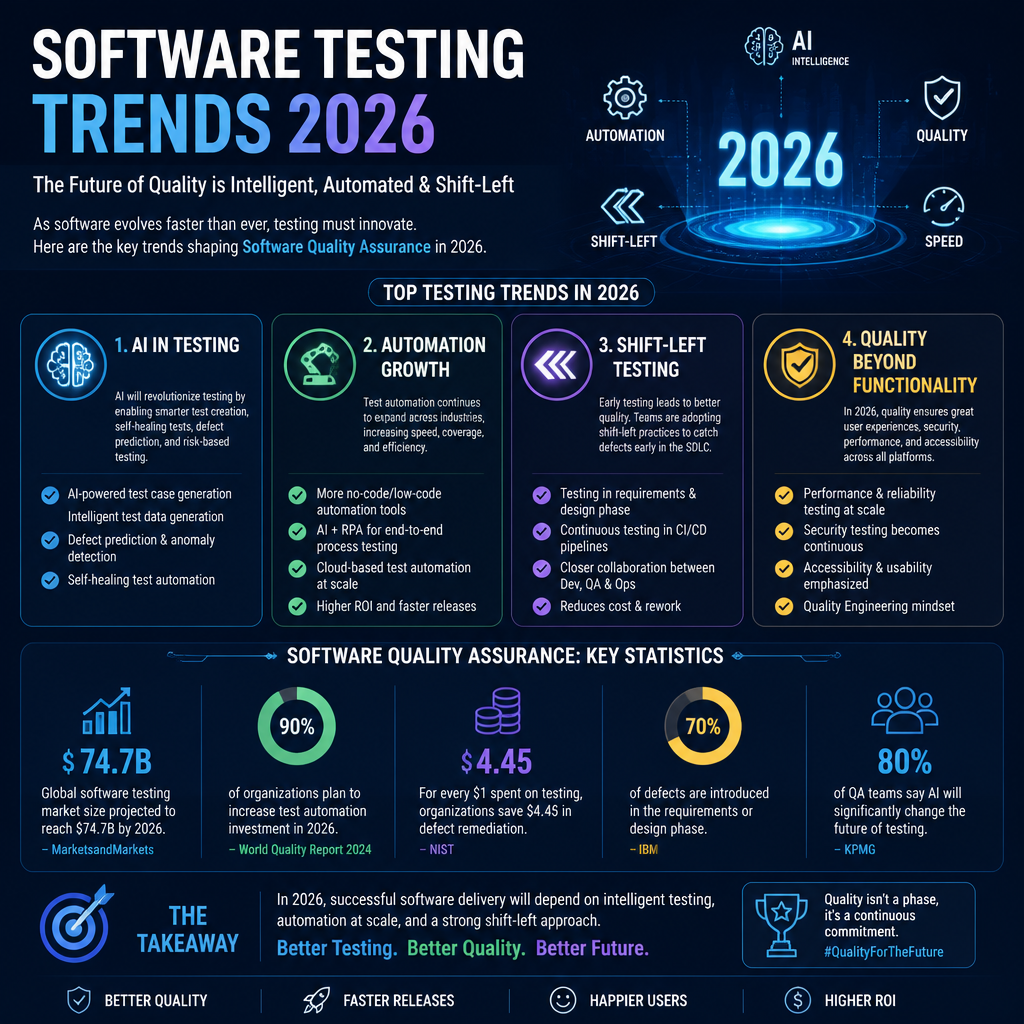
    Latest Software Testing Statistics (2026 Edition)
    Software Testing Trends 2026: The Ultimate QA Guide

  • Top Content Generation Strategies for 2026

    Discover the most effective content generation strategies for 2026 to enhance your marketing efforts and achieve better results. Learn from industry trends!

    Featured image for Top Content Generation Strategies for 2026

    Top Content Generation Strategies for 2026

    As we step further into 2026, businesses have to refine how they generate content to stay competitive. The landscape is shaped by new tech (AI is the obvious one) and shifting consumer expectations: people want content that’s faster to consume, harder to fake, and clearly made for them.

    This section is intentionally tactical. If you’re looking for ideas you can actually test in the next 30 days, start here.

    Embrace AI for Content Creation

    Artificial intelligence has absolutely changed the workflow. The part that’s still underrated is how much time it saves on the “blank page” moments—outlines, drafts, rewrites, repurposing, and first-pass SEO cleanup.

    According to recent statistics, 67% of content marketers use AI tools daily (see the data roundups in Content Marketing Statistics 2026 and Content Marketing Statistics 2026: 180+ Data Points). That lines up with what I see in the wild: AI isn’t a novelty anymore, it’s part of the production line.

    Here’s the stance I’ve landed on after watching teams overdo it: use AI to accelerate structure and iteration, not to outsource your point of view.

    What I’d do in practice:

    1. Start with a human brief. Audience, job-to-be-done, what “good” looks like (leads, signups, demo requests), and what you refuse to say because it’s generic.
    2. Use AI for an outline + counterpoints. I ask for 2–3 outline options and “what a skeptic would argue,” because bland content usually lacks tension.
    3. Draft fast, then inject specificity. Add screenshots, numbers from your own product/CRM, actual quotes from customers, and the real constraints you ran into.
    4. Do a “risk pass.” Anything that sounds like a claim should be verified, removed, or reframed. AI loves confident nonsense.
    5. Repurpose intentionally. One strong article becomes: a short LinkedIn post, a 60-second video script, a webinar outline, and 3 nurture emails.

    Common mistake I keep seeing: teams hit “generate,” publish, and then wonder why rankings tank and engagement is dead. If your content doesn’t include lived experience—tradeoffs, examples, edge cases—readers can feel it.

    Focus on High-Quality, Authentic Content

    “Authentic” gets abused as a word, so let me pin it down: authentic content is specific enough that someone could disagree with it.

    A report shows that B2B marketers with a documented strategy generate 3x more leads per dollar spent compared to those without (again, the kind of stat you’ll find compiled in sources like Content Marketing Statistics 2026: 180+ Data Points). I buy it because I’ve watched the opposite happen: teams with no written plan default to random acts of content—no consistent theme, no funnel mapping, no measurement beyond vanity metrics.

    What “high-quality” looks like in 2026:

    • Depth over volume. One piece that answers the real questions beats five that skim.
    • Receipts. Screens, workflows, templates, or exact steps—anything that proves you’ve done the work.
    • A clear stance. What you recommend, what you avoid, and why.

    A practical format that keeps working: publish one “pillar” guide per quarter (the thing you’d bet your reputation on), then support it with 6–10 smaller assets—FAQs, short videos, internal enablement clips, and customer examples.

    Leverage User-Generated Content (UGC)

    UGC is still one of the cheapest ways to earn trust—if you treat it like a system, not a lucky accident.

    According to a recent study, 83% of consumers say user-generated content makes them feel more connected to the brand. That “connected” feeling is what you’re really buying with UGC: it lowers skepticism.

    The move in 2026 is to design the capture mechanism:

    • Put a post-purchase email trigger in place asking for a photo/video review.
    • Offer a small incentive (early access, a giveaway entry, a feature on your page).
    • Create a branded hashtag and actually monitor it.
    • Get permission in writing (seriously—don’t wing this).

    Mini story: I watched a small ecommerce brand get more lift from 20 real customer clips than from months of polished studio ads. The difference was not production quality. It was believability. Real hands, real homes, real “here’s what showed up in the box.”

    Invest in Video Content

    Video is no longer “nice to have.” It’s how a lot of people prefer to evaluate products and ideas quickly.

    In 2026, short-form videos are the preferred format across social platforms, accounting for 58% of total watch time. And 78% of consumers prefer video content over image-based posts when making purchasing decisions.

    Two points I’d push you to internalize:

    1. Short video isn’t a content type—it’s a packaging format. You still need a point.
    2. Retention beats reach. A smaller audience that watches to the end will outperform a bigger one that bounces.

    A simple video “stack” that’s worked for me:

    • 15–30 seconds: one problem, one tip.
    • 45–60 seconds: quick demo, before/after, or teardown.
    • 2–5 minutes: the “explainer” that your sales team wishes existed.

    If you don’t know what to film, start with your support tickets and sales objections. Those are already scripts.

    Optimize for Social Media Engagement

    Social is still a core distribution channel, but the rules changed: engagement is increasingly happening inside the platform, and a lot of buying does too.

    For instance, social commerce is projected to hit a market value of $1.09 trillion. If your content strategy ignores that, you’re leaving money on the table.

    What I’d do differently in 2026 is build platform-native loops:

    • Instagram: Stories + polls to qualify interest, then a DM automation flow.
    • TikTok: short demos and “myth vs reality” clips.
    • LinkedIn: a weekly point-of-view post that links to a deeper resource.

    If you want a pulse on how platforms are shifting, skim Hootsuite 2026 Social Media Trends and compare it with what you’re seeing in your own analytics.

    Data-Driven Decision Making

    In 2026, you can’t rely on gut feel alone—not because instincts are useless, but because content performance is too channel-dependent. What pops on TikTok might die on LinkedIn. What ranks in SEO might never convert.

    According to a report by Digital Applied, organizations utilizing data-driven decision-making enjoy the highest ROI in content marketing (see Content Marketing Statistics 2026: 180+ Data Points).

    The trick is using data to make decisions, not just to make reports.

    My baseline measurement setup:

    • Weekly: top content by conversions (not views), and top content by assisted conversions.
    • Monthly: cohort analysis (who converts after consuming 2–3 assets?).
    • Quarterly: content audit—what to refresh, what to merge, what to kill.

    One common failure mode: obsessing over engagement rate while ignoring lead quality. High engagement can be a trap if it attracts the wrong audience.

    Effective Lead Generation Strategies for 2026

    Content is the magnet. Lead generation is the plumbing.

    If your “lead gen strategy” is basically “add a CTA at the bottom,” you’ll get a trickle at best—especially as attention fragments and users stay inside social platforms longer. In 2026, lead gen works best when you match intent with the right offer, then nurture without spamming.

    Below are three strategies I’ve seen hold up across industries.

    Intent-Based Marketing

    Intent-based marketing is the cleanest way to stop wasting time on people who are just browsing.

    The core idea: target prospects based on behaviors that signal they’re moving from curiosity to evaluation. That might be repeat visits to your pricing page, downloading a comparison guide, watching 75% of a product demo, or clicking through multiple emails.

    A step-by-step way to implement this without boiling the ocean:

    1. List your intent signals. Pick 5–10 behaviors that historically show up before a conversion. (Pricing visits, integration pages, case study downloads, “vs competitor” searches.)
    2. Define thresholds. One pricing visit might mean nothing. Three visits in seven days? That’s heat.
    3. Map each signal to an offer. Pricing-page repeat visitor → “ROI calculator” or “implementation timeline.” Case-study consumer → “industry-specific demo.”
    4. Build a fast follow-up loop. Retargeting ads, triggered emails, or a sales outreach play that references what they looked at.
    5. Track what actually converts. If a signal produces leads but not revenue, demote it.

    Real example from a B2B SaaS team I worked with: we stopped running generic “Book a demo” prompts to everyone. Instead, anyone who hit the integrations page and returned within 72 hours got a short “Implementation in 14 days” guide plus a 2-minute video walkthrough. Demo conversion rate didn’t just inch up—it jumped because the offer matched the worry (time-to-value).

    Common mistakes:

    • Treating any traffic as intent. It’s not. A viral post can flood you with the wrong audience.
    • Over-targeting too early. If you chase people after one mild signal, you look creepy and your CPA climbs.
    • No alignment with sales. If sales doesn’t trust the “intent” leads, they’ll ignore them—and your model never improves.

    If you want broader context on how platforms and behaviors are trending, cross-check your plan against Social Media Marketing Trends 2026.

    Building Nurture Campaigns

    Lead nurturing is where most teams either print money… or annoy everyone.

    A nurture campaign should do two things:

    • Educate the prospect so they make a better decision.
    • Qualify the prospect so sales talks to the right people.

    Here’s a framework I’ve shipped more than once because it stays sane:

    1. One clear entry point. Don’t drop every lead into the same soup. Segment by what they asked for (webinar, guide, trial, pricing).
    2. A 7–14 day “value burst.” 3–5 touches that deliver something useful: a checklist, a template, a teardown, a short demo.
    3. A soft conversion ask. “Want the template in Google Sheets?” “Reply with your use case?” “Pick your priority and I’ll send the right example.”
    4. A slower long tail. Weekly or biweekly emails with one idea each—no newsletters stuffed with 12 links nobody clicks.

    Persona anecdote (because this is real life): I once inherited a nurture sequence that was basically six straight “Just checking in” emails. Open rates were fine, conversions were awful, and unsubscribes climbed every send. We rewrote it so every email answered one objection—implementation time, switching costs, internal buy-in, security review, ROI. Same list, same volume. SQL rate went up because we respected the buyer’s actual anxiety.

    Common mistakes:

    • Writing like a brochure. Nurture is not where you talk about your mission statement.
    • No behavioral branching. If someone clicks “pricing,” they shouldn’t keep getting beginner content.
    • Forgetting the handoff. When someone hits a threshold (reply, pricing click, demo watch), someone has to own the follow-up within a day.

    Utilizing AI for Lead Scoring

    AI-driven lead scoring is one of those things that can be amazing—or a total mirage—depending on how you set it up.

    The goal is simple: predict which leads are most likely to convert, so sales spends time where it counts. In 2026, most CRMs and marketing platforms offer some flavor of predictive scoring, but you still have to feed it clean inputs and hold it accountable.

    A practical rollout plan:

    1. Start with a “dumb” baseline. Before AI, define your simple scoring: job title, company size, industry, and key behaviors (demo request, pricing page visits).
    2. Pick one conversion event. Don’t model “engagement.” Model something real like opportunity created, trial-to-paid, or closed-won.
    3. Train on your own history. Use at least 6–12 months of data if you have it. Garbage history = garbage predictions.
    4. Force transparency. Even if the model is a black box, you need to see feature importance (what signals are driving the score).
    5. Run a 30–60 day A/B test. Half the reps use AI prioritization, half use the old way. Compare speed-to-first-touch, meetings set, and conversion.

    What I’ve seen go wrong (a lot): teams treat the AI score like gospel, then stop thinking. The model starts rewarding easy-to-win leads (like existing customers) and punishing new-but-promising segments. So you have to audit it—monthly at first—until you trust it.

    Also: scoring without routing is pointless. If a lead hits “high intent,” it needs a defined next action (call, personalized email, targeted nurture, retargeting).

    Trends in Social Media and Content Marketing for 2026

    Trends matter, but only if they change your execution. Here are the ones I’m paying attention to because they affect what gets seen—and what converts.

    The Rise of Short-Form Video Content

    Short-form video continues to dominate. Brands using it well aren’t just chasing dances or memes—they’re compressing useful ideas into tight formats.

    If you want a quick external gut-check on what’s shifting across platforms, Hootsuite 2026 Social Media Trends is a decent starting point.

    Increasing Importance of Authentic Engagement

    Consumers can smell staged content. The brands doing well are building two-way interactions—comments that get answered like a human wrote them, creator partnerships where the creator keeps their voice, and community posts that show real customer outcomes.

    This is also where UGC and micro-influencers overlap: people trust people more than logos.

    Embracing AI in Social Media Strategy

    AI in social isn’t just for writing captions. It’s useful for:

    • identifying what hooks drive retention,
    • repurposing long-form into clips,
    • analyzing comment themes at scale,
    • and flagging posts that are taking off early.

    The tradeoff: automation can make you faster, but it can also make you sound like everyone else. I’d rather post less and sound real.

    Micro and Nano Influencer Collaborations

    Micro and nano influencers keep gaining ground because they’re niche and their audiences actually pay attention.

    As highlighted in the statistics, micro-influencers yield 3.2x more engagement than larger influencers at lower costs. If you’re building an influencer plan, benchmark your assumptions against a current roundup like Influencer Marketing Statistics for 2026.

    One caution from experience: don’t pick creators based on follower count alone. Ask for recent performance, audience breakdown, and past brand results. I’ve seen “big” creators produce terrible ROI because their audience didn’t match the product.

    Data-Driven Insights for Content Strategy

    Data should decide what you scale, what you fix, and what you stop.

    My rule: if a piece of content gets traction but doesn’t convert, figure out whether it’s a targeting mismatch or a conversion-path problem. Sometimes the content is fine—the offer is wrong, the landing page is slow, or the CTA is too early.

    For broader market context, compare your own numbers with industry observations from Content Marketing Statistics 2026.

    Conclusion

    2026 rewards marketers who build a real engine: AI-assisted creation with human judgment, content that earns trust through specificity, distribution that matches the platform, and lead gen that doesn’t waste intent.

    Pick one strategy from above, implement it end-to-end (creation → distribution → capture → nurture), and measure it for 30 days. That’s how you get better—fast.

    Sources / references used in this article:

  • Rext Featured Image End-to-End Verification

    Rext Featured Image End-to-End Verification

    End-to-end featured image publishing verification.

    Verification image

  • Top WordPress Trends to Watch in 2026

    Discover the top WordPress trends in 2026, including market share insights and the latest developments for beginners and experts alike. Learn how to get started!

    Featured image for Top WordPress Trends to Watch in 2026

    Current Trends in WordPress for 2026

    WordPress is still the default choice for a lot of teams because it hits a rare sweet spot: content editors can run it, developers can extend it, and there’s an ecosystem for almost every business model. As noted by DreamDev Solutions, WordPress currently powers 41.2% of all websites and 59.1% of websites with a known CMS.

    Screenshot from 2026-07-27 13-00-17

    But what’s different in 2026 is how people are deploying it. The platform is less “a theme + some plugins” and more “a CMS component inside a bigger system.” That shift shows up in a few places.

    Headless and hybrid builds are normal now

    Headless WordPress isn’t new, but in 2026 it’s mainstream for performance-sensitive sites and teams with strong front-end chops. The pattern looks like this:

    • WordPress stays the editorial backend (roles, revisions, media, structured content).
    • A front-end framework like React or Next.js renders pages and handles interactivity.
    • Content is delivered via the REST API or GraphQL (depending on the stack).

    Where it works:

    • Marketing sites that need excellent Core Web Vitals.
    • Multi-channel publishing (web + in-app + kiosks + newsletters).
    • Teams where editors live in WordPress but the UI has to be custom.

    Where it can go sideways:

    • Preview workflows. “Why can’t I click Preview and see the page?” becomes a recurring complaint unless you build a proper preview bridge.
    • Plugin expectations. Editors assume plugins will “just work,” but many front-end plugins don’t translate cleanly to headless.

    A real example: I watched a team go headless because their current theme was slow. They got speed… and then spent weeks rebuilding basic stuff they used to get for free (forms, SEO fields, preview, redirects). Headless can be the right call, but it’s not a free lunch.

    Full Site Editing is replacing theme tinkering

    A lot of day-to-day WordPress work has moved into block-based site building. Even if you’re not a “block theme purist,” the direction is clear: more layout and template control inside the editor, less PHP template hacking.

    If you manage multiple sites, this matters because it changes maintenance:

    • You’ll want stricter design systems (reusable blocks, locked patterns).
    • You’ll do fewer one-off template edits and more “component” thinking.
    • You’ll need to train content editors, because the editor is more powerful — and more dangerous.

    The mistake I see: teams hand editors full design control and then act shocked when the homepage turns into a collage of mismatched fonts and buttons. If you care about consistency, lock down patterns and give editors “safe” building blocks.

    Page builders and commerce still dominate

    Even with blocks improving, a big chunk of sites still depend on familiar tooling. In 2026, a large segment of WordPress sites continues to rely on popular tools like Elementor (31.1% of WordPress sites) and WooCommerce (20% of WordPress sites) for building and managing content effectively.

    My take: if you’re shipping fast for a small team, a builder can be a practical choice. But every builder-heavy site I’ve inherited had the same long-term tax:

    • hard-to-reverse lock-in
    • inconsistent markup
    • performance surprises after “just one more widget”

    If you’re building something meant to last 3–5 years, I’d rather invest in a clean block theme (or hybrid approach) and keep the plugin stack lean.

    Security is driving platform decisions

    WordPress is a giant target. Recent statistics often cited by security vendors claim about 90,000 attacks per minute target WordPress sites, usually exploiting vulnerabilities in plugins or themes rather than core software flaws.

    This is the part people misread. It’s not “WordPress core is insecure.” It’s “your random slider plugin from 2017 is the weakest link.” The trend in 2026 is that businesses are increasingly prioritizing security and operational efficiency, leading some to consider platforms that specialize in performance, like Webflow or Squarespace.

    I don’t blame them. If your org can’t maintain updates, can’t run staging, and can’t audit plugins, a closed platform can be safer for your team. The tradeoff is flexibility and ownership.

    What is WordPress and why is it used?

    At its core, WordPress is a flexible platform that can be used to create anything from personal blogs to complex e-commerce sites. Its extensive ecosystem — thousands of themes and plugins — supports diverse needs and functionalities.

    But the real reason people use it is the workflow:

    • Editors can publish without engineering.
    • Content is portable enough to migrate.
    • You can scale from “a blog” to “a whole ecosystem” without switching platforms.

    That’s why it still shows up everywhere — not because it’s trendy, but because it’s adaptable.

    Why are people moving away from WordPress?

    When someone says they’re “moving away,” they usually mean one of these:

    1. Performance debt: a theme + builder + 40 plugins + cheap hosting. Then someone asks for a fast mobile experience.
    2. Security anxiety: updates aren’t happening, and nobody knows what’s installed.
    3. Workflow mismatch: they need app-like UI, omnichannel publishing, or strict design governance.

    If you keep WordPress boring (minimal plugins, decent hosting, real update process), most of those problems disappear. If you treat it like a junk drawer, you’ll eventually pay for it.

    Getting Started with WordPress

    Getting started with WordPress in 2026 is easy in the “I can get a site online today” sense, but it’s still easy to make early choices that hurt later.

    You can install WordPress by downloading it directly from WordPress.org or by choosing a host that offers managed WordPress services.

    Here’s how I’d decide, based on what I’ve seen in real projects.

    Choose your setup: managed vs self-hosted

    Pick managed hosting if:

    • you want auto-updates, backups, and caching mostly handled
    • you don’t have a sysadmin
    • downtime will cause real pain

    Pick self-hosted if:

    • you have strong ops skills (or want to learn)
    • you need custom server configs
    • you’re cost-optimizing at scale

    The common beginner mistake: choosing the cheapest hosting possible, then adding performance plugins to compensate. You can’t plugin your way out of slow disk and overloaded CPU.

    Step-by-step: a clean WordPress start (the way I do it)

    This is the “less regret later” path.

    1. Start with a domain + SSL (most hosts do this now). Don’t launch without HTTPS.
    2. Install WordPress (host installer or manual from WordPress.org).
    3. Create two environments if you can: staging + production. Even small sites benefit.
    4. Set your permalink structure early. Changing it later can break links.
    5. Install only the essentials:

    6. one SEO solution (not three)

    7. one forms solution
    8. backups (if your host doesn’t provide them)

    9. Pick a theme you can live with. If you’re new, choose something conservative and well-supported.

    10. Create users correctly: no shared admin logins. Give editors editor roles.
    11. Lock in basics: site title, timezone, caching, image sizes.

    If you want a hand-holding path without coding, Vision.pk offers a beginner-friendly walkthrough for creating a first site.

    Downloading WordPress (and running it locally)

    When it comes to downloading WordPress, you have several options:

    • Get WordPress: the official download is at WordPress.org.
    • Localhost WordPress: for developers, setting up WordPress locally is still the fastest way to test changes before going live. Tools like XAMPP or MAMP work, and a local environment keeps you from experimenting on production.
    • WordPress download for Windows: nothing special is required — it’s the same software. The key is having a reliable local stack.

    A quick workflow that saves headaches:

    • Build locally.
    • Push to staging.
    • Get approval.
    • Deploy to production.

    Most WordPress horror stories start with “I made a quick change on the live site.”

    Common mistakes I see beginners make

    These aren’t theoretical. I’ve cleaned up each of these more than once.

    • Installing a plugin for every tiny thing. A simple site with 10–15 well-chosen plugins usually beats a messy site with 50.
    • Using “admin/admin” style accounts. Use strong passwords and unique usernames.
    • Skipping updates for months. Then updating everything at once and hoping nothing breaks.
    • No backups you’ve tested. A backup you can’t restore isn’t a backup.

    If you’re serious about learning the platform (not just clicking around), the training on Learn WordPress is legitimately useful.

    Exploring WordPress Use Cases

    WordPress is versatile enough that “use case” almost feels too small. In 2026 it’s being used as:

    • a classic blog CMS
    • a commerce engine
    • a publishing system for large editorial teams
    • a headless content backend feeding apps
    • a membership/community platform

    The trick is matching WordPress to the job — and knowing when you’re forcing it.

    WordPress blog examples (and what they teach)

    In 2026, blogs still thrive on WordPress, from tiny niche sites to massive publishers. Examples people commonly point to include:

    • The WordPress Blog (official updates and community news)
    • TechCrunch, a technology news blog that leverages WordPress for content management at scale
    • WPBeginner, a beginner-focused WordPress education site

    If you want inspiration for layouts and niches, 20 inspiring WordPress blog examples is a solid swipe file.

    What I’d pay attention to when you’re studying “examples” isn’t just the look. It’s the structure:

    • Are categories/tags sensible, or a junk pile?
    • Are pages fast on mobile?
    • Is the navigation boring (good) and predictable?
    • Is the typography readable, or “designer-y”?

    A quick mini-story: I once inherited a blog that looked great on desktop, but the mobile header took up half the screen and the font was tiny. Traffic was fine, but newsletter signups were terrible. We didn’t redesign the whole site — we fixed readability and reduced header height. Signups jumped noticeably in a week. That’s WordPress at its best: small changes, big impact.

    Windows WordPress blogs

    For users on Windows, WordPress works perfectly well. The platform doesn’t care what OS you’re on — the practical difference is how you set up local development. If you’re building locally on Windows, be consistent with your tooling and versions.

    If you want design-focused examples (not just content strategy), Really Good Designs has deep dives into successful blog designs and use cases.

    Beyond blogs: the common 2026 plays

    Here are the WordPress use cases I’m seeing most often, plus what to watch out for.

    1) Small business “money pages”

    • Service pages, lead forms, local SEO.
    • Watch out for: slow themes and heavy animation plugins that tank mobile performance.

    2) E-commerce with WooCommerce

    WooCommerce remains a go-to for stores (again, 20% of WordPress sites is a huge footprint). WordPress + Woo works best when:

    • your catalog isn’t wildly complex
    • you can keep plugins disciplined
    • you invest in hosting and caching early

    Common mistake: installing five different checkout enhancers that all hook into the same templates, then wondering why checkout breaks after updates.

    3) Membership and gated content

    WordPress is great for “content + paywall + email list” businesses.

    Watch out for:

    • role/permission complexity
    • caching mistakes (you can’t cache private pages the same way)

    4) Editorial publishing with multiple authors

    WordPress shines with workflows: drafts, reviews, scheduled posts, revisions.

    Watch out for:

    • messy media libraries
    • inconsistent taxonomy (tags/categories) that makes content hard to manage later

    5) Headless CMS for apps

    If you need WordPress as a content backend for a mobile app or SaaS dashboard, headless can be a great fit.

    Watch out for:

    • preview/editing experience
    • authentication and rate limiting

    A practical way to pick the right use case

    If you’re not sure WordPress is the right tool, answer these questions:

  • Top Content Writing Tools for 2026

    Discover the top content writing tools of 2026 to enhance your productivity and writing quality. Explore AI tools, free options, and specialized software for SEO.

    Top 10 Content Writing Tools to Boost Your 2026 Productivity

    If you’re trying to write faster in 2026, don’t just grab the shiniest AI and hope for the best. The best results come from pairing tools with specific stages of your workflow:

    • Discovery (what should I write, and what’s already ranking?)
    • Structure (outline + angle + headings)
    • Drafting (getting from blank page to something editable)
    • Editing (clarity, tone, correctness)
    • Optimization (SEO + intent + internal linking)
    • Repurposing (turn one piece into five assets)

    Below are ten tools that cover those stages well. I’m also going to be blunt about where they bite—because every tool has a “hidden tax.”

    1. ChatGPT

    ChatGPT (OpenAI) is the closest thing most writers have to an always-available brainstorming partner. I don’t treat it like an “auto-writer.” I treat it like a thinking tool: outline generator, angle tester, counterargument machine, and rewrite assistant.

    Where it saves real time
    – First drafts that you actually want to edit: If you feed it a tight brief (audience, intent, structure, examples to include), you can get a 60–70% draft quickly.
    – Outline refinement: I’ll ask for three outline options—one beginner-friendly, one technical, one story-driven—then mash them together.
    – Voice matching (with guardrails): When you paste a few paragraphs of your own writing and ask it to mirror the tone, it can get surprisingly close—close enough to reduce the “blank page tax.”

    Where it can go wrong
    – It will confidently produce filler if your prompt is vague.
    – It can drift into generic advice unless you force specificity (tools, steps, constraints, examples).
    – It can make claims sound factual when they’re really just plausible-sounding phrasing—so you still need editorial discipline.

    How I use it in a workflow
    1. Paste the brief (audience, goal, constraints, must-include bullets).
    2. Ask for an outline with H2/H3 structure plus suggested examples.
    3. Generate a rough draft section by section, not all at once.
    4. Do a human pass for accuracy, tone, and “does this sound like someone who has done the work?”

    A quick example: I once had to produce a set of onboarding emails plus a help-center article in the same week. ChatGPT didn’t replace the work, but it did eliminate the slowest part—getting the first version out so I could iterate. That’s the win.

    If you want more context on where AI writing is heading, you can dig into our guide on AI innovations. It’s a good companion read if you’re building an AI-assisted workflow and want to avoid the common traps.

    2. Jasper

    Jasper is strong when you need marketing-friendly long-form and you want guardrails like templates and structured prompts. It tends to be popular with teams producing lots of similar assets—landing pages, blog posts, campaign copy—where consistency matters.

    What Jasper does well
    – Long-form assistance with a more “content marketing” bias than a generic chatbot.
    – Templates that reduce decision fatigue (headline ideas, intros, PAS/AIDA variations, product bullets).
    – Brand voice features (depending on your plan/workflow) that help keep multiple writers from sounding like ten different people.

    Tradeoffs I’ve run into
    – Templates can nudge you into template-y writing if you don’t rewrite hard.
    – It can over-optimize for “marketing enthusiasm.” If your brand is calm, technical, or skeptical, you’ll need to pull it back.

    A practical use case
    If you’re doing a quarterly content push—say 12 blog posts plus a handful of landing pages—Jasper can help you standardize the opening hooks, CTAs, and section patterns so editors aren’t fixing the same structural issues over and over.

    3. Grammarly

    Grammarly is still the tool I recommend even to experienced writers, because it catches the stuff you don’t see after staring at a draft for too long. It’s not just grammar; it’s clarity and friction removal.

    Where Grammarly pays off
    – Consistency: It flags shifts in tone, formality, and phrasing.
    – Clarity suggestions: Often these are the difference between “sounds smart” and “is readable.”
    – Fast QA before publishing: I run it right before I ship anything client-facing.

    How I keep it from over-editing
    Grammarly sometimes tries to sand off personality. My rule: I accept changes that reduce confusion, and I ignore changes that erase voice. If your writing style is intentionally punchy or conversational, you’ll want to treat Grammarly like a copy editor—not your boss.

    Tiny workflow tip
    Do one Grammarly pass early (so you don’t build on broken sentences), and one pass at the end (so you catch weird repetitions and missing words).

    4. SurferSEO

    SurferSEO is for writers who want SEO feedback in the drafting phase, not after the post is already written. It’s especially useful when you’re trying to match search intent and cover a topic at the depth Google seems to reward.

    What it’s good at
    – SERP-driven guidance: It compares your draft against what’s ranking.
    – Keyword and phrase suggestions you can weave in naturally.
    – Real-time scoring so you can adjust while writing instead of rewriting the whole thing later.

    The big caution
    You can absolutely write garbage that “scores well.” I’ve seen writers chase the score and end up with awkward keyword stuffing, redundant subheads, and bloated paragraphs.

    How I use it without ruining the content
    – First, I write an outline based on the reader’s problem.
    – Then I check Surfer’s guidance to see what I missed (definitions, comparisons, common questions).
    – Finally, I add missing sections only if they help the reader.

    Real scenario: I watched a teammate force in every suggested phrase, and the article turned into a clunky list of near-duplicate sentences. We rolled it back, kept the missing concepts, and ignored the rest. Rankings improved anyway—because the final piece was readable.

    5. Copy.ai

    Copy.ai is a speed tool. When you need lots of variations quickly—ads, hooks, short social posts, product snippets—it’s handy.

    Where it shines
    – Short-form generation: subject lines, taglines, social captions, ad variations.
    – Template-driven output for common marketing formats.
    – Rapid iteration: you can get 20 options fast, then pick 2 and rewrite them properly.

    Where it struggles
    – Long-form can start to feel repetitive.
    – Without a clear brief, the output can look like “average internet marketing copy.”

    How I’d use it
    If I’m launching a blog post, I’ll use Copy.ai to generate:
    – 10 headline options
    – 10 social hooks
    – 5 meta description drafts
    Then I pick the best raw material and rewrite in my own voice. It’s a multiplier, not a finisher.

    6. Writesonic

    Writesonic is another AI writing platform that’s particularly useful if you want lots of content types in one place—emails, blog sections, web copy, even story-style content.

    What’s good
    – Flexibility across formats: helpful if you bounce between marketing and editorial.
    – Customization: tone controls can steer the output (though you still need to edit).
    – Template variety: good for teams who want repeatable workflows.

    What to watch
    – It can produce “pretty” writing that lacks substance. If your content requires expertise—technical guides, regulated topics, detailed comparisons—you’ll need to provide strong inputs.

    A workflow that works
    I like Writesonic for turning a single core piece into supporting assets:
    – Blog post → email newsletter version
    – Blog post → 5 LinkedIn posts
    – Blog post → short FAQ block for a landing page
    That’s where it genuinely boosts productivity—repurposing without feeling like copy-paste.

    7. Hemingway Editor

    Hemingway Editor is the blunt friend who tells you your sentences are too long. It’s not nuanced, but it’s effective—especially if your drafts tend to get dense.

    Why I still use it
    – It highlights hard-to-read sentences and unnecessary complexity.
    – It catches the “I’m writing like a textbook” problem.
    – It forces you to confront passive, tangled phrasing.

    How to use it without dumbing things down
    Clarity doesn’t mean shallow. If you’re writing technical content, you can keep the technical terms while simplifying sentence structure.

    Example change I make all the time:
    – Before: “In order to ensure optimization is being implemented appropriately, it is recommended that teams perform regular audits.”
    – After: “Run a monthly audit to make sure your optimizations are still working.”

    Same meaning. Half the friction.

    8. QuillBot

    QuillBot is a paraphrasing and rewriting tool. It’s useful when you already have content but you need to tighten, vary phrasing, or reduce repetition.

    Where it helps
    – Second draft polish: improving flow when a section feels clunky.
    – Avoiding repetition: especially in long articles where you keep using the same verbs.
    – Alternative phrasings when you know what you mean but the sentence won’t cooperate.

    What I avoid using it for
    – Don’t use it to “spin” content. Editors and readers can smell it.
    – Don’t use it to rewrite stuff you don’t understand. That’s how inaccuracies sneak in.

    My practical rule
    Use QuillBot on small chunks (a paragraph or two), pick the best phrasing, then do a human pass to keep your voice.

    9. Rytr

    Rytr is a lightweight AI writing assistant that’s often a good fit for writers who want something simpler and cheaper than the heavyweight platforms.

    Why it’s useful
    – It’s quick for basic drafts: social posts, short blog sections, email intros.
    – Tone controls help you steer output when you’re switching between audiences.
    – It’s approachable for newer writers who need structure.

    Limitations
    – For complex long-form, it may take more prompting and rewriting to get to a strong result.

    Where I’ve seen it work well
    A junior marketer on a team I worked with used Rytr to get past blank-page anxiety. The drafts weren’t publish-ready—but they were editable. That’s sometimes the real breakthrough: consistent output, then steady improvement.

    10. Frase AI

    Frase AI is built for content marketers who want to tighten the loop between research, SERP analysis, and writing. When you’re producing SEO-driven content at scale, research is often the hidden time sink. Frase helps compress that.

    What it does well
    – Content research support: understanding what top-ranking pages cover.
    – Ideation: pulling common questions and angles you might miss.
    – Optimization alignment: helping you match intent and coverage.

    The tradeoff
    If you follow SERP patterns too closely, you can end up writing the same article as everyone else—just rearranged. I use Frase to ensure coverage, then I add differentiation:
    – a real example
    – a workflow
    – a strong opinion
    – a mistake I’ve seen (and how to avoid it)

    That’s the part tools won’t do for you.

    Conclusion

    If you want the honest version: you don’t need ten tools. You need a small stack you can run repeatedly without thinking.

    Here’s a combo that works for a lot of writers in 2026:
    – ChatGPT for outlines, drafts, and angle exploration
    – Grammarly for final polish and consistency
    – Hemingway when readability slips
    – SurferSEO or Frase AI when SEO is a real requirement (not a “nice-to-have”)
    – Copy.ai/Writesonic for repurposing and short-form volume

    The bigger win is building a workflow that doesn’t collapse when deadlines hit. Tools should remove bottlenecks, not add new ones.

    If you’re publishing on WordPress and you care about getting content from draft to live with fewer headaches—SEO fields, schema helpers, editorial workflows, performance—take a look at this breakdown of the best WordPress CMS integrations and pick the ones that match your actual process.

    Pick two tools, use them hard for two weeks, and measure what improved (speed, quality, fewer edits, better rankings). That’s how you build a stack you’ll still like in six months.

  • Innovative Ways to Say Hello in 2026

    Discover innovative ways to say hello in 2026 and understand the cultural shifts around greetings. Explore how Gen Z greets and the meaning behind ‘hello’.

    Featured image for Innovative Ways to Say Hello in 2026

    Innovative Ways to Say Hello in 2026

    In 2026, the landscape of greetings has transformed dramatically—but not in a sci‑fi way where nobody speaks. It’s more practical than that: we’ve all learned that a greeting is a signal, and signals change depending on the space.

    A modern “hello” answers a few questions fast:

    • Where are we talking? (VR, group chat, comment section, in-person)
    • How public is this? (DM vs. story reply vs. channel post)
    • How close are we? (friend, coworker, stranger)
    • What’s the energy? (serious, playful, rushed, tender)

    Get those wrong and you don’t just sound “old.” You can come off weirdly intense, dismissive, or performative.

    The Rise of Digital Greetings

    Virtual reality (VR) has become increasingly common. Imagine entering a virtual space and greeting your friends with a personalized avatar instead of a simple text message. That sounds fluffy until you’ve actually sat in a VR room and noticed how much body language comes back—head nods, hand waves, a little lean-in to show you’re listening.

    And teens are equipped for it. According to research, 95% of U.S. teens have access to smartphones and are now using them for more than just texts or calls; they are embracing digital spaces for socialization (source: Ipsos).

    In practice, digital hellos in 2026 often look like this:

    1. Presence ping: “yo I’m here” (or a quick reaction) to show you’ve arrived.
    2. Context tag: a reference to the room or topic (“this lobby music is unhinged” / “did you see the update?”).
    3. Personal hook: something that makes it feel like you (“ok hear me out…” / a signature sticker).

    That three-step pattern is why “hey” by itself can feel incomplete in some spaces. In a busy Discord server, “hey” is basically you walking into a party, standing in the doorway, and saying nothing else.

    Social media greetings have also shifted because platforms reward motion, not formality. TikTok and Instagram normalized saying hello with:

    • stickers and GIF replies
    • trending audio clips (a “hello” that’s really a soundbite)
    • a quick video greeting with a filter

    A real example I’ve seen play out: someone joins a group chat after being quiet for a week. Instead of “sorry I’ve been MIA,” they drop a 2‑second selfie video—deadpan face, exaggerated zoom, captioned “sup, I live.” That’s the hello and the explanation, without turning the chat into a diary.

    Common mistake: people copy the format but miss the relationship level. A trending-audio “hello” sent to a new coworker can land as awkward, even if it would be totally normal with friends.

    Emojis: The New Language of Greeting

    Emojis have become a staple in the modern greeting lexicon, mostly because they do something plain text struggles with: they set temperature. A “hi.” can read cold. A “hi 👋” reads human.

    And it’s not niche. According to a recent study, over 65% of Gen Z prefers to incorporate emojis into their greetings, emphasizing a need for expressiveness in digital communication (source: Whop).

    What’s changed in 2026 isn’t just “more emojis.” It’s how they’re used:

    • The wave as a low-demand hello: 👋 signals acknowledgement without forcing a conversation.
    • The softener combo: “hey” + 🙂 / ✨ to remove edge.
    • The inside-joke emoji: one symbol that means “it’s you, I’m safe here.”

    Here’s a quick step-by-step for choosing an emoji hello that won’t backfire:

    1. Match the channel. Slack/Teams wants calmer signals than Instagram DMs.
    2. Match intimacy. 👋 is neutral; 😘 is not.
    3. Match urgency. If you actually need an answer, don’t hide the ask behind ten emojis.
    4. Don’t over-interpret. Some people type like accountants; it’s not personal.

    Common mistakes I see constantly:

    • Overstacking emojis as a personality substitute (it reads like you’re trying too hard).
    • Using sarcasm emojis (🙃) in professional spaces where tone is already fragile.
    • Treating a reaction as a full greeting when the other person clearly wants words.

    If you’re unsure, the boring option wins: “Hey—quick question” plus a single friendly emoji.

    Non-Contact Greetings: A Lasting Impact

    The pandemic didn’t just change habits for a year—it rewired what people consider polite. Handshakes dropped dramatically in favor of more distant, still meaningful alternatives: nods, waves, verbal acknowledgments, elbow bumps in some circles.

    According to a study, these non-contact methods are viewed as safer and more considerate; 91% of respondents noted a preference for these greetings post-pandemic (source: KENS5).

    In 2026, what I notice is that non-contact greetings have become less about fear and more about consent and comfort. People are reading micro-cues:

    • Are they stepping in or holding distance?
    • Are their hands busy (coffee, phone, bag)?
    • Do they initiate touch first?

    A practical “don’t make it weird” sequence:

    1. Start with eye contact + smile (or a neutral friendly face if you’re not a smiler).
    2. Use a small wave or nod—low pressure.
    3. Let the other person choose escalation (handshake, hug, fist bump).

    A mistake I’ve watched happen: someone goes in for a hug because “we’re friends online,” but the other person only knows them from comments. The fix is simple—start with distance, let warmth build.

    Cultural Perspectives on Saying Hello

    Culture changes what “hello” costs. In some places, a greeting is a quick tap of acknowledgement. In others, it’s a small ritual—and skipping it isn’t neutral, it’s disrespect.

    If you only learn one thing here, make it this: you can’t treat your default greeting as universally friendly. Friendly to you might be too direct, too casual, or too distant to someone else.

    The Importance of Politeness

    Greetings often serve as an indicator of respect and social understanding. In many African cultures, greetings are considered personal responsibilities, essential for establishing interpersonal relations. Similarly, in Asian cultures, indirect language and non-verbal cues, such as bowing or a gentle smile, convey respect and politeness (source: International Journal of Language Teaching and Education).

    Western greetings, by contrast, tend to be more explicit and direct—“Hi, I’m ___,” eye contact, handshakes (depending on context). That difference matters in 2026 because global interaction is constant: remote teams, international classrooms, online communities where you don’t know where anyone is from.

    Here’s a real-feeling scenario I’ve seen variations of:

    A U.S.-based manager joins a video call with a mixed team and opens with, “Hey folks, let’s jump in.” Efficient. But to a teammate from a culture where greeting rituals signal respect, it can feel like being treated as a tool—no relational warm-up, no acknowledgment.

    A better approach doesn’t take long. Try this step-by-step:

    1. Open with a group greeting. “Good morning, everyone.”
    2. Add one human line. “Hope your week’s been okay.”
    3. Then move to business. “Let’s get into the agenda.”

    That’s 10 seconds and it changes the entire emotional read of the room.

    Common mistakes in cross-cultural hellos:

    • Overcorrecting into stereotypes. Don’t do a dramatic bow because you heard “Asian cultures bow.” Mirror what the other person does.
    • Assuming informality equals friendliness. “Yo” can be warm in one context and disrespectful in another.
    • Skipping greetings in text threads. In some cultures, starting with the request (“Send the doc”) reads as rude.

    Embracing Indigenous Greetings

    Indigenous greetings are also seeing a resurgence. Many people are exploring the significance of their cultural roots by incorporating traditional greeting terms into daily interactions. For instance, certain communities are increasingly using their indigenous languages to express greetings, reinforcing cultural identity and connection to heritage (source: Springer).

    What this looks like on the ground in 2026 isn’t usually a grand performance. It’s small and consistent:

    • opening a family gathering with an Indigenous greeting instead of the default national language
    • teaching kids a greeting phrase alongside “hi” and “hello”
    • using traditional greetings in community spaces, not just during ceremonies

    A mini anecdote: I’ve watched a friend start using an Indigenous greeting with elders at events—at first quietly, almost like they were testing the words. The elders lit up. Not because it was perfect, but because it signaled effort and belonging. Over time, other people in the circle started copying it (carefully), and it became part of the room’s normal.

    Tradeoff to be aware of: If you’re not from that culture, don’t treat Indigenous greetings like collectibles. When you use them without context, it can land as costume-y. If you’re invited to use it, great—ask pronunciation, ask when it’s appropriate, and keep it respectful.

    Meaning and Interpretations of Hello

    “Hello” looks simple, but it’s doing a lot of work. Historically, it was used to attract attention (especially around early telephone use). In 2026, it’s less about grabbing attention and more about setting the terms of interaction.

    When you say hello now, you’re often communicating:

    • I see you.
    • I’m safe to approach (or not).
    • This is casual / formal / playful / serious.

    The Emotional Weight of Greeting

    “Hello” is now loaded with emotional weight. It can signify warmth, welcome, distance, flirtation, obligation—sometimes all in the same word depending on delivery.

    For Gen Z, context is everything. A simple “hey” can mean “I’m open to chatting.” A “heyyy” can imply affection or teasing. “HELLO!” can be excitement—or sarcasm if it’s paired with a long silence beforehand.

    A step-by-step way to read (and send) hellos more accurately:

    1. Look at punctuation. “Hi.” is different from “Hi!”
    2. Look at timing. Immediate reply vs. 12-hour delay changes the meaning.
    3. Look at the follow-up. A greeting without a second line is often a temperature check.
    4. Look at history. Some people always type the same way.

    A real example: I’ve seen friendships wobble because one person sends “hey” as a gentle opener, and the other reads it as a demand to entertain them. The fix was embarrassingly simple: add a second line. “Hey—no rush, just thought of you.” Same hello, totally different emotional impact.

    Common mistake: people treat the greeting as a throwaway. In text, the greeting is the tone-setter. If you start cold, you’ll spend the rest of the conversation trying to recover warmth.

    Variations of Greeting Meanings

    In a global context, the meaning of hello varies. In some cultures, a greeting includes asking about family or well-being, signaling deeper concern than a basic acknowledgment. In others, too many personal questions up front can feel intrusive.

    In 2026, the most useful skill isn’t memorizing every greeting custom on earth. It’s having a flexible default that can adapt.

    Here’s a “universal-ish” greeting pattern that travels well:

    • Neutral hello: “Hi, good to see you.”
    • Light care: “How’s your day going?” (or “How are things?”)
    • Opt-out space: “No pressure to answer if you’re slammed.”

    That last line is underrated. It keeps you from accidentally turning a greeting into a demand.

    If you’re greeting across cultures (or even just across subcultures online), aim for clarity over cleverness. Clever hellos are fun—but clarity is what builds trust.

    In conclusion, the ways we greet one another in 2026 are shaped by technology, cultural sensitivities, and personal preferences. Whether through emojis, VR, or traditional greetings, each method can be a real expression of identity—when it’s chosen with a little intention. Your next hello is a tiny design decision. Make it a good one.

  • Top WordPress Trends to Watch in 2026

    Discover the top WordPress trends in 2026, including market share insights and the latest developments for beginners and experts alike. Learn how to get started!

    Featured image for Top WordPress Trends to Watch in 2026

    Current Trends in WordPress for 2026

    WordPress is still the default choice for a lot of teams because it hits a rare sweet spot: content editors can run it, developers can extend it, and there’s an ecosystem for almost every business model. As noted by DreamDev Solutions, WordPress currently powers 41.2% of all websites and 59.1% of websites with a known CMS.

    But what’s different in 2026 is how people are deploying it. The platform is less “a theme + some plugins” and more “a CMS component inside a bigger system.” That shift shows up in a few places.

    Headless and hybrid builds are normal now

    Headless WordPress isn’t new, but in 2026 it’s mainstream for performance-sensitive sites and teams with strong front-end chops. The pattern looks like this:

    • WordPress stays the editorial backend (roles, revisions, media, structured content).
    • A front-end framework like React or Next.js renders pages and handles interactivity.
    • Content is delivered via the REST API or GraphQL (depending on the stack).

    Where it works:

    • Marketing sites that need excellent Core Web Vitals.
    • Multi-channel publishing (web + in-app + kiosks + newsletters).
    • Teams where editors live in WordPress but the UI has to be custom.

    Where it can go sideways:

    • Preview workflows. “Why can’t I click Preview and see the page?” becomes a recurring complaint unless you build a proper preview bridge.
    • Plugin expectations. Editors assume plugins will “just work,” but many front-end plugins don’t translate cleanly to headless.

    A real example: I watched a team go headless because their current theme was slow. They got speed… and then spent weeks rebuilding basic stuff they used to get for free (forms, SEO fields, preview, redirects). Headless can be the right call, but it’s not a free lunch.

    Full Site Editing is replacing theme tinkering

    A lot of day-to-day WordPress work has moved into block-based site building. Even if you’re not a “block theme purist,” the direction is clear: more layout and template control inside the editor, less PHP template hacking.

    If you manage multiple sites, this matters because it changes maintenance:

    • You’ll want stricter design systems (reusable blocks, locked patterns).
    • You’ll do fewer one-off template edits and more “component” thinking.
    • You’ll need to train content editors, because the editor is more powerful — and more dangerous.

    The mistake I see: teams hand editors full design control and then act shocked when the homepage turns into a collage of mismatched fonts and buttons. If you care about consistency, lock down patterns and give editors “safe” building blocks.

    Page builders and commerce still dominate

    Even with blocks improving, a big chunk of sites still depend on familiar tooling. In 2026, a large segment of WordPress sites continues to rely on popular tools like Elementor (31.1% of WordPress sites) and WooCommerce (20% of WordPress sites) for building and managing content effectively.

    My take: if you’re shipping fast for a small team, a builder can be a practical choice. But every builder-heavy site I’ve inherited had the same long-term tax:

    • hard-to-reverse lock-in
    • inconsistent markup
    • performance surprises after “just one more widget”

    If you’re building something meant to last 3–5 years, I’d rather invest in a clean block theme (or hybrid approach) and keep the plugin stack lean.

    Security is driving platform decisions

    WordPress is a giant target. Recent statistics often cited by security vendors claim about 90,000 attacks per minute target WordPress sites, usually exploiting vulnerabilities in plugins or themes rather than core software flaws.

    This is the part people misread. It’s not “WordPress core is insecure.” It’s “your random slider plugin from 2017 is the weakest link.” The trend in 2026 is that businesses are increasingly prioritizing security and operational efficiency, leading some to consider platforms that specialize in performance, like Webflow or Squarespace.

    I don’t blame them. If your org can’t maintain updates, can’t run staging, and can’t audit plugins, a closed platform can be safer for your team. The tradeoff is flexibility and ownership.

    What is WordPress and why is it used?

    At its core, WordPress is a flexible platform that can be used to create anything from personal blogs to complex e-commerce sites. Its extensive ecosystem — thousands of themes and plugins — supports diverse needs and functionalities.

    But the real reason people use it is the workflow:

    • Editors can publish without engineering.
    • Content is portable enough to migrate.
    • You can scale from “a blog” to “a whole ecosystem” without switching platforms.

    That’s why it still shows up everywhere — not because it’s trendy, but because it’s adaptable.

    Why are people moving away from WordPress?

    When someone says they’re “moving away,” they usually mean one of these:

    1. Performance debt: a theme + builder + 40 plugins + cheap hosting. Then someone asks for a fast mobile experience.
    2. Security anxiety: updates aren’t happening, and nobody knows what’s installed.
    3. Workflow mismatch: they need app-like UI, omnichannel publishing, or strict design governance.

    If you keep WordPress boring (minimal plugins, decent hosting, real update process), most of those problems disappear. If you treat it like a junk drawer, you’ll eventually pay for it.

    Getting Started with WordPress

    Getting started with WordPress in 2026 is easy in the “I can get a site online today” sense, but it’s still easy to make early choices that hurt later.

    You can install WordPress by downloading it directly from WordPress.org or by choosing a host that offers managed WordPress services.

    Here’s how I’d decide, based on what I’ve seen in real projects.

    Choose your setup: managed vs self-hosted

    Pick managed hosting if:

    • you want auto-updates, backups, and caching mostly handled
    • you don’t have a sysadmin
    • downtime will cause real pain

    Pick self-hosted if:

    • you have strong ops skills (or want to learn)
    • you need custom server configs
    • you’re cost-optimizing at scale

    The common beginner mistake: choosing the cheapest hosting possible, then adding performance plugins to compensate. You can’t plugin your way out of slow disk and overloaded CPU.

    Step-by-step: a clean WordPress start (the way I do it)

    This is the “less regret later” path.

    1. Start with a domain + SSL (most hosts do this now). Don’t launch without HTTPS.
    2. Install WordPress (host installer or manual from WordPress.org).
    3. Create two environments if you can: staging + production. Even small sites benefit.
    4. Set your permalink structure early. Changing it later can break links.
    5. Install only the essentials:
    6. one SEO solution (not three)
    7. one forms solution
    8. backups (if your host doesn’t provide them)
    9. Pick a theme you can live with. If you’re new, choose something conservative and well-supported.
    10. Create users correctly: no shared admin logins. Give editors editor roles.
    11. Lock in basics: site title, timezone, caching, image sizes.

    If you want a hand-holding path without coding, Vision.pk offers a beginner-friendly walkthrough for creating a first site.

    Downloading WordPress (and running it locally)

    When it comes to downloading WordPress, you have several options:

    • Get WordPress: the official download is at WordPress.org.
    • Localhost WordPress: for developers, setting up WordPress locally is still the fastest way to test changes before going live. Tools like XAMPP or MAMP work, and a local environment keeps you from experimenting on production.
    • WordPress download for Windows: nothing special is required — it’s the same software. The key is having a reliable local stack.

    A quick workflow that saves headaches:

    • Build locally.
    • Push to staging.
    • Get approval.
    • Deploy to production.

    Most WordPress horror stories start with “I made a quick change on the live site.”

    Common mistakes I see beginners make

    These aren’t theoretical. I’ve cleaned up each of these more than once.

    • Installing a plugin for every tiny thing. A simple site with 10–15 well-chosen plugins usually beats a messy site with 50.
    • Using “admin/admin” style accounts. Use strong passwords and unique usernames.
    • Skipping updates for months. Then updating everything at once and hoping nothing breaks.
    • No backups you’ve tested. A backup you can’t restore isn’t a backup.

    If you’re serious about learning the platform (not just clicking around), the training on Learn WordPress is legitimately useful.

    Exploring WordPress Use Cases

    WordPress is versatile enough that “use case” almost feels too small. In 2026 it’s being used as:

    • a classic blog CMS
    • a commerce engine
    • a publishing system for large editorial teams
    • a headless content backend feeding apps
    • a membership/community platform

    The trick is matching WordPress to the job — and knowing when you’re forcing it.

    WordPress blog examples (and what they teach)

    In 2026, blogs still thrive on WordPress, from tiny niche sites to massive publishers. Examples people commonly point to include:

    • The WordPress Blog (official updates and community news)
    • TechCrunch, a technology news blog that leverages WordPress for content management at scale
    • WPBeginner, a beginner-focused WordPress education site

    If you want inspiration for layouts and niches, 20 inspiring WordPress blog examples is a solid swipe file.

    What I’d pay attention to when you’re studying “examples” isn’t just the look. It’s the structure:

    • Are categories/tags sensible, or a junk pile?
    • Are pages fast on mobile?
    • Is the navigation boring (good) and predictable?
    • Is the typography readable, or “designer-y”?

    A quick mini-story: I once inherited a blog that looked great on desktop, but the mobile header took up half the screen and the font was tiny. Traffic was fine, but newsletter signups were terrible. We didn’t redesign the whole site — we fixed readability and reduced header height. Signups jumped noticeably in a week. That’s WordPress at its best: small changes, big impact.

    Windows WordPress blogs

    For users on Windows, WordPress works perfectly well. The platform doesn’t care what OS you’re on — the practical difference is how you set up local development. If you’re building locally on Windows, be consistent with your tooling and versions.

    If you want design-focused examples (not just content strategy), Really Good Designs has deep dives into successful blog designs and use cases.

    Beyond blogs: the common 2026 plays

    Here are the WordPress use cases I’m seeing most often, plus what to watch out for.

    1) Small business “money pages”

    • Service pages, lead forms, local SEO.
    • Watch out for: slow themes and heavy animation plugins that tank mobile performance.

    2) E-commerce with WooCommerce

    WooCommerce remains a go-to for stores (again, 20% of WordPress sites is a huge footprint). WordPress + Woo works best when:

    • your catalog isn’t wildly complex
    • you can keep plugins disciplined
    • you invest in hosting and caching early

    Common mistake: installing five different checkout enhancers that all hook into the same templates, then wondering why checkout breaks after updates.

    3) Membership and gated content

    WordPress is great for “content + paywall + email list” businesses.

    Watch out for:

    • role/permission complexity
    • caching mistakes (you can’t cache private pages the same way)

    4) Editorial publishing with multiple authors

    WordPress shines with workflows: drafts, reviews, scheduled posts, revisions.

    Watch out for:

    • messy media libraries
    • inconsistent taxonomy (tags/categories) that makes content hard to manage later

    5) Headless CMS for apps

    If you need WordPress as a content backend for a mobile app or SaaS dashboard, headless can be a great fit.

    Watch out for:

    • preview/editing experience
    • authentication and rate limiting

    A practical way to pick the right use case

    If you’re not sure WordPress is the right tool, answer these questions:

    • Do non-technical editors need to publish weekly (or daily)? If yes, WordPress is usually a good bet.
    • Are you willing to maintain updates and plugin hygiene? If no, consider a more closed platform.
    • Is your UI basically a website, or is it an app? If it’s an app, consider headless or a different stack.

    Conclusion of trends

    WordPress in 2026 is still the most flexible “default CMS,” but the winning builds are the boring ones: fewer plugins, clearer workflows, better hosting, and tighter security habits.

    If you’re building something new this year, start by choosing your architecture (classic vs headless), then set up your workflow (local → staging → production), then keep your plugin list on a diet. And if you want to level up fast, pick a learning track on Learn WordPress and actually ship a small site — you’ll learn more in a weekend of building than a month of reading.