Learn how to integrate WordPress with popular CMS platforms through this step-by-step guide, with best practices and the Siteimprove WordPress plugin.
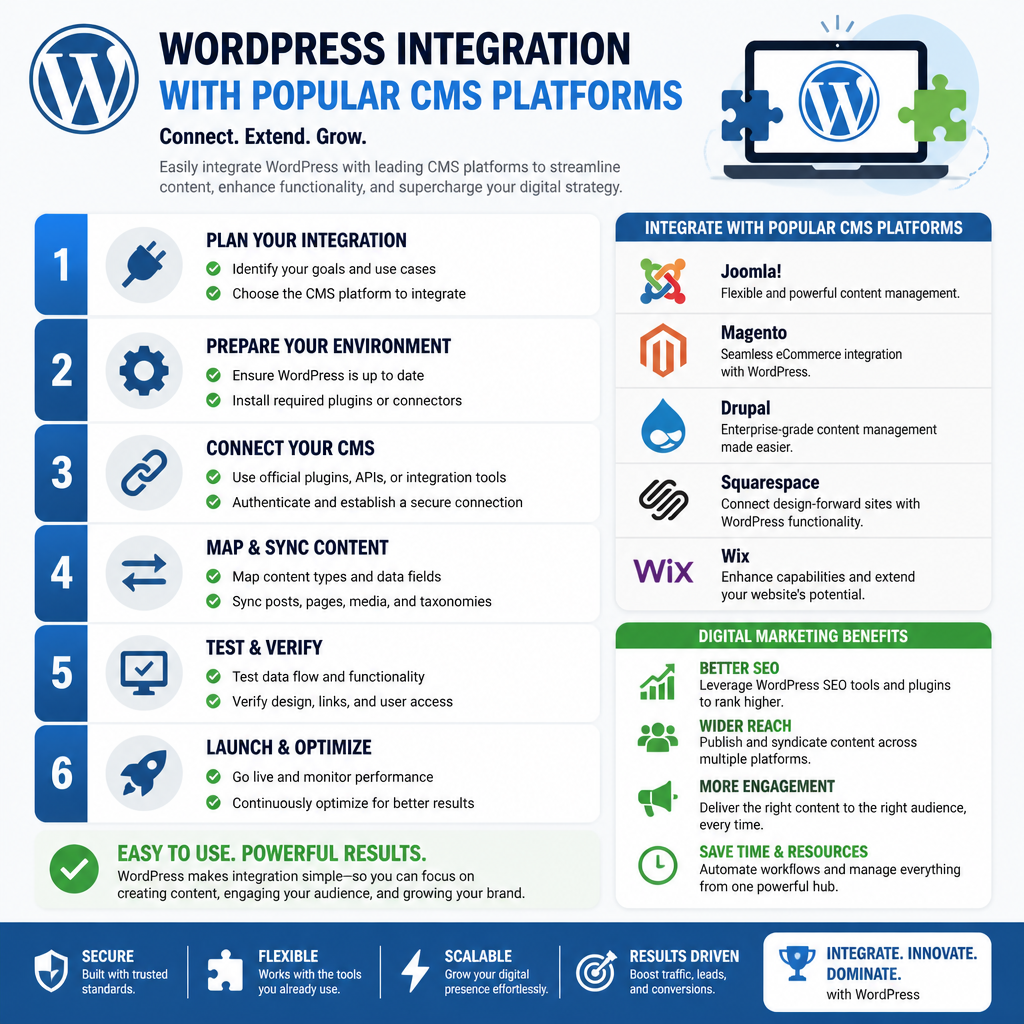
Step-by-Step Guide to WordPress Integration with Popular CMS
Integrating WordPress with other CMS platforms can streamline your workflow and expand your site’s capabilities. That said, “integration” can mean anything from embedding WordPress content inside another frontend to running WordPress headless behind a different app.
Before you touch plugins, decide who owns what: where content gets edited, where pages render, and which system is the “source of truth.” That one decision prevents half the weird edge cases later.

1. Understanding WordPress as a CMS
Before diving into integration, it’s essential to acknowledge that WordPress itself is a Content Management System (CMS). It allows users to create and manage digital content efficiently. With a flexible architecture, WordPress powers 41.9% of all websites globally as of June 2026, showcasing its dominance in the CMS market.
What that translates to in real projects: WordPress already has opinionated tooling for content—roles, revisions, editorial UI, media management, and a plugin ecosystem that covers a lot of “oh no, we need this next week” features.
But WordPress also carries assumptions. Themes want to render pages. Plugins may assume they control URLs. So, if you’re integrating with another CMS or framework, you’re often negotiating those assumptions—sometimes gently (via embeds), sometimes with a crowbar (headless + custom routing).
2. Selecting the Right CMS for Integration
Many CMS platforms integrate with WordPress, including:
– Joomla
– Drupal
– Next.js
– Wix
Each has unique advantages, so choose a CMS that aligns with your project goals and technical requirements. For instance, if performance and scalability are priorities, Next.js may offer a compelling solution, especially when leveraging static site generation capabilities. Additionally, tools like Nextly can simplify schema design, enhancing your integration process.
Here’s the decision filter I use when a client says “we want WordPress + X.”
First, ask what you’re trying to fix. If the pain is publishing workflow, WordPress should probably stay in the driver’s seat. If the pain is frontend performance or app-like UX, then a framework (like Next.js) makes sense, while WordPress becomes your content backend.
Second, be honest about who maintains it. Drupal and Joomla integrations can be solid, but they’re less forgiving if the team doesn’t already know them. Meanwhile, Wix can work for small marketing sites, but it gets awkward when you need deeper programmatic control (custom auth, complex redirects, content sync jobs).
3. Preparing for Integration
Before starting the integration process, ensure you have:
– A clear understanding of your current WordPress setup.
– Access to the admin panel of both WordPress and the target CMS.
– Backups of your existing website to prevent data loss.
Checklist for Preparation:
– [ ] Review current plugins and themes.
– [ ] Ensure compatibility between WordPress and the target CMS.
– [ ] Document existing content structures.
Also, map your content types on paper before you map them in code.
I’ve seen integrations derail because “Posts” in WordPress were used for everything—blog, help docs, landing pages, even product specs—because it was convenient at the time. So, when another CMS expects clean separation (Docs vs Blog vs Marketing), your sync becomes a pile of conditional logic.
One practical move: export a sample set of content (10–20 items) and inspect it. Look for shortcodes, legacy page builder blocks, and weird HTML pasted from Google Docs. Those are the exact things that look fine in WP, then break when rendered elsewhere.
4. Using Plugins for Integration
One of the easiest ways to integrate WordPress with another CMS is through plugins. For example, the Siteimprove WordPress plugin helps site managers optimize content directly within WordPress. This plugin acts as a bridge, offering insights into accessibility and SEO issues in real-time and ensuring content quality before publication. It’s essential to install this plugin to benefit from its pre-publish checks and site management capabilities (Siteimprove Help Center).
Plugins are great when the integration is “adjacent” to publishing—SEO checks, accessibility checks, analytics, editorial workflow, and similar.
But I’m biased against relying on plugins as your only integration mechanism when you’re syncing content between systems. Why? Because plugin updates happen on someone else’s schedule, and a minor update can change output formatting or API behavior. If you do go plugin-heavy, lock versions, test updates in staging, and keep a rollback plan that’s actually been rehearsed.
5. Steps for Integration
Here’s how to proceed with a typical integration:
– Step 1: Install the necessary plugins on your WordPress site. Search for the desired integration plugin in the WordPress Plugin Directory and click “Install.”
– Step 2: Activate the plugin and configure its settings. This might include linking your WordPress site with your chosen CMS.
– Step 3: Start syncing content. Depending on the CMS, this may involve using APIs or export/import features to transfer data. Make sure your content is well-structured and formatted appropriately.
– Step 4: Test the setup thoroughly. After integration, check for broken links, accessibility issues, and any discrepancies in how content appears across platforms.
A few “real world” notes on Step 3, because that’s where most teams bleed time.
If you’re integrating WordPress with a modern frontend (like Next.js), you’ll typically pull content via the WordPress REST API or WPGraphQL (if you choose to add it). Then you’ll need to decide how content updates flow. Polling works, but it’s slow and wasteful. Webhooks are better, but they take more setup.
Content sync also forces you to pick a canonical URL strategy. For example, will /blog/my-post live on the other CMS while WordPress sits on a subdomain like cms.example.com? If so, you’ll want redirects, consistent canonicals, and a plan for media URLs (because hotlinking WP uploads from a different domain can get messy with caching and mixed content).
Testing shouldn’t be a single pass, either. I usually test:
– Draft vs published visibility
– Image-heavy posts (and lazy-loading)
– Internal links inside content
– Search and pagination
– 404 behavior (because integrations love creating “ghost URLs”)
6. Best Practices for WordPress Integration
To ensure a successful WordPress integration with another CMS, consider the following best practices:
– Maintain Documentation: Keep a record of all changes made during the integration.
– Regular Updates: Ensure your plugins and WordPress are always up-to-date to avoid security vulnerabilities.
– Monitor Performance: Use analytics tools to track how the integration affects site performance and user engagement.
I’ll add a few practices I wish more teams treated as non-negotiable.
Keep your integration logic thin and readable. If you’re transforming content (blocks to HTML, shortcodes to components, custom fields to JSON), centralize that mapping in one place. Otherwise, you end up with “just this one exception” scattered across templates until nobody can safely change anything.
Set up a staging environment that mirrors production—including caching layers. An integration that looks fine uncached can fall apart once you add CDN caching, ISR, or aggressive page caching. That’s not theoretical; I’ve watched a “working” build ship and then serve old content for 24 hours because cache purge wasn’t wired to publishing.
7. Common Challenges and Solutions
Challenge: Plugin Compatibility Issues
Many users face compatibility problems between various plugins. Regularly check for updates from plugin authors and utilize the support forums for troubleshooting.
A pattern I’ve seen: a page builder plugin outputs markup that’s fine inside WordPress, but your other CMS frontend can’t interpret it cleanly. So, you get broken layouts or missing components.
When that happens, you either standardize authoring (block editor only, fewer fancy widgets), or you write a transformation layer that converts the content into something your frontend expects. That second route works, but it’s ongoing work—budget for it.
Solution: Testing Environment
Before pushing changes to the live site, create a staging site to test the integration without affecting the user experience.
Treat staging like a gate, not a suggestion. Test plugin updates there first, then promote.
If you can, add a simple regression checklist that anyone on the team can run in 10 minutes: publish a post, edit a page, upload an image, confirm it renders in the other system, check redirects, and verify forms or CTAs still fire. It’s boring, but it saves you from the “why did the homepage break on Tuesday?” mystery.
8. Conclusion
Integrating WordPress with other CMS platforms can open new opportunities for web developers, bloggers, and marketers alike. By following this guide and utilizing tools like the Siteimprove plugin, you can enhance your site’s functionality and maintain high content quality.
Pick a clear source of truth, keep the integration simple, and test updates like you mean it—then ship the first version and iterate from real usage, not guesses.
Leave a Reply