Blog

  • Shop Stylish Sandals Online This Summer 2026

    Shop Stylish Sandals Online This Summer 2026

    Discover the best places to buy stylish sandals online this summer 2026. Explore trendy options, discounts, and quality picks for every occasion!

    Featured image for Where to Buy Stylish Sandals Online This Summer 2026

    Where to Buy Stylish Sandals Online This Summer 2026

    You can buy sandals almost anywhere online, but not every store is good for sandals specifically. Returns, reviews, and how honest the photos are matter more than people think—because sandals show everything (fit, toe length, strap placement, the whole deal).

    Start with Zappos and Famous Footwear

    If you want the least stressful experience, I’d start with Zappos or Famous Footwear. They’re not the “coolest” answer, but they’re consistent, and consistency is what saves you when you’re ordering footwear blind.

    Here’s how I use them when I’m shopping quickly:

    1. Filter hard: size, width, color, and arch support (if available). Otherwise, you’ll scroll for an hour and still end up confused.
    2. Read the 3-star reviews first. Five-star reviews are often “so cute!!!” and one-star reviews are usually a sizing rant. Three-star reviews tend to mention real issues like strap bite or slippery soles.
    3. Check the outsole photos. If the tread looks shallow and glossy, it’s a pool-deck slip waiting to happen.

    A common mistake: people sort by “new arrivals” and buy the first pretty pair, then act surprised when the footbed is basically cardboard. Don’t do that.

    Use 6pm when you want clearance

    For budget shopping, 6pm is the move because it regularly has clearance pricing on recognizable brands. That said, clearance shopping only works if you’re picky.

    My rule: if I can’t confirm material, return policy, and enough reviews to judge sizing, I treat it like a gamble—and I only gamble when the price is low enough to justify it.

    One more tip that saves money: if you’re buying for a trip, don’t wait until the week before. Clearance sizes disappear fast, and then you’ll either overpay elsewhere or settle for a pair you don’t even like.

    Online Shoes: What to Consider

    Comfort is the priority, but comfort isn’t vague. It’s a checklist.

    Fit and footbed basics

    If you only do three things, do these:

    • Measure your foot at night, not in the morning. Feet swell, and sandals that “almost fit” at 9pm will punish you at noon.
    • Look for a cushioned footbed (not just “padded”). Real cushioning has some rebound; cheap foam packs down in a few wears.
    • Prefer adjustable straps (buckles, velcro, elastic). Adjustable beats “one perfect fit” every time.

    I’ve returned sandals that were “perfect” standing still, but the strap hit the exact wrong spot once I walked two blocks. Walking friction is the test that matters.

    Materials that survive real summer

    Breathability matters, but so does how the material behaves in heat.

    • Leather often breaks in nicely, but it can stretch. Great if you’re between sizes; annoying if it loosens too much.
    • Rubber/EVA handles water and sweat, although it can look casual fast.
    • Fabric uppers can be comfy, but they’re the first to hold odor if the lining is cheap.

    Also, watch out for “vegan leather” that feels like plastic. It can get slick, and then your foot slides around—especially if you’re walking on hot pavement.

    Women Buy Online Shoes: Trends for 2026

    In 2026, the vibe is still clean and wearable. People want sandals that look intentional but don’t require suffering.

    The styles people are actually wearing

    Here’s what keeps showing up (and why it sells):

    • Chic slides: easy, minimal, and they work with linen, denim, or a summer dress.
    • Strappy sandals: a little dressier, but you need good strap placement or you’ll get hot spots.
    • Gladiator-inspired pairs: still around, just toned down—fewer straps, simpler lines.

    If you want a quick scan of what’s trending across price points, Fashion Jackson is a useful roundup. I don’t agree with every pick, but it’s a solid way to spot what’s “in” without doomscrolling five retailers.

    A mistake I see a lot: buying a trending silhouette in the wrong context. A flat, slick slide might look great online, but if you’ll be walking a city all day, you’ll want grip and support—even if the photos are less glamorous.

    Best Place to Buy Shoes Online

    When you care about reliability—fast shipping, straightforward returns, and a deep catalog—Amazon and Nordstrom are usually the safest bets.

    Amazon: wide selection, but verify everything

    Amazon works best if you treat it like a search engine, not a boutique.

    What I do:

    1. Check the seller (brand storefronts are usually safer).
    2. Zoom into the images for stitching and sole texture.
    3. Compare review photos to the listing photos.

    Because yes, you can get a deal, but you can also end up with a “looks the same, feels worse” version. That mismatch is more common in footwear than most categories.

    Nordstrom: fewer headaches

    Nordstrom shines when you want fewer surprises. The photos are typically accurate, the product descriptions are decent, and the return experience is usually painless. If you’re buying sandals for an event—wedding, vacation, work trip—this is where I’d pay a little more to reduce risk.

    Also, seasonal sales pop up often, so it’s worth checking back instead of panic-buying at full price.

    Biggest Online Shoe Store Discounts

    If your goal is discount shoes online, Shoebacca is one of the better clearance-first retailers to watch. Their clearance section can go up to 50% off, which is enough to make a “nice-to-have” pair suddenly worth it.

    One practical tactic: build a short list of two or three acceptable options, then buy the best discount when it appears. If you chase one exact model/color/size, you’ll either miss out or pay more than you planned.

    And don’t ignore the product details just because it’s cheap. A discounted sandal with a hard edge on the strap is still a hard edge—your feet don’t care that it was on sale.

    Outstanding Deals on Clearance Shoes Online

    If you’re hunting for clearance shoes online, it helps to follow sources that track summer sales across brands.

    Shoegazing highlights summer deals with discounts up to 40%, and that’s a nice middle ground: not bargain-basement random, but still a real price drop.

    Here’s the step-by-step approach I use for clearance shopping so I don’t end up with a closet full of “almost”:

    1. Decide the job: everyday errands, travel walking, beach/pool, or dressy.
    2. Pick the non-negotiable: arch support, wide width, adjustable straps, or grippy sole.
    3. Only then shop the discount pages.
    4. Order early enough to do a return cycle. Clearance finds are great—until you need a different size and it’s gone.

    My Experience With This

    I’m Mobeen Abdullah, Founder & CEO of Revnix, and even though my day job sits in tech, I’m deep in the “online buying behavior” world—what people click, what they return, and why they abandon carts. Footwear returns are brutal compared to most categories, so I pay attention to what makes sandal shopping go smoothly.

    A real example: last summer I ordered two pairs of similar-looking slides from two different retailers. Same general silhouette, same “cushioned” wording. Pair #1 felt fine on carpet, but outside it turned into a slip-and-shuffle situation—slick outsole, sweaty footbed, instant regret. Pair #2 had a slightly textured footbed and better tread; I ended up wearing it for a week straight on a trip.

    The difference wasn’t price. It was the details I almost ignored.

    So now I shop sandals like this:

    • I buy two sizes when I’m unsure, but only from stores with easy returns (this is where Zappos, Nordstrom, and Amazon’s better listings win).
    • I do a “10-minute wear test” indoors: walk, pivot, go up/down stairs. If a strap rubs even a little, it won’t magically improve on day three.
    • I check what people complain about repeatedly. One reviewer saying “strap hurt” is noise; fifteen reviewers saying it is a signal.

    The most common mistake I see friends make is buying sandals for a fantasy version of their summer—then realizing their real summer involves sidewalks, errands, and standing in lines. I’ve made that mistake too, which is why I’m picky now.


    Conclusion

    Shopping online for stylish sandals in summer 2026 is fun when you run it like a process, not a vibe. Start with reliable stores (Zappos, Famous Footwear, Nordstrom), then use clearance spots like 6pm and Shoebacca when you want to save.

    If you want one practical next step, do this tonight: measure your foot, write down your size and width, then bookmark two “safe return” retailers. That tiny prep step saves you from the worst online sandal outcome—waiting a week for a box, then immediately repacking it.

    One more persona-style story, because it’s common: a friend of mine bought a strappy pair for a weekend trip, didn’t test them indoors, and wore them straight to dinner. Ten minutes in, the top strap started biting. By dessert, she was walking like she’d stepped on a Lego. She ended up buying an emergency pair at a tourist shop the next day—full price, mediocre comfort.

    So yes, shop the trends, but protect your feet. Use reviews, look for adjustability, and give yourself time for one exchange cycle. Stylish sandals are supposed to make summer easier, not louder.

    FAQs

    • What are the best places to buy stylish sandals online?
      Check out top-rated sites like Zappos, 6pm, and Famous Footwear for great options.

    • Are there any discounts available for summer sandals?
      Yes! Look for seasonal promotions offering up to 30% off select styles.

    • What if the sandals don’t fit properly?
      We offer a free return policy within 30 days for your convenience.

    • Can I find sandals for wide feet?
      Absolutely, many retailers offer wide-width options for maximum comfort.

    • How can I ensure the quality of my sandals?
      Shop from reputable brands and stores that provide customer reviews and ratings.

    • Is online shopping secure?
      Yes, all transactions are protected through secure payment processing.

    The Mom Edit
    Shoebacca

  • Shop Stylish Sandals Online This Summer 2026

    Shop Stylish Sandals Online This Summer 2026

    Discover the best places to buy stylish sandals online this summer 2026. Explore trendy options, discounts, and quality picks for every occasion!

    Featured image for Where to Buy Stylish Sandals Online This Summer 2026

    Where to Buy Stylish Sandals Online This Summer 2026

    You can buy sandals almost anywhere online, but not every store is good for sandals specifically. Returns, reviews, and how honest the photos are matter more than people think—because sandals show everything (fit, toe length, strap placement, the whole deal).

    Start with Zappos and Famous Footwear

    If you want the least stressful experience, I’d start with Zappos or Famous Footwear. They’re not the “coolest” answer, but they’re consistent, and consistency is what saves you when you’re ordering footwear blind.

    Here’s how I use them when I’m shopping quickly:

    1. Filter hard: size, width, color, and arch support (if available). Otherwise, you’ll scroll for an hour and still end up confused.
    2. Read the 3-star reviews first. Five-star reviews are often “so cute!!!” and one-star reviews are usually a sizing rant. Three-star reviews tend to mention real issues like strap bite or slippery soles.
    3. Check the outsole photos. If the tread looks shallow and glossy, it’s a pool-deck slip waiting to happen.

    A common mistake: people sort by “new arrivals” and buy the first pretty pair, then act surprised when the footbed is basically cardboard. Don’t do that.

    Use 6pm when you want clearance

    For budget shopping, 6pm is the move because it regularly has clearance pricing on recognizable brands. That said, clearance shopping only works if you’re picky.

    My rule: if I can’t confirm material, return policy, and enough reviews to judge sizing, I treat it like a gamble—and I only gamble when the price is low enough to justify it.

    One more tip that saves money: if you’re buying for a trip, don’t wait until the week before. Clearance sizes disappear fast, and then you’ll either overpay elsewhere or settle for a pair you don’t even like.

    Online Shoes: What to Consider

    Comfort is the priority, but comfort isn’t vague. It’s a checklist.

    Fit and footbed basics

    If you only do three things, do these:

    • Measure your foot at night, not in the morning. Feet swell, and sandals that “almost fit” at 9pm will punish you at noon.
    • Look for a cushioned footbed (not just “padded”). Real cushioning has some rebound; cheap foam packs down in a few wears.
    • Prefer adjustable straps (buckles, velcro, elastic). Adjustable beats “one perfect fit” every time.

    I’ve returned sandals that were “perfect” standing still, but the strap hit the exact wrong spot once I walked two blocks. Walking friction is the test that matters.

    Materials that survive real summer

    Breathability matters, but so does how the material behaves in heat.

    • Leather often breaks in nicely, but it can stretch. Great if you’re between sizes; annoying if it loosens too much.
    • Rubber/EVA handles water and sweat, although it can look casual fast.
    • Fabric uppers can be comfy, but they’re the first to hold odor if the lining is cheap.

    Also, watch out for “vegan leather” that feels like plastic. It can get slick, and then your foot slides around—especially if you’re walking on hot pavement.

    Women Buy Online Shoes: Trends for 2026

    In 2026, the vibe is still clean and wearable. People want sandals that look intentional but don’t require suffering.

    The styles people are actually wearing

    Here’s what keeps showing up (and why it sells):

    • Chic slides: easy, minimal, and they work with linen, denim, or a summer dress.
    • Strappy sandals: a little dressier, but you need good strap placement or you’ll get hot spots.
    • Gladiator-inspired pairs: still around, just toned down—fewer straps, simpler lines.

    If you want a quick scan of what’s trending across price points, Fashion Jackson is a useful roundup. I don’t agree with every pick, but it’s a solid way to spot what’s “in” without doomscrolling five retailers.

    A mistake I see a lot: buying a trending silhouette in the wrong context. A flat, slick slide might look great online, but if you’ll be walking a city all day, you’ll want grip and support—even if the photos are less glamorous.

    Best Place to Buy Shoes Online

    When you care about reliability—fast shipping, straightforward returns, and a deep catalog—Amazon and Nordstrom are usually the safest bets.

    Amazon: wide selection, but verify everything

    Amazon works best if you treat it like a search engine, not a boutique.

    What I do:

    1. Check the seller (brand storefronts are usually safer).
    2. Zoom into the images for stitching and sole texture.
    3. Compare review photos to the listing photos.

    Because yes, you can get a deal, but you can also end up with a “looks the same, feels worse” version. That mismatch is more common in footwear than most categories.

    Nordstrom: fewer headaches

    Nordstrom shines when you want fewer surprises. The photos are typically accurate, the product descriptions are decent, and the return experience is usually painless. If you’re buying sandals for an event—wedding, vacation, work trip—this is where I’d pay a little more to reduce risk.

    Also, seasonal sales pop up often, so it’s worth checking back instead of panic-buying at full price.

    Biggest Online Shoe Store Discounts

    If your goal is discount shoes online, Shoebacca is one of the better clearance-first retailers to watch. Their clearance section can go up to 50% off, which is enough to make a “nice-to-have” pair suddenly worth it.

    One practical tactic: build a short list of two or three acceptable options, then buy the best discount when it appears. If you chase one exact model/color/size, you’ll either miss out or pay more than you planned.

    And don’t ignore the product details just because it’s cheap. A discounted sandal with a hard edge on the strap is still a hard edge—your feet don’t care that it was on sale.

    Outstanding Deals on Clearance Shoes Online

    If you’re hunting for clearance shoes online, it helps to follow sources that track summer sales across brands.

    Shoegazing highlights summer deals with discounts up to 40%, and that’s a nice middle ground: not bargain-basement random, but still a real price drop.

    Here’s the step-by-step approach I use for clearance shopping so I don’t end up with a closet full of “almost”:

    1. Decide the job: everyday errands, travel walking, beach/pool, or dressy.
    2. Pick the non-negotiable: arch support, wide width, adjustable straps, or grippy sole.
    3. Only then shop the discount pages.
    4. Order early enough to do a return cycle. Clearance finds are great—until you need a different size and it’s gone.

    My Experience With This

    I’m Mobeen Abdullah, Founder & CEO of Revnix, and even though my day job sits in tech, I’m deep in the “online buying behavior” world—what people click, what they return, and why they abandon carts. Footwear returns are brutal compared to most categories, so I pay attention to what makes sandal shopping go smoothly.

    A real example: last summer I ordered two pairs of similar-looking slides from two different retailers. Same general silhouette, same “cushioned” wording. Pair #1 felt fine on carpet, but outside it turned into a slip-and-shuffle situation—slick outsole, sweaty footbed, instant regret. Pair #2 had a slightly textured footbed and better tread; I ended up wearing it for a week straight on a trip.

    The difference wasn’t price. It was the details I almost ignored.

    So now I shop sandals like this:

    • I buy two sizes when I’m unsure, but only from stores with easy returns (this is where Zappos, Nordstrom, and Amazon’s better listings win).
    • I do a “10-minute wear test” indoors: walk, pivot, go up/down stairs. If a strap rubs even a little, it won’t magically improve on day three.
    • I check what people complain about repeatedly. One reviewer saying “strap hurt” is noise; fifteen reviewers saying it is a signal.

    The most common mistake I see friends make is buying sandals for a fantasy version of their summer—then realizing their real summer involves sidewalks, errands, and standing in lines. I’ve made that mistake too, which is why I’m picky now.


    Conclusion

    Shopping online for stylish sandals in summer 2026 is fun when you run it like a process, not a vibe. Start with reliable stores (Zappos, Famous Footwear, Nordstrom), then use clearance spots like 6pm and Shoebacca when you want to save.

    If you want one practical next step, do this tonight: measure your foot, write down your size and width, then bookmark two “safe return” retailers. That tiny prep step saves you from the worst online sandal outcome—waiting a week for a box, then immediately repacking it.

    One more persona-style story, because it’s common: a friend of mine bought a strappy pair for a weekend trip, didn’t test them indoors, and wore them straight to dinner. Ten minutes in, the top strap started biting. By dessert, she was walking like she’d stepped on a Lego. She ended up buying an emergency pair at a tourist shop the next day—full price, mediocre comfort.

    So yes, shop the trends, but protect your feet. Use reviews, look for adjustability, and give yourself time for one exchange cycle. Stylish sandals are supposed to make summer easier, not louder.

    FAQs

    • What are the best places to buy stylish sandals online?
      Check out top-rated sites like Zappos, 6pm, and Famous Footwear for great options.

    • Are there any discounts available for summer sandals?
      Yes! Look for seasonal promotions offering up to 30% off select styles.

    • What if the sandals don’t fit properly?
      We offer a free return policy within 30 days for your convenience.

    • Can I find sandals for wide feet?
      Absolutely, many retailers offer wide-width options for maximum comfort.

    • How can I ensure the quality of my sandals?
      Shop from reputable brands and stores that provide customer reviews and ratings.

    • Is online shopping secure?
      Yes, all transactions are protected through secure payment processing.

    The Mom Edit
    Shoebacca

  • What is Machine Learning in 2026?

    What is Machine Learning in 2026?

    Discover what machine learning is in 2026, including its types, applications, and core concepts.

    Featured image for What is Machine Learning in 2026? A Simple Explanation

    Exploring Types and Applications of Machine Learning

    Machine learning is a subset of artificial intelligence (AI) that learns patterns from data and then uses those patterns to predict, rank, classify, or generate outputs. So instead of writing a pile of if/else rules, you feed it examples, pick a learning approach, and measure how well it performs.

    Machine learning in 2026 explained with data, training, evaluation, and deployment steps

    Applications of Machine Learning

    Machine learning is not just a buzzword—it’s a set of tools that companies use to reduce manual decisions, spot patterns humans miss, and move faster with fewer mistakes. That said, the “best” application is usually the boring one that ties directly to cost, risk, or revenue.

    1. Healthcare: ML models help with early diagnosis, patient risk scoring, and operational planning. A common use is predictive models that flag patients who might deteriorate, so clinicians can intervene earlier. That doesn’t mean a model replaces a doctor—usually it’s a triage and prioritization tool that helps the team spend attention where it matters. According to a Helpware article, machine learning is used in predictive healthcare models to improve patient outcomes dramatically.

    2. Finance: Fraud detection is the classic example, but it’s only half the story. Banks also use ML for credit risk signals, anti-money-laundering alert ranking, and even customer support routing. The trick is tuning for the right tradeoff: if you catch 99% of fraud but block 5% of legit transactions, you’ll lose customers fast.

    3. E-commerce: Recommendations, search ranking, “customers also bought,” dynamic pricing, inventory forecasting—this is where ML prints money when it’s done right. But it can also backfire. I’ve seen recommendation models overfit to short-term clicks and accidentally push low-margin products, which looked good in dashboards and terrible in profit.

    4. Transportation: Autonomous driving grabs headlines, but plenty of ML value is quieter—route optimization, predictive maintenance, demand forecasting, and anomaly detection on sensor data. A fleet that avoids downtime by predicting failures a week early will beat a fleet chasing full autonomy demos.

    5. Marketing: ML can segment audiences, score leads, and optimize ad spend, but the real gain is usually measurement. If your attribution data is noisy, the model will confidently optimize the wrong thing. So you end up paying more for “better performance” that isn’t real.

    A real-world example (recommendations)

    Here’s a simple, realistic scenario I’ve seen: an online store wants to increase average order value.

    • Naive approach: “Recommend the most popular items.” Easy, but it mostly shows what people already know.
    • ML approach: Train a model on sessions (views, add-to-cart, purchases) to predict “next product likely to be purchased.”
    • Messy part: returns and cancellations. If you train on raw purchases only, you may recommend items that sell a lot but get returned constantly.

    When teams add return-rate as a negative signal, the recommendations usually get less flashy, but margins improve. That’s the kind of tradeoff that matters in production.

    What’s the Difference Between AI and ML?

    AI is the umbrella term: any system that does something we’d call “smart” (reasoning, planning, perception, language). Machine learning is one way to build AI, and it’s the dominant way now because it adapts to data.

    I explain it like this:

    • AI is the goal: “make the machine behave intelligently.”
    • ML is one method: “learn the behavior from data.”

    So, yes—most modern AI products you touch daily are powered by ML. But no—rule-based systems, search algorithms, and hand-built decision engines can still be “AI” even if they don’t learn.

    Understanding Machine Learning: A Simple Explanation

    If you remember one thing, make it this: machine learning is a workflow, not magic. You decide what you want to predict, gather the right data, train a model, test it honestly, then deploy it with guardrails.

    What is Machine Learning How Does it Work?

    Most ML projects follow a loop. The loop is the work.

    Step-by-step: the basic ML pipeline

    1. Define the task: Are you predicting a number (demand forecasting), choosing a category (spam vs not spam), or ranking options (which product to show first)? This sounds obvious, but teams mess it up by starting with “we need AI” instead of “we need fewer chargebacks” or “we need faster triage.”

    2. Collect and label data: In supervised learning, you need examples with correct answers (labels). In fraud, labels might be “confirmed fraud” vs “legit.” In support, labels might be “billing issue” vs “technical issue.” Labeling is slow and expensive, so people cut corners—and then wonder why the model fails.

    3. Split the dataset: Train set, validation set, and test set. If you don’t do this properly, you’ll fool yourself. I’ve watched teams celebrate a 98% accuracy score… until we realized the same customer IDs appeared in both train and test data.

    4. Choose a baseline first: Before neural networks, try something dumb and measurable. Logistic regression, a small decision tree, even “predict last week’s value.” Baselines keep you honest, and they’re often surprisingly competitive.

    5. Train the model: The algorithm adjusts internal parameters to reduce error. In deep learning, that’s weight updates via backpropagation. In trees, that’s splitting rules. Either way, you’re optimizing for a metric.

    6. Evaluate with the right metric: Accuracy is a trap for imbalanced problems. Fraud detection often needs precision/recall, AUC, or cost-based metrics. A model that flags every transaction as fraud can be “accurate” if fraud is rare—while still being useless.

    7. Deploy with monitoring: This is where ML becomes real software. You track latency, error rates, and also model drift (when the world changes and the model’s assumptions stop matching reality).

    8. Retrain and iterate: Data changes, users change, products change. In 2026, mature teams schedule retraining (weekly/monthly), run canary releases, and keep rollback plans.

    Common mistakes I see (and how to avoid them)

    • Training on data you won’t have later: If you use “chargeback confirmed” as a feature at prediction time, congrats—you built a time machine. Keep features limited to what exists at the moment you need a decision.
    • Leaking the label: Anything that directly encodes the target (or future info) will inflate performance.
    • Ignoring feedback loops: Your model changes user behavior, which changes the data, which changes the model. Recommendations are notorious for this.
    • Shipping without a fallback: If the model fails, what happens? A safe default beats a broken “smart” feature.

    Machine Learning Definition and Examples

    In simple terms, machine learning lets a computer learn from past examples to make a decision on new data. It’s pattern learning with measurement.

    Example 1: spam detection (the classic)

    Email services label messages as spam or not spam based on:

    • word patterns (but also metadata like sender reputation)
    • user actions (marking spam, deleting, replying)
    • message structure (links, domains, attachment types)

    A practical detail: spam models don’t just classify; they often score. Then the product team sets thresholds. Raise the threshold and you catch more spam but risk false positives (missing important emails). Lower it and inbox quality drops.

    Example 2: streaming recommendations (Netflix-style)

    Recommendation systems learn from:

    • what you watched
    • what you stopped watching after 3 minutes
    • what you searched for
    • what people similar to you watched next

    The “gotcha” is that you can optimize for the wrong target. If you optimize only for clicks, you can end up with a feed that feels addictive but not satisfying. Good teams include longer-term signals (completion rate, return visits, thumbs-up/down) so the model aligns with user happiness, not just short-term engagement.

    My Experience With This

    I’ve watched ML projects succeed for one reason: the team treated it like a product, not a science fair.

    One of the most useful patterns I’ve used (and re-used) is prediction + workflow. The model doesn’t “solve fraud” or “solve churn.” It produces a score, then the business wraps a workflow around it—review queues, thresholds, approvals, and auditing.

    A mini story: the dashboard that lied

    A while back, I helped a team rolling out an ML feature to rank support tickets by urgency. The model looked great in offline tests. Then we deployed it and support agents complained within a week.

    What happened?

    • The training labels came from historical “priority” fields.
    • Those fields were inconsistent—different managers used different definitions.
    • The model learned the inconsistencies perfectly.

    So, yes, the metrics were “good,” because we trained the model to match messy labels. After we fixed the labeling process (clear rubric + quick sampling audits), performance actually improved in the real world.

    What I do now by default

    • I insist on a baseline (even a simple rules engine) because it forces clarity.
    • I review the data schema early (null rates, outliers, timestamp sanity). It saves weeks.
    • I ship with monitoring: latency, drift, and a human override. If your model can’t be overridden, it will eventually cause an incident.

    If you’re new to this, that might sound cautious. It is. I’m biased toward boring and reliable, because production ML punishes ego.

    Frequently Asked Questions

    • Q: What is machine learning in simple terms?
      A: Machine learning is when computers learn patterns from data so they can make a decision on new data—without you writing every rule.

    Think of it like training a new teammate: you show them lots of examples (good and bad), you correct them, and over time they get better at making the call. The difference is that a model “learns” as math, not as understanding.

    • Q: What’s the difference between AI and ML?
      A: AI is the broad goal (machines doing intelligent tasks). ML is a common way to reach that goal (learning behavior from data). So ML sits inside AI.

    A quick litmus test: if the system improves because it retrains on new data, that’s usually ML. If it improves because a developer rewrote rules, it may still be AI, but it’s not learning.

    • Q: Is ChatGPT AI or machine learning?
      A: ChatGPT is AI built using machine learning—specifically large neural networks trained for natural language processing.

    Practically, that means it learned statistical patterns from huge amounts of text and then generates the next token (word-piece) based on context. It doesn’t “know” facts the way a human does, so you still need verification when stakes are high.

    • Q: Is machine learning difficult?
      A: The math can get deep, but you don’t need a PhD to build useful ML systems. The harder part for most teams is the operational side: data quality, evaluation, deployment, monitoring, and dealing with edge cases.

    If you want a sane learning path, start by building one small project end-to-end (data → model → evaluation → simple deployment). You’ll learn more from that than from reading 20 definitions.

    • Q: What should I learn first in 2026?
      A: Start with fundamentals that transfer: how to frame a problem, basic supervised learning, evaluation metrics, and data handling. Then move into one applied area (recommendations, time series, NLP, computer vision) based on what you actually want to build.

    If you’re building for a business, learn how to connect model outputs to a workflow. That’s where ML becomes valuable.

    explore more about machine learning

  • Top Writing Ideas for Your Blog

    Top Writing Ideas for Your Blog

    Explore the top writing ideas for blog posts today! Delve into creative prompts and exercises to ignite your writing journey.

    Featured image for Top 10 Writing Ideas for Blog Posts Today

    Daily Writing Ideas and Prompts

    Daily writing ideas are only useful if they get you to a first draft without drama. Prompts aren’t magic, but they’re a reliable shove—especially when you’re staring at a blank doc, refreshing your coffee, and pretending you’re “researching.”

    Engaging Writing Exercises

    Here are ten blog-ready writing ideas (with prompts) that don’t require you to reinvent yourself every morning.

    1. Reflective journaling (then mine it for posts).
      Set a 10-minute timer and write what’s currently taking up mental space—wins, annoyances, weird observations. Then, underline 1–2 sentences that have energy. Those underlined lines are usually your post hooks.

    2. Themed prompts with a constraint.
      Seasonal themes work, but constraints make them publishable. Try: “Spring cleaning, but for my inbox,” or “Winter routines that kept me sane.” The constraint forces specificity, so you don’t end up writing a vague motivational cloud.

    3. Flash fiction for clarity.
      Write a complete story in under 500 words about one moment: a mistake, a surprise, a decision. Even if you never publish it, you’ll practice clean beginnings and endings—which is half the battle in blog writing.

    4. Collaborative writing to break your patterns.
      Swap paragraphs with another writer for a week. You’ll notice your habits fast (over-explaining, hedging, dragging intros). Also, you’ll get “plot turns” you’d never come up with alone.

    5. The “I was wrong about…” post.
      Prompt: “I used to believe ___, but here’s what changed my mind.” This format is honest, useful, and naturally structured. People read it because it signals you learned something the hard way.

    6. The checklist post from a real task.
      Open your calendar. Pick something you actually did this week—pitch a client, apply for a job, outline a project, study for an exam. Prompt: “If I had to do this again tomorrow, what would I do first?” Turn that into a checklist.

    7. The tiny case study.
      Prompt: “I tried ___ for 7 days. Here’s what happened.” Use small numbers on purpose: 3, 5, 7, 14 days. You’re not running a clinical trial; you’re sharing a credible experiment.

    8. The ‘tools I use’ post (with tradeoffs).
      Don’t just list apps. Write what you use, why you picked it, and what you dislike about it. Readers trust you more when you admit friction.

    9. Answer one real question from your DMs/comments.
      Prompt: “Someone asked me ___. Here’s the answer I wish I’d heard earlier.” It stays grounded because you’re responding to an actual human, not an imaginary persona.

    10. Rewrite a hot take into a helpful guide.
      If you feel yourself wanting to rant, turn it into a “do this instead” post. Prompt: “If you’re doing ___, here’s the safer/easier alternative.” The edge stays, but it becomes actionable.

    Daily Writing Challenges

    Challenges work when they reduce decision fatigue. That’s the point: you show up, you write, you’re done. NaNoWriMo is the famous example, but you can also pick a smaller, more realistic container if you publish blog posts.

    The 2026 Get Started Right Writing Challenge is useful because it gives you a framework and guidelines, so you’re not negotiating with yourself every day.

    Here’s the step-by-step I use when I’m running a “daily writing” sprint for blog content (and yes, I’ve done this between product calls and deadline weeks):

    1. Pick one format for the whole week. Lists, mini case studies, or Q&A. Don’t mix formats yet, because switching formats costs energy.
    2. Set a tiny output target. I aim for 300–500 messy words, not a finished masterpiece.
    3. Write first, research second. Otherwise you’ll “research” for 90 minutes and ship nothing.
    4. End each session with a note to future-you. One line: “Next time, open with ___ and explain ___.” It makes tomorrow easier.
    5. Do a 10-minute edit, max. If it needs more, publish it later. Keep the streak alive.

    A real example: I once tried doing “perfect” daily posts for a week—full editing, polished intros, fancy transitions. By day three, I was behind, irritated, and ready to quit. Next week I changed the rule: ugly drafts only, publishable later. I finished seven drafts in seven days, and two became top-performing posts after light edits.

    Common mistakes I see (and have made):

    • Making the prompt too broad (“write about productivity”). Broad prompts create blank-page paralysis.
    • Editing while drafting. That’s just anxiety wearing an editor costume.
    • Chasing novelty every day. Repetition is fine; your audience didn’t read your old post as intensely as you did.

    Understanding Writing in Today’s Context

    Writing today is less about “being a writer” and more about being understood. You’re competing with feeds, notifications, meetings, and people skimming on a phone at a red light (not ideal, but it’s real).

    The Importance of Writing Today

    Writing is still one of the highest-leverage skills you can build, but not because it’s romantic. It’s because writing clarifies thinking, and clarity travels—into school, into your career, into your relationships, into your bank account.

    Morehouse College frames it well: effective writing plays a critical role in how we perceive ourselves and is essential for success in many fields. I’ve seen that firsthand hiring people and pitching partnerships—two candidates can have equal skills, but the one who writes clearly is easier to trust.

    That said, “good writing” online doesn’t always mean fancy writing. In fact, the internet punishes fluff. People want clean ideas, real examples, and a point of view.

    What is Writing Used For Today?

    Writing serves multiple functions now, and the mix matters because it changes what you should publish.

    • Professional communication. Emails, reports, proposals, docs, presentations. If your writing is sloppy, your work feels sloppy—even when it isn’t.
    • Creative expression. Stories, essays, poetry, personal blogging. This is where your voice gets stronger, because you’re practicing honesty and rhythm.
    • Social connection. Posts, comments, newsletters, community updates. Writing is how you show up when you’re not physically in the room.

    Here’s a practical way to map your blog posts to modern writing “jobs,” so you don’t drift:

    1. Decide the job of the post. Teach? Persuade? Entertain? Document?
    2. Pick one reader scenario. “They’re stuck,” “they’re choosing,” or “they’re comparing.”
    3. Choose the proof style. Example, checklist, mini case study, or argument.
    4. Write the first paragraph as a promise. What will they be able to do after reading?
    5. Add one human moment. A mistake, a surprise, a quick story. It’s the glue.

    A persona anecdote I see a lot: the “capable-but-invisible” professional. They’re great at their job, but their updates sound like they were written by a printer manual. When they start writing short internal posts—what they shipped, what broke, what they learned—suddenly leadership understands their value. Same work, different visibility.

    Starting Your Writing Journey

    Consistency beats inspiration, but consistency needs structure. So instead of telling yourself “I’ll write more,” build a tiny routine you can do on a bad day.

    Try this daily setup for two weeks:

    1. Same time, same place (if possible). Even 20 minutes helps. Habits like predictability.
    2. One document for everything. A messy “idea landfill” note where you dump titles, hooks, and questions.
    3. A three-part draft template. Hook → 3 bullets → takeaway. You can expand later.
    4. A weekly review. Every Sunday, pick the best two drafts and polish them.

    Community events can help, too, because you feel less alone doing it. National Writing Day is one of those moments to participate publicly. This year, it falls on October 20, 2026.

    If you want a simple way to use that day: publish something small on purpose. A short reflection. A list of lessons. A “what I’m learning” post. Then reply to anyone who comments. That interaction trains you to write for people, not for a grade.

    Common mistakes when starting out:

    • Waiting until you “find your voice.” Your voice shows up after reps, not before.
    • Trying to sound smart instead of being useful. Useful writing gets shared; “smart” writing gets skimmed.
    • Quitting because early posts feel cringe. They will. That’s the entry fee.

    Conclusion

    Writing isn’t just an essential skill—it’s a daily advantage if you treat it like one. And the quickest way to get that advantage is to stop relying on inspiration and start relying on prompts, formats, and a schedule you can actually keep.

    Here’s the simplest next step I’d recommend if you’re overwhelmed: pick one idea from the “Daily Writing Ideas and Prompts” section and commit to three drafts this week. Not ten. Not thirty. Three.

    Use this step-by-step to close the loop:

    1. Day 1: Draft ugly. 300–500 words, no editing, timer on.
    2. Day 2: Add structure. Insert subheadings, turn rambles into bullets, cut the slow parts.
    3. Day 3: Publish or share. Post it on your blog, LinkedIn, a newsletter, or even send it to one friend.

    A real example from my own workflow: when I’m juggling CEO work, I keep a “shipping log.” Every Friday I write five bullets—what shipped, what broke, what I learned, what I’d do differently, what I’m doing next. When I’m out of blog ideas, I grab one bullet and turn it into a post. That single habit has saved me from more dead weeks than any fancy content strategy.

    If you take anything from this guide, take this: you don’t need more talent—you need a better starting line. Pick a prompt, write the messy draft, and earn the clean version later.

  • Choose the Best WordPress Security Plugin 2026

    Choose the Best WordPress Security Plugin 2026

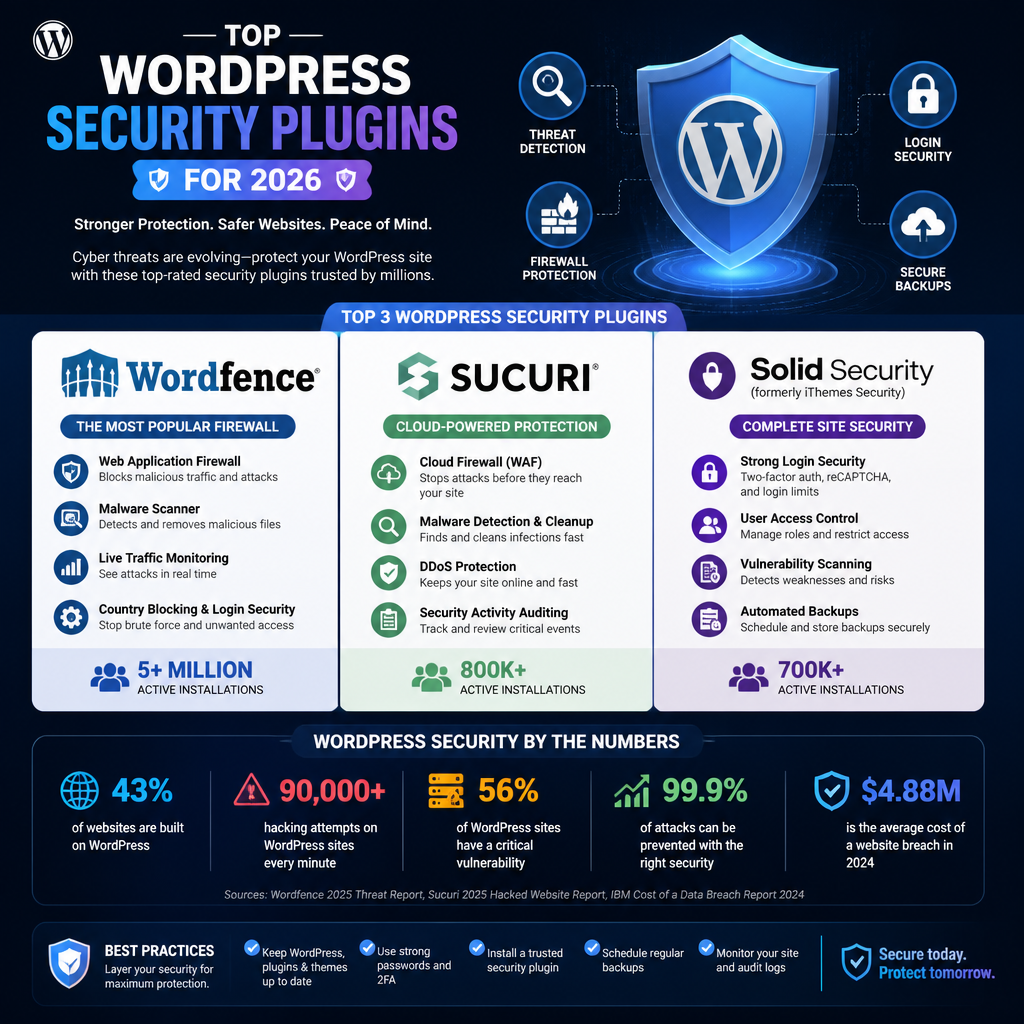
    Discover how to select the ideal WordPress security plugins for 2026. Learn about features, effectiveness, and popular options like Wordfence and Sucuri.

    Featured image for How to Choose the Best Security Plugin for Your WordPress Site

    How to Choose the Best Security Plugins for Your WordPress Site in 2026

    Picking a WordPress security plugin is basically choosing what you want automated, what you want alerted, and what you want blocked. The best choice depends on what you’re running (blog vs WooCommerce), who logs in (one admin vs a team), and how much downtime you can stomach.

    Key Features to Look For

    1. Malware Scanning: A good plugin should regularly scan your site for malware and other vulnerabilities. Look for options that offer real-time scanning and alerts.

    Here’s the part people miss: scanning isn’t just “find bad code.” It’s also integrity checks (core files changed), new admin users, and weird outbound requests. If the plugin can only run a manual scan, you’ll forget—and then you’ll remember after your SEO tanks.

    1. Firewall Protection: Firewalls are crucial as they monitor incoming traffic to detect and block malicious requests. Plugins like Wordfence use Web Application Firewalls (WAF) to secure your site effectively.

    A WAF matters more in 2026 because bots don’t “poke around” anymore—they hammer endpoints (login, XML-RPC, REST routes) at scale. Also, you want to see why something got blocked so you can fix the underlying issue instead of playing whack-a-mole.

    1. Brute Force Protection: As attackers continuously try to guess passwords, having features that limit login attempts can be a lifesaver.

    Rate limiting alone helps, but I’m biased toward plugins that combine it with 2FA, reCAPTCHA/Turnstile-style challenges, and alerts when a valid username gets hit hard. Otherwise, you’re just slowing the attacker down.

    1. Regular Updates: Choose plugins that receive frequent updates to combat new vulnerabilities and threats.

    Updates aren’t a “nice to have.” If a plugin ships security fixes slowly, it’s telling you how it will behave when you need it most. So, I always check the changelog cadence before I install anything.

    1. Customer Support: Reliable customer support can make all the difference when you encounter security issues. Check reviews and user experiences regarding support responsiveness.

    Support is underrated until you’re staring at a compromised site at 2:00 AM. If you’re running WooCommerce or taking leads for your business, “we’ll reply in 3–5 business days” isn’t support.

    Popular Security Plugins in 2026

    Several plugins stand out in the crowded market of WordPress security:

    • Wordfence Security Plugin: With over 4 million active installations, Wordfence is renowned for its powerful firewall and malware scanning capabilities. The plugin provides real-time updates and includes features like maximum security and login protection. It combines proactive blocking with effective monitoring, making it a favorite among security-conscious users. You can learn more about it here.

    Where Wordfence tends to shine, in my experience: visibility. You get detail on blocked IPs, targeted URLs, and login attempts. That said, you still have to tune it—default settings can be noisy on membership sites, and if you block too aggressively you’ll lock out real users.

    • Sucuri Security: Known for its robust malware scanning and removal services, Sucuri also includes features like activity auditing and SSL support, which are essential for maintaining a secure WordPress site. Check out their offerings here.

    I’ve seen Sucuri work well when the real need is “keep the site clean and get help if it goes sideways.” If you don’t have a technical team, that cleanup/remediation angle can matter more than fancy dashboards.

    • Solid Security: This plugin is gaining traction for its comprehensive protection features, including two-factor authentication and user login security. While it may not be as popular as Wordfence, its unique approach appeals to many users looking for powerful protection without excessive complexity.

    The tradeoff here is usually configuration depth versus simplicity. If you want lots of granular rules, you’ll spend time tuning. If you want reasonable defaults, Solid’s approach can feel calmer.

    Free WordPress Security Plugins

    If you’re on a budget, there are still effective options available. Many free plugins provide solid protection for smaller websites:

    • Wordfence Free: The free version of Wordfence includes basic features like a firewall and malware scanner, although with a 30-day delay for certain updates. This can be a good starting point for those who need basic protection.

    Practical approach: start free, learn what your site’s “normal” traffic looks like, then decide if the premium features fix a real problem you can name. If you can’t name the problem, don’t pay yet.

    • Sucuri Security Free: The free version offers site auditing, security activity monitoring, and a file integrity checker. It’s a great option for users who want essential security features without a cost.

    The big win with a free option is getting basic monitoring in place right now. Because, honestly, “no security plugin at all” is how a lot of small sites end up as spam cannons.

    Understanding WordPress Security

    In order to fully appreciate the importance of choosing the right security plugins, it’s essential to understand the broader aspects of WordPress security. With WordPress being a leader in website creation, it has become a prime target for hackers and automated bots. The majority of attacks exploit common vulnerabilities such as weak passwords, outdated plugins, and poorly coded themes.

    If you remember one thing: most WordPress compromises I’ve dealt with weren’t “Hollywood hacks.” They were automation plus negligence—old plugins, reused passwords, and admins who never check the users list.

    The Role of a Security Plugin Admin

    A security plugin admin oversees the installation, configuration, and ongoing management of security plugins. Their responsibilities include:
    – Monitoring security alerts and plugin updates
    – Configuring security settings to match the site’s needs
    – Responding swiftly to any detected threats or vulnerabilities

    Having a dedicated security admin can significantly enhance your defense against potential breaches. Overall, their role is crucial in maintaining a secure environment for your WordPress site.

    In practice, that “admin” might be you, your developer, or your hosting provider. Either way, someone needs to own a weekly routine: check alerts, apply updates, and confirm backups actually restore.

    The Importance of Regular Updates

    Maintaining plugin updates is one of the most critical methods in protecting your website. According to TechTide Solutions, vulnerabilities in WordPress significantly increased, with over 11,000 new vulnerabilities reported in 2025. Keeping your security plugins updated ensures they are equipped to handle the latest threats effectively.

    I’d add one reality check: updates can break stuff, so you need a process. Even a lightweight one.

    A simple update process I’ve used on small business sites (no giant DevOps setup required):

    1. Clone to staging (or at least take a full backup). If you skip this, you’ll eventually learn the hard way.
    2. Update security plugin first, then WordPress core, then other plugins. Order matters because security plugins often hook deep into login, REST, and file checks.
    3. Smoke test critical flows: login, contact form, checkout, password reset. Keep a tiny checklist in a note.
    4. Watch your logs for 30–60 minutes after release. If a rule starts blocking real users, you’ll see it quickly.
    5. Only then update production.

    What Not to Do

    1. Avoid Using Multiple Security Plugins: While it might seem logical to have multiple layers of security, using several plugins can lead to conflicts that could compromise your site’s functionality. Choose one comprehensive plugin that meets your needs.

    The conflict I see most: two plugins both trying to add firewall rules, modify .htaccess, or enforce brute-force limits. The result is random 403 errors, broken AJAX calls, and admins getting locked out. So, yes—pick one “center of gravity” security plugin.

    1. Neglecting Security Backups: Always ensure that you are making regular backups. In case of an attack, restoring your site is much easier if you have recent backups.

    A backup that can’t restore is just a comforting story. Test restores quarterly. Also, keep at least one backup off-host—because if your server gets wiped, your on-server backups go with it.

    Here are a few more mistakes I keep seeing, even on “pretty serious” sites:

    • Running with default admin usernames (or a public author archive that exposes usernames). That hands attackers half the puzzle.
    • Treating security emails as spam. If your plugin is screaming about changed files, don’t wait until “next week.”
    • Cranking WAF settings to max on day one. Start sane, then tighten. Otherwise, you’ll block your own payment gateway callbacks or membership renewals.

    Conclusion

    Ultimately, selecting the best security plugin for your WordPress site is not just about choosing a popular name. It requires careful consideration of your specific needs, the plugin’s features, and its ability to adapt to the evolving landscape of online threats. By being proactive and investing in a reliable security plugin, you set the foundation for a safe and successful online presence.

    If you want a next step that actually moves the needle: pick one plugin, set up 2FA for admins, enable alerts, and schedule a monthly “update + audit” hour. That routine beats fancy settings you never revisit.

    A Bit About My Background

    I’m Mobeen Abdullah, the Founder & Chief Executive Officer at Revnix. With years of experience in developing innovative tech solutions, I understand the critical importance of robust website security. I have helped numerous clients navigate the complexities of maintaining secure online environments.

    I don’t come at WordPress security from theory. I come at it from incidents.

    A real example: a small ecommerce site (not a household name, maybe a few hundred orders a month) called us because customers were getting redirected sometimes—not always—to a fake “card verification” page. The site wasn’t down, so the owner assumed it was a browser issue. It wasn’t. It was injected JavaScript that only triggered for certain referrers and only on checkout.

    Here’s how that kind of cleanup usually goes when I’m wearing the “security plugin admin” hat:

    1. Stop the bleeding: put the site behind maintenance for checkout pages or temporarily disable payments. It’s painful, but it prevents more victims.
    2. Run a malware scan in the security plugin, but also compare core files against known-good versions. Scanners catch a lot, but they don’t catch everything.
    3. Rotate credentials: WordPress admin passwords, hosting panel, SFTP/SSH, database user, and any API keys stored in the app. If you only change WP passwords, you’re guessing.
    4. Update everything (core, theme, plugins) after confirming compatibility. Old vulnerabilities are the front door.
    5. Harden login: enforce 2FA for admins, limit login attempts, and block suspicious countries only if it matches your business. Otherwise you’ll block real customers.
    6. Set alerting so the next time files change, you know within minutes—not after chargebacks show up.

    That’s why I’m picky about plugins. I want clear logs, sensible controls, and enough signal to know what happened. I’m biased toward boring, repeatable processes—because those are the only ones that work when you’re tired and the site is on fire.

    FAQs

    • Q: What should I look for in a WordPress security plugin?
      A: Look for features like malware scanning, firewall protection, and reliable customer support.

    More specifically, I’d shortlist plugins that can do three things without drama: (1) block obvious bad traffic (WAF / rate limits), (2) tell you when files/users change, and (3) help you recover (clear remediation steps, not just red warnings). Then, because performance matters, I’d check whether it adds noticeable load—on cheap shared hosting, an aggressive scanner can absolutely slow admin pages.

    • Q: Are free security plugins effective?
      A: Many free plugins offer solid protection; however, premium versions usually provide better features.

    Free is fine when your site is small and the risk is lower, but you still need discipline. If you go free, I’d compensate by being strict on basics: unique passwords, 2FA (if available), and fast updates. Premium makes more sense when downtime costs you real money (stores, membership sites, lead-gen campaigns) or when you need faster rule updates and better support.

    • Q: How often should I update my security plugin?
      A: You should update it immediately upon new releases and regularly check for updates.

    My rule: patch security plugins quickly, but don’t be reckless. If you can, update on staging first and run a five-minute smoke test (login, forms, checkout). If you’re solo and staging isn’t realistic yet, at least take a backup first—then update during a low-traffic window so you can react.

    • Q: Can I use multiple security plugins at the same time?
      A: It is not advisable as they may conflict; choose one comprehensive plugin.

    I’ll be blunt: “stacking” security plugins is how people create self-inflicted outages. Two firewalls can double-block legitimate requests, and two brute-force tools can lock out your whole team. If you want layers, do it cleanly: one WordPress security plugin + good hosting security + a CDN/WAF upstream (not three WordPress plugins fighting each other).

    • Q: What is the best free security plugin for WordPress?
      A: Wordfence and Sucuri are among the top-rated options for free security plugins.

    If you’re choosing between them, pick based on your needs: do you want deeper on-site firewall controls and visibility (Wordfence), or do you want a lighter monitor plus an ecosystem that’s known for cleanup services (Sucuri)?

    • Q: How do I remove a WordPress security plugin?
      A: Go to your WordPress dashboard, navigate to plugins, and select ‘Deactivate’ then ‘Delete’.

    A couple of gotchas before you delete:

    1. Disable its “hardening” features first (things like renamed login URLs or custom firewall rules). Otherwise you can lock yourself out and think WordPress is broken.
    2. Check for leftovers: some plugins write to .htaccess, wp-config.php, or create must-use plugins. If you remove the plugin but keep the rules, you may keep the problems.
    3. Replace it immediately if you’re deleting because of performance. Running unprotected for “a few days” turns into months surprisingly fast.

    4. Q: I installed a security plugin and now my site is breaking—what’s the first thing to check?
      A: Start with false positives. Look at the plugin’s logs for blocked requests, then test in an incognito window while you reproduce the issue.

    The common breakages I see: blocked REST API calls (Gutenberg/editor issues), blocked AJAX endpoints (WooCommerce cart problems), and aggressive country/IP blocks (payment webhooks failing). Fix the rule first, then tighten again slowly.

    Revnix

  • Manage Content with CMS in 2026: A How-To Guide

    Manage Content with CMS in 2026: A How-To Guide

    Learn how to effectively manage content with a CMS in 2026. This guide covers the best practices and platforms for beginners and marketers.

    Featured image for How to Effectively Manage Content with CMS in 2026

    A Beginner’s Guide to Using a CMS

    How to Use CMS for Beginners

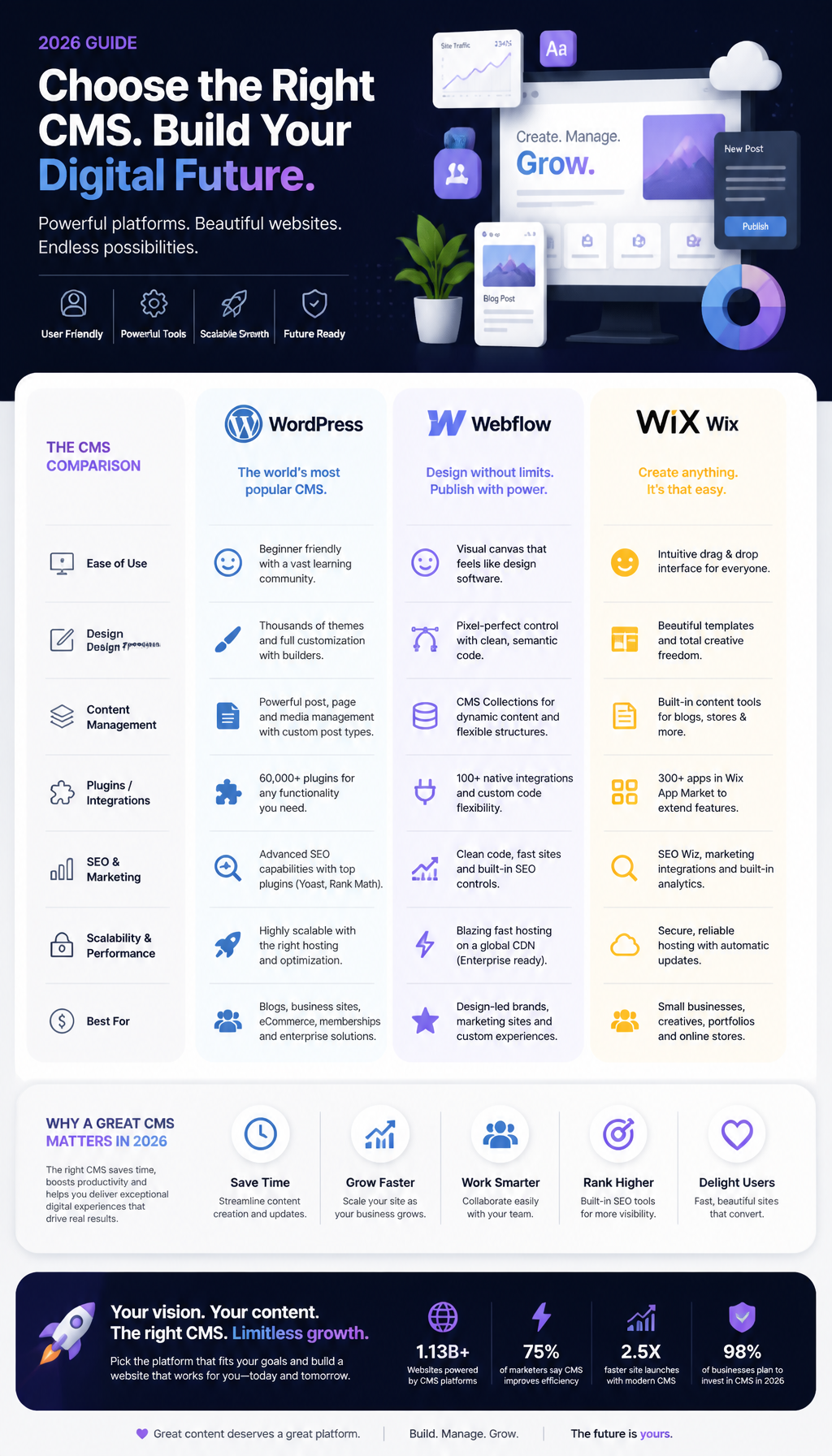
    A CMS simplifies the way you create, manage, and publish your content—if you treat it like a system, not just a page editor. The fastest wins usually come from two moves: (1) choosing a platform that fits your actual situation, and (2) setting up content types/collections the right way so you’re not duplicating work later.

    Here’s a step-by-step approach, with the real-world stuff people skip the first time:

    1. Choose the Right CMS: Picking the right CMS is crucial. Platforms like Webflow are known for their user-friendly interface and design capabilities, making them a favorite for beginners. But be honest about your constraints. If you need a quick marketing site that looks custom, Webflow can be great. If you’re mostly blogging and you want infinite flexibility later, WordPress can be the safer long-term bet. If you need “I can’t break this” simplicity, Wix usually keeps you inside the guardrails.

    2. Set Up Your Account: Register on your chosen CMS platform. During setup, you’ll usually select your website template which will serve as the foundation of your site. Don’t treat this like a permanent decision, though. Templates are scaffolding. Pick one that matches your information layout (blog + categories, services + locations, products + filters), not the one with the fanciest animations.

    3. Create Content Collections: Collections are where you store your content. For example, in Webflow, you can create a collection for blog posts or products. Before you click “create,” slow down and list the fields you actually need. A basic blog post might include: title, slug, publish date, author, hero image, summary, category, and body. If you skip summary because “I’ll just write it later,” you’ll end up with ugly archive pages or inconsistent cards.

    4. Add Content: Start populating your collections with data, images, and text. Most CMSs allow bulk uploads, which can save you time. If you’re importing, clean your CSV first—remove weird quotes, double spaces, and inconsistent date formats. Otherwise, you’ll spend more time fixing the import than you would’ve spent copy/pasting manually.

    5. Customize Your Site Design: Use the CMS design tools to adjust the look and feel of your site. This includes layout adjustments, colors, and typography, which can often be done through a drag-and-drop interface. Here’s the trick: design the “template” once, then let the collection populate it. Beginners often style each page as if it’s a one-off. That works until you publish your 18th blog post and realize none of them match.

    6. Publish and Test: Once you’re satisfied with your content and design, hit publish! Always test your site on different devices to ensure it appears correctly. Check the stuff that breaks in the real world: long headlines, tall phone screens, slow connections, and dark mode (where relevant). Also, click every navigation item and every form. It’s boring, but it’s cheaper than publishing broken contact forms for a week.

    A quick example I’ve seen more times than I can count: someone launches a blog with “just titles and body text,” then later wants email capture cards, author boxes, and a “related posts” grid. If you didn’t plan your fields, you’re either backfilling 60 posts by hand or rewriting the templates to support missing data. So, even as a beginner, model your content like Future You is going to ask for upgrades.

    How to Use CMS in Wix

    If you decide to use Wix, here are specific steps to manage your content effectively. Wix can be a lifesaver when you want speed and you don’t want to worry about servers, updates, or plugin drama. The tradeoff is you have to respect how Wix wants you to build.

    1. Access the Wix Editor: Log in to your Wix account and choose the site you want to edit. If you’re working with a team, set up roles early. Otherwise, you’ll end up with everyone editing the same page and no one knowing what changed.

    2. Navigate to the CMS: Click on the CMS tool on the left sidebar. This is where all your content collections are managed. Think of this as your database, not a folder of pages.

    3. Create a Collection: Click on “Create New Collection.” You can set fields for the items you want to manage (like title, description, and images). Use consistent field names. “Short description” and “Summary” might sound interchangeable, but if you create both, people will fill both (differently), and your layouts will look random.

    4. Add Items: Use the “Add Items” button to input your data. This can be done individually or in bulk for efficiency. When you add items, establish a rule for images—same aspect ratio, same style. In practice, I push teams toward a simple standard (like 1200×630 for social/hero, square for avatars) because mixed sizes are what make grid layouts look cheap.

    5. Connect to Dynamic Pages: Link your collection to dynamic pages. This means that each entry will automatically populate the specified fields on your site’s pages. The common mistake: people connect fields, then they hard-code a headline or image “just for now” on one item. Later, they wonder why a specific page refuses to update. If it should be dynamic, keep it dynamic.

    6. Preview and Publish: Always preview before publication to check for formatting issues. Preview your dynamic pages with multiple items: the shortest title, the longest title, the item with no image (if allowed), and the one with a long paragraph. That’s how you catch layout edge cases before your visitors do.

    A mini story: I once helped a local services business that used Wix for location pages. They had 14 cities, and each page was manually edited, so every price list and testimonial section drifted over time. We moved the locations into a collection (city name, phone, map embed, service list, testimonials). After that, updates took minutes—edit the collection item once, republish, done. The site instantly felt more “maintained,” because it actually was.

    Webflow CMS

    Webflow stands out for its flexibility and design capabilities. It’s excellent when you care about design systems and you want CMS-driven pages to look as polished as your landing pages.

    1. Create a New Site: Start by creating a new project in Webflow. If you’re starting from a template, audit it before you commit. Some templates look great but ship with messy class names and brittle interactions.

    2. Add a CMS Collection: Go to the “CMS” tab and select “New Collection.” Define the fields you need, just like in Wix. This is where you win or lose later. If you’re building “Case Studies,” for example, include fields like industry, services used, results metrics, logo, and a featured flag. Don’t cram everything into a rich text field because it feels faster today.

    3. Design Your Template Page: This will be the layout for each item in the collection. Drag elements like text and images from the left panel to create your page structure. Build the template to handle ugly content gracefully. Not every author writes tidy paragraphs. Someone will paste a giant sentence, or upload a too-dark hero image, so give the design some tolerance.

    4. Fill Your Collection: Add content to your collection directly or import it from CSV. If you import from CSV, do a small test import first (like 3 items). It’s a pain, but it prevents the “I just imported 200 rows with broken slugs” headache.

    5. Customize Items: Each item can have unique styles or settings, allowing for high customization. Use that power carefully. I’ve seen teams over-customize until the site becomes un-editable: each item has its own quirky layout rules, and suddenly nobody knows how to add a new post without breaking something.

    6. Publish and Test: Once you’re happy, publish your site and do thorough testing on various browsers to ensure consistent performance across the board. Check Safari if you’re using any fancy scroll effects. Also, watch load time—heavy interactions and giant images can make a beautiful page feel sluggish.

    One workflow that actually works: write your content in a doc, but structure it to match your fields (title, summary, bullets, etc.). Then paste into the CMS fields. When people paste a whole article into one rich text field and call it done, they usually regret it—because cards, archives, and SEO snippets all need structured pieces.

    How to Use CMS on YouTube

    YouTube is also a type of CMS, especially for video content. Treat it like a library with metadata. The content is the video, but the system runs on titles, thumbnails, descriptions, playlists, and consistency.

    1. Set Up Your Channel: Create a branded channel to organize your videos. Nail the basics first: channel description, links, and a banner that doesn’t crop weirdly on mobile.

    2. Use Playlists: Organize videos into playlists for better navigation. Playlists are also a sneaky way to improve session time because they encourage the next click.

    3. Optimize Video Descriptions: Use the description box to add keywords, links, and additional information. Put the most important link in the first two lines because that’s what shows before the “Show more” fold.

    4. Engage with Your Audience: Regularly respond to comments and encourage engagement to grow your audience base. If you can only do one thing, reply during the first hour after publishing. Early engagement tends to compound.

    5. Analyze with YouTube Studio: Use analytics to track performance and see what content resonates with viewers. Watch for “audience retention” drop-offs. If everyone bails at 0:20, your intro is too long—or your title promised something you didn’t deliver.

    Common mistake: creators treat YouTube like a dumping ground. Random titles, no playlists, and descriptions that say basically nothing. That’s like running a blog with no categories and no internal links. A little structure goes a long way.

    Understanding CMS: Definitions and Common Questions

    A lot of CMS confusion comes from the fact that “CMS” can mean both a website platform and an organizational concept. People ask, “Which CMS should I use?” but what they really mean is, “How do I stop content from turning into chaos?” So let’s make the definitions concrete, then connect them to how you’ll actually work.

    What is CMS?

    A CMS, or Content Management System, is software that enables users to create, manage, and modify content on a website without the need for specialized technical knowledge. Most popular CMS platforms include WordPress, Wix, and Webflow, each offering unique features tailored to different user needs.

    Here’s the part most definitions skip: a CMS isn’t just “where you write.” It’s where content lives with rules. Those rules usually include:

    • Structure: Fields like title, author, category, product price, location hours.
    • Workflow: Draft → review → publish (sometimes with approvals).
    • Permissions: Who can edit what, and who can publish.
    • Reusability: One change updates everywhere that content is used.

    A real example from a content manager persona: say you manage a university department site. You don’t just post articles. You have faculty bios, office hours, course pages, events, and announcements. Without a CMS, every update becomes “find all the places this appears and edit each page.” With a CMS, you update Professor Kim’s office hours once, and the faculty directory, the bio page, and the course page all reflect it.

    Step-by-step, this is how I’d explain CMS value to a beginner who’s overwhelmed:

    1. List your repeatable things. Blog posts, products, team members, locations, events.
    2. Turn each repeatable thing into a content type/collection. One per “thing.”
    3. Define the fields you’ll always need. For an event: date, start time, end time, venue, ticket link, description.
    4. Design templates once. An event page template, an event card template, an event listing page.
    5. Publish by adding items, not by rebuilding layouts. That’s the whole game.

    Common mistakes I keep seeing (and fixing later):

    • Everything in one rich text blob. It feels flexible, but it kills reuse.
    • No naming conventions. Fields called “Image1,” “Image2,” or “Text” become a mess when someone new joins.
    • No governance. If everyone can publish anything, you’ll eventually ship typos, broken layouts, or outdated info.

    What are Examples of CMS?

    Some well-known examples of CMS include:
    – WordPress: Ideal for blogs and content-heavy sites, renowned for its extensibility.
    – Wix: User-friendly with a drag-and-drop builder, perfect for beginners.
    – Webflow: Focuses on design flexibility and is favored by designers and agencies.
    – Shopify: Tailored for e-commerce stores.
    – Joomla: Offers more complexity and flexibility for developers.

    The practical difference isn’t “which is best,” it’s what kind of pain you want.

    • WordPress pain: too many plugins, update hygiene, and decision overload. That said, it’s still my go-to when you need content depth and you want to own your platform.
    • Wix pain: you can hit platform limits if you want very custom behavior later. But for many small businesses, those limits are a feature because they prevent chaos.
    • Webflow pain: content modeling and class systems have a learning curve. Also, designers can overbuild.
    • Shopify pain: you’ll probably pay for apps, and some changes require theme work. Still, it’s hard to beat for commerce.
    • Joomla pain: steeper learning curve for non-technical editors, but it can be solid in the right hands.

    If you’re choosing, do a tiny “pilot” first: build one collection, one template, and one listing page. If that feels miserable, it won’t magically feel better when the site is bigger.

    What is CMS in Healthcare?

    In the healthcare sector, CMS refers to the Centers for Medicare & Medicaid Services. They provide guidelines and frameworks for managing healthcare data efficiently. Understanding how to use CMS tools in healthcare can significantly enhance patient care management and compliance with regulations. For more information about CMS’s role in healthcare, check out this guide by Circle Care.

    This is where acronyms mess people up. I’ve had marketers tell me, “We need to update our CMS compliance,” when they meant the healthcare CMS (the agency), not a website platform. So, if you work in healthcare marketing or operations, clarify the context early in meetings.

    A practical scenario: you run a clinic site and a patient education hub. You might use WordPress (or another website CMS) to publish articles, while your compliance team references CMS (Centers for Medicare & Medicaid Services) rules for billing, quality reporting, or operational policies. Those are related in the sense that you’re communicating regulated information, but they are not the same system.

    Common mistake: posting policy-related content without a review workflow. Even if your web CMS makes publishing easy, you still need approvals—because the risk isn’t “a typo,” it’s misinformation. So, build a simple process: draft → clinical review → compliance review → publish. It’s slower, but it’s safer.

    FAQs

    What is CMS and how to use it?

    A Content Management System (CMS) is a software application for creating and managing digital content. You can use it by setting up a website, adding content, and managing updates through the platform’s interface.

    If you want a no-drama way to start, follow this order:

    1. Pick one content type first (usually blog posts, products, or services).
    2. Create 6–10 real items so you can see patterns and edge cases.
    3. Build your listing page (blog index, product grid) and test it with long/short content.
    4. Create your template page (the page each item generates).
    5. Only then start polishing design details.

    People do this backward all the time—they perfect the homepage and then realize they have no structure for the other 90% of the site.

    Is a CMS system easy to learn?

    Yes, most CMS platforms are designed to be user-friendly with various resources available for beginners.

    That said, “easy” depends on what you mean by learn. Learning how to click around an editor is quick. Learning how to model content and keep things consistent is the real skill.

    A beginner-friendly way to think about it: if you can fill out a form, you can use a CMS. If you can design a spreadsheet with clean columns, you can design collections/fields. The part that takes time is developing judgment—like when to create a new field vs. when to keep content in a rich text block.

    Is a CMS easy to use?

    Yes, CMS platforms typically feature intuitive interfaces that simplify the processes of content creation and management.

    They’re easy right up until you have multiple authors, multiple pages, and a deadline.

    If you want it to stay easy, bake in a few habits:

    • Use templates, not one-off pages.
    • Name fields clearly (“Hero image,” “Summary,” “CTA button URL”).
    • Set rules for images (sizes, cropping, style).
    • Document your publishing checklist (mobile check, links check, SEO title, preview).

    That little bit of process is what keeps “easy” from turning into “fragile.”

    What is an CMS example?

    Some popular CMS examples include WordPress, Wix, and Webflow.

    If you want a quick shortcut for choosing among those three, here’s my blunt take:

    • Choose Wix if you need a solid site fast and you don’t want to tinker.
    • Choose Webflow if design quality matters and you’re willing to think in systems.
    • Choose WordPress if you want maximum extensibility and you’re okay owning more maintenance.

    Whatever you pick, don’t judge it on Day 1. Judge it after you’ve published 20 pieces of content and had someone else on your team edit them.

    Best CMS Platforms of 2026

  • Buying Guide for the Latest MacBook in 2026

    Buying Guide for the Latest MacBook in 2026

    Discover key insights on prices, features, and models of the latest MacBooks in 2026 for informed purchasing decisions. Learn more!

    Featured image for What to Know Before Buying the Latest MacBook in 2026

    What to Know Before Buying the Latest MacBook in 2026

    Apple’s 2026 MacBook lineup is a mix of real upgrades and predictable price creep. So yes, you can absolutely buy a great machine this year—but you’ll get the best value only if you match the model to your workload instead of chasing the newest badge.

    How Much is a MacBook Air?

    The headline is the macbook air price jump. The latest MacBook Air with the M5 chip is now approximately $1,299, up from around $1,099 previously. That’s not pocket change, and it changes what “good value” means for students and first-time Mac buyers.

    That said, Apple’s student pricing still matters. With the education discount, you can often land closer to $1,199, which is basically Apple admitting the sticker price is a little spicy for the Air’s target audience.

    To put that in perspective, the newer MacBook Neo starts at $699. If your workload is mostly browser tabs, Google Docs, Zoom, and light photo edits, that Neo price is hard to ignore.

    A quick decision rule I use

    When someone asks me “should I pay the extra $600 for the Air over the Neo?”, I don’t start with chips. I start with pain.

    • If you’ve ever watched your laptop freeze during an exam proctoring session, or you’ve lost work because the machine kernel-panicked mid-export, you’re not buying specs—you’re buying stability.
    • If you mostly do light tasks and you replace laptops every 3–4 years anyway, the Neo can be the smarter play.

    So yes, pricing matters, but it’s really pricing relative to your tolerance for slowdown.

    Step-by-step: figure out your real needs in 10 minutes

    1. List your top 5 apps (not “student” or “creator”—actual apps). Example: Chrome, VS Code, Docker, Figma, Premiere.
    2. Estimate how often you multitask. If you keep 30–60 tabs open plus Slack/Teams plus a build tool, you’re not a “light user,” even if you think you are.
    3. Decide on lifespan. Buying for 2 years is a different decision than buying for 6.
    4. Pick a baseline RAM/storage target you won’t hate later. Storage you can manage with external SSDs; RAM, you live with.
    5. Compare models only after that. Otherwise, you’ll talk yourself into a Pro you don’t need.

    Common mistakes I see (and fix later)

    People often underestimate how “small” tasks stack up. A student tells me they only use a browser, then I find out they run three Electron apps, 40 tabs, and a note app that syncs constantly. Meanwhile, the laptop is swapping to disk and everything feels laggy.

    Another classic: buying minimal storage because “I’ll use cloud.” Then finals hit, the Wi‑Fi is overloaded, and suddenly local storage matters a lot.

    New MacBook Features

    The 2026 models bring improvements that actually change day-to-day use, not just benchmarks. The M5 chip boosts multitasking and energy efficiency, which is the polite way of saying: fewer beachballs when you’re doing real work.

    Performance upgrades that show up in real life

    If you edit video (Adobe Premiere, Final Cut Pro) or do graphics-heavy work, the improved graphics performance can save you time on every export. And because time is the only thing you can’t buy back, that matters.

    I’ve watched teams waste hours weekly because their “good enough” laptops turned simple build/test cycles into coffee breaks. So, when you’re doing sustained work—compiles, renders, big spreadsheets—raw performance isn’t vanity. It’s throughput.

    Display, battery, and the remote-work stuff

    Apple is also pushing a brighter Retina display and longer battery life—up to 24 hours on a single charge. If you travel, work from campus, or bounce between meetings, that battery claim is one of the few spec-sheet bullets that can genuinely change your routine.

    Then there’s the new 12-megapixel camera. If you live on video calls, a better camera is weirdly career-relevant. You don’t need to be an influencer to benefit—you just need to be the person presenting, interviewing, or leading a client call.

    Audio got attention too, and that’s not trivial. Better speakers and mics reduce the “can you repeat that?” tax that adds friction to every conversation.

    A real example: the laptop that ruined standup

    A while back, I watched a developer join daily standup with a laptop that had a mediocre camera and noisy mic. Nobody complained directly, but the team constantly asked them to repeat updates. Over weeks, that person participated less—because it was annoying.

    So yes, hardware details can quietly affect how you show up at work.

    Apple MacBooks in the USA

    If you’re buying in the USA, Apple’s pricing is usually consistent on Apple.com, but the real savings often come from retailer timing. Best Buy and Costco deals can be meaningful, especially when they stack with clearance cycles.

    Where I look first (and why)

    • Apple direct: best for configuration options and predictable support.
    • Best Buy: frequent sales; great if you want a popular config and don’t need customization.
    • Costco: often includes member-focused discounts and bundles.

    Still, the trap is chasing a “deal” that’s actually the wrong spec. I’d rather pay $100 more for the right RAM/storage than save $150 and regret the laptop for four years.

    Common USA pricing gotcha

    People compare a discounted base model at a retailer to a higher-spec Apple Store build and assume Apple is “overpriced.” It’s not always that simple.

    Make sure you’re comparing:

    • the same chip tier
    • the same RAM
    • the same storage
    • and the same return/support terms

    Otherwise, you’re not bargain-hunting—you’re just mixing products.

    Upcoming Models

    Apple has announced that more new models are expected to debut in mid-2026, with further improvements in processing power and battery technology. Waiting can be smart, but only if waiting doesn’t cost you productivity right now.

    My stance on waiting vs buying

    • If your current laptop is holding you back weekly (slow builds, constant low-storage warnings, thermal throttling), buy now and move on.
    • If your machine is fine and you just want the “newest,” waiting is mostly emotional.

    I’m biased toward boring and reliable. If a laptop helps you ship work today, that’s usually the correct choice.

    A practical “should I wait?” checklist

    Ask yourself:

    • Do I have a hard deadline in the next 60–90 days (school, project, job search)?
    • Is my current machine failing, or am I just bored of it?
    • Will the rumored mid-year update realistically change my workload?

    If you can’t name a concrete bottleneck, waiting is optional—not necessary.

    The Best Time to Buy a New MacBook

    Timing matters because Mac pricing tends to move in predictable waves. The two windows that consistently help buyers are Black Friday and Back-to-School season.

    How I’d time a purchase (step-by-step)

    1. Pick your target model/config first. Don’t shop “open-minded.”
    2. Track prices for 2–3 weeks. You’ll quickly see what “normal” looks like.
    3. Set a walk-away number. If the Air drops $150, maybe that’s your trigger.
    4. Check education discounts if you qualify. Even if the retail sale is good, the student price can still win.
    5. Buy from somewhere with a sane return policy. Sometimes you only learn the keyboard/weight/port situation after a week.

    Common timing mistake

    People wait for a sale, then panic-buy the day before a semester starts—when stock is weird and shipping dates slip. If you need the laptop for a specific date, buy early enough that returns are still painless.

    A Bit About My Background

    I’m Mobeen Abdullah, a tech entrepreneur, and I’ve been building web apps and engineering systems for over a decade. My day job has rarely been “just code.” It’s also been selecting hardware for teams, debugging performance issues that weren’t obvious at first, and cleaning up decisions that seemed cheap in the moment.

    The kind of work that makes you opinionated about laptops

    I’ve shipped full-stack products where the local dev environment alone can chew through memory—think Docker containers, a database, a backend service, a frontend build pipeline, plus Chrome tabs for docs and dashboards. When that’s your normal day, you stop thinking in marketing categories like “creator” or “student.” You think in friction:

    • How fast can I run tests?
    • Does the machine stay cool under sustained load?
    • Am I constantly closing apps to keep things responsive?

    I’ve had phases where I tried to “save money” on a laptop and then paid for it in time. That’s not dramatic—it’s just math. If you lose 10 minutes a day to slowdowns, that’s about 40 hours a year.

    A real client-style scenario

    One student I advised was about to buy the cheapest MacBook they could find because they “only needed it for classes.” But when I asked what they were studying, it turned out they were doing CS, running VS Code, local servers, and sometimes mobile emulators.

    So we did a simple test: they opened their current workload on their old laptop and watched it crawl once the emulator started. That moment changed the purchase decision. They didn’t need the top-tier Pro, but they also didn’t need the cheapest option. They needed the machine that wouldn’t fight them during deadlines.

    That’s the lens I’m using in this guide: reduce regret, and buy for how you actually work.

    FAQs

    • What is the newest version of a MacBook?
      As of 2026, the latest version includes the M4 MacBook Pro. That said, “newest” gets confusing because Apple updates different lines on different schedules, so a newer Air doesn’t automatically beat an older Pro for heavy workflows.

    If you’re trying to decide quickly, anchor on your workload first, then map it to the model. Otherwise, you’ll chase the newest release and still end up with the wrong machine.

    • Is Apple coming out with a new MacBook in 2026?
      Yes, new models with advanced features are expected in mid-2026. If you’re on the fence, I’d only wait if (a) your current laptop is fine and (b) you expect the update to solve a real issue—like battery life for travel, or performance for sustained work.

    Waiting “just because” usually turns into analysis paralysis, and then you buy at a worse time anyway.

    • What is the best Mac to buy right now?
      The M4 MacBook Pro is currently regarded as the best choice for performance users. But “best” depends on what hurts.

    If you do video editing daily, compile big codebases, or run virtual machines, the Pro earns its keep. If you mostly write papers, do spreadsheets, and attend online classes, the Air (or even the Neo) can be the better choice because it’s cheaper and lighter.

    • When’s the best time to buy a new MacBook?
      Key sales occur during Black Friday and Back-to-School season. Practically, I’d start watching prices 2–3 weeks before those windows.

    Also, don’t ignore return policies. A “deal” isn’t a deal if you can’t return it after realizing you hate the port selection or the screen size.

    • Should I buy the MacBook Neo instead of the Air?
      The Neo starting at $699 is appealing, especially if your work is light. Still, I’d be cautious if you’re heading into a heavier program (engineering, design, CS) or you plan to keep the laptop for years.

    Here’s the quick gut-check: if you routinely multitask (lots of tabs + apps) and you get annoyed by slowdowns, pay more now. If you just need a solid daily driver and you’re disciplined about workload, the Neo can be a smart budget pick.

    If you’re stuck between two models, decide your top three non-negotiables (budget ceiling, battery, performance) and buy the one that hits those without “future-proofing” fantasies.

    tes image

  • Headless CMS Integration Tutorial

    Headless CMS Integration Tutorial

    Learn how to integrate a headless CMS with your website in 2026 through this comprehensive guide offering practical examples and insights.

    Featured image for How to Integrate a Headless CMS with Your Website in 2026

    How to Integrate a Headless CMS

    A headless CMS integration is mostly three jobs: model content, expose it via an API, then consume it safely in your frontend. The “easy” part is fetching JSON. The hard part is everything around that JSON—preview, caching, permissions, and editors not hating the UI.

    Understanding Headless CMS: Definitions and Examples

    Before we dive into setup, get the mental model straight. A headless CMS stores content and serves it over an API. Your website (or app) renders it however you want.

    Some popular examples of headless CMS include Strapi, Contentful, Sanity, and Ghost. Each one has a different vibe:

    • Strapi: open-source, self-hostable, and hackable. If you like owning your stack, it’s a solid default. Their take on headless and transformation is outlined here: Strapi.
    • Contentful: enterprise-y, polished, and API-first. Great if you want a strong SaaS and you’re fine with the pricing curve.
    • Sanity: developer-friendly with a real-time, schema-driven approach. Editors often like the studio once it’s tailored.
    • Ghost: more publishing-focused. It can work headless, but it’s not my first pick for complex product content.

    The tradeoff is simple: headless gives you freedom, but it also removes the “theme does everything” safety net. So, you need a plan.

    What Does Headless Mean in CMS?

    In the CMS world, headless means the backend (admin, database, content workflows) is decoupled from the frontend (your website UI). Because of that split, you can push the same content to multiple channels—web, mobile, in-app help, screens in a store—without duplicating it.

    That separation is why teams adopt headless when they start caring about omnichannel, performance, or frontend autonomy. But since the CMS no longer “owns” rendering, you must implement things a traditional CMS used to hand you for free: routing, SEO tags, sitemaps, previews, and caching.

    Here’s a visual representation that illustrates the architecture of a headless CMS:

    Headless CMS integration architecture diagram

    A quick, real example from my side: I worked on a marketing site where the team went headless to let product engineers ship React components without waiting on a CMS theme release. That part worked. The part they didn’t budget for? Preview. Editors couldn’t see drafts, so they started publishing “just to check,” which created a bunch of accidental live changes. We fixed it by adding a preview token flow and draft endpoints—two days of work that should’ve been in the original plan.

    Steps for Integration

    These steps assume a typical modern setup: a headless CMS (Strapi or SaaS), a frontend (Next.js/Nuxt/React), and a deploy platform (Vercel, Netlify, or your own).

    The sequence matters. If you build the frontend first and “figure out content later,” you’ll end up rebuilding components when content doesn’t fit.

    Step 1: Choose Your Headless CMS

    Pick your CMS based on operational reality, not hype.

    My shortlist questions:

    • Do we need self-hosting (compliance, cost control, custom plugins), or do we prefer SaaS (less ops, faster start)?
    • How complex is our content model—localized fields, references, rich components, scheduled publishing?
    • Do we need roles/permissions that marketing can manage without engineering tickets?
    • What’s the preview story? If it’s clunky, adoption dies.

    If you’re a small team with a strong dev bench, Strapi is often a good balance. If you’re scaling editorial across multiple properties, Contentful/Sanity might save time because the UI and workflow polish is already there.

    Common mistake: choosing a CMS because “it’s open source” or “it’s enterprise” without mapping who will maintain it. If your team can’t patch, upgrade, and monitor a self-hosted CMS, SaaS will feel expensive until the first incident.

    Step 2: Set Up Your Development Environment

    Get your local workflow tight before you involve content editors. That means repeatable installs and a clear path to staging.

    Typical baseline in 2026:

    • Node.js (for Strapi and many frontends)
    • A package manager (pnpm/npm/yarn)
    • GitHub for version control
    • A database (often Postgres in prod; SQLite locally is fine early on)

    For example, with Strapi, you can initialize your project directly in your terminal:

    npx create-strapi-app my-project --quickstart
    

    That spins up a default project and an admin UI. From there, I usually do two “boring” things immediately:

    1) Commit the baseline to Git (so you can diff config changes later).
    2) Create separate env files for local/staging/prod. If you hardcode API URLs once, you’ll regret it.

    Another mistake I see: teams forget CORS and auth during setup, so the frontend works locally but fails in staging. Fix it early—set explicit allowed origins and keep secrets out of the repo.

    Step 3: Create API Endpoints

    This is where “headless” either becomes clean or chaotic. Spend time on content modeling.

    In Strapi, you typically:

    • Create Content Types (e.g., Page, Post, Product, Author)
    • Add fields with validation (slug uniqueness, required title, max lengths)
    • Define relations (a Page has many Sections; a Post has one Author)
    • Configure roles/permissions for public reads

    Strapi automatically generates REST endpoints for content types. That’s convenient, but don’t blindly expose everything. Lock down permissions and decide what’s public.

    Step-by-step content modeling approach I use:

    1) List page templates you actually ship (home, landing, docs, blog).
    2) For each template, list repeatable components (hero, feature grid, CTA, FAQ block).
    3) Create content types that match those building blocks.
    4) Add a slug strategy early (/blog/:slug, /pages/:slug). Changing it later is a redirect party.

    If you skip this and just make one giant “Page” with 40 optional fields, editors will fill it wrong, and developers will write a bunch of if (field) conditionals. It gets ugly fast.

    Step 4: Integrate with Your Frontend Framework

    Now connect your frontend to the CMS over HTTP.

    If you’re using React, you might use axios or the Fetch API:

    import axios from 'axios';
    
    const fetchData = async () => {
        const response = await axios.get('https://your-strapi-api-url.com/your-endpoint');
        console.log(response.data);
    };
    

    That works, but in real projects you’ll want a bit more structure:

    • A single API client module (cmsClient.js) so you don’t scatter URLs everywhere
    • Environment-based base URLs (process.env.CMS_URL)
    • Timeouts and retries (because the CMS will have a bad day eventually)

    If you’re using Next.js (common in 2026), decide early whether you’ll render pages with:

    • SSG (static generation): fastest, but needs revalidation/webhooks
    • SSR (server-side rendering): fresher content, but higher runtime cost
    • Hybrid: usually the sweet spot—static for marketing pages, SSR for personalized stuff

    A practical pattern:

    1) Fetch content by slug.
    2) Render components based on “sections” in the payload.
    3) Cache aggressively at the edge.
    4) Revalidate on publish via webhook.

    Where teams mess up: they pull the CMS on every request with no caching. It seems fine in dev. Then a campaign hits, your CMS rate limits, and the site falls over.

    Step 5: Test and Iterate

    Testing isn’t optional; it’s the difference between “headless is great” and “headless is cursed.”

    I run these checks before calling an integration “done”:

    • API contract tests: does the endpoint return what the frontend expects?
    • Preview flow: can an editor view a draft without publishing?
    • Permissions: is private content truly private?
    • Performance: what happens when a page needs 10 referenced entries?

    Tools like Postman can help you test your API endpoints effectively. But also test with the real frontend, because the annoying bugs show up in rendering, not JSON.

    A quick workflow that’s saved me pain:

    1) In Postman, save a collection for key endpoints.
    2) Add example responses (good + missing fields).
    3) Use those examples to build a mock mode.
    4) Build frontend components against mock data first, then hook up live data.

    Headless CMS Integration Examples

    A case study is useful, but a “week-two reality check” is even better. Here’s the kind of scenario I’ve seen repeatedly: a team migrates to headless for speed, ships the API, and then realizes they need governance—naming, slug rules, and who approves what.

    So, bake that into your integration plan.

    Case Study: Strapi Implementation

    A well-documented case study involves a company that migrated from a traditional CMS to a headless CMS like Strapi. They experienced significant increases in website performance and user engagement. Upon switching, they reported a 65% reduction in page load times and a 50% increase in user interaction metrics (ColorWhistle).

    Those numbers won’t automatically be yours, obviously. Still, performance gains are common when you decouple rendering, push pages to a CDN, and stop doing heavy server work on every request.

    How I’ve seen it play out in practice: we moved a brochure site from a theme-driven CMS to a headless setup with static generation and edge caching. The biggest win wasn’t just raw speed. It was consistency—deploys became predictable, and content changes stopped breaking layout because components had stricter schemas.

    If you want to chase similar results, focus on these levers:

    • Reduce round trips: fetch one “page” payload that includes nested sections, not 12 separate calls.
    • Cache smartly: cache CMS responses for seconds/minutes, cache rendered pages for minutes/hours.
    • Optimize images: serve modern formats and sizes based on device.

    Headless CMS Integration GitHub Resources

    GitHub can cut your build time in half if you use it well. It can also waste a weekend if you copy a repo that “kinda works” but bakes in bad assumptions.

    Searching for terms like “headless CMS tutorial” or “Strapi integration example” can yield valuable code snippets and project templates tailored for integration with various frameworks.

    What I look for in a repo before I trust it:

    • Recent commits (stale headless examples rot quickly)
    • Clear env var documentation
    • A basic content model included (seed data or migrations)
    • Preview + webhook examples (rare, but gold)

    A mini story: I once inherited a “starter” that hardcoded the API token in the frontend build output. It worked, sure. It also exposed a write-capable token to every visitor. We rotated credentials, rebuilt auth, then wrote a one-page checklist for reviewers: “no secrets in client bundles.” That’s the kind of boring guardrail that saves you.

    Common Pitfalls to Avoid

    Most headless CMS failures aren’t about the CMS. They’re about integration decisions you didn’t realize you were making.

    1. Underestimating Complexity: Transitioning to a headless CMS can introduce complexities. Ensure your team is prepared and understands the technical implications.

    Where it bites: preview, localization, redirects, and “what is a page” debates. So, define ownership early—who owns the content model, who owns the frontend components, and who approves schema changes.

    1. Neglecting Documentation: Always refer to the official documentation of the CMS you choose. Each platform may have unique set-up procedures and requirements.

    Also document your own conventions: slug rules, component naming, required fields. Otherwise, six months later you’ll have heroTitle, Hero_Title, and titleHero all doing the same job.

    1. Ignoring Performance Optimization: Monitor how your frontend is fetching and rendering data. Utilize caching mechanisms to improve performance where necessary.

    Practical checklist:

    • Add response caching at the API layer (even 30–60 seconds helps)
    • Use CDN caching for rendered pages
    • Avoid N+1 queries when resolving relations
    • Set payload limits (don’t ship entire rich text blobs to list pages)

    • Shipping without a preview plan: Editors need draft previews, period.

    The usual solution is a preview route in your frontend that accepts a short-lived token, fetches draft content, and disables caching. It’s not glamorous, but it prevents accidental publishes.

    1. Overexposing your API: Public endpoints should be read-only and scoped.

    If you need private content, put it behind server-side calls or a backend-for-frontend layer. Don’t hand out tokens to the browser unless they’re strictly public.

    Conclusion

    Integrating a headless CMS with your website can vastly improve your content management strategies and user engagement. But the real payoff comes when you treat integration like a product: solid content models, predictable deploys, and guardrails that keep editors productive.

    If you only do one thing next, do this: build a tiny vertical slice—one page type, one preview flow, one publish webhook—and run it end-to-end in staging. You’ll learn more in two days from that slice than from weeks of debating platforms.

    FAQ

    • Q: What is headless CMS integration?
      A: Headless CMS integration means you connect a headless content system to your website (and often other channels) through APIs, so the CMS manages content while your frontend handles rendering. In practice, that usually includes four moving parts: (1) a content model (types, fields, relations), (2) API delivery (REST/GraphQL), (3) a frontend data layer (clients, caching, error handling), and (4) editorial workflows like preview, drafts, and publishing.

    A real-world example: if marketing publishes a new landing page in Strapi, your frontend should either rebuild (static) or revalidate a cached route (hybrid). That “publish → site updates” path is part of integration, not a nice-to-have.

    • Q: What is the difference between CMS and headless CMS?
      A: A traditional CMS usually bundles content management and presentation together—admin UI plus theming plus rendering. That’s convenient, but it can limit frontend choices and performance. A headless CMS splits those concerns: the CMS becomes a content API, while your website becomes an app that consumes content.

    The tradeoff shows up fast. With headless, you gain flexibility (React/Vue/whatever, omnichannel reuse), but you also own things a traditional CMS hands you: routing, SEO tags, sitemaps, preview, and caching. If your team doesn’t want to own that surface area, a traditional CMS can still be the right call.

    • Q: What are examples of headless CMS?
      A: Popular headless CMS options include Strapi, Contentful, Sanity, and Ghost.

    How I’d choose between them:

    • If you want open-source and control, Strapi is a strong candidate.
    • If your editorial team needs polished workflows and you’re okay with SaaS, Contentful is often a safe choice.
    • If you want schema-as-code and a highly customizable editor experience, Sanity can be great.
    • If you’re mostly publishing posts/newsletters, Ghost can work well, although it’s less of a “content platform” for complex component-driven sites.

    One common mistake: treating CMS selection as permanent. You can migrate later, but only if you design your frontend with a thin CMS adapter layer, not CMS-specific logic sprinkled across every component.

    • Q: What does headless mean in CMS?
      A: “Headless” means the CMS doesn’t control the frontend “head.” It stores content and exposes it over an API, while your website (or app) decides how to present it.

    Step-by-step, the flow usually looks like this:

    1) An editor writes content in the CMS.
    2) The CMS stores it and makes it available via an API.
    3) Your frontend fetches it (build time, request time, or a mix).
    4) Caching layers store either the API response or the rendered HTML.
    5) On publish, a webhook triggers a rebuild or cache revalidation.

    If you’re stuck debugging “why doesn’t the site update when I publish,” it’s almost always because step 5 is missing—or because caching is working exactly as configured.

    Market Statistics

  • Step-by-Step WordPress Integration with Popular CMS

    Step-by-Step WordPress Integration with Popular CMS

    Learn how to integrate WordPress with popular CMS platforms through this step-by-step guide, with best practices and the Siteimprove WordPress plugin.

    Featured image for Step-by-Step Guide to WordPress Integration with Popular CMS

    Step-by-Step Guide to WordPress Integration with Popular CMS

    Integrating WordPress with other CMS platforms can streamline your workflow and expand your site’s capabilities. That said, “integration” can mean anything from embedding WordPress content inside another frontend to running WordPress headless behind a different app.

    Before you touch plugins, decide who owns what: where content gets edited, where pages render, and which system is the “source of truth.” That one decision prevents half the weird edge cases later.

    WordPress integration with popular CMS architecture diagram showing WordPress, APIs, and a frontend app

    1. Understanding WordPress as a CMS

    Before diving into integration, it’s essential to acknowledge that WordPress itself is a Content Management System (CMS). It allows users to create and manage digital content efficiently. With a flexible architecture, WordPress powers 41.9% of all websites globally as of June 2026, showcasing its dominance in the CMS market.

    What that translates to in real projects: WordPress already has opinionated tooling for content—roles, revisions, editorial UI, media management, and a plugin ecosystem that covers a lot of “oh no, we need this next week” features.

    But WordPress also carries assumptions. Themes want to render pages. Plugins may assume they control URLs. So, if you’re integrating with another CMS or framework, you’re often negotiating those assumptions—sometimes gently (via embeds), sometimes with a crowbar (headless + custom routing).

    2. Selecting the Right CMS for Integration

    Many CMS platforms integrate with WordPress, including:
    – Joomla
    – Drupal
    – Next.js
    – Wix

    Each has unique advantages, so choose a CMS that aligns with your project goals and technical requirements. For instance, if performance and scalability are priorities, Next.js may offer a compelling solution, especially when leveraging static site generation capabilities. Additionally, tools like Nextly can simplify schema design, enhancing your integration process.

    Here’s the decision filter I use when a client says “we want WordPress + X.”

    First, ask what you’re trying to fix. If the pain is publishing workflow, WordPress should probably stay in the driver’s seat. If the pain is frontend performance or app-like UX, then a framework (like Next.js) makes sense, while WordPress becomes your content backend.

    Second, be honest about who maintains it. Drupal and Joomla integrations can be solid, but they’re less forgiving if the team doesn’t already know them. Meanwhile, Wix can work for small marketing sites, but it gets awkward when you need deeper programmatic control (custom auth, complex redirects, content sync jobs).

    3. Preparing for Integration

    Before starting the integration process, ensure you have:
    – A clear understanding of your current WordPress setup.
    – Access to the admin panel of both WordPress and the target CMS.
    – Backups of your existing website to prevent data loss.

    Checklist for Preparation:
    – [ ] Review current plugins and themes.
    – [ ] Ensure compatibility between WordPress and the target CMS.
    – [ ] Document existing content structures.

    Also, map your content types on paper before you map them in code.

    I’ve seen integrations derail because “Posts” in WordPress were used for everything—blog, help docs, landing pages, even product specs—because it was convenient at the time. So, when another CMS expects clean separation (Docs vs Blog vs Marketing), your sync becomes a pile of conditional logic.

    One practical move: export a sample set of content (10–20 items) and inspect it. Look for shortcodes, legacy page builder blocks, and weird HTML pasted from Google Docs. Those are the exact things that look fine in WP, then break when rendered elsewhere.

    4. Using Plugins for Integration

    One of the easiest ways to integrate WordPress with another CMS is through plugins. For example, the Siteimprove WordPress plugin helps site managers optimize content directly within WordPress. This plugin acts as a bridge, offering insights into accessibility and SEO issues in real-time and ensuring content quality before publication. It’s essential to install this plugin to benefit from its pre-publish checks and site management capabilities (Siteimprove Help Center).

    Plugins are great when the integration is “adjacent” to publishing—SEO checks, accessibility checks, analytics, editorial workflow, and similar.

    But I’m biased against relying on plugins as your only integration mechanism when you’re syncing content between systems. Why? Because plugin updates happen on someone else’s schedule, and a minor update can change output formatting or API behavior. If you do go plugin-heavy, lock versions, test updates in staging, and keep a rollback plan that’s actually been rehearsed.

    5. Steps for Integration

    Here’s how to proceed with a typical integration:
    – Step 1: Install the necessary plugins on your WordPress site. Search for the desired integration plugin in the WordPress Plugin Directory and click “Install.”
    – Step 2: Activate the plugin and configure its settings. This might include linking your WordPress site with your chosen CMS.
    – Step 3: Start syncing content. Depending on the CMS, this may involve using APIs or export/import features to transfer data. Make sure your content is well-structured and formatted appropriately.
    – Step 4: Test the setup thoroughly. After integration, check for broken links, accessibility issues, and any discrepancies in how content appears across platforms.

    A few “real world” notes on Step 3, because that’s where most teams bleed time.

    If you’re integrating WordPress with a modern frontend (like Next.js), you’ll typically pull content via the WordPress REST API or WPGraphQL (if you choose to add it). Then you’ll need to decide how content updates flow. Polling works, but it’s slow and wasteful. Webhooks are better, but they take more setup.

    Content sync also forces you to pick a canonical URL strategy. For example, will /blog/my-post live on the other CMS while WordPress sits on a subdomain like cms.example.com? If so, you’ll want redirects, consistent canonicals, and a plan for media URLs (because hotlinking WP uploads from a different domain can get messy with caching and mixed content).

    Testing shouldn’t be a single pass, either. I usually test:
    – Draft vs published visibility
    – Image-heavy posts (and lazy-loading)
    – Internal links inside content
    – Search and pagination
    – 404 behavior (because integrations love creating “ghost URLs”)

    6. Best Practices for WordPress Integration

    To ensure a successful WordPress integration with another CMS, consider the following best practices:
    – Maintain Documentation: Keep a record of all changes made during the integration.
    – Regular Updates: Ensure your plugins and WordPress are always up-to-date to avoid security vulnerabilities.
    – Monitor Performance: Use analytics tools to track how the integration affects site performance and user engagement.

    I’ll add a few practices I wish more teams treated as non-negotiable.

    Keep your integration logic thin and readable. If you’re transforming content (blocks to HTML, shortcodes to components, custom fields to JSON), centralize that mapping in one place. Otherwise, you end up with “just this one exception” scattered across templates until nobody can safely change anything.

    Set up a staging environment that mirrors production—including caching layers. An integration that looks fine uncached can fall apart once you add CDN caching, ISR, or aggressive page caching. That’s not theoretical; I’ve watched a “working” build ship and then serve old content for 24 hours because cache purge wasn’t wired to publishing.

    7. Common Challenges and Solutions

    Challenge: Plugin Compatibility Issues

    Many users face compatibility problems between various plugins. Regularly check for updates from plugin authors and utilize the support forums for troubleshooting.

    A pattern I’ve seen: a page builder plugin outputs markup that’s fine inside WordPress, but your other CMS frontend can’t interpret it cleanly. So, you get broken layouts or missing components.

    When that happens, you either standardize authoring (block editor only, fewer fancy widgets), or you write a transformation layer that converts the content into something your frontend expects. That second route works, but it’s ongoing work—budget for it.

    Solution: Testing Environment

    Before pushing changes to the live site, create a staging site to test the integration without affecting the user experience.

    Treat staging like a gate, not a suggestion. Test plugin updates there first, then promote.

    If you can, add a simple regression checklist that anyone on the team can run in 10 minutes: publish a post, edit a page, upload an image, confirm it renders in the other system, check redirects, and verify forms or CTAs still fire. It’s boring, but it saves you from the “why did the homepage break on Tuesday?” mystery.

    8. Conclusion

    Integrating WordPress with other CMS platforms can open new opportunities for web developers, bloggers, and marketers alike. By following this guide and utilizing tools like the Siteimprove plugin, you can enhance your site’s functionality and maintain high content quality.

    Pick a clear source of truth, keep the integration simple, and test updates like you mean it—then ship the first version and iterate from real usage, not guesses.

  • Top Email Marketing Services of 2026

    Top Email Marketing Services of 2026

    Discover the best email marketing services for small businesses in 2026. Explore top free options, comparison, and features that matter.

    Featured image for Top Email Marketing Services to Consider in 2026

    Top Email Marketing Services to Consider in 2026

    Choosing the right email marketing service is crucial for small businesses that want email to reliably drive engagement and sales. In 2026, a few platforms keep showing up because they’re usable, fairly priced, and strong where it counts.

    Email Marketing Services List

    1. Mailchimp
    Mailchimp stays popular because you can get from “no list” to “sent my first campaign” in an afternoon. The free plan covers the basics and limited monthly sends, so it’s a sensible sandbox while you figure out your cadence and voice.

    2. Brevo (formerly Sendinblue)
    Brevo’s big win is that it’s not only email—it layers in SMS and chat, which helps if your customers respond faster on their phones. The free plan is generous on sending limits, and the automation builder is solid for straightforward lead nurturing. I’ve used Brevo when a client needed “email + SMS cart nudges” without paying for two tools. Their own rundown on tool comparisons is here: Brevo Blog.

    3. MailerLite
    MailerLite is a clean pick if you want more control without the platform fighting you. You get a drag-and-drop editor, automations, and landing pages, plus a free plan up to 1,000 subscribers—great for a local service business that’s finally turning walk-ins into a list.

    4. Sender
    Sender is known for a generous free plan (up to 15,000 emails/month to 2,500 subscribers). That can matter if you send multiple touches per week and you’re scaling quickly. Just don’t confuse “more sends” with “better results”—if your segmentation is sloppy, you’ll simply annoy more people.

    Email Marketing Services for Small Business

    When I’m helping a small business choose, I look at ease of use first, then support, integrations, and only then “fancy” features. The wrong tool usually fails because nobody logs in after week two.

    5. Constant Contact
    Constant Contact is built for small businesses that want hand-holding, predictable workflows, and clear reporting. It doesn’t have a free plan, but the onboarding and support can save you hours if you’re not email-nerdy.

    6. HubSpot
    HubSpot’s email tools are a natural fit if you already live in their CRM, because then your marketing and sales data stay in one place. That setup makes automation and follow-ups way easier to maintain over time. If you want the broader numbers and benchmarks they cite, start here: HubSpot Marketing Statistics.

    7. ActiveCampaign
    ActiveCampaign is what I reach for when “a welcome series” turns into a real customer journey: tags, branching logic, lead scoring, the whole thing. It isn’t free, but if your pipeline depends on timing and personalization, you’ll feel the payoff.

    8. Omnisend
    Omnisend is aimed at eCommerce, so it’s strong on the triggers that matter—browse abandonment, cart abandonment, post-purchase flows. It also blends in SMS and social touches, which helps when email alone isn’t enough to close the loop.

    Best Free Email Marketing Services

    Free email marketing services can work surprisingly well—if you treat them as training wheels, not a forever plan. Start simple, measure clicks, then upgrade when automation and segmentation become real constraints.

    • Mailchimp: A free tier that supports essential features for basic email marketing.
    • Brevo: Offers a free plan that includes marketing automation, which simplifies user engagement.
    • MailerLite: Its free tier includes advanced features, catering to marketers who want more control without financial commitment.
    • Sender: The most generous free plan makes it easy to grow your subscriber list without breaking the bank.

    List of Email Marketing Platforms

    The following platforms are highly regarded in 2026 for their functionalities:
    – Mailchimp
    – Brevo (Sendinblue)
    – MailerLite
    – Sender
    – HubSpot
    – Constant Contact
    – ActiveCampaign
    – Omnisend

    Top 10 Email Marketing Platforms

    Based on recent evaluations, here are the top 10 email marketing platforms:

    1. Mailchimp
    2. Brevo
    3. MailerLite
    4. Sender
    5. HubSpot
    6. Constant Contact
    7. ActiveCampaign
    8. Omnisend
    9. EmailOctopus
    10. GetResponse

    Quick way to choose: pick two, run the same welcome email, then compare (1) time-to-build, (2) automation friction, and (3) reporting clarity after a week. I’ve watched owners waste days “perfecting templates” while forgetting deliverability basics.

    Choosing the right email marketing platform can vastly improve your outreach and help grow your customer base. By aligning your marketing needs with the right service, you can enhance engagement, boost sales, and build lasting customer relationships. For instance, using Nextly can streamline your app development if you’re integrating email solutions into a broader marketing strategy.

    FAQ

    • Q: What are the best email marketing services for small businesses?
      A: Mailchimp and Constant Contact are among the best options due to their affordability and user support.
    • Q: Are there free email marketing services available?
      A: Yes, platforms like Mailchimp and Sender offer free email marketing options with limited features.
    • Q: How do I choose the right email marketing service?
      A: Consider factors like ease of use, pricing, customer support, and specific features that meet your needs.
    • Q: Do email marketing services offer automation?
      A: Yes, many services including Mailchimp and Constant Contact, provide automation features.
    • Q: Can I switch email marketing services without losing my contacts?
      A: Most platforms provide options to export and import contacts seamlessly.
    • Q: What is the average cost of email marketing services?
      A: Costs can range from free to several hundred dollars per month depending on the features and scale.

    The 17 Best Free Email Marketing Services for 2026
    The 8 best free email marketing services in 2026
    10 Best Email Marketing Software & Tools for 2026
    Best Email Marketing Platforms in 2026